Picture an online English school with announcements, a group for casual talk, another for homework, a timetable bot and a private tutors' room. As a result, a new student sees five unrelated entries, mixes up invite links and never finds half of them. Telegram communities were built for exactly this mess.
Folders and pinned posts don't fix it: each person builds a folder alone, and invite links get lost in the feed. So on July 14, 2026, the developers shipped a feature that puts several groups, channels and bots under a single name and logo.
In this guide, we explain how the feature works, how it differs from folders and forum topics, how to set it up on desktop and manage permissions. Finally, we cover how to keep it from going quiet a week after launch.
What are Telegram communities?
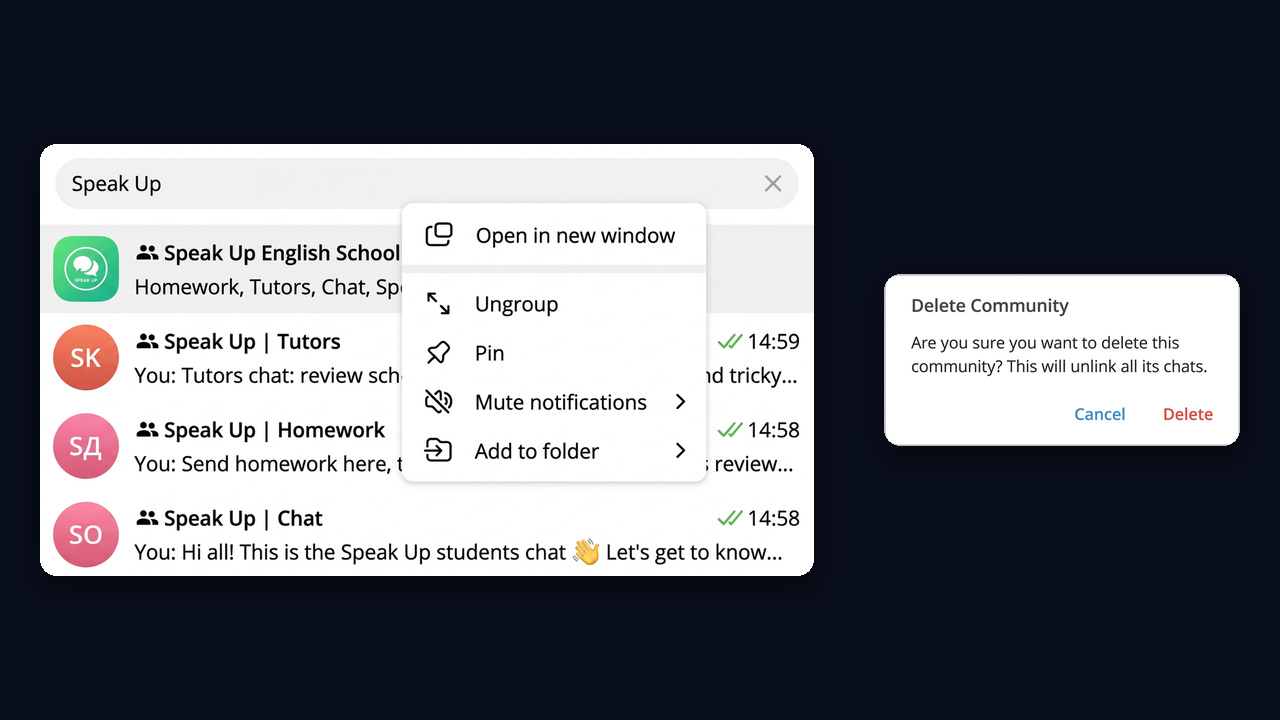
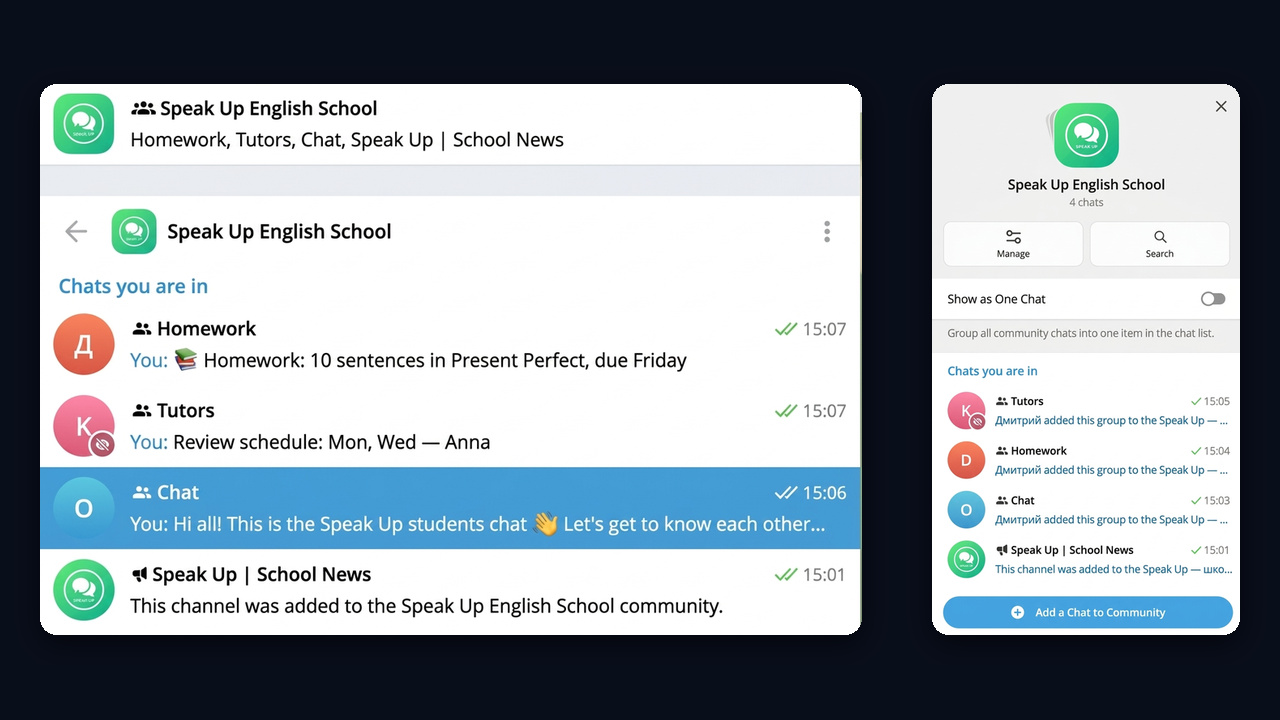
A community ties several groups and announcement lines around a theme. Also, it has its own title and picture and takes a single line, which expands on click. Then each user decides how it appears: the Show as One Chat switch folds everything together, and without it each part appears separately.
For example, members see every available room and join any of them with a click, no invite needed, which a pile of URLs never gives.
There are two kinds of sections:
- Visible. Everybody in the hub can see them.
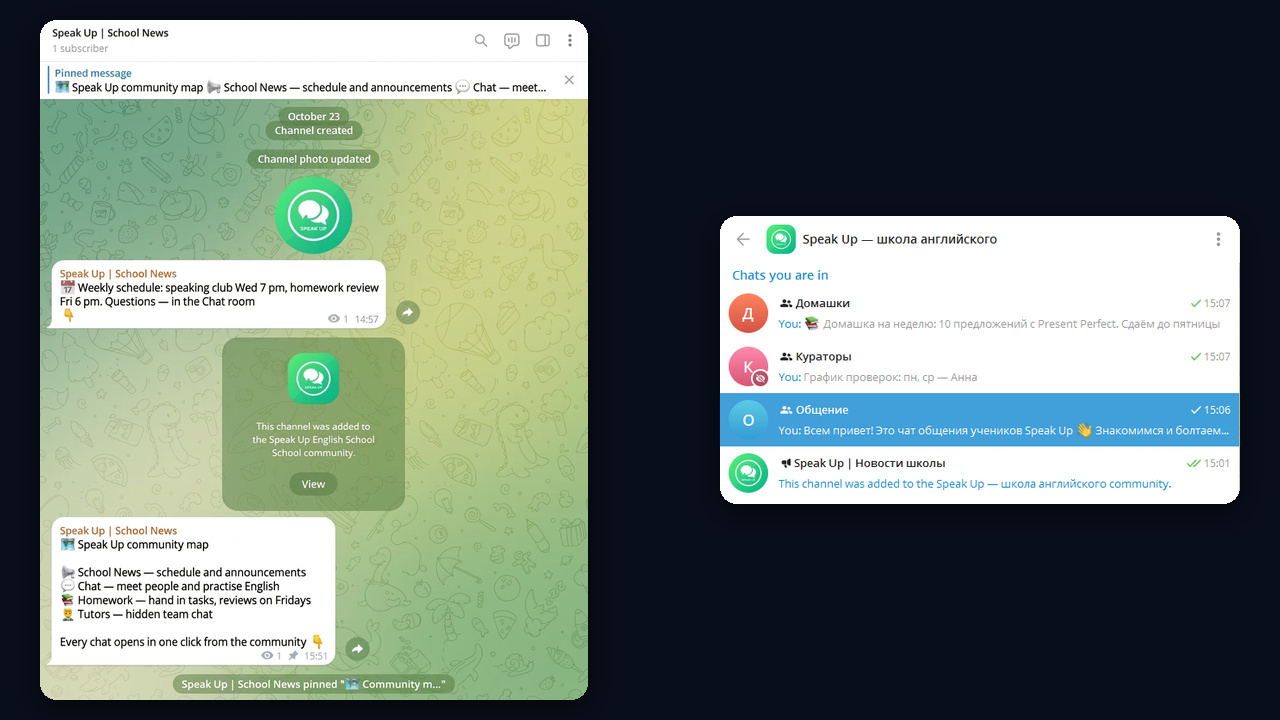
- Private. Only admins and invited people see them, for example a tutors' lounge or a VIP club. In the screenshot it carries a badge.
Besides, you don't need Premium to create it, and the developers haven't published any official cap on their number.
What the update brought to Telegram communities
Before this update, a multi-room project had two options: a folder link or a pinned post listing every invite. Both depended on someone tapping the right invite. Now the hub works like a storefront: a person joins once and then sees every available room of the project.
- Compact view. Everything folds into a one item with a common logo when Show as One Chat is on.
- No invite links. Public rooms are available to everybody, hidden ones only to guests you invite.
- Bots too. A schedule or support bot sits right next to the discussions.
- Separate rules. Moderation stays independent in each room.
How to join
There are three ways in. First, follow a link to any public room of the hub and tap Join: the shared name appears in the header, and tapping it opens the full list. Second, start from a feed you already read: if its author linked it, the name shows right in the header. Third, use regular search: there is no separate hub directory, but its public rooms turn up like any other chat.
You can't message a hub as such; you write in one of its groups where members are allowed to post. Admins, in turn, publish inside the specific feed or group, and the chat list shows which part of the hub an update came from.
Community vs folder vs forum vs discussion group
Still, users often confuse the new feature with older tools. However, each tool solves a different job:
| Feature | Who builds it | What it holds | Best for |
|---|---|---|---|
| Community | The owner, and members by default | Groups, channels, bots | A project with several rooms and a shared audience |
| Folder | Each user for themselves | Anything you like | Personal order in your list |
| Folder link | Whoever shares it | Selected conversations | A one-time bundle that then lives separately for each user |
| Forum topics | Group admins | Threads inside a single group | Same audience, same rules, many threads |
| Discussion group | The feed owner | A feed plus a linked group | Comments under posts |
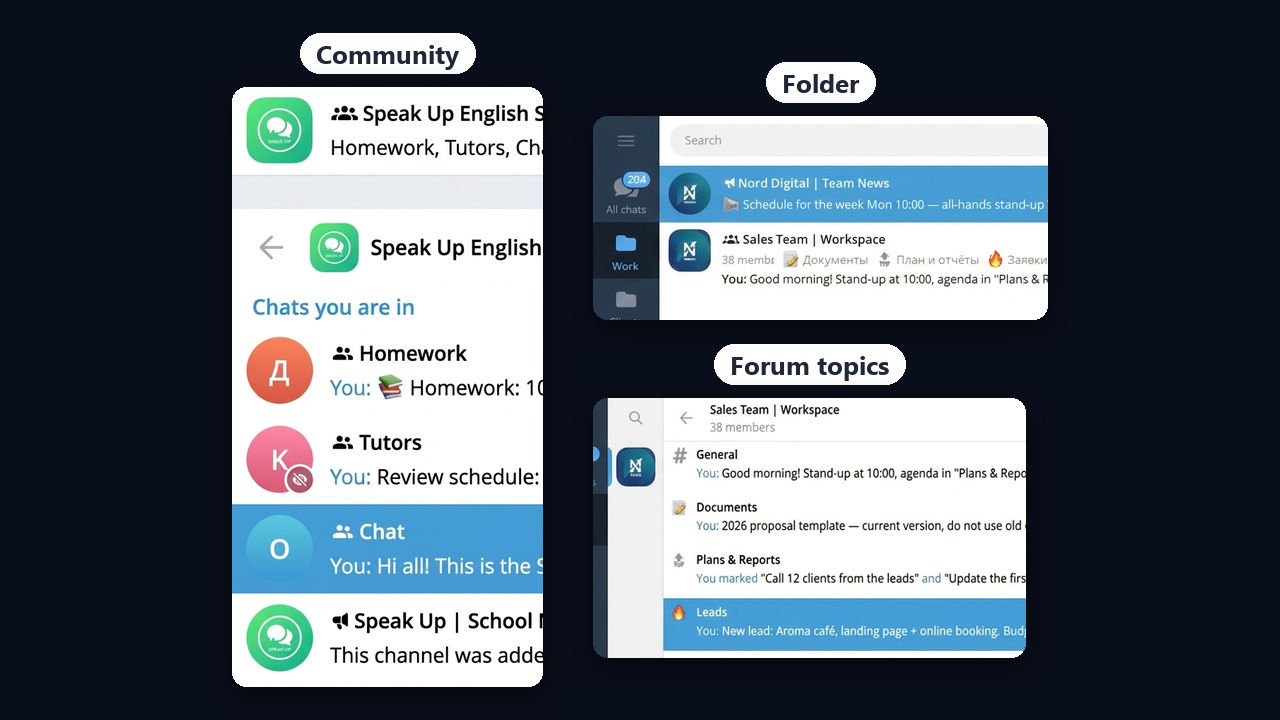
For example, the screenshot puts all three side by side. The hub joins separate groups and an announcement line, a folder only sorts your personal list, and a forum splits a single group into topics. In short, every section keeps its own audience, moderators and rules, while forum topics share them.
How to create a Telegram community in Telegram Desktop
First, you start it from a feed or group where you're an admin. On a computer, the steps are:
- Open the channel, click ⋮ in the top right corner and choose Manage Channel.
- Scroll down and click Add Channel to a Community.
- Click Create Community, enter a title, upload a logo and click Next.
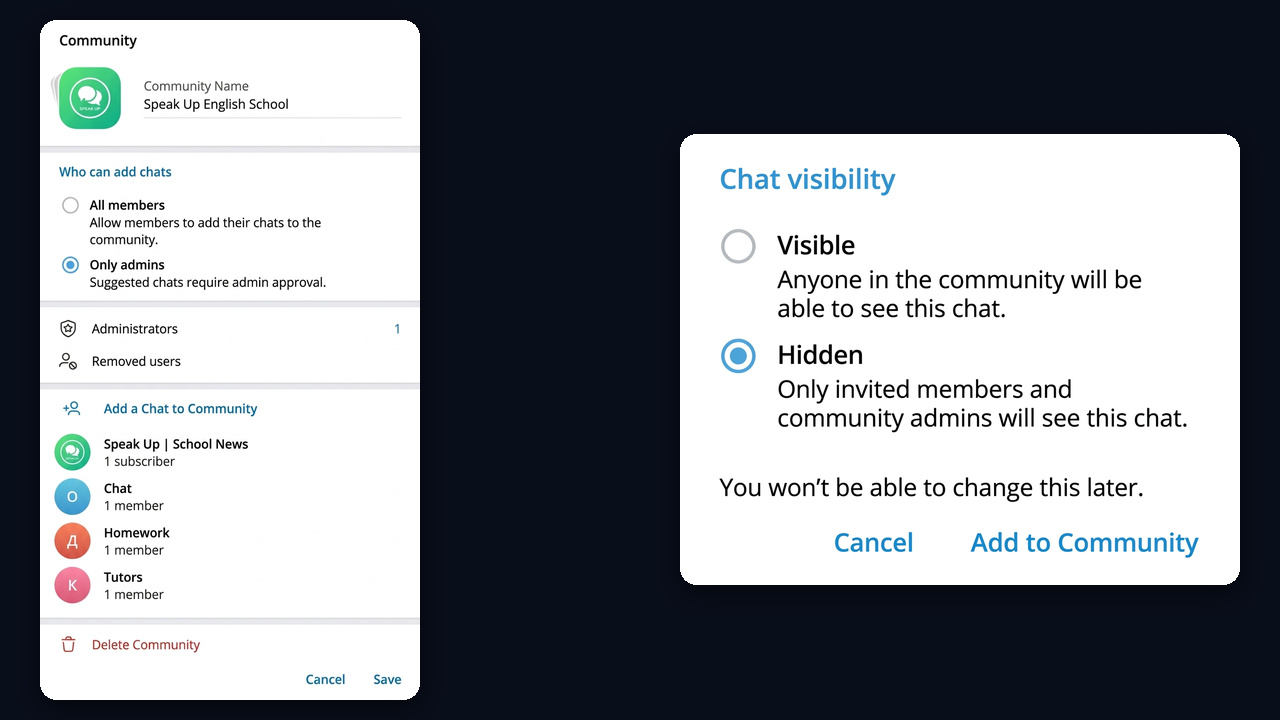
- Pick the visibility: Visible or Hidden. You won't be able to change this later.
- Bring in the rest with Add a Chat to Community: existing groups, or Create a New Chat right there.
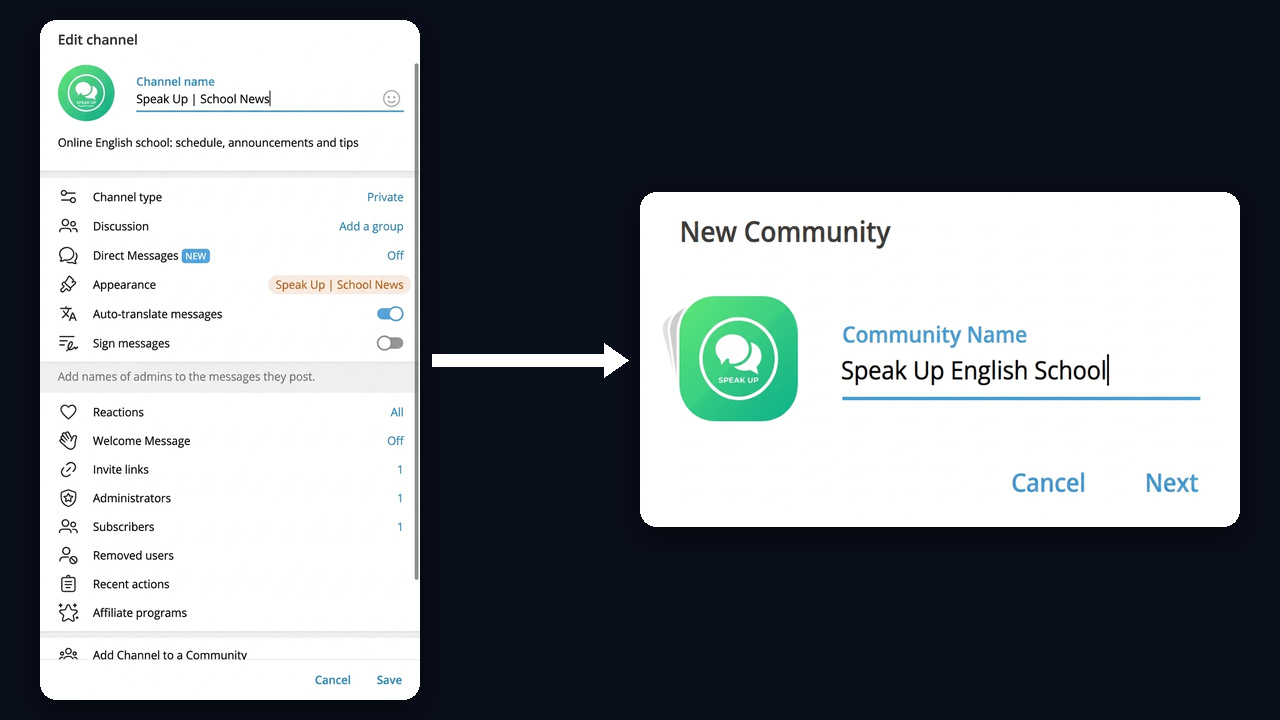
The screenshot shows our demo school Speak Up: the option in the settings on the left and the creation dialog with a logo on the right. On a phone, tap the title and Edit instead of the ⋮ menu. If the option is missing, update the app.
How to add a channel later
Open Manage Channel, click the same button and pick the hub. As a result, your subscribers will see the other sections, and the rest will see your posts. But if adding is restricted, yours first goes to suggestions and appears after approval.
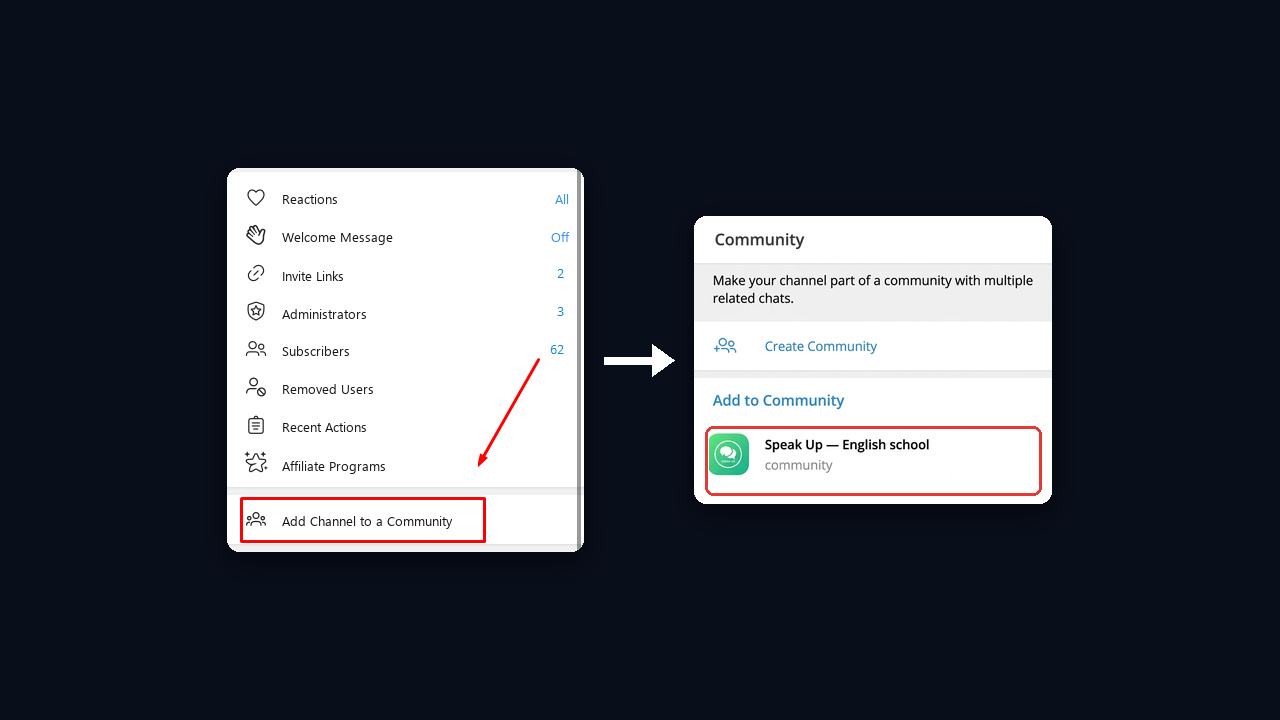
In the screenshot, the left side shows Add Channel to a Community in the channel settings, and the right side shows the choice: create a new community or add the channel to an existing one, Speak Up in our example.
If you are starting from scratch, follow our step-by-step channel setup guide.
How to Add a Bot to Telegram Communities
A bot joins from its own profile, so only its owner can do it. Open it, tap the name at the top and go to Bot Settings. Next, choose Add Bot to Community and pick the hub from the list.
As with a channel, Telegram asks whether every member should see it or whether it stays an admin-only tool. For instance, a schedule bot is shown to everyone, while a moderation bot is better kept hidden.
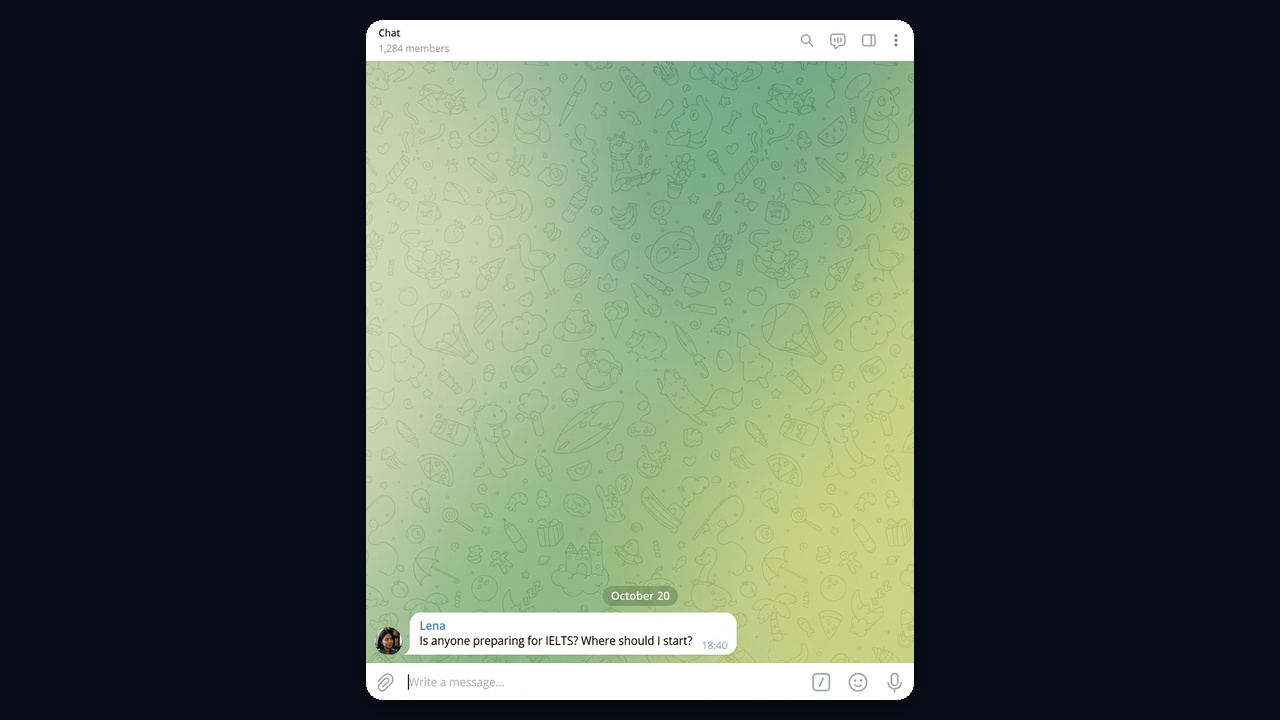
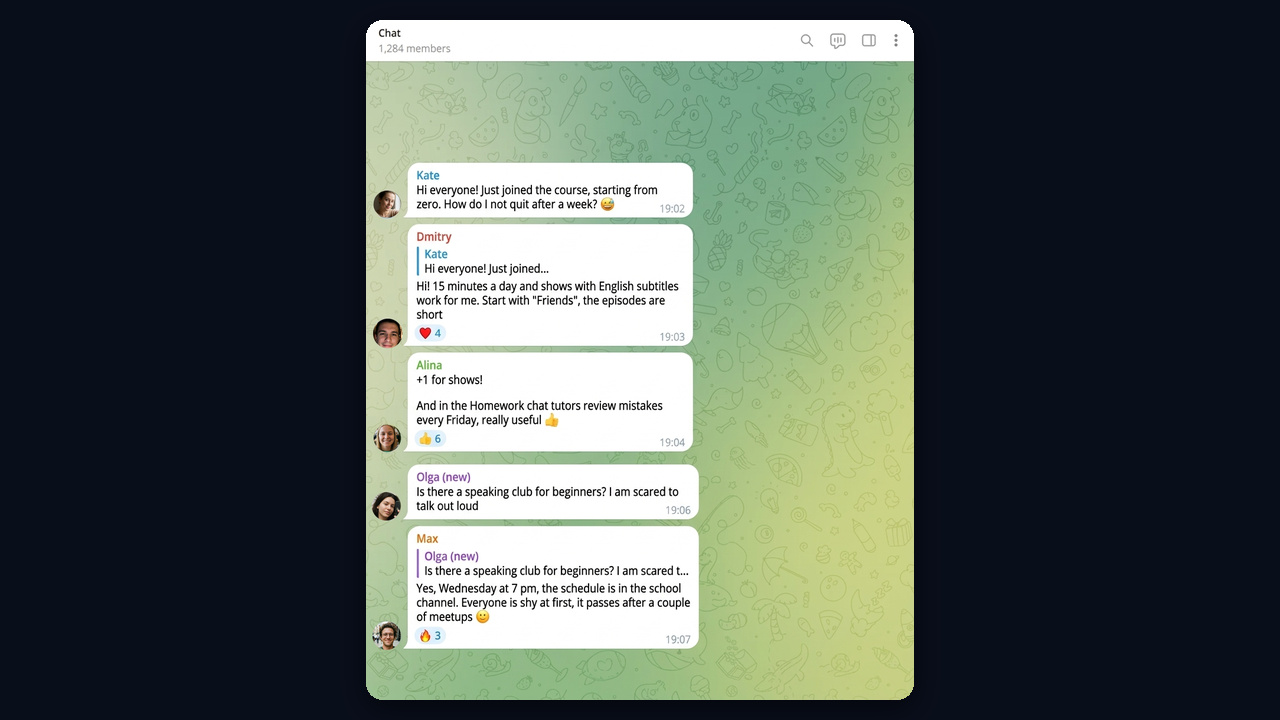
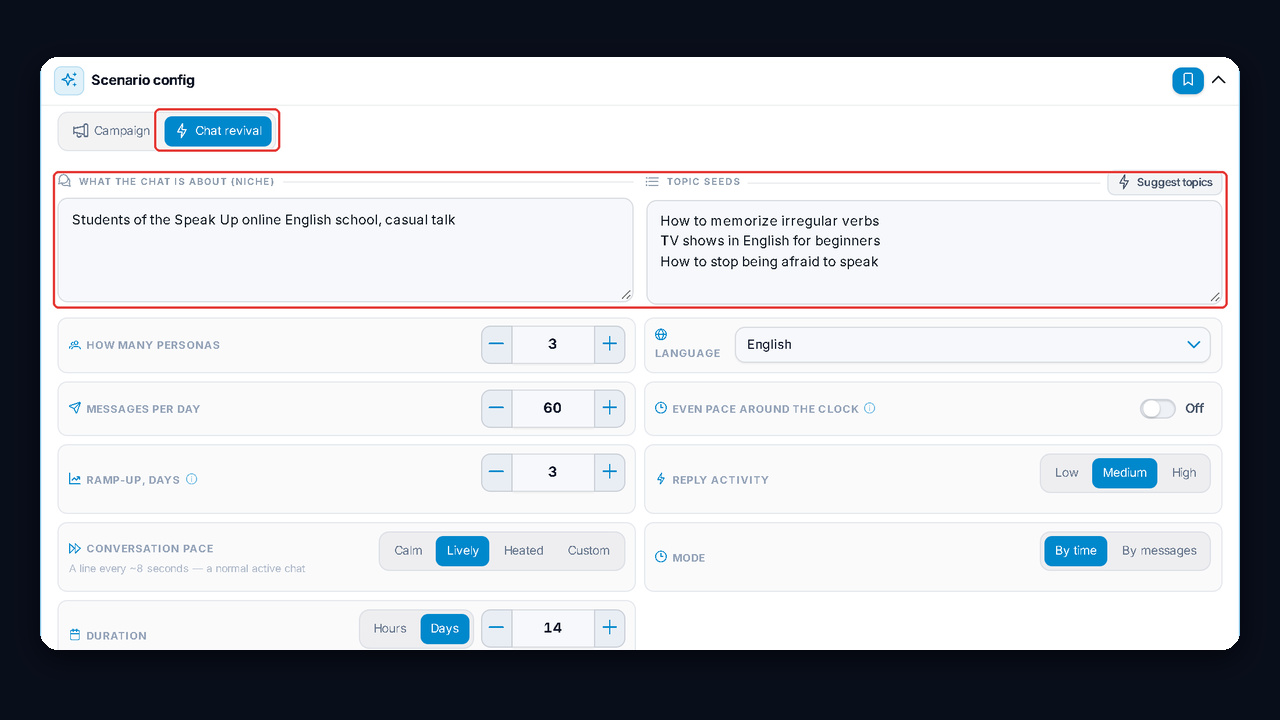
The community is set up and the channel and bot are in, yet the rooms are still empty, and newcomers rarely speak up. However, opening conversations are easy to start with GramGPT.io NeuroShilling: several accounts start a conversation on topic, so a newcomer sees a lively chat instead of silence. We show an example below.