Knowing how to create a Telegram channel takes two minutes to learn, and it costs nothing. The hard part comes a week later: it exists, yet nobody reads it. Updates go out into an empty feed, a few friends join to be polite, and by month's end the whole thing quietly stalls.
Usually the topic isn't the problem. Instead, the launch is. A title nobody searches for, a description that promises nothing, early updates written before any plan — all of that stops growth before it starts. So the goal isn't just to tap New Channel, but to set it up for readers from day one.
Below you'll find the exact steps for phone and desktop, how to pick between public and private, what to call your channel, what to publish early on and where your initial 100 subscribers come from in 2026. The last part covers growing an audience with zero ad spend.
What You Need Before You Create a Telegram Channel
A regular Telegram account is enough. No extra phone number, no payment and no Premium. It is tied to your profile, so you become the owner and can add admins later.
Still, settle three things before you create a Telegram channel: the reader you write for, the title, and a week of first posts. That way you won't stare at an empty screen after tapping Create.
| Prepare | Why | Example |
|---|---|---|
| Topic and audience | To know who you're talking to | A café for people in the neighbourhood |
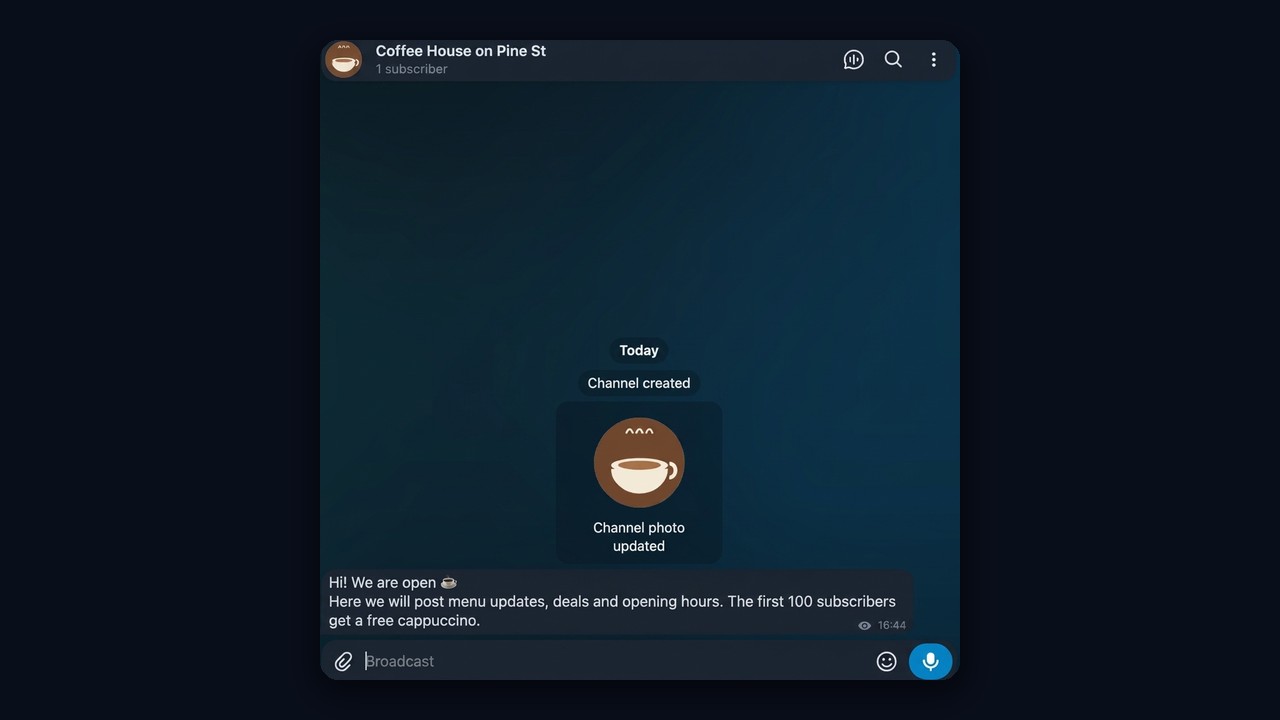
| Name | So people find it in search | "Coffee House on Pine St" |
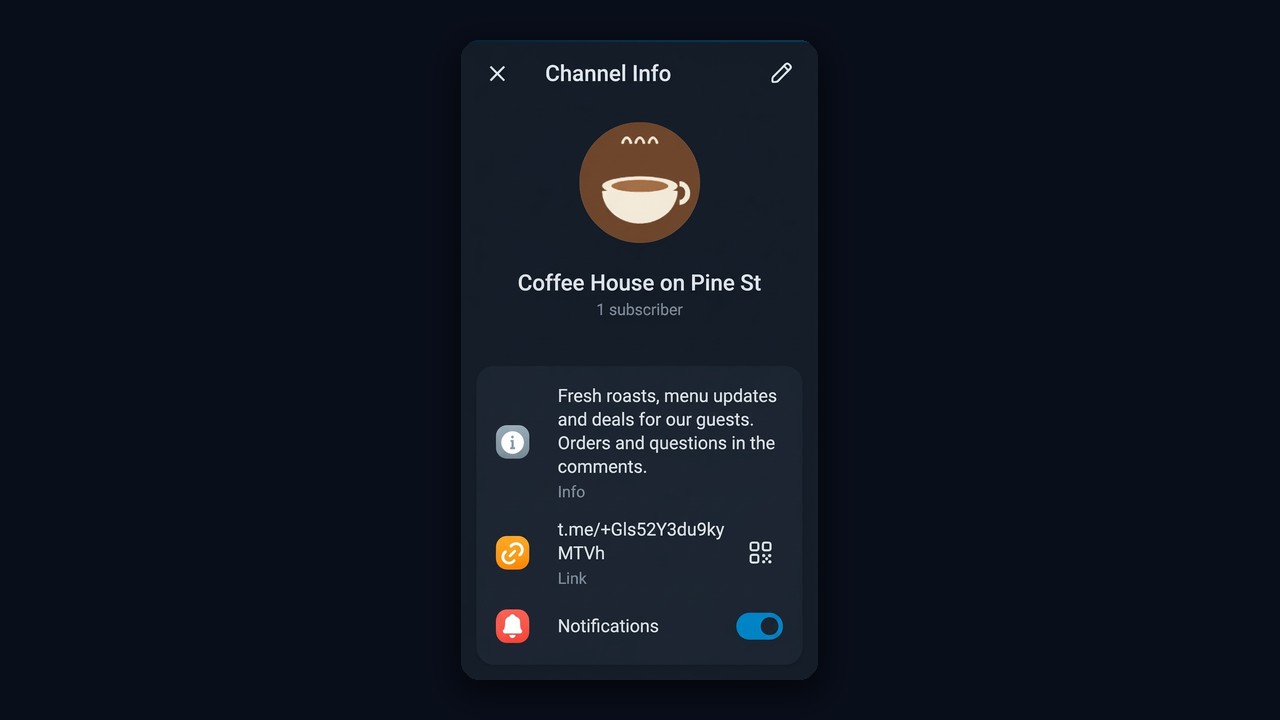
| Description | To explain the value in five seconds | Menu updates, deals, orders in the comments |
| Avatar | To stand out in the chat list | A simple cup icon |
| 3–5 opening updates | So newcomers don't see an empty feed | Welcome note, menu, deal of the week |

How to Create a Telegram Channel on Phone and Desktop
The steps are nearly the same everywhere. Only the button's location changes, so here is each device in turn.
Android: Create a Telegram Channel in Two Taps
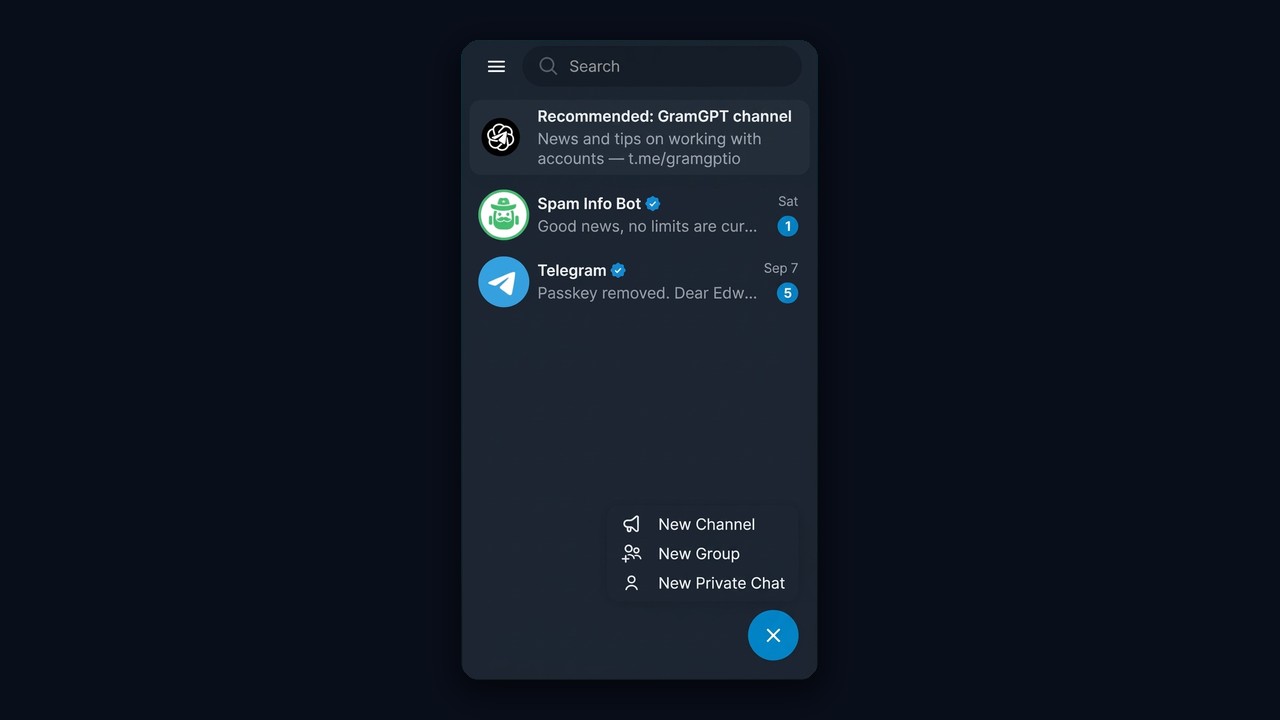
First, launch the app and hit the round pencil button that floats over the chat list. A small menu pops up; pick New Channel. The ☰ side menu offers the same shortcut.
iPhone: Where the Button Hides
On iOS the entry point sits on the Chats tab, behind the square compose icon above your conversations. Next, choose New Channel, and the remaining screens match the Android flow.
Desktop App and Telegram Web
The desktop client keeps it in the ☰ side menu. The browser version uses the same floating blue pencil as Android, so the path there is identical.
Don't confuse this format with a group, though. Here only the author posts, while members read. If you want readers to talk, link a discussion chat for comments. We compared the two formats in our guide to Telegram groups.
Naming and Branding Your New Channel
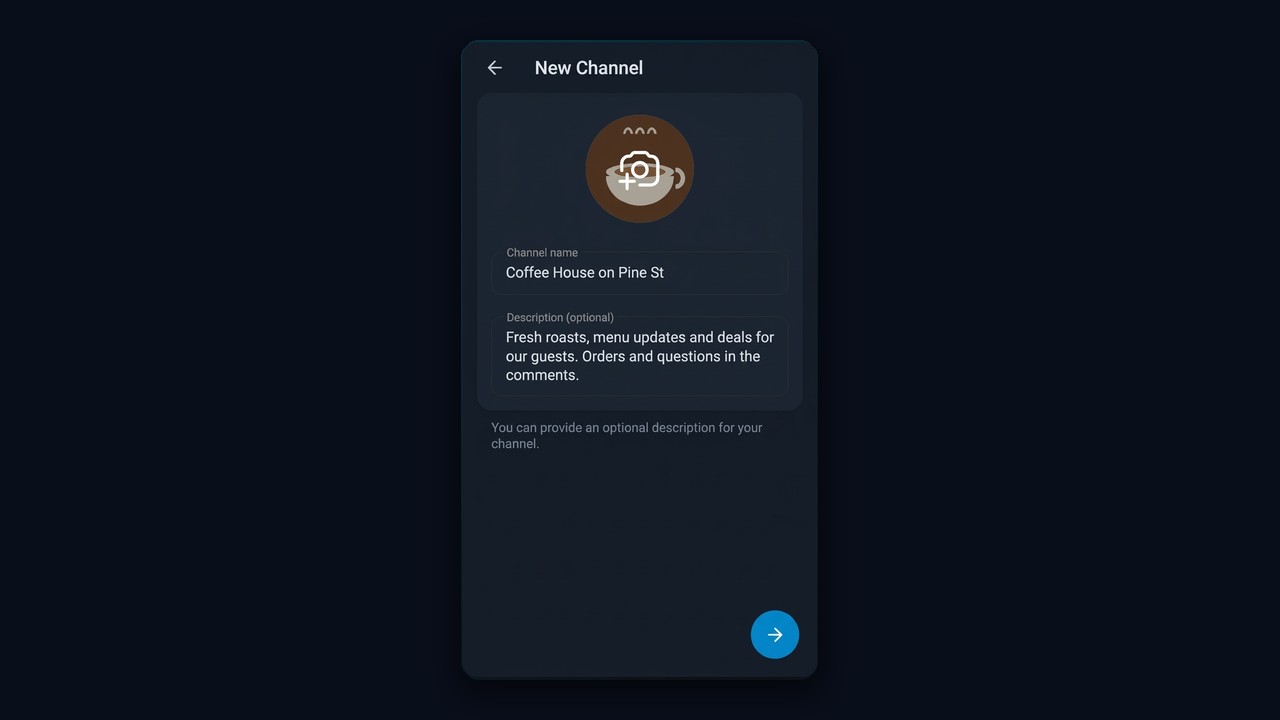
A short form opens next. Only the name is required, but fill in everything now, because these fields are the first thing a visitor sees.
Choosing a Name People Actually Search For
The title is how people find you in search. So put the words your audience types into it. For example, "Coffee House on Pine St" matches both "coffee" and the street, whereas something abstract like "Morning" matches nothing.
- Short. Three or four words, so the whole title fits in the chat list.
- With a keyword. The topic, city or niche right in the title.
- No clutter. Emoji and ALL CAPS hurt search and look spammy.
Description and Avatar
Next comes the description. It answers one question: why subscribe? In a sentence or two, say what you post and how often, and add a call to action such as "ask us below the posts".
Also, the avatar should read well in a tiny circle. A simple icon or logo on a plain background beats a busy photo.
Public or Private: Which Type Fits Your Telegram Channel
Then comes visibility. Nothing is final here: the switch lives under Edit → Channel Type and flips back whenever you like.
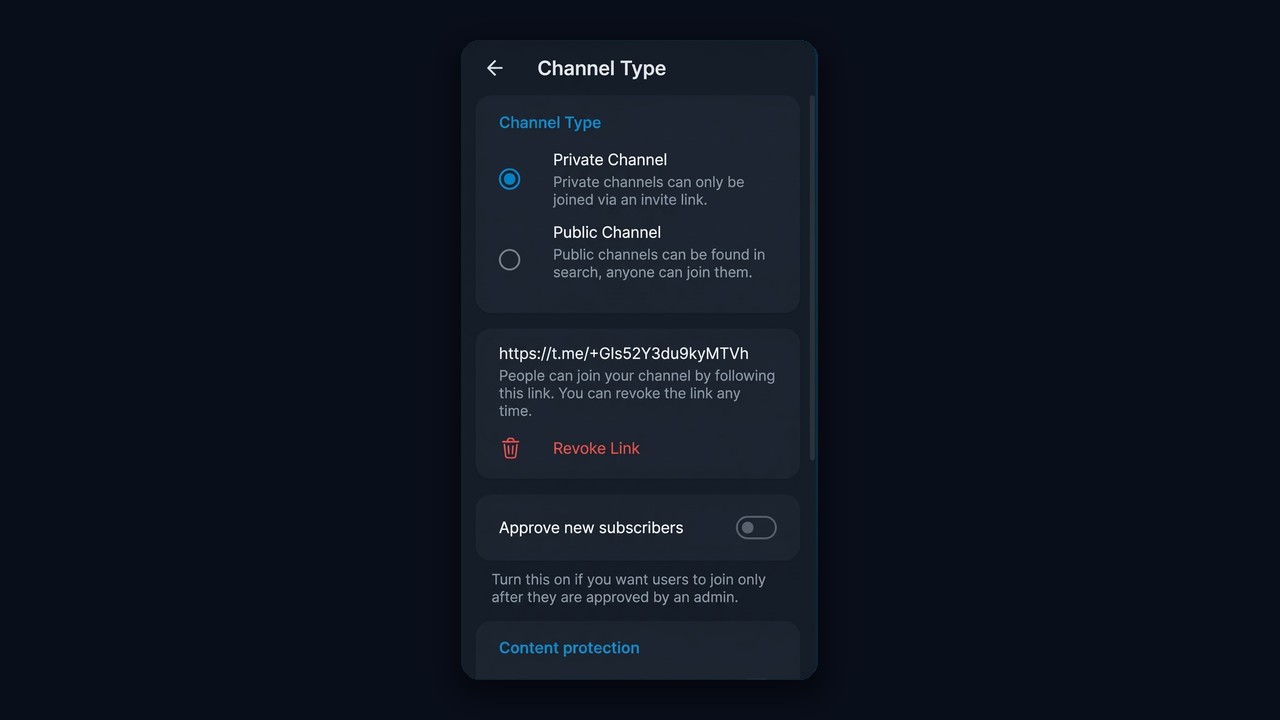
| Feature | Public | Private |
|---|---|---|
| Search | Found by name and @username | Hidden from search |
| Link | Short t.me/name | Long invite link |
| Joining | Anyone can join | By link or by approval |
| Best for | Business, blogs, media, growth | Paid content, teams, closed clubs |
For growth, go public with a clear @username, that is, a short link like t.me/name. Private makes sense when access must be limited. For instance, turn on Approve new subscribers and an admin will review every join request.
Settings to Check After You Create a Telegram Channel
As soon as you create a Telegram channel, open its profile and tap the pencil. The main settings live here.
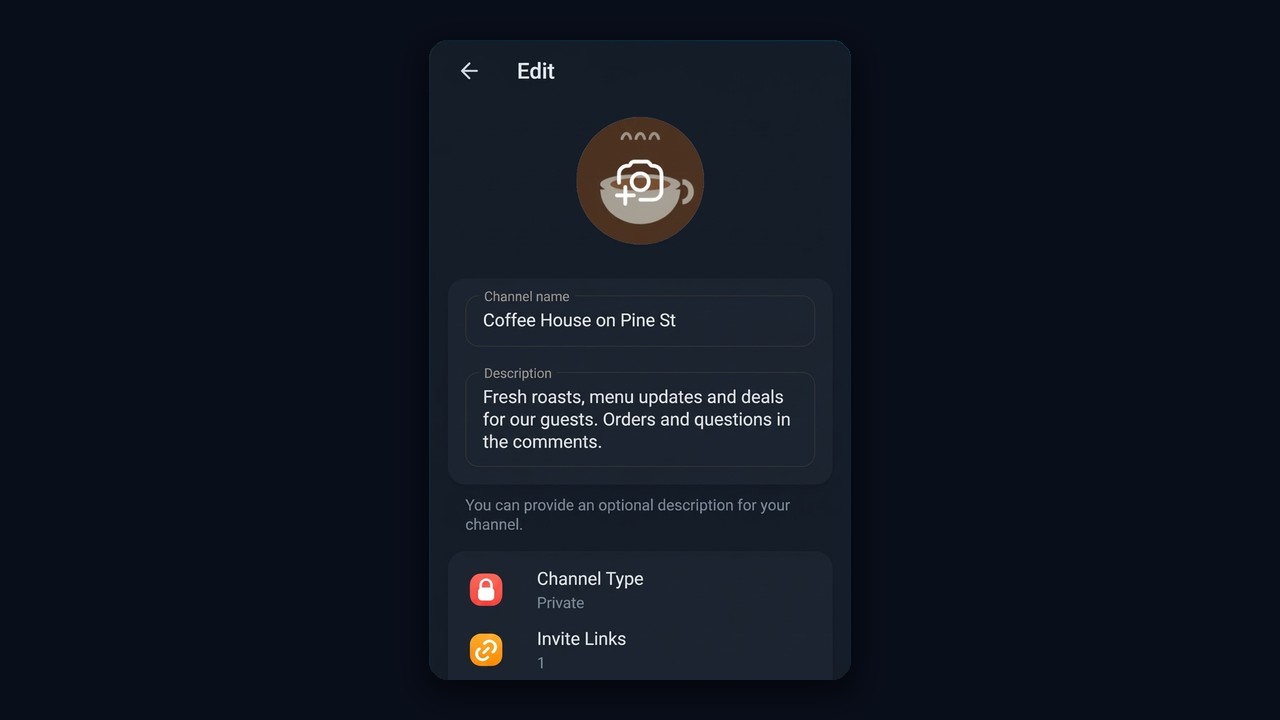
- Reactions. Keep them on: they show which posts land.
- Discussion. Link a group, and replies appear under posts.
- Admins. Add a helper if several people will run things.
- Content protection. Enable it only for paid material, because it blocks forwarding, and forwards bring new readers.
There's one more handy option: a personal channel on your profile. In your account settings you can attach it, so everyone who opens your profile sees it. That's especially useful for experts and small business owners.
Create a Channel on Telegram That Readers Can Reply To
By default, broadcasting goes in a single direction: only the author writes. To let readers reply, you attach a group. In other words, the discussion is an ordinary group that the owner attached for answers.
Turning On Discussions
- Open the profile card and tap Edit.
- Find the Discussion row.
- Start a fresh group or pick an existing group.
As a result, every update gets a reply field, and answers pile up in the attached group, where moderation happens.
Short Addresses and Invite URLs
A public page already has a short address like t.me/name. Besides, the Invite links section lets you add extra URLs with a member cap, an expiry date or join requests. Each URL keeps separate stats, so you see which source works.
Ideas: What Kind of Feed to Start
No topic yet? Start with what you already do every day. Rhythm keeps things alive, and writing about something familiar is easier.
| Type | What to post | Key detail |
|---|---|---|
| Shop or service | catalog, reviews, deals | pinned prices and contact info |
| Expert blog | breakdowns, cases, advice | one topic and a steady schedule |
| Music | tracks, playlists, picks | audio files right in updates |
| Community | questions, polls | a group for replies |
| Personal archive | notes and links | private type, no members |
For instance, a brand page starts as a storefront: a niche name, pinned prices and reviews. After that, read our guide on promoting a business channel.
Create a Telegram Channel for Dozens of Accounts at Once
Doing this by hand once is easy. However, teams that run work profiles for promotion need a showcase pinned in every profile, because that's where people land after a comment or reaction. Setting up twenty of them manually eats a whole day. That's why the GramGPT account manager does it in batches.
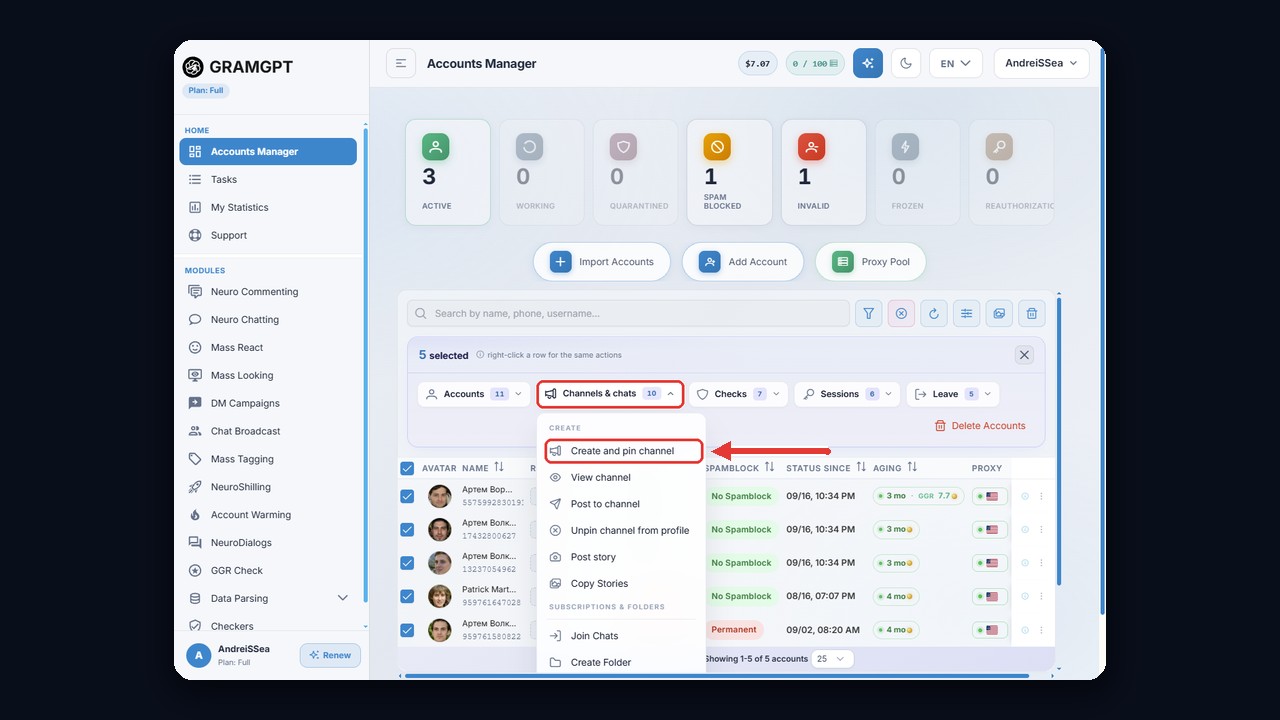
Step 1. Select Profiles and Open Channels & Chats
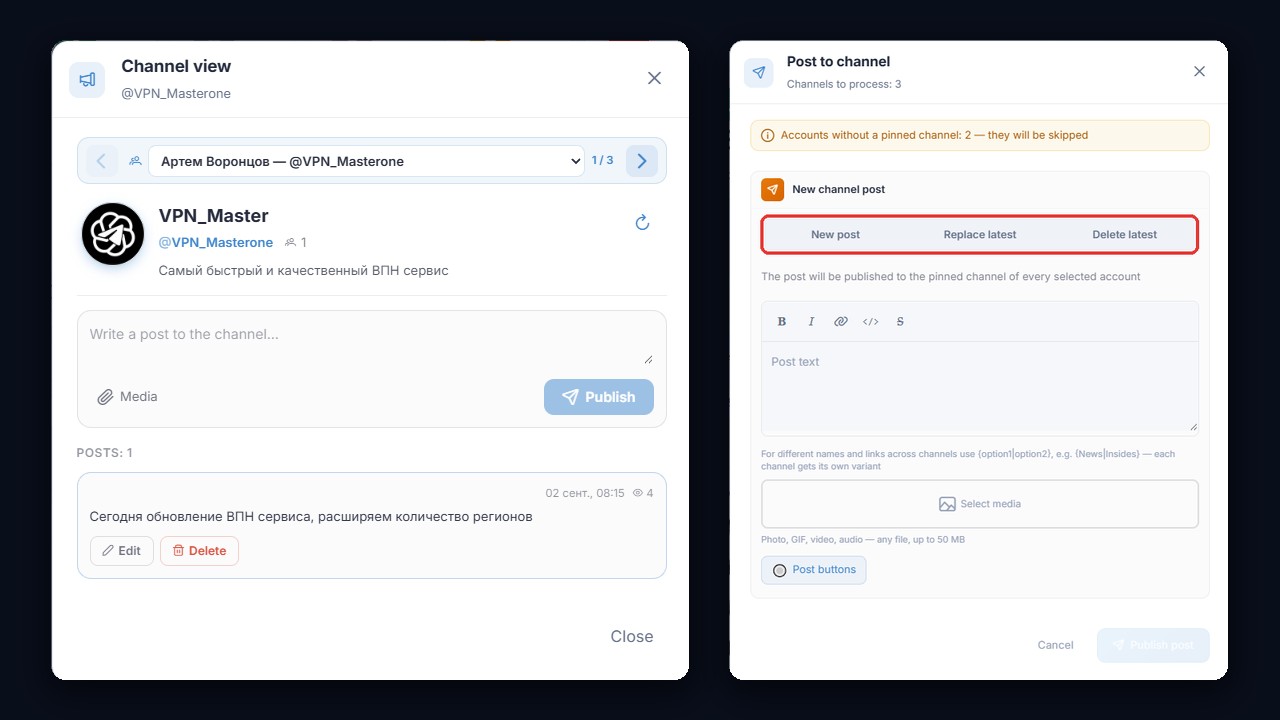
Tick the rows in the table and open Channels & chats → Create and pin channel. The same menu also offers a viewer, mass posting, and publishing or copying stories.
Step 2. Set the Name, Description and Avatars
The bulk form takes a single name for everything or a variant pool: an entry like {News|Insides} gives each its own title, so nothing looks cloned. Avatars go in as a pool too, each with its own picture. The Pin channel to profile box puts the result straight onto the profile card.
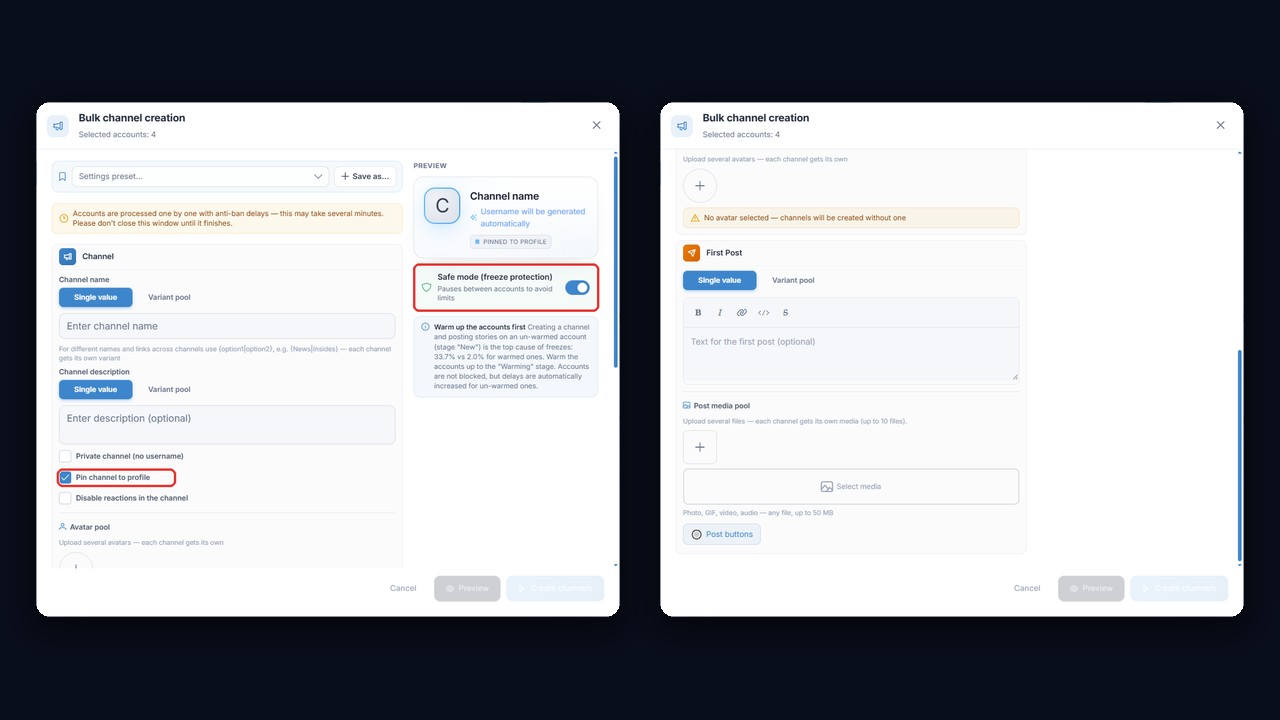
Meanwhile, the preview on the right shows the result, and safe mode adds pauses between accounts by default. If they're fresh, run them through account warming first, since un-warmed profiles freeze far more often.
Step 3. The First Post and Posting Everywhere
An empty feed scares visitors away, so the same form sets the opening message: text, a media pool and buttons. Later, Post to channel sends a single message into the pinned feeds of every selected profile. You can publish, replace the latest update or remove it.