Telegram mass reactions bring people to your profile without a single message. Your accounts tap emojis on people's comments, and the authors come to see who did it. In spring 2026, however, the messenger tightened the rules. Senders that do nothing but tap emojis get frozen fast, and nobody notices one more emoji under a message that already has ten.
So the old "more is better" idea no longer works. Today the winner reacts less, but in the right places. This guide shows how to set up and launch the GramGPT module: account prep, targets, limits, the new filters, the pinning scheme and both work modes. Every setting matches our video and the current panel.
What Telegram mass reactions are and how they bring traffic
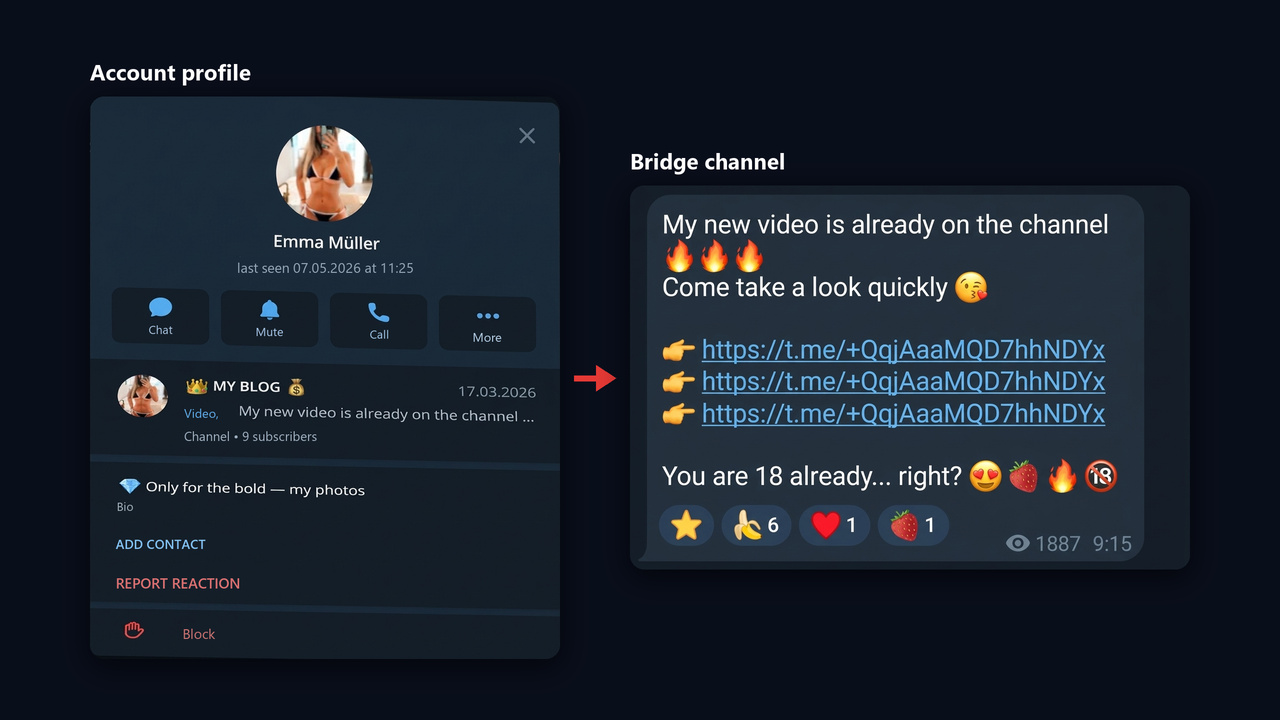
This is when many of your profiles respond to what real people write. For example, under post discussions and in group chats. The author gets a notification, sees the avatar and name of whoever reacted, and opens their page out of curiosity. There they find a link in the bio or a pinned bridge page.
Note that the module ignores the posts themselves and skips feeds without comments. Posts are the job of NeuroShilling.

The main benefit is that you never write to anyone at all. As a result, spam reports are rare, and people click through on their own. In our experience, this is the cheapest way to send traffic to a bot, an offer, a site or your feed.
For channel growth, the usual setup is simple: the account shows a bridge channel in its profile, and that bridge has a pinned post linking to your main channel. Avatars and names match the audience of the groups you work in. To see how this fits with other growth methods, read our guide to Telegram promotion.
How this differs from buying engagement
Buying engagement means paying for emojis on your own content so it looks alive. Here it works the other way round: emojis go under other people's replies and lead those people to you. In short, the first decorates, the second brings new subscribers.
What changed in 2026
In spring 2026 the platform cracked down. A user that taps hundreds of times in a row and does nothing else soon gets frozen. Besides, group admins can now wipe everything a user has tapped in one action and ban them.
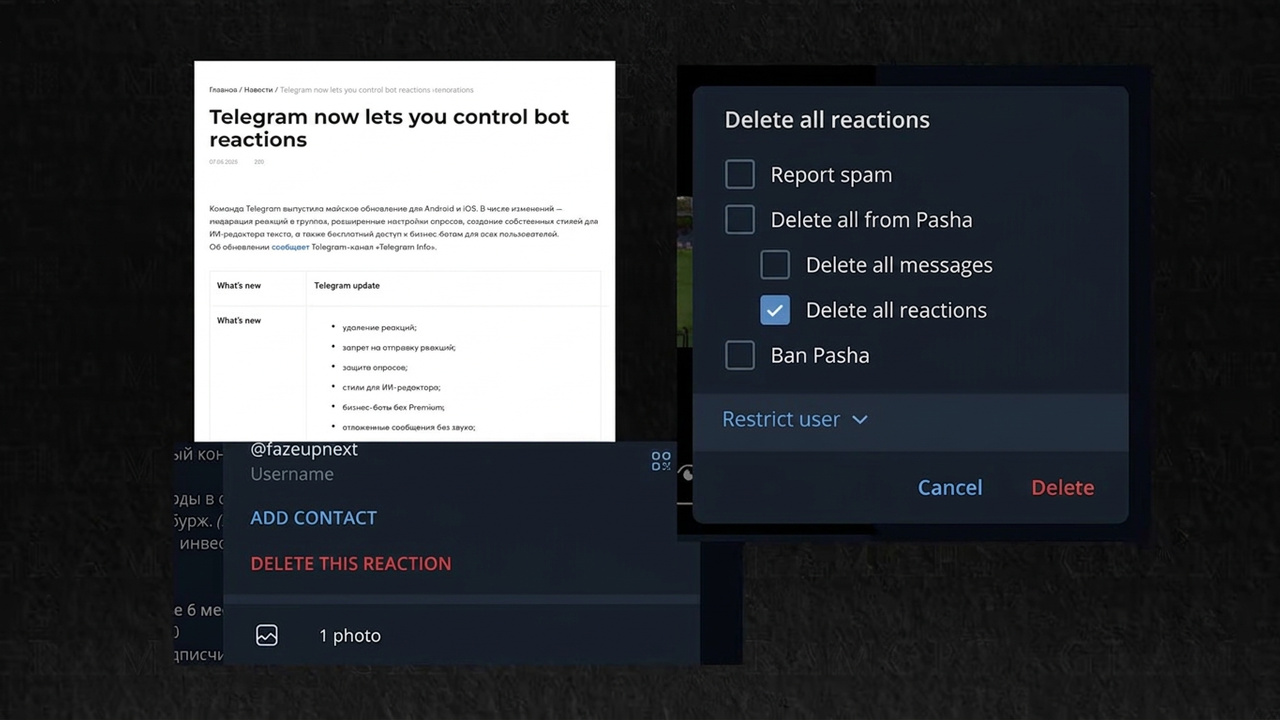
At the same time, an emoji that sits third or tenth under a message brings almost no clicks, because people only see the top avatars. That is why the module got a per-account limit, a skip for busy messages, and a top-comments-only option. For the numbers, see our post on safe per-account limits.
Getting ready for Telegram mass reactions: accounts, profile, warm-up
Start by adding your accounts to the account manager. Then set up each page: an avatar, a name that fits the niche and a link in the bio.
Next, give them a basic warm-up and check them in GGR. Fresh ones with no history get frozen first. Which ones to buy so they last is covered in our guide to buying accounts.
Setup step by step
Step 1. Select accounts and turn on AI protection
In "Select Accounts", move the ones you need to the right-hand column. The "Working proxies" filter hides those with a dead proxy or a spamblock. For a test, two are enough.
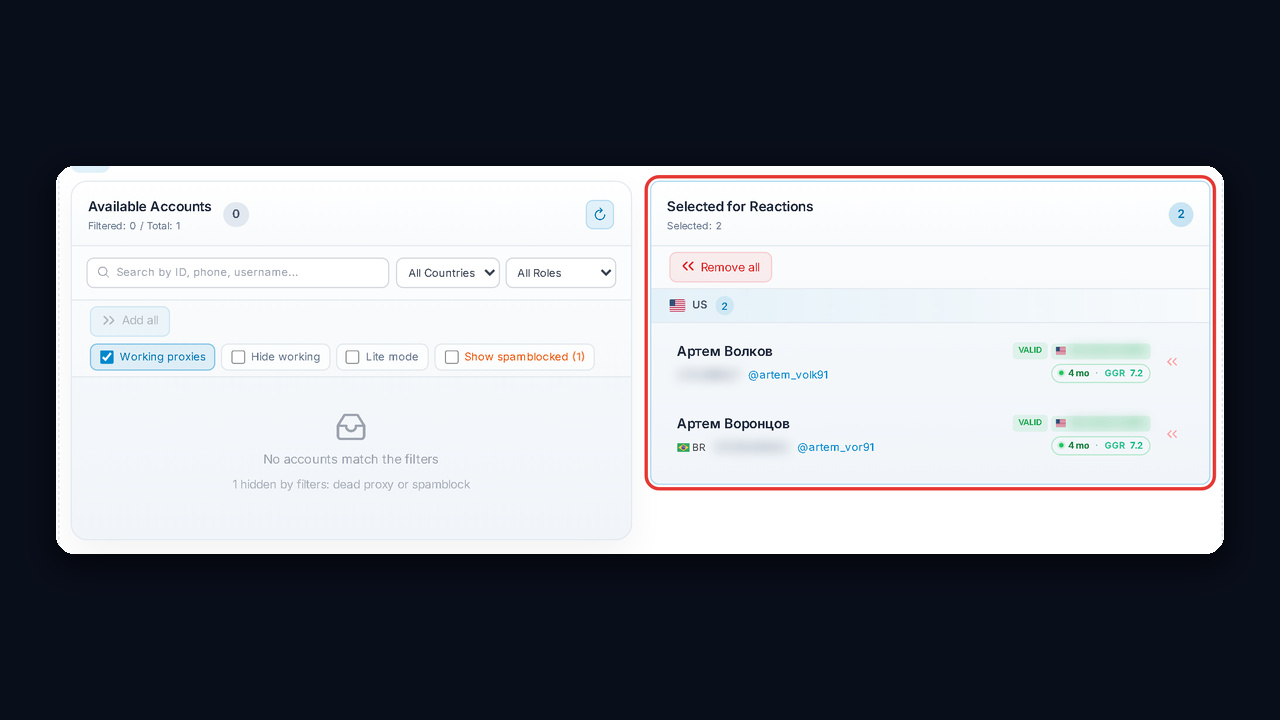
Just below, be sure to turn on AI account protection. It imitates human behavior and adds pauses, so bans happen less often.
Step 2. Add targets: channels, groups and folders
The "Targets" block accepts several sources:
- "Username / Link": channels and groups as a list, one per line;
- "From Tasks": targets from earlier parsing tasks;
- "Folder": a link to a folder with hundreds of feeds inside;
- "From base": channels from your base built with the channel parser;
- the "Account subscriptions" switch: each sender works through what it follows.
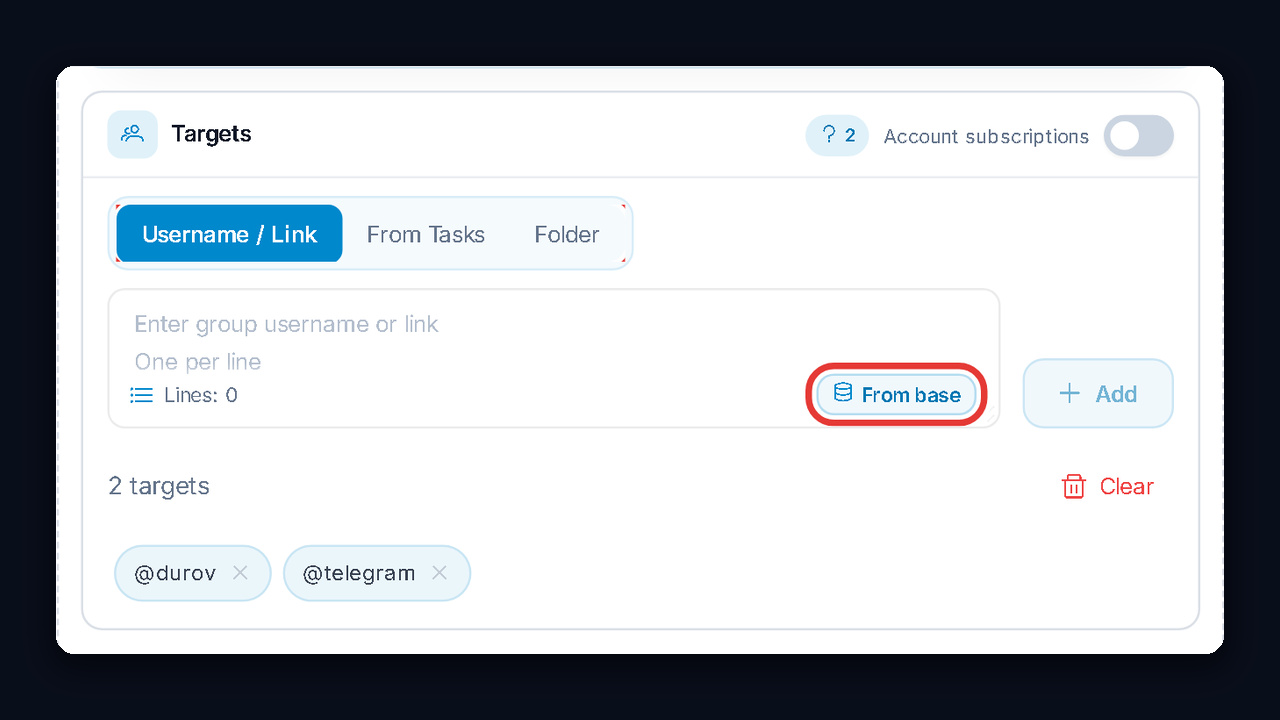
Folders are especially handy. A sender joins hundreds of feeds from a folder in about a second, so no join delays are needed. However, discussions must be open there.
Step 3. Set the run limits
The "Work Mode" block has four fields:
- "Duration (minutes)": how long the session runs, for example 60 minutes; 0 means no limit;
- "Max reactions": a ceiling for the whole run, not per group;
- "Max reactions per account": the most important new setting, so never leave it unlimited;
- "Reaction probability": the share of suitable messages that get an emoji.
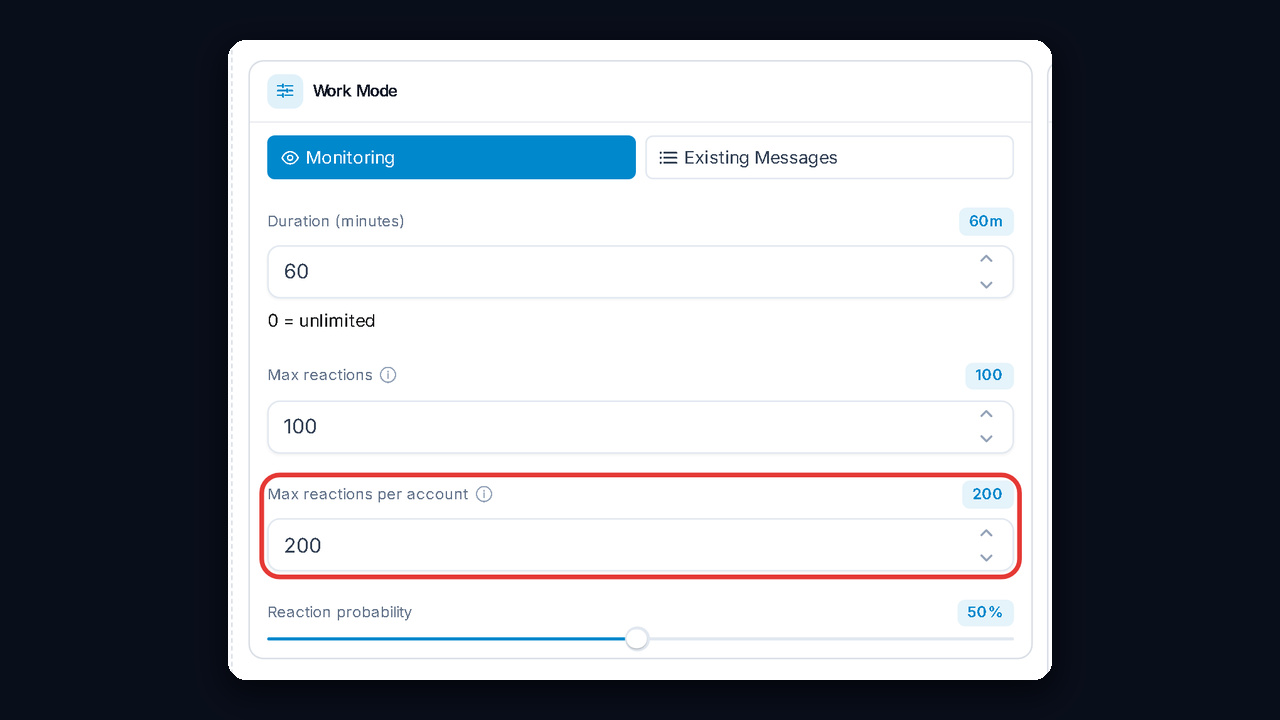
This limit grows with warm-up. We start at 50 per sender in the first days and then raise it to 200–500. This way, newcomers don't burn out, and the total isn't spent on the top of the list.
Step 4. Turn on the filters
The "Reaction filters" block is the main novelty of 2026, and it is what helps Telegram mass reactions get around the limits.
The first filter is "Skip messages that already have more than 2 reactions". Under such a message your avatar is not visible anyway, so there will be no click. At 0, only untouched posts get one.
The second filter is "React only to the first N comments under a post". The app shows the top comments at once, so those are worth reacting to. We use four. The filter works in channels with discussions, and N is multiplied by the number of pinned senders.
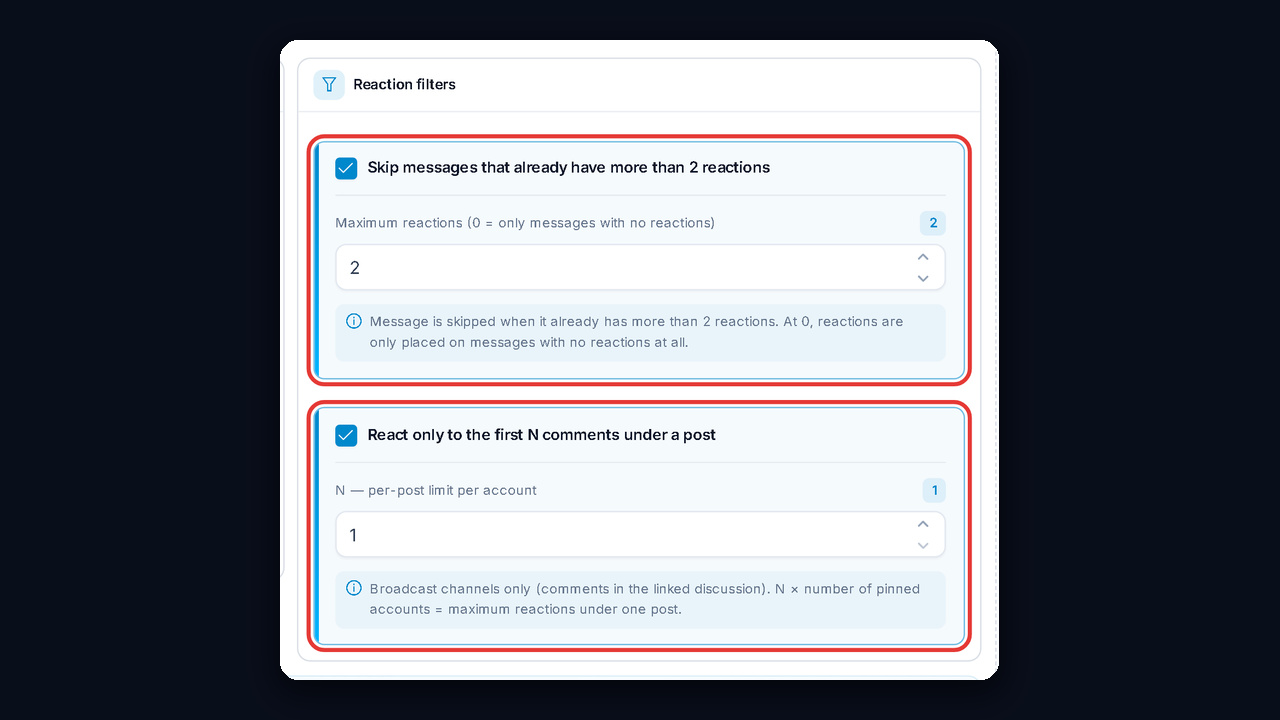
With filters this strict, you can raise the probability to 100%. In other words, all four top comments get an emoji, except those that already have more than two. At 50%, about half of them do. This exact combination works for our clients without sudden bans.
Step 5. Distribute targets with the pinning scheme
Once senders and targets are selected, the pinning scheme appears. It shows who works where. This used to be called multi-thread, and it is all we use now.
- the lock switch pins targets hard and keeps your manual changes as an explicit launch scheme;
- "Pin to all" opens a shared distribution field: paste channels and folders, then click "Distribute" or "Add to current";
- "Recalculate" rebalances them.
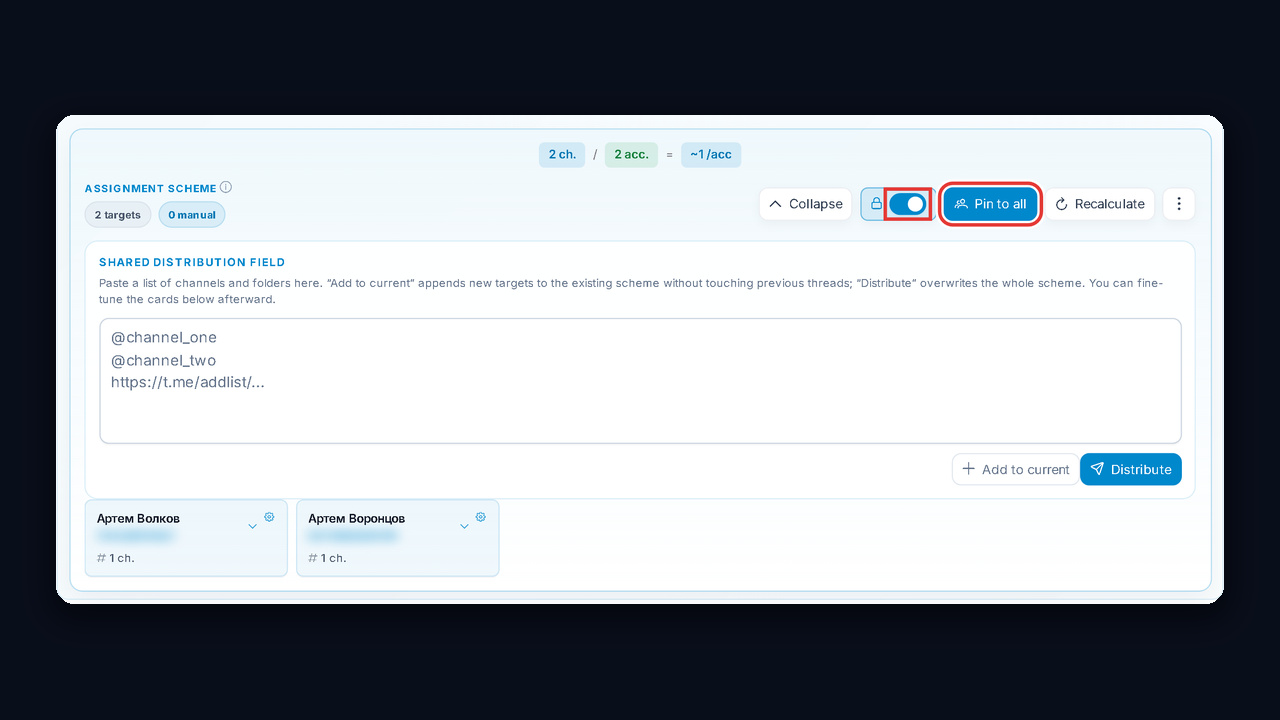
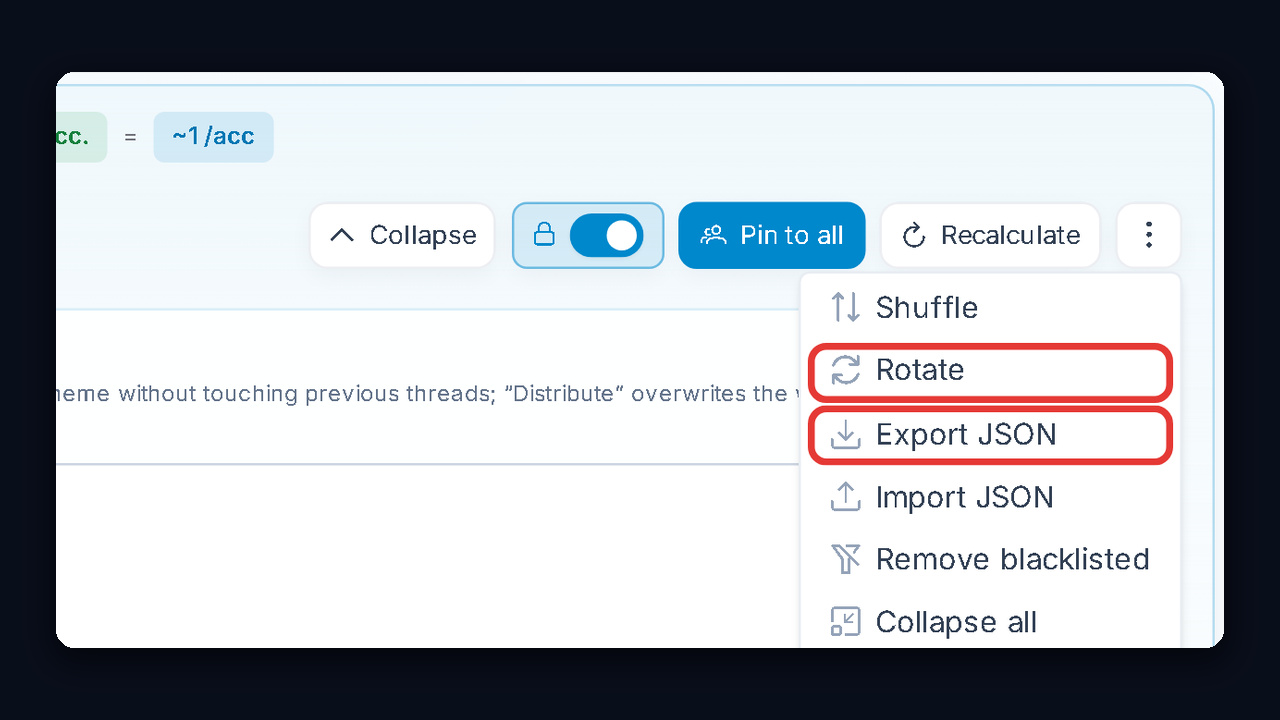
The "⋮" menu has a few more actions. "Rotation" is the old standard mode, where the sender changes after a set number of taps. We also recommend "Export JSON": the file keeps all settings and pinning. If your settings get lost, just use "Import JSON".
Step 6. Emojis and delays
Pick emojis to match your avatars. For example, for an adult niche with female avatars, hearts and fire work well. If you send traffic to crypto signals from an expert's page, bold and even provocative emojis do the job, because people see a dispute and check the profile. "Random" mixes them, while "Sequential" uses them in turn.
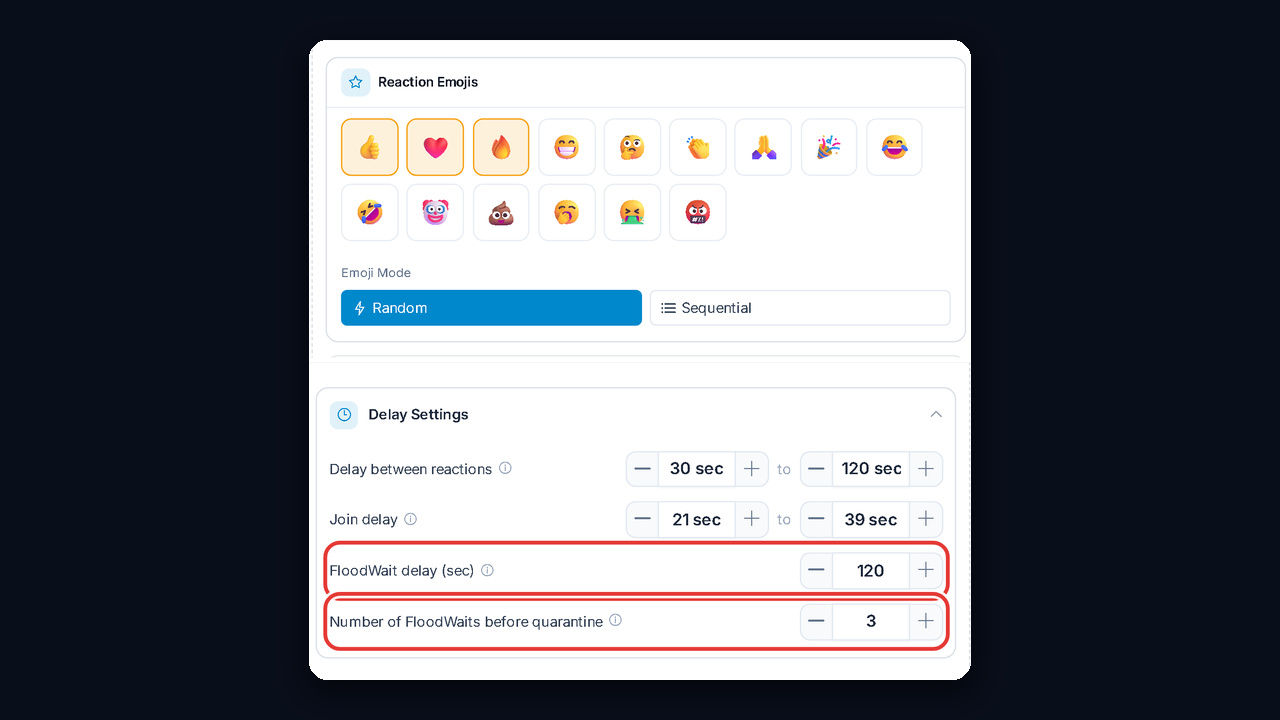
Here are the delays we use:
- between taps: at least 10–25 seconds, better more;
- join delay: 50–100 seconds;
- "FloodWait delay": 500 seconds. FloodWait is a mute when the app blocks actions for anything from a minute to a day;
- "Number of FloodWaits before quarantine": 3. After three mutes in a task, the sender rests in quarantine for 24 hours.
Next to them there is a "Reactions from channel" switch. With it, the emoji is sent on behalf of a channel created on that account. People see its avatar under their message, open the list of who reacted and go straight there. This bridge has a pinned post linking to your main feed, bot or offer.
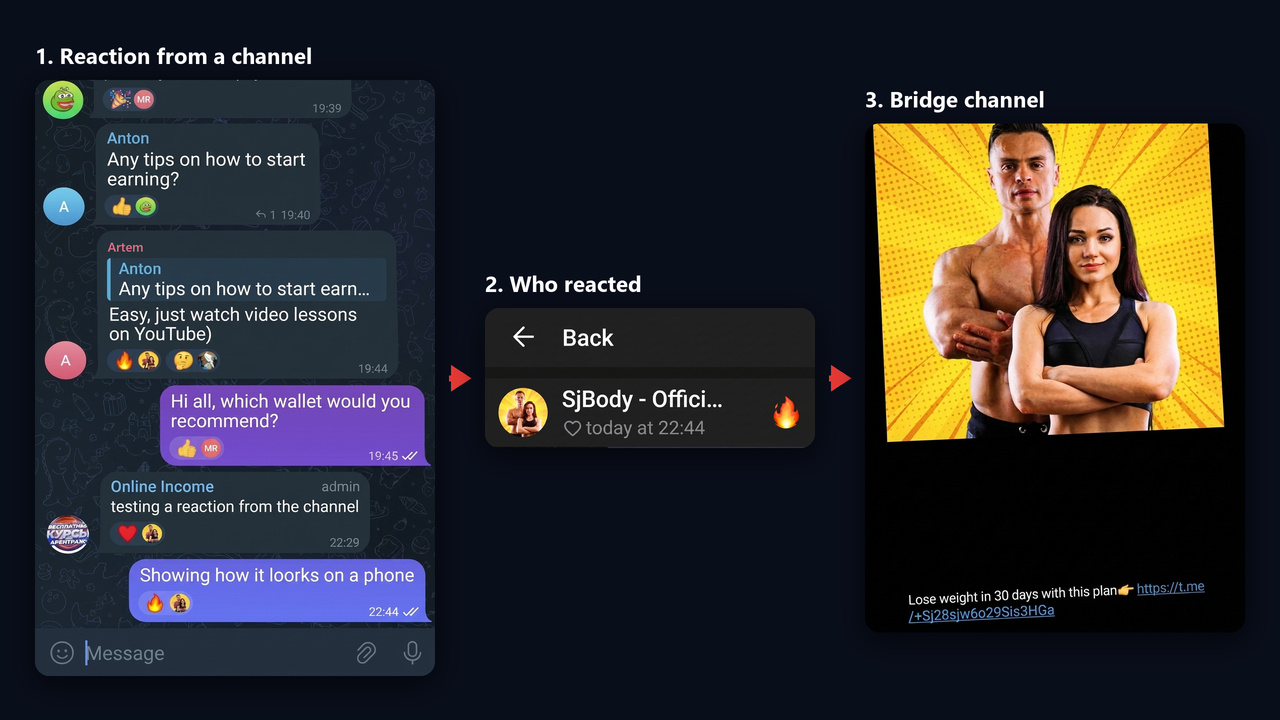
However, Telegram lets only Premium accounts react on behalf of a channel. So this setup needs Premium senders, and the bridge channels should be created and styled for the niche in advance. The upside is that people reach the channel without the extra step through a profile. We don't use it yet, since Premium on every sender costs noticeably more.
Here the accounts watch your list and react to every new comment or group post. Launch it like this:
- In "Work Mode", choose "Monitoring" and set the duration.
- Click "Start Reactions" in the "Launch & Logs" block.
- Expand the logs and wait for lines saying monitoring has started.
- To test it, post a comment under one of the target posts.
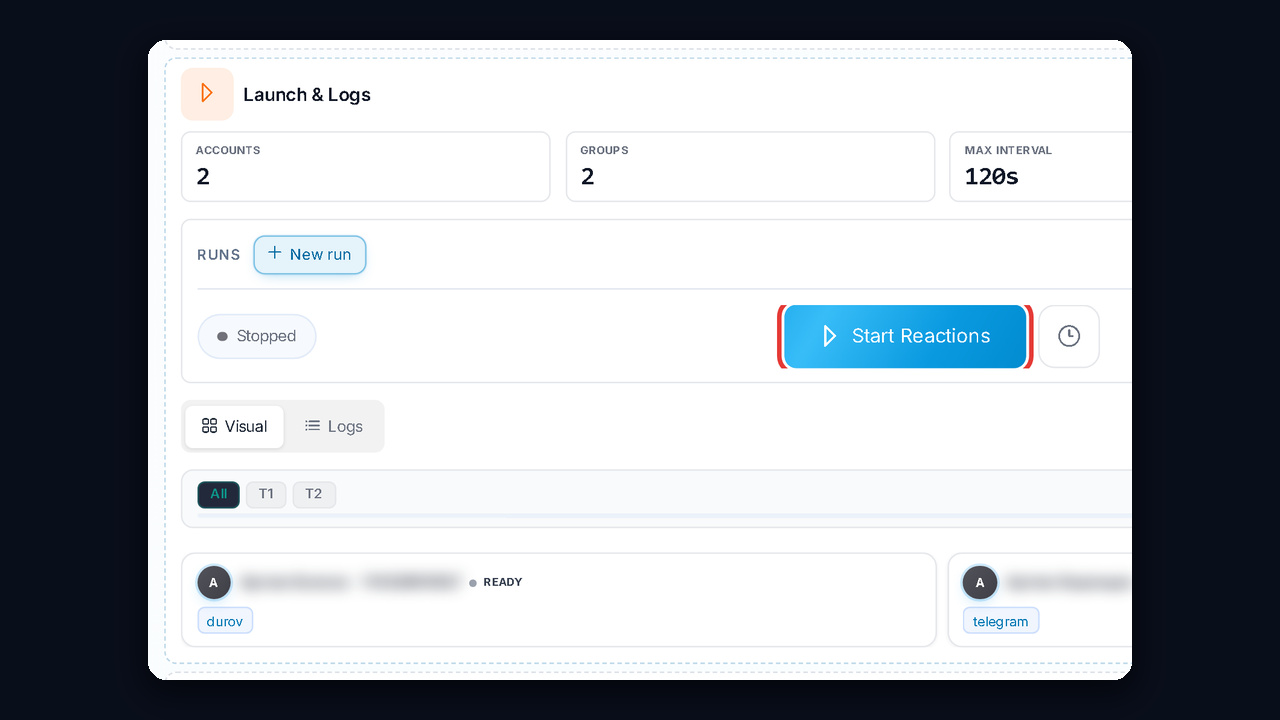
Then the logs show the comment being picked up. The delay comes, then AI protection adds a pause, and only then the emoji goes out. After that, the author can open your page and see the link.
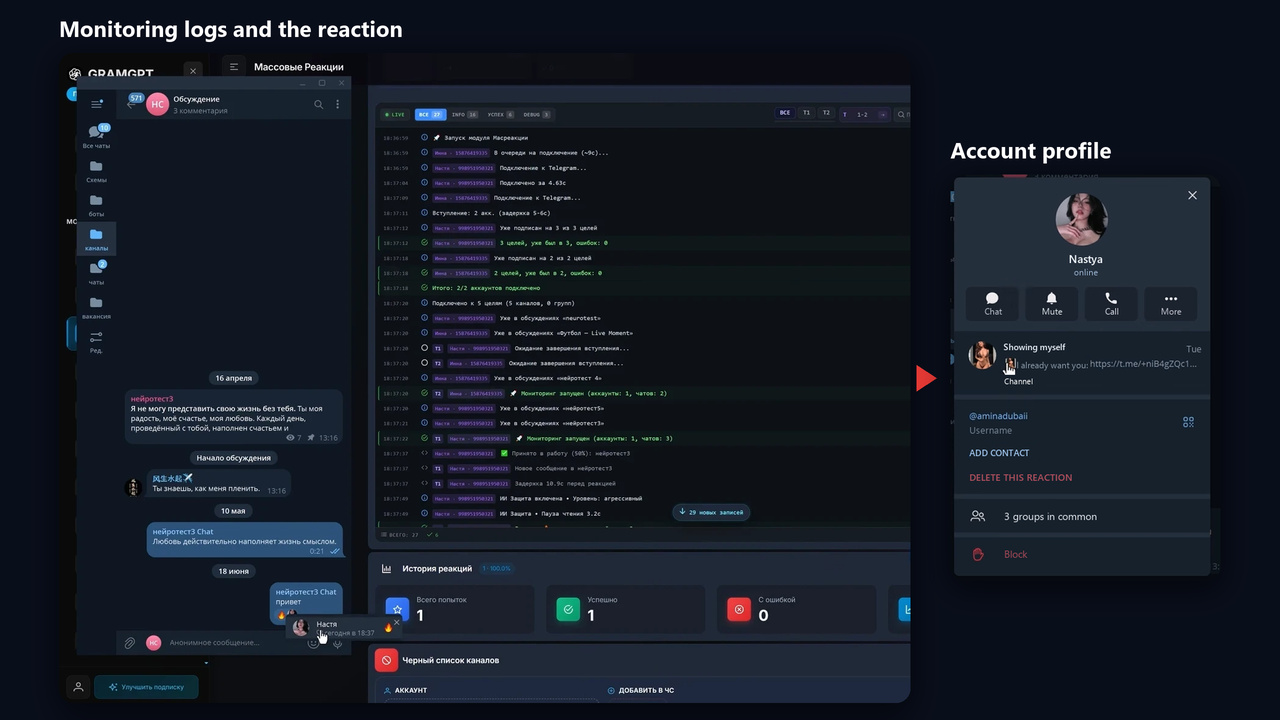
The same block has launch presets: you can prepare the next run in advance without stopping the current one. "Reaction History" shows attempts, successes and errors, while chats with access errors go to the "Channel Blacklist" automatically.
Existing Messages mode: a pass through history
Unlike monitoring, it goes once through what is already published. The logic is the same, because in a channel with a discussion every comment also lands in the linked group.
- Choose "Existing Messages".
- In "Posts per target", set how many to process in each, for example 20.
- Pick the processing order: newest or oldest at the start.
- Set the overall cap, for example 1,000, and a per-account limit, for example 50.
- Leave the probability at 50% and start the task.
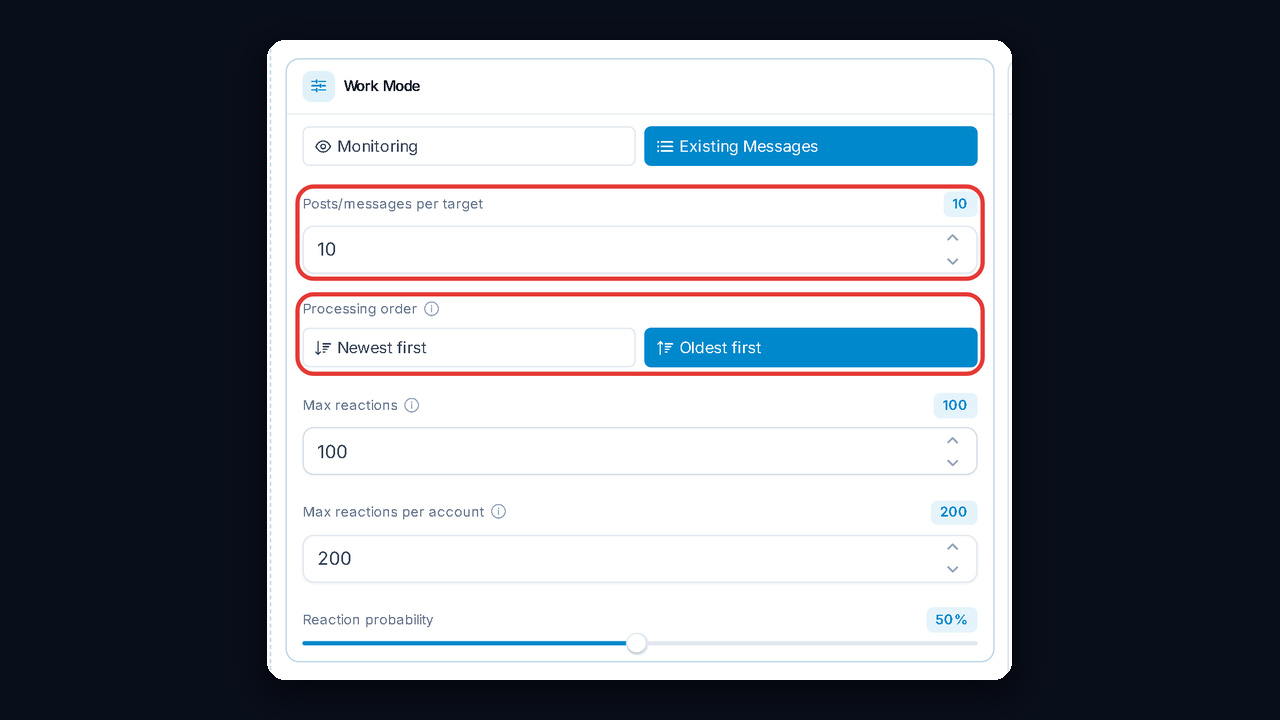
At 50% probability, roughly every second comment gets an emoji. As a result, the activity looks like that of an ordinary reader.
Advanced settings: when to turn them on
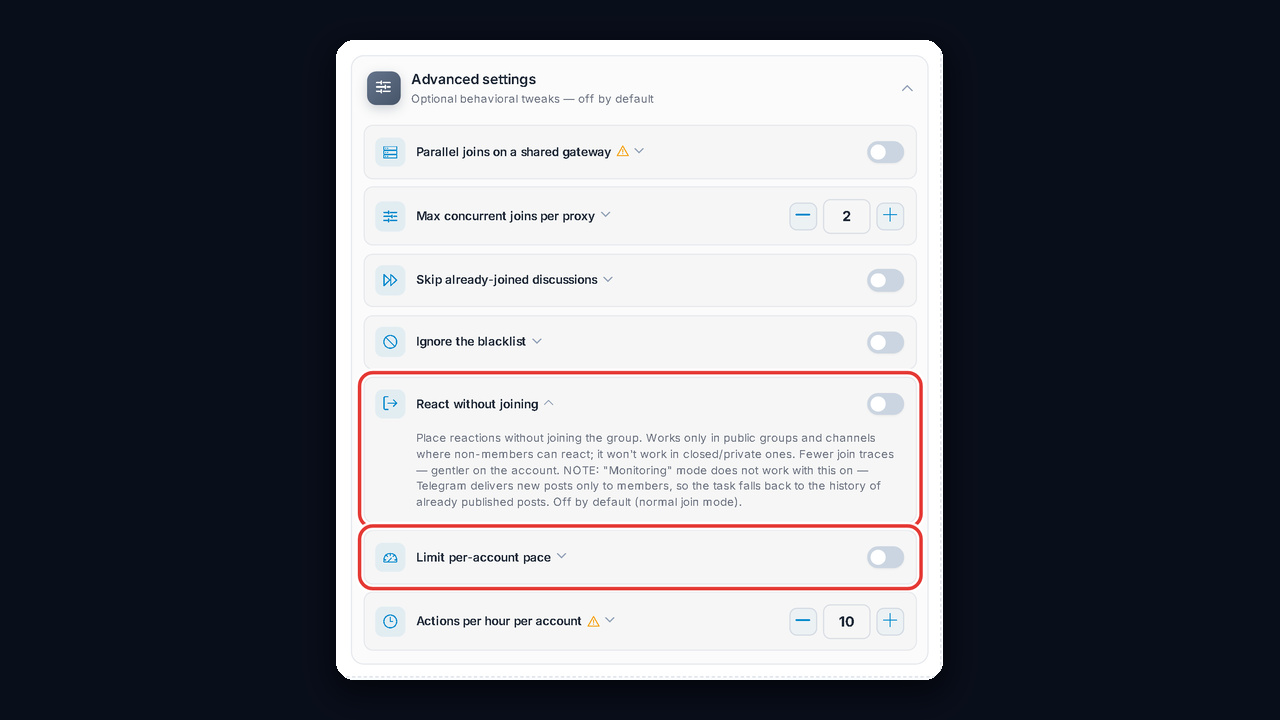
The "Advanced settings" block is off by default, so you can start without it. Turn options on deliberately:
- "Parallel joins on a shared gateway" and "Max concurrent joins per proxy": how many senders on one IP join at once (2 by default). Faster, but riskier;
- "React without joining": works in public groups only and not with monitoring, because new posts reach members only;
- "Limit per-account pace": no more than N actions per hour. We recommend 10, since above that the freeze risk triples.
Common mistakes with Telegram mass reactions
- A profile without a link. People come over, but there is nowhere to go next.
- No per-account limit. As a result, newcomers burn out in a day.
- Short delays for the sake of speed. In the end, FloodWait and quarantine eat up more time.
Summary: Telegram mass reactions in 2026
Telegram mass reactions still work if you place them precisely: on the top comments, away from crowds of emojis and with a cap for each sender. Prepare warmed-up senders with a link in the bio. Then turn on AI protection, the filters and the pinning scheme, and save your settings to JSON. Finally, test your combinations on a couple of senders before you scale. You can get the module on the Telegram mass reactions page.