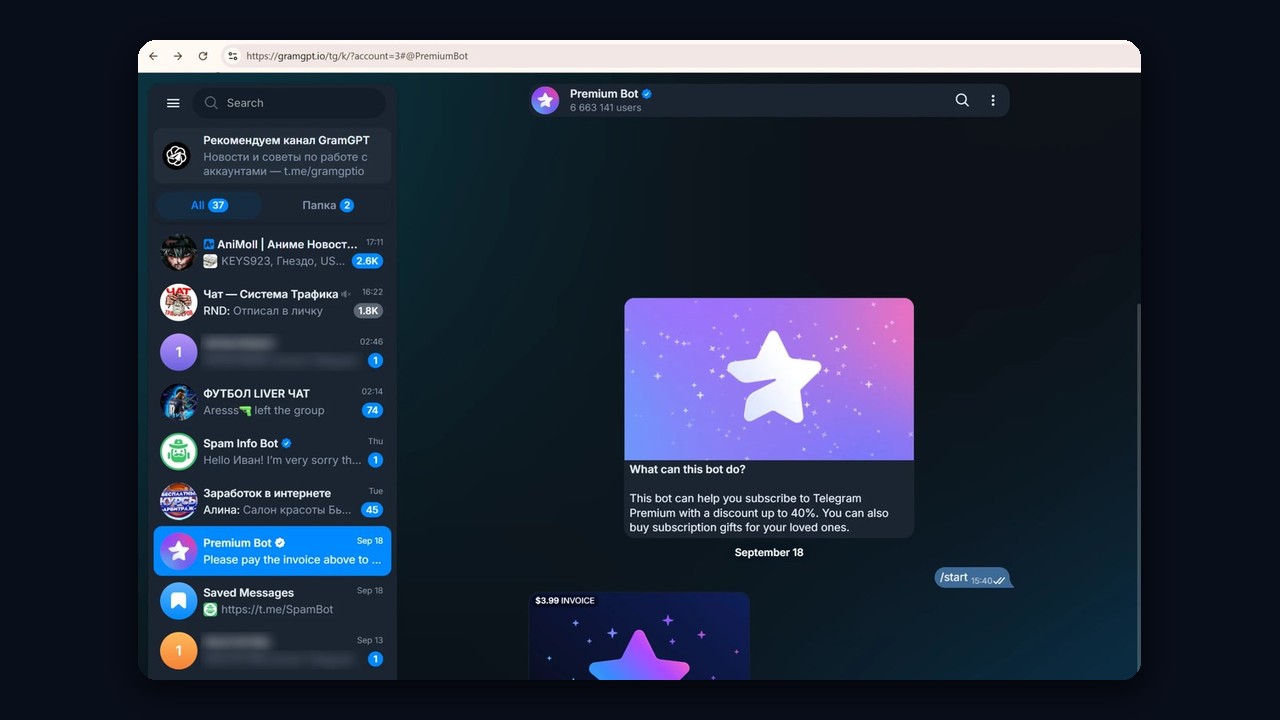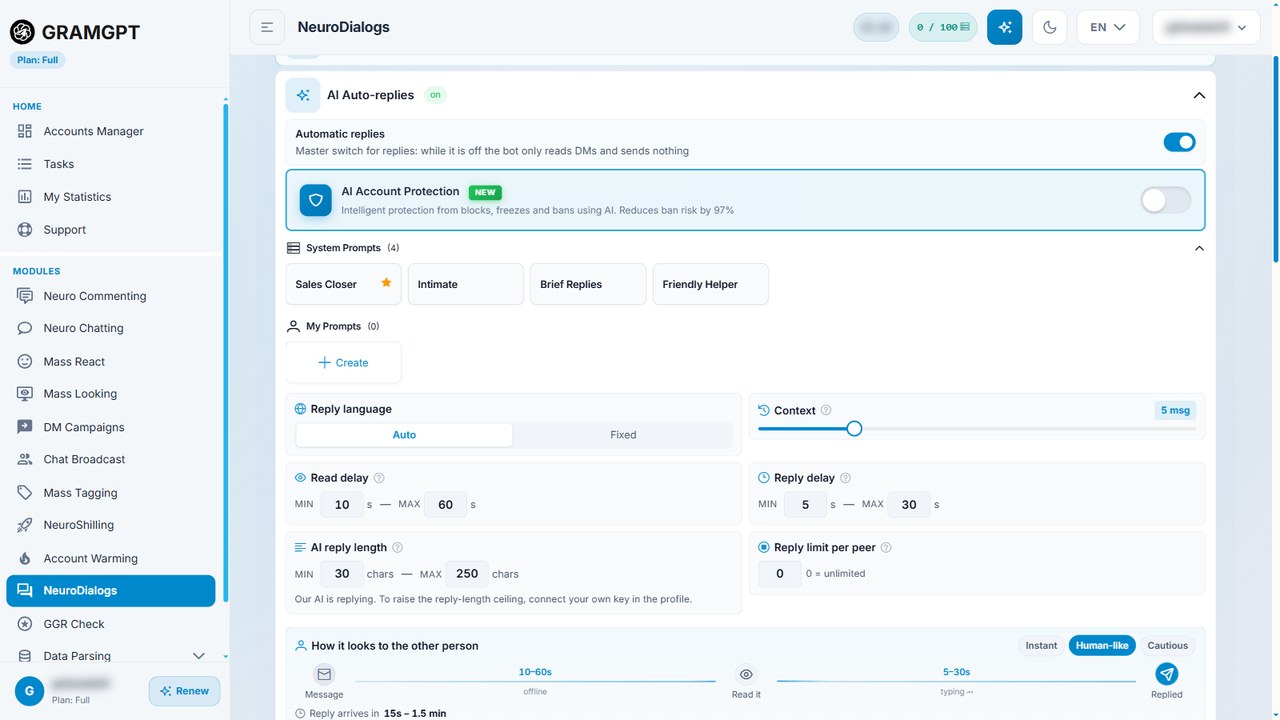
Many people need multiple Telegram accounts: one for personal chats, another for work, a third for a channel or sales. Keeping everything in one profile is inconvenient. Personal and work chats get mixed up, notifications pile up, and clients see things they shouldn't.
The good news is that Telegram officially lets you use several accounts in one app. However, there are limits. For example, one phone number can hold only one profile, and without Premium the app fits just three accounts.
In this guide, we explain how to add a second account on iPhone, Android and desktop, where to get a number, and how to switch between or remove profiles. We also show what to do if you need more than four accounts and how to manage them without bans in 2026.
Can You Have Multiple Telegram Accounts and How Many
Yes, you can. First of all, Telegram doesn't forbid multiple accounts, and you don't have to pay for them. At the same time, every profile is tied to its own phone number. So you can't create two accounts on the same number.
The number of accounts in one app is limited. Without a subscription, you can add three profiles. With Telegram Premium, the limit grows to four. Note that Premium applies only to the account that bought it, not to all of them at once.
| Device | Accounts | Where to add |
|---|---|---|
| Android | 3, with Premium — 4 | Menu ☰ → arrow next to your name → Add Account |
| iPhone and iPad | 3, with Premium — 4 | Settings → Edit → Add Account |
| Telegram Desktop | 3, more with Premium | Settings → ⋮ → Add Account |
| Web version | 1 per browser profile | A separate browser profile or window |
As a result, a regular user has more than enough. But problems start for people who run dozens of projects or use accounts for promotion. We'll cover that below.
How to Add Multiple Telegram Accounts on Your Phone
On a smartphone, it takes a couple of minutes. You only need a second number that can receive the code. The SIM card can even sit in another phone, since the code can arrive on any device.
Adding Multiple Telegram Accounts on iPhone
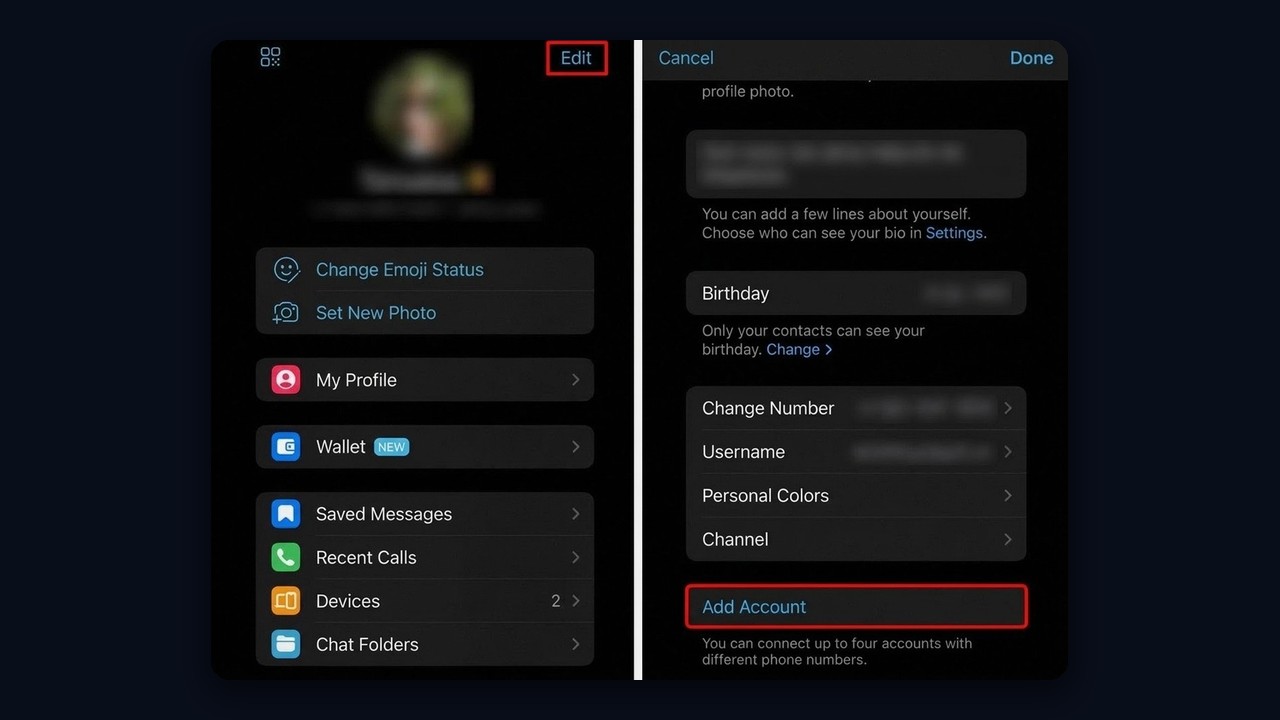
On iPhone and iPad, the easiest way is through Settings. Follow these steps:
- Open the Settings tab at the bottom of the screen.
- Tap Edit in the top right corner.
- Scroll down and tap Add Account. In newer versions, this button also appears right under your profile.
- Enter the new phone number with the country code.
- Type in the code from the SMS or the Telegram message.
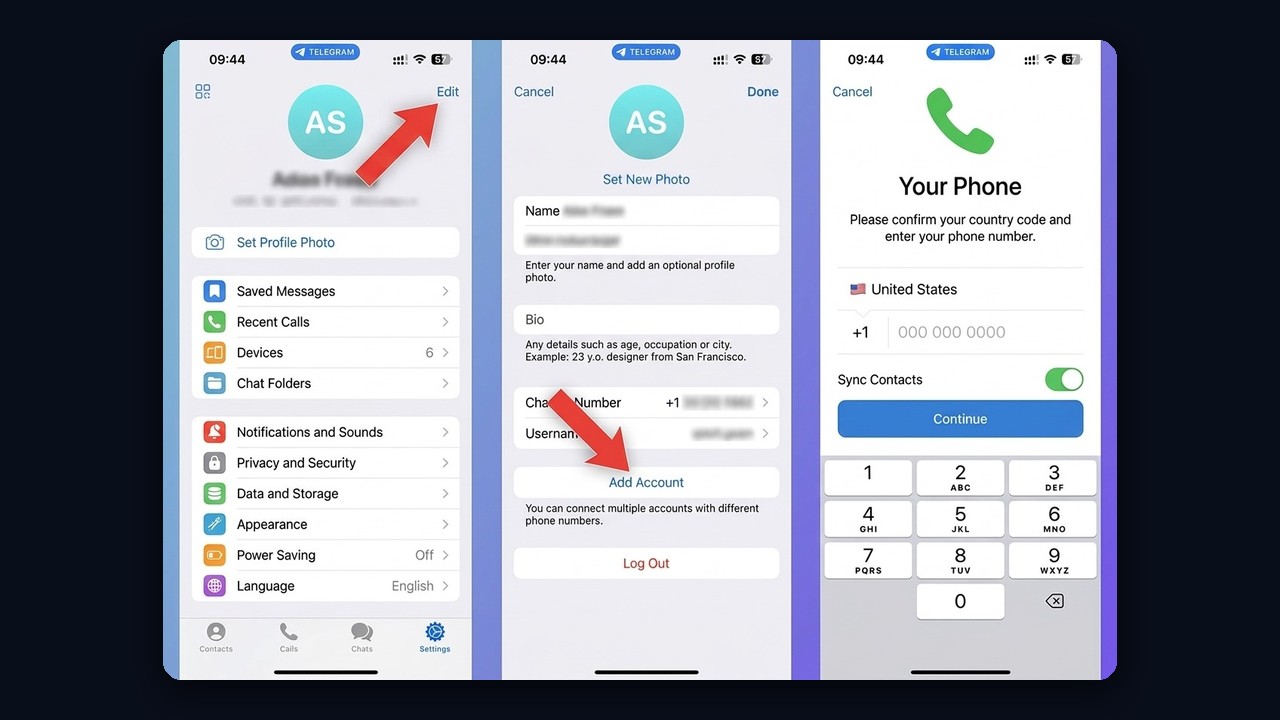
After that, the new profile appears among your multiple Telegram accounts. Then you can switch profiles by long-pressing the Settings tab.
Adding a Second Account on Android
On Android, however, the button is hidden in the side menu. Tap the three lines in the top left corner. Next, tap the arrow next to your name and choose Add Account. The rest is the same as on iPhone: number, code, profile name.
If the button is missing, update the app first. In older versions, the feature could be in a different place or work with bugs.
Multiple Telegram Accounts on Desktop and Web
You can also use several profiles on a computer. However, the method depends on which version of Telegram you use.
Telegram Desktop for Windows and macOS
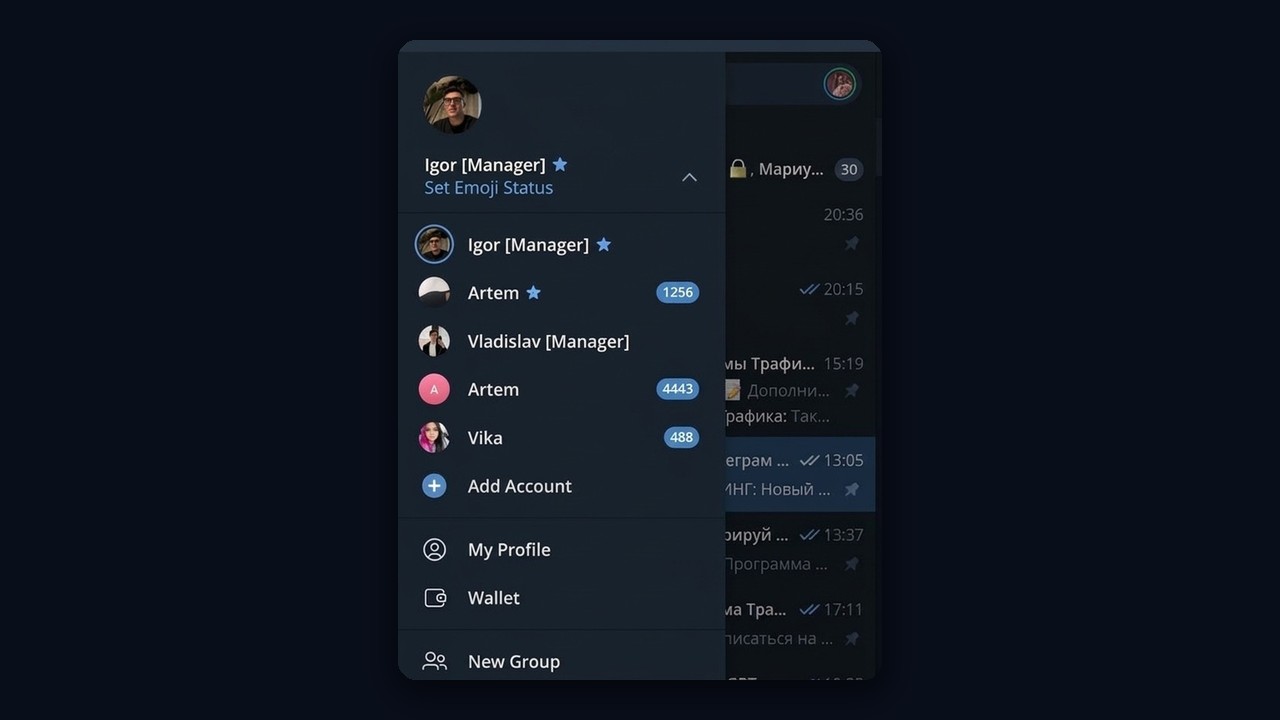
In Telegram Desktop, the fastest way is to open the ☰ menu and click the arrow next to your name. The Add Account button appears under the list of profiles. Also, you can do the same via Settings → the three dots in the top right corner. Next, the app asks for a number or offers to log in with a QR code.
QR Code Login and the Web Version
QR login is handy if the account already runs on your phone. On the phone, open Settings → Devices → Link Desktop Device. Then point the camera at the code on the computer screen. As a result, the profile opens without an SMS.
In the web version, it's more convenient to keep a separate browser profile for each account. This way, sessions don't overlap, and you don't log out of one profile to open another.
Where to Get a Number for a Second Account
The main question here is the number. Officially, you can't create an account without one. But the number doesn't have to be a regular SIM card.
- A second SIM or eSIM. The most reliable option: the number is yours, the code always arrives, and recovery is easy.
- A family member's or work number. It works, but recovering the profile gets harder if you lose access to that number.
- A virtual number. Fast and cheap. However, such numbers are often single-use, so it's easy to lose the account.
- An anonymous Fragment number. The +888 numbers are bought with crypto and work without a SIM card. It's pricey but stable.
Important: if the number is temporary, turn on a cloud password and add an email right away. Otherwise, the next login code will go to a number you no longer have.
Besides, people who work with many profiles often buy ready-made accounts. We explained how to choose a seller and check accounts in our guide on buying Telegram accounts for automation.
How to Switch Accounts and Set Up Notifications
Switching between multiple Telegram accounts takes a couple of taps. On Android, open the side menu and pick the account. On iPhone, press and hold the Settings tab and choose a profile. In Telegram Desktop, the account list sits in the ☰ menu.
By default, notifications come from all profiles. That's handy, but sometimes distracting. So in the Notifications section, you can turn off alerts from inactive accounts. Then the phone shows notifications only for the profile that's open.
Also, your accounts aren't linked for other people. Each profile has its own contacts, chats and privacy settings. In other words, people from your first account won't learn about the second one unless you message them from it.
How to Remove or Log Out of a Second Account
There are two different actions here, otherwise it's easy to lose multiple Telegram accounts along with the chats. The first is logging out on a device. The second is deleting the account for good.
To remove the second account from the app, switch to it and open Settings. Then choose Log Out. As a result, the profile disappears from the device but stays in Telegram with all chats. You can log in again later with the number.
Full deletion is done at my.telegram.org or through the "If away for" setting. After that, chats and contacts can't be restored.
Sometimes a second account disappears on its own. Usually, it means the session was ended from another device or Telegram logged the profile out. We covered why this happens in our article on the reasons for account deauthorization.
What to Do If You Need More Than Four Accounts
The limit of three or four profiles is made for regular users. But marketers, SMM specialists and people who promote projects need more. They may have dozens of multiple Telegram accounts for different tasks.
Workarounds such as several clients on one phone or a dozen browser profiles quickly turn into chaos. It's hard to remember which account is open where, which session expired and which one got restricted. That's why people who run multiple Telegram accounts use account managers for this kind of work.
Why Telegram Restricts Several Accounts at Once
First, having several accounts doesn't break the rules by itself. Second, problems appear when profiles look like one network. For example, they all log in from one IP address, get registered at the same time and start aggressive actions right away.
- One IP for all profiles. Telegram sees that the accounts are linked and may restrict all of them after a report on one.
- A sudden start. A new profile that messages strangers on day one quickly gets a spam block.
- Identical actions. The same messages sent from different accounts look like a mass mailing.
So each working account needs its own proxy. You can check whether a proxy is alive and works with Telegram using the free proxy checker. Also, a new account should be warmed up before work. Read more about restriction types in our article about Telegram spam blocks.
How to Manage Multiple Telegram Accounts in GramGPT.io
If you have more than four profiles, it's easier to keep them in one dashboard. The GramGPT account manager gathers all accounts in one window and shows their status. You can manage up to 10 accounts there for free.
Step 1. Add Accounts to the Manager
You can import accounts in bulk or add them one by one by number. Next, each profile gets its own proxy from a shared pool. The table instantly shows which accounts are active, which have a spam block and which need to log in again.
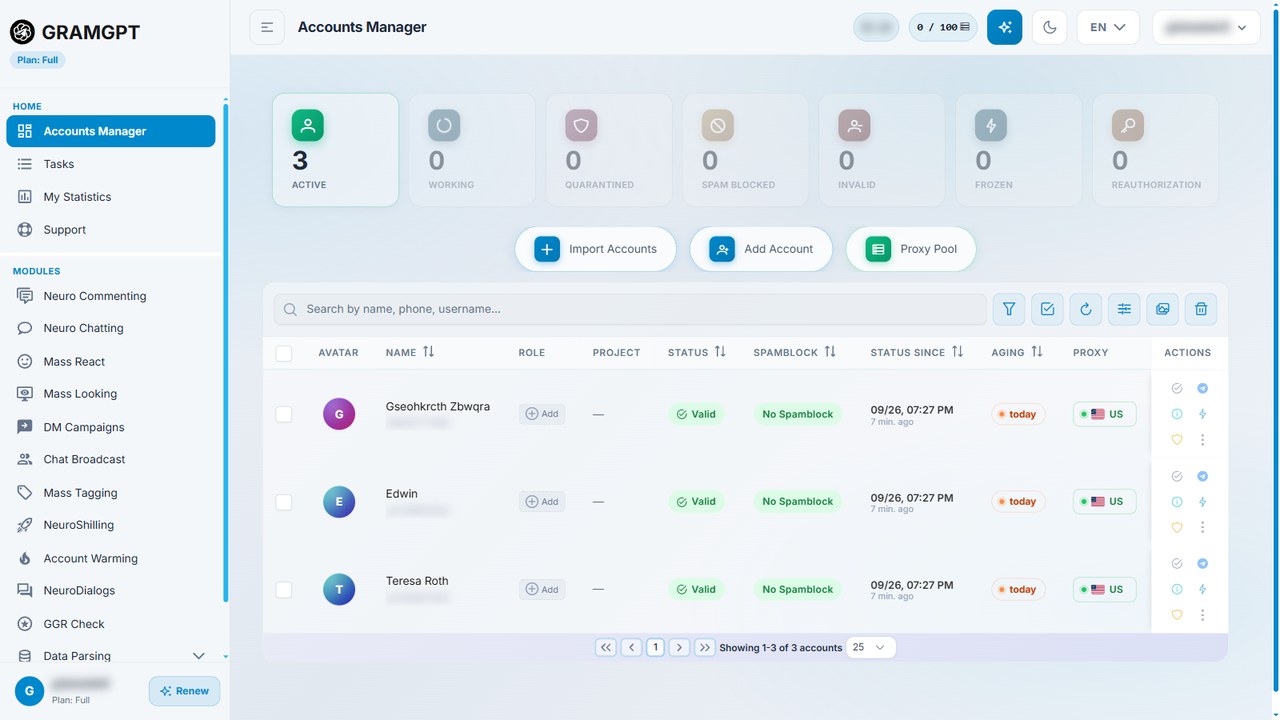
The manager also shows the GEO, account age and GGR rating. Thanks to that, you can see which account is ready to work and which needs warming up. We showed how to import profiles and set up proxies in our account manager review.