You post something, a few hundred people read it, and the only response is a single lonely heart. A week later, same story. Then newcomers open the channel, see silence under every post and leave. Telegram reactions act like reviews in a shop, so an empty post pushes people away faster than a weak one.
Most owners simply switch the feature on and wait. However, people rarely react first, especially in a young channel. Paid services, meanwhile, make you order activity for each post by hand, while many of them struggle with private channels.
This guide shows how to add and change a reaction, how to configure the feature for a channel in 2026, whether you can see who tapped, how paid Stars work and how to get engagement on each new publication automatically.
What Telegram Reactions Are and Why Channels Need Them
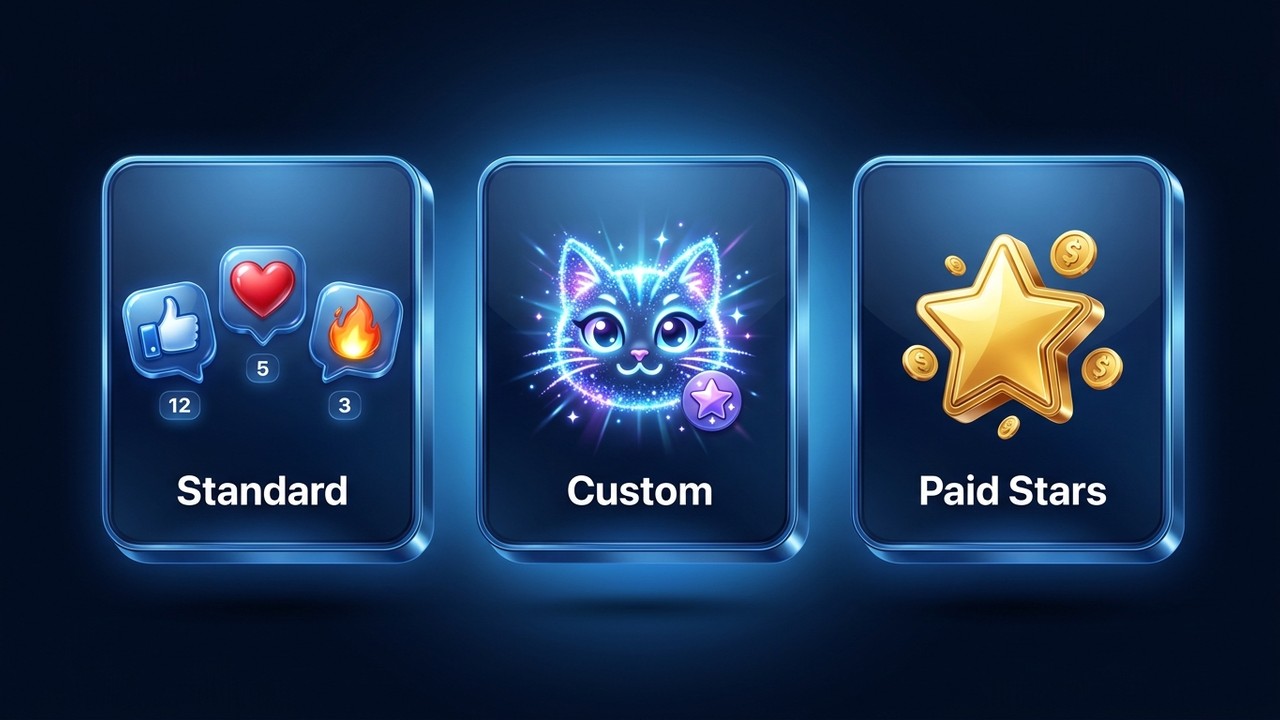
A reaction is a small icon a reader taps under a message instead of writing a comment. Under a post, Telegram reactions then stack into counters like 🔥 12, 👍 8, ❤️ 5.
For a channel owner, those counters do three jobs:
- Social proof. A visitor sees signs of life and so is more likely to subscribe.
- Feedback. You instantly see which topics land and which don't.
- Engagement metrics. They appear in channel statistics, and advertisers check them before buying a slot.
There are three kinds. Standard emoji are free for everyone. Custom animated ones come from sticker-style packs: Premium users can send them, and channels unlock them through boosts. Finally, paid Star reactions cost money and earn the author income.
How to React on Telegram and Change Your Reaction
On Mobile
Tap a message and a strip of icons appears above it. Pick one and it lands under the post. To remove it, tap yours again. Also, the arrow on the right of the strip expands the full set.
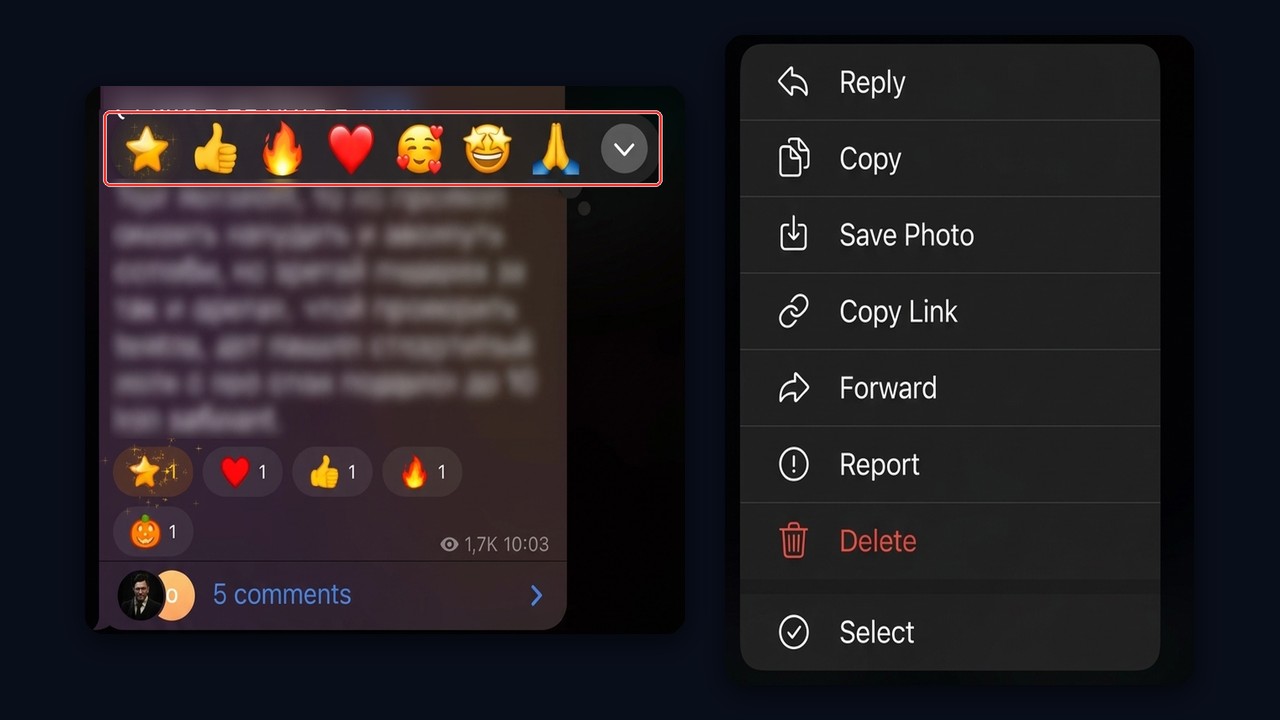
Without a subscription you can leave one per message; Premium raises that to three. Premium members also get animated options wherever the channel allows them.
On Desktop
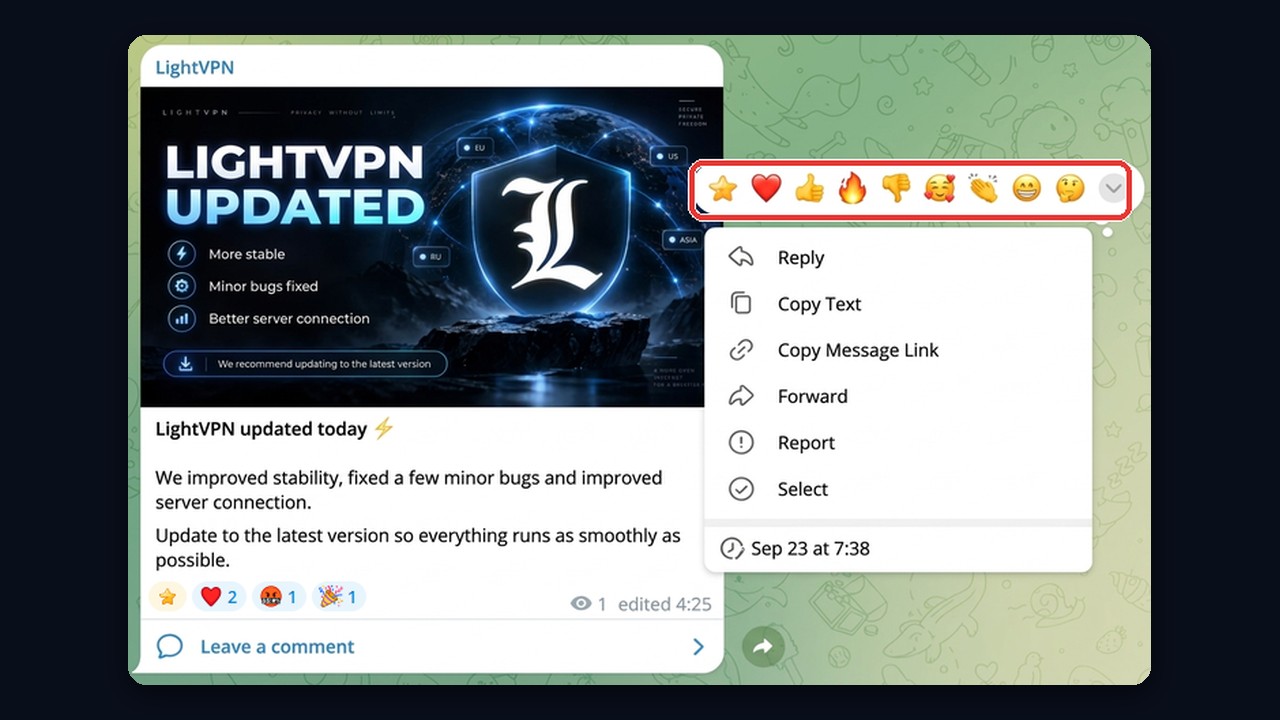
In Telegram Desktop, hover over a message and a small heart or smiley appears on the right. Click it and pick a symbol. Alternatively, right-click the post, and the strip opens above the context menu.
Changing the Quick Reaction
Double-tapping a message sends a "quick" one, which is 👍 or ❤️ by default. To swap it:
- Open Settings, then Stickers and Emoji.
- Tap Quick Reaction.
- Then choose what a double tap should send.
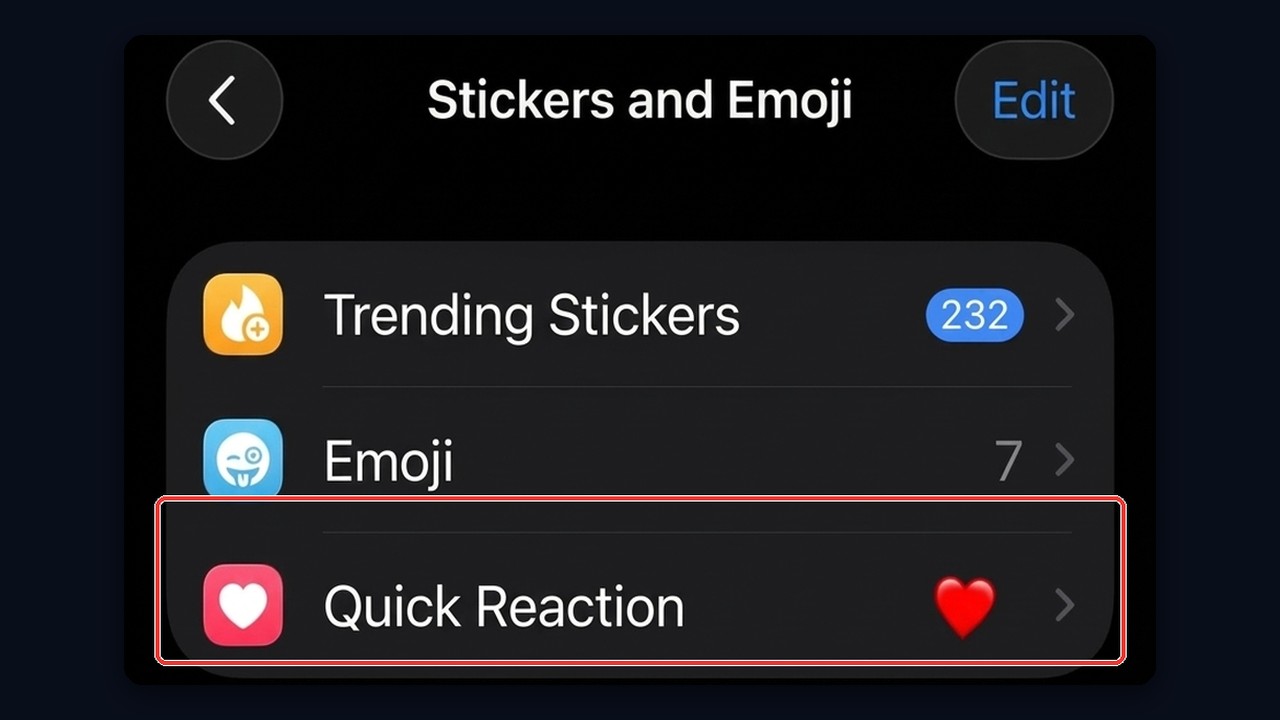
So the path is identical on iPhone and Android. On desktop, by contrast, the option lives in chat settings.
iPhone Gesture Effects in Video Messages
Many people searching for this on iPhone actually mean something else: the iOS 17 video effects. While the camera is recording, a hand gesture triggers an animation. For example, a two-hand heart releases hearts, two thumbs up fire off fireworks and a peace sign launches balloons.
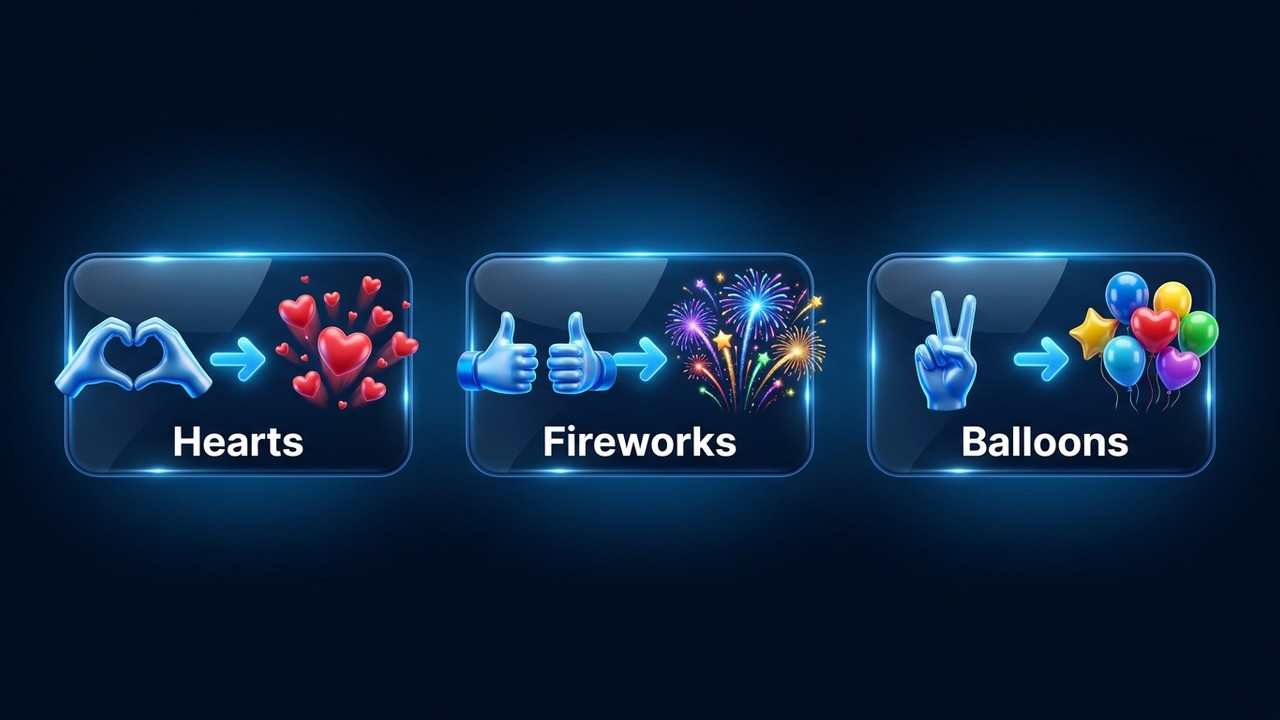
To use them in a round video message:
- Start recording the video message.
- Swipe down from the top-right corner to open Control Center.
- Tap Video Effects and turn on Reactions.
- Show a gesture to the camera and the effect appears.
However, this works on iPhone 12 and later only. So on an iPhone 11 or older, the option simply isn't there, and no Telegram setting will add it.
How to Enable Telegram Reactions in a Channel
The owner and admins who can edit the channel control this. Open the channel, tap its name, then Edit, then Reactions, and choose one of the modes.
| Mode | What subscribers get | Best for |
|---|---|---|
| All | Anything from the standard set | Entertainment and news channels |
| Some | The 3–6 icons you picked | Expert channels, shops, brands |
| None | Nothing at all | Service announcements |
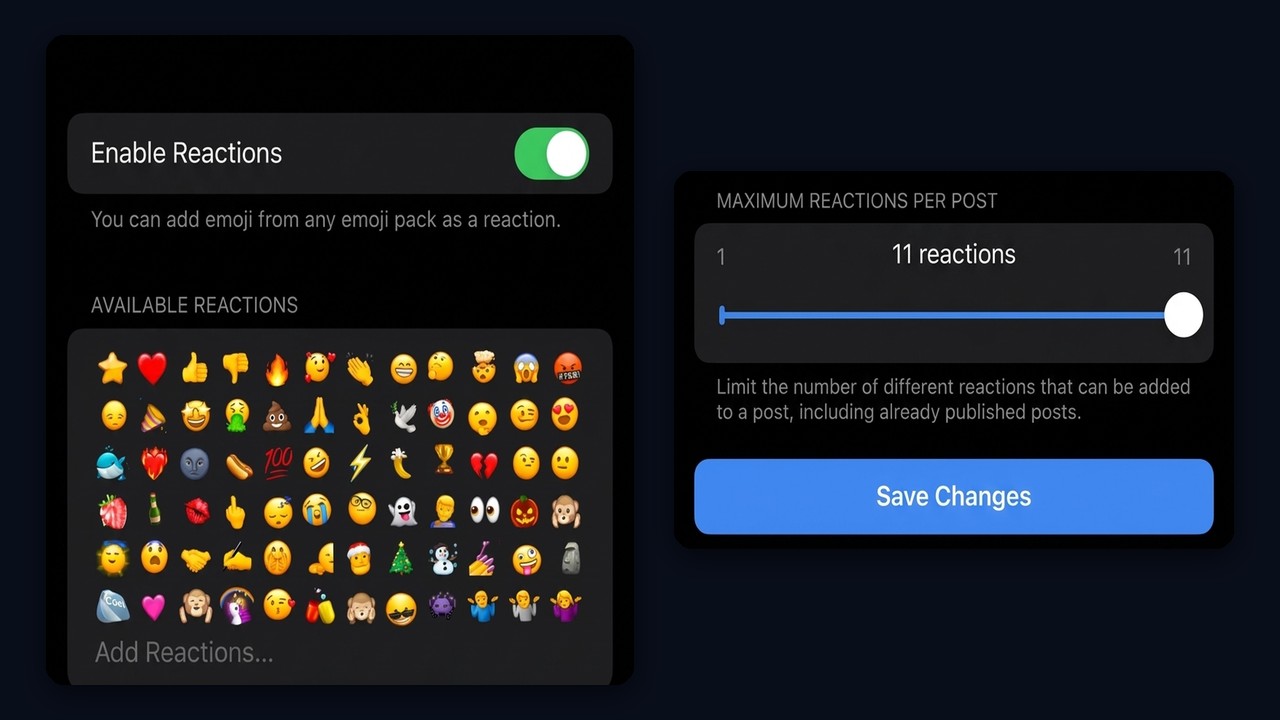
Moreover, in recent app versions the Telegram reactions screen is simpler: an Enable Reactions switch, a grid of available emoji where you can add icons from any pack, and a Maximum Reactions Per Post slider, confirmed with Save Changes. The same screen lets you cap how many different icons can appear under one publication; Telegram allows up to 11. Custom emoji, meanwhile, are unlocked through boosts, one per channel level. In other words, a branded reaction with your logo needs boosts from subscribers first.
Turning Reactions Off
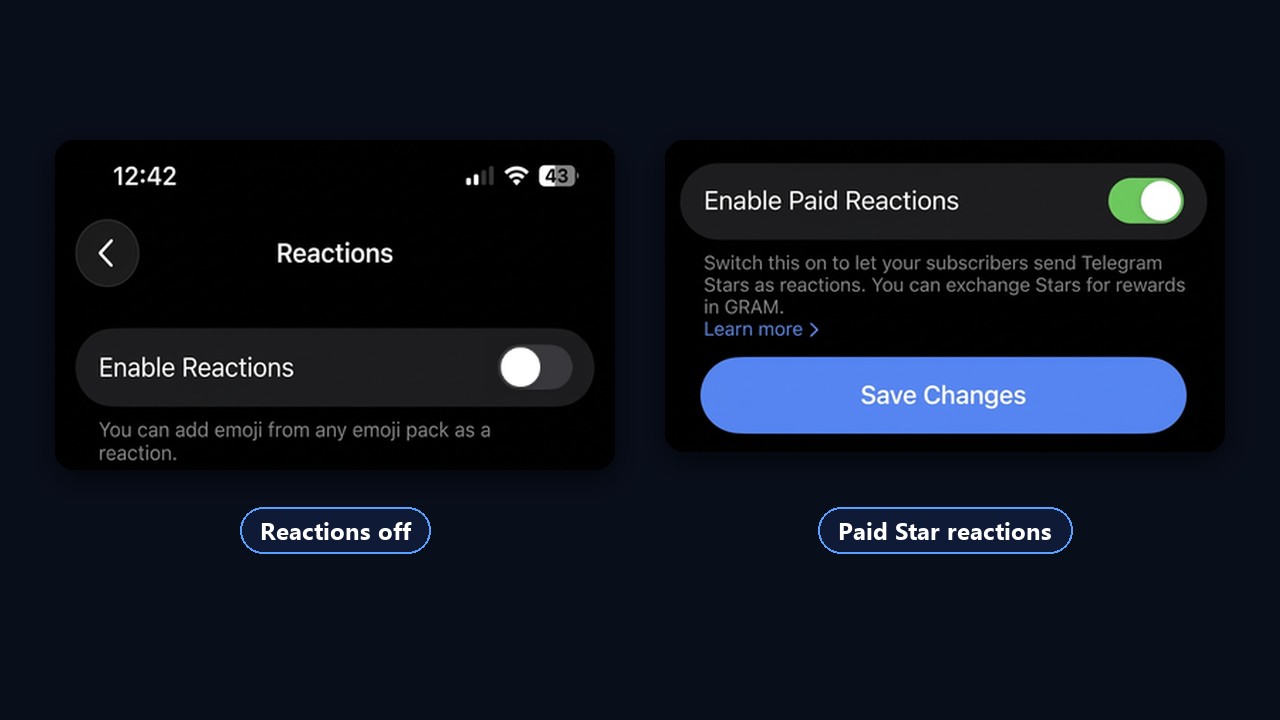
So use the same path and switch Enable Reactions off; Telegram reactions then vanish from the channel. Existing counters on older publications then disappear from view, but they come back if you switch the setting on again.
Can You See Who Reacted in a Channel?
No. In channels the taps are anonymous, so the owner sees only the totals, never the list of people. So bots claiming to reveal who reacted don't work and usually just harvest your data.
The one exception is Stars. For those, Telegram shows a leaderboard of top senders unless someone chose to stay anonymous. Groups work differently: press and hold an icon, and you'll see everyone who chose it.
To track trends, open channel statistics instead. There you'll find a daily chart and a breakdown by icon, which shows exactly which publications struck a chord.
Paid Stars Under Posts
A ⭐ reaction is a way to tip the author. The reader decides how many Stars to send, and they go to the channel's balance. The owner can then withdraw them or spend them on ads inside the app.
It's enabled in the same Reactions screen with the Enable Paid Reactions switch. Then a reader taps ⭐ under a post, picks the amount with a slider and can tick Show me in the top senders.
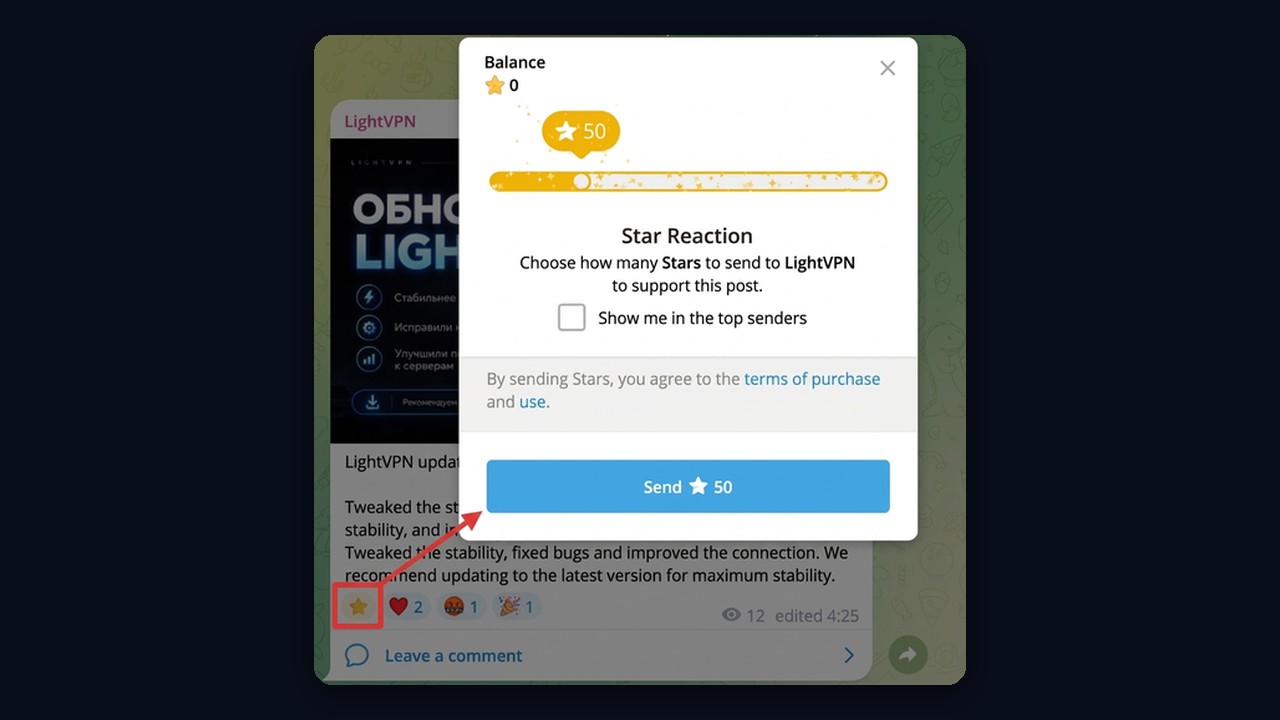
For a small channel it's more of a bonus than income. Still, creators with a loyal audience can collect a meaningful sum. Buying and withdrawing Stars is covered in our guide to Telegram Stars.
Using Emoji as a Quick Poll
A single tap is the shortest survey possible. For instance, end a post with "🔥 for part two, 👍 if one is enough". Tapping is easier than typing, so response rates tend to be higher.
- Pick the next topic. First, list three ideas and tie each to a symbol.
- Test demand. "❤️ I'd buy it, 🤔 maybe later" gives a shop a fast signal.
- Set a goal. "50 🔥 and I'll share the template" noticeably boosts activity.
Don't turn every update into a vote, though: the trick wears thin within a couple of weeks.
Why Your Posts Get So Little Engagement
If the feature is on but publications stay bare, the cause is almost always on this list.
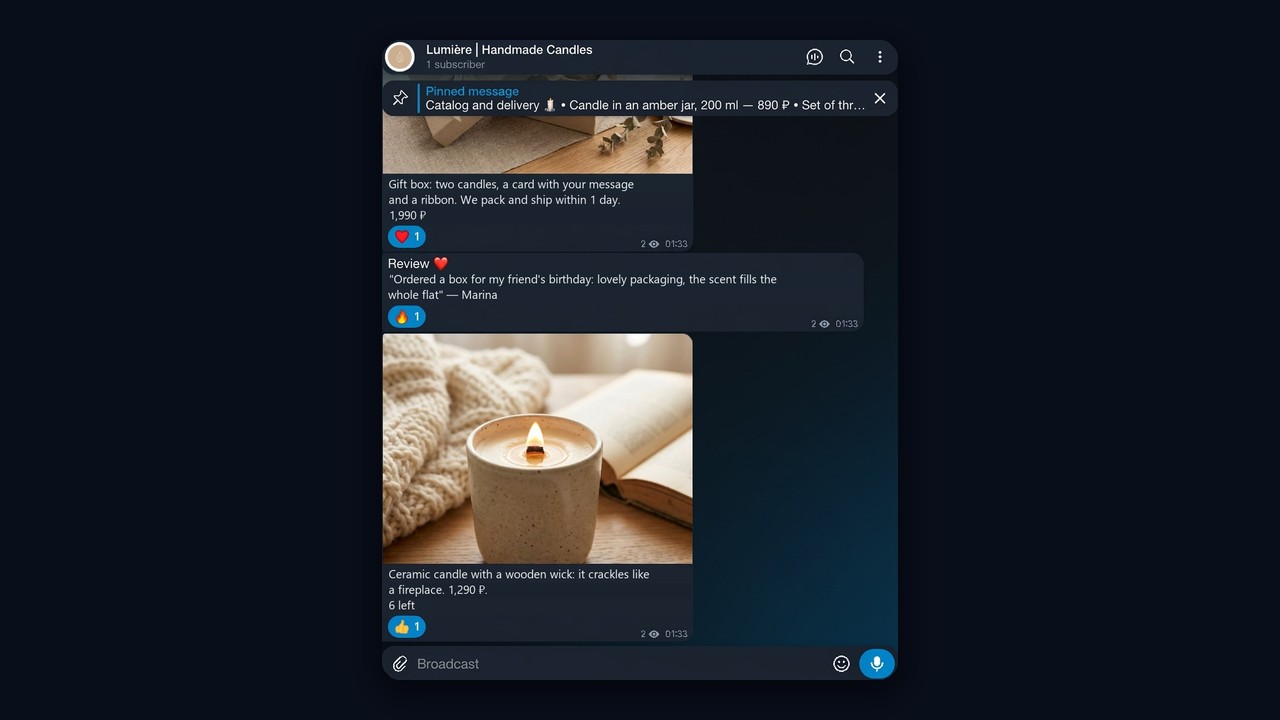
| Cause | Fix |
|---|---|
| Empty-room effect: nobody wants to go first | Give each update a starting push |
| Too many options | Keep 3–5 icons that match the channel |
| No emotion or question in the text | End with a question or a choice |
| Bot subscribers from cheap growth services | Clean the audience instead of adding dead accounts |
| Feature disabled after a settings change | Recheck the Reactions screen |
The first cause matters most. Because once a few emoji are already there, real readers join in far more readily. That's simple crowd psychology.
Buying Telegram Reactions vs Using Your Own Accounts
The obvious route is an SMM panel. It has real downsides, however:
- Manual work. You paste a link for every post, and new ones aren't handled automatically.
- Private channels. Many panels first require hundreds of bot subscribers before they'll add anything.
- Ongoing cost. In our experience, a few days of activity run about $25, and half a month around $100.
- Drop-off. Taps from throwaway accounts vanish once Telegram bans them.
Instead, the better option is to react from your own accounts that behave like real people. That way you control the icons, the pace and the volume, and nothing disappears a week later. Limits and the traffic mass reactions can bring are covered in our post on Telegram reaction limits.
Automating Telegram Reactions With GramGPT.io Neuro Shilling
GramGPT.io handles this with Neuro Shilling. Its chat revival mode adds icons from your connected accounts, including private channels joined via an invite link. You configure the task once, and then it responds to each new publication on its own.
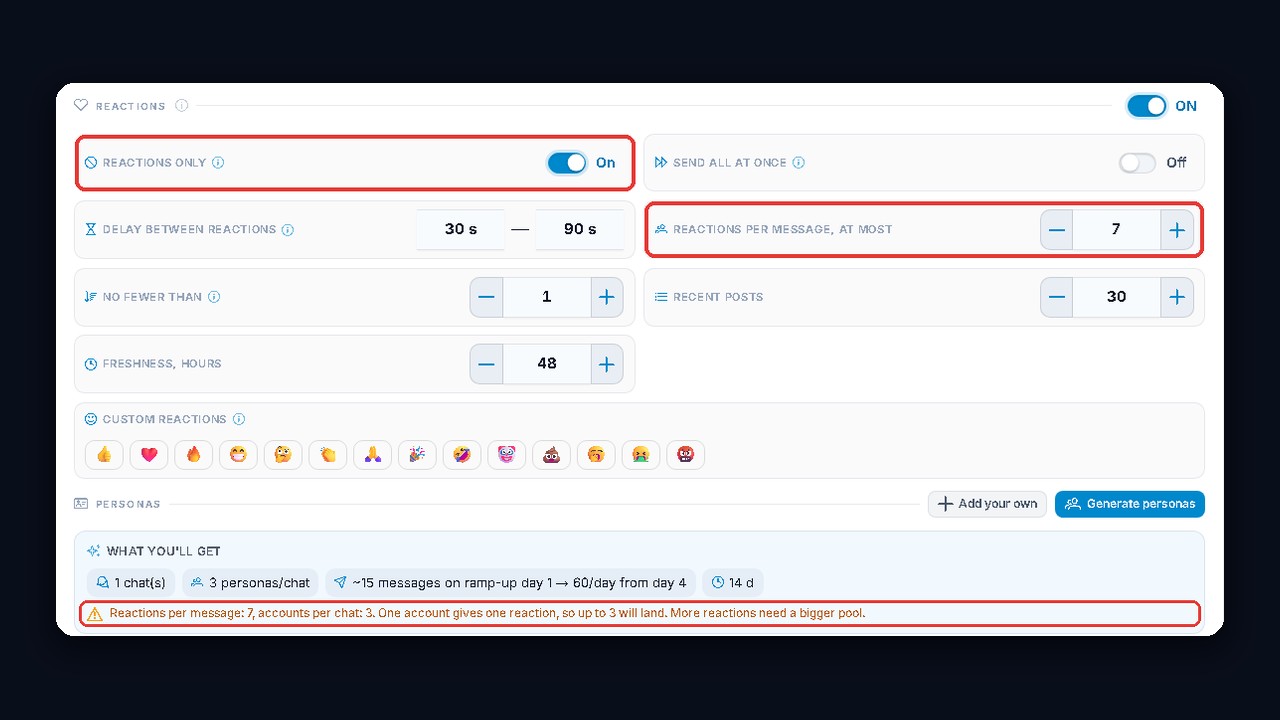
- Add accounts. Each one leaves a single icon, so their number sets the ceiling per publication.
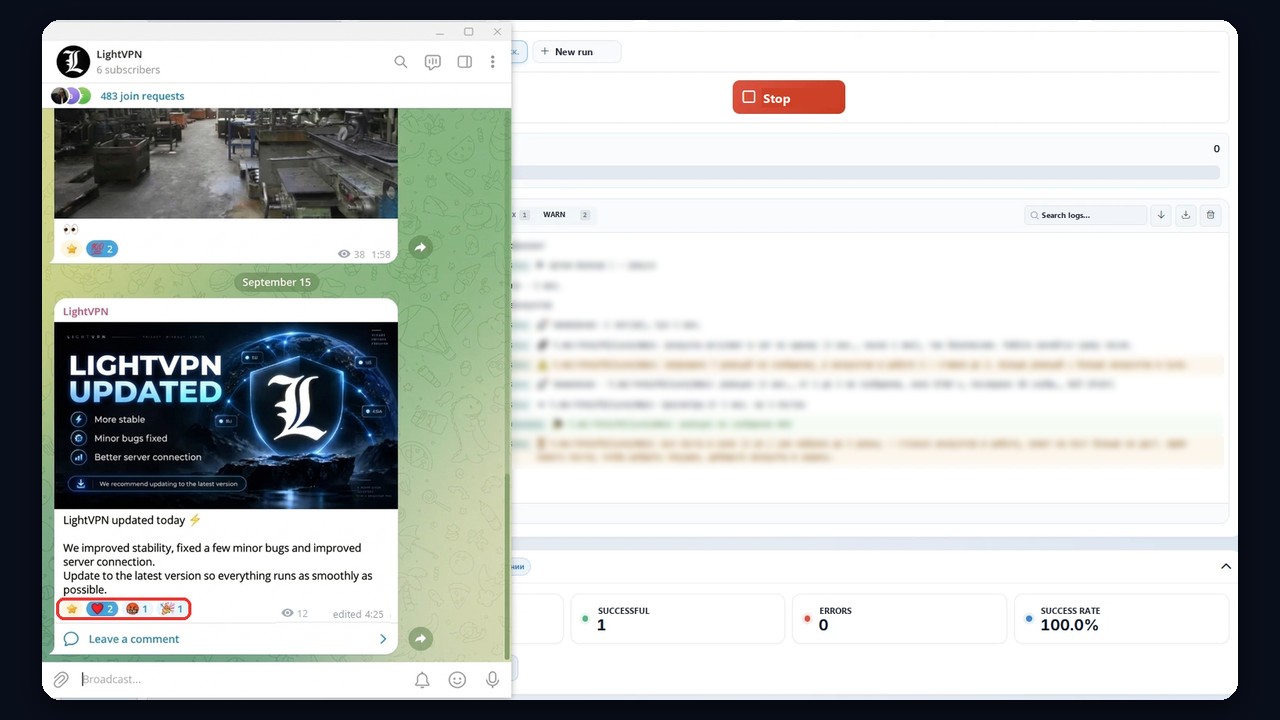
- Turn on Reactions and Reactions only. The accounts then skip comments entirely.
- Set the pace. A delay spreads them over time, while Send all at once fires almost instantly. The delay looks more natural.
- Cap the volume. "At most" and "no fewer than" set the range; Recent posts and Freshness decide which posts get processed.
- Choose your emoji, paste the channel link and launch.
The result shows up right away: ❤️, 🤬 and 🎉 appear under the channel post, and the log on the right shows how many accounts reacted and why the cap is three per post.
The dashboard warns you when the cap exceeds your pool: with seven per publication and three accounts, only three will land. If a channel has no discussion group, Neuro Shilling livens it up with icons; with a group attached, it can comment as well. For more detail, a full walkthrough lives in our Neuro Shilling reactions review.