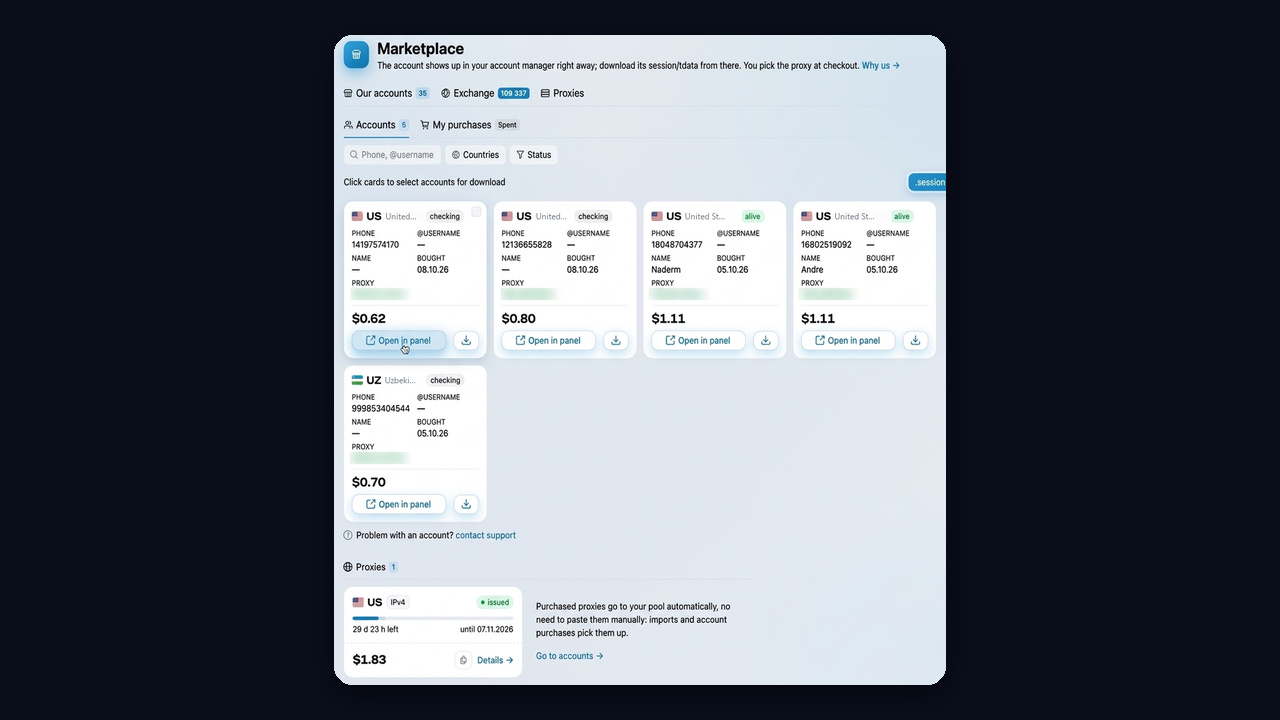
The deal is done, and instead of a phone number you received a ZIP: either a strange folder or two files ending in .session and .json. Still, no SMS code is coming, and the profile has to work today. That is the moment to figure out what Telegram tdata and session files are and how each of them opens.
The familiar "type your number, wait for the code" flow is useless here, because the access is already packed inside the archive. Moreover, guessing is risky. For instance, a wrong client, an IP from another country or the same key started on two machines, and the profile gets kicked out or restricted.
Below we compare both formats, walk through signing in with each, turn one into the other and secure the profile right after the first launch. At the end, you will see how GramGPT.io takes in hundreds of such accounts within minutes in 2026.
Telegram tdata and Session Files Explained
Both formats carry one thing: the authorization key a device received when someone signed in. Because of that, nobody asks for an SMS code, since the profile is already considered logged in. The only difference, however, is the program the key was packed for.
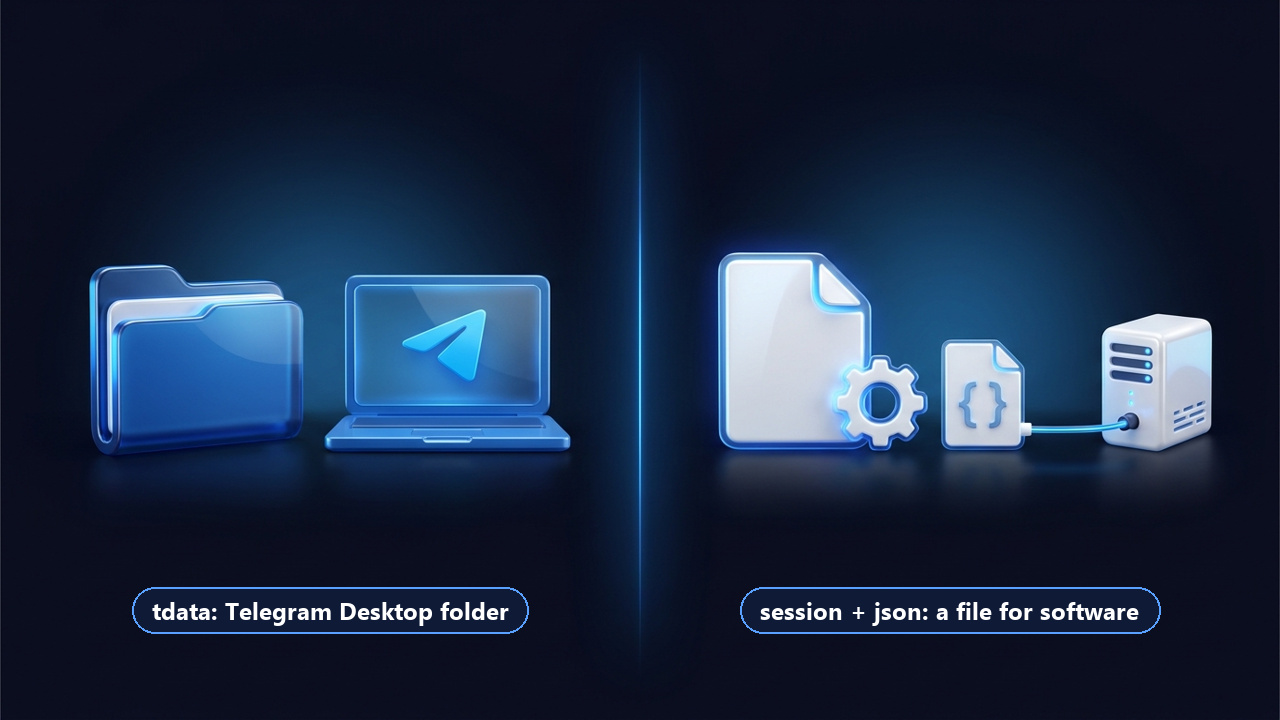
The tdata Folder
This is where the official desktop app keeps its data. On Windows you will find it in the program directory or under %APPDATA%\Telegram Desktop\tdata. In addition, it contains the encrypted key, settings and cache. Therefore, dropping the folder beside Telegram.exe lets the client open the profile without any code.
Session Plus JSON
The .session file is made for Telethon or Pyrogram, the Python libraries behind most bots and automation tools. It usually travels with a JSON describing the device: app_id, app_hash, phone model, app version, language and, in some cases, the cloud password. As a result, a tool reads both and connects as that exact device.
Side-by-Side Comparison
| Feature | Desktop folder | Pair for tools |
|---|---|---|
| Made for | Hands-on work in the desktop client | Bots and scripts on Telethon or Pyrogram |
| Shape | A directory or a ZIP | Two items with one name |
| Code needed | No | No |
| Device data | Hidden inside | Readable and editable in the JSON |
| Fits | One to five profiles | Dozens or hundreds |
Put simply, the directory is for clicking through chats yourself, while the pair is for profiles a program drives.
Extra Files You May Find in the Archive
However, vendors rarely ship the key alone, so here is what else may sit next to it.
- 2fa.txt. First, it holds the cloud password you need to change it or approve a new device.
- Mailbox access. Also, some profiles come with a linked recovery email, and its credentials are included.
- A proxy address. For example, the IP the profile used before the sale; staying on it is the safer choice.
- Both formats. Finally, plenty of shops include the folder and the pair at once.
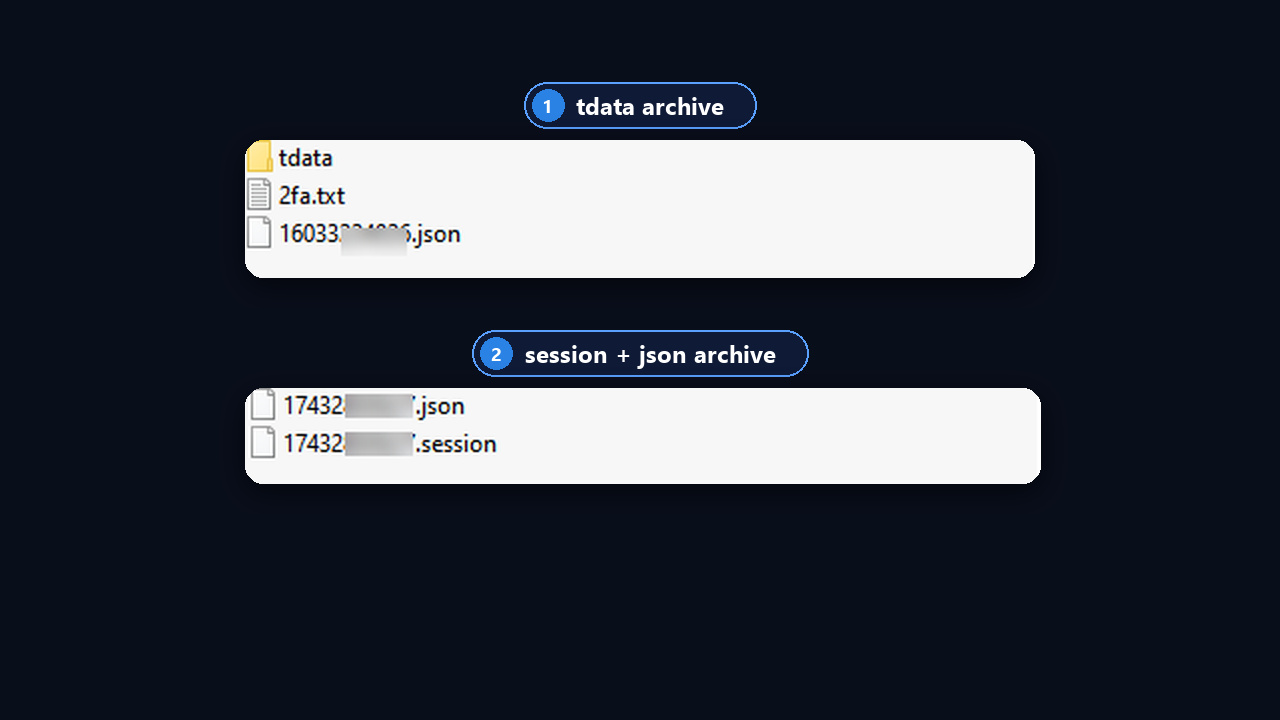
For instance, this is how the two archives look inside. One contains the tdata directory, 2fa.txt with the cloud password and a JSON with device data. The other contains two items sharing a name, normally the phone number.
Signing In With Telegram tdata
First, grab the portable build of the desktop client. Besides, it skips installation, which keeps the bought profile apart from your personal one. It lives on desktop.telegram.org: look for the Portable version link under the big blue button.
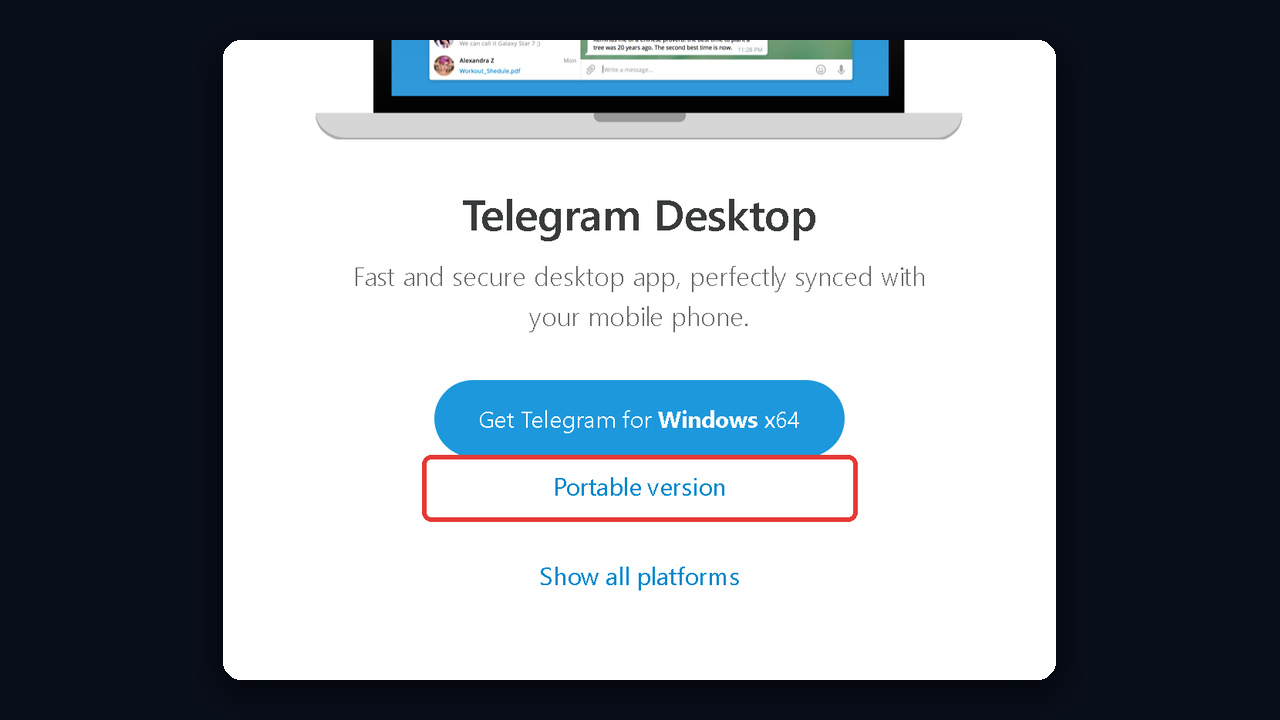
- Extract the ZIP to its own directory. There you will see Telegram.exe and a modules folder there.
- Copy tdata beside Telegram.exe. If the vendor sent it zipped, unzip it first.
- Add a proxy matching the number's country: Settings → Advanced → Connection type.
- Start Telegram.exe. The profile loads at once, with no phone number or code.
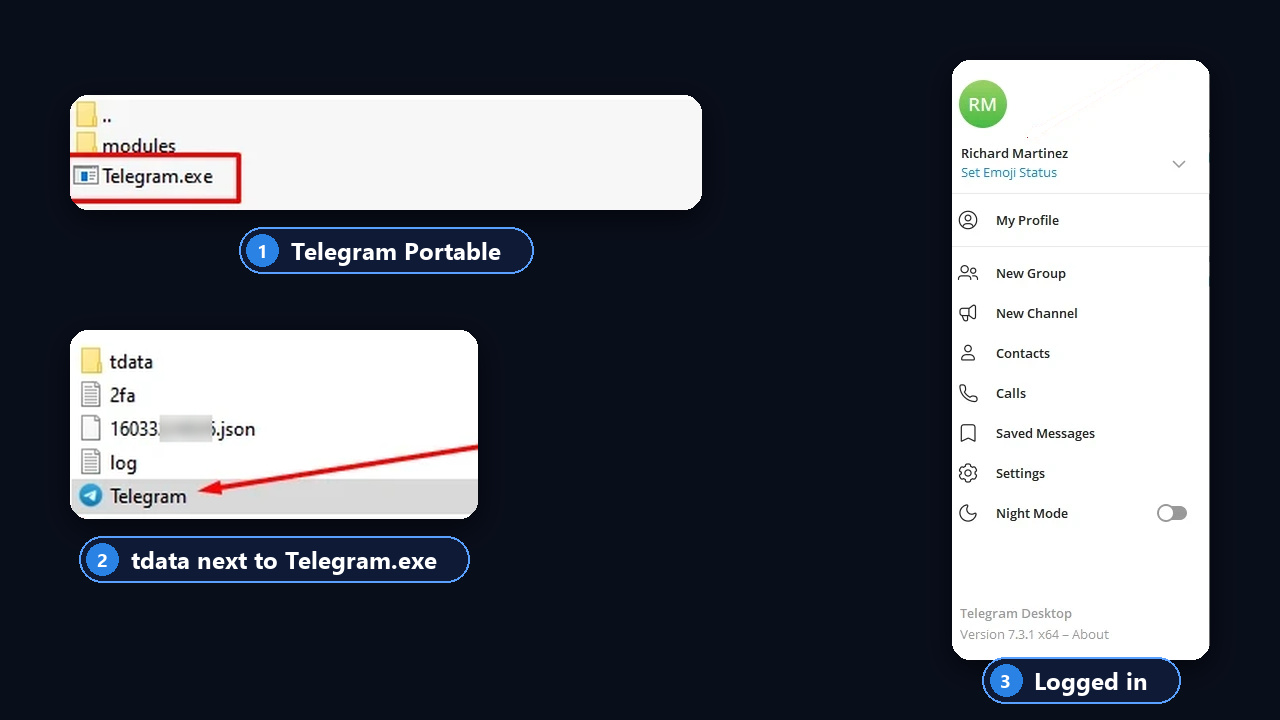
A local passcode prompt means the folder is locked, and only the vendor knows that code. In other words, it is a lock on the files, not the cloud password. In addition, give each profile its own copy of the app, or their data will overwrite each other.
Opening a Session + JSON Pair
Unlike Telegram tdata, a .session file cannot be read by the official apps. Instead, it goes into software built on Telethon or Pyrogram, such as account suites, bots or your own scripts.
- Match the names. To begin with, both items need one name, e.g.
79001234567.sessionand79001234567.json. - Read the JSON. Then check app_id, the device model and the 2FA field, because the tool connects with exactly these values.
- Pick a proxy. After all, an IP from the number's country makes a sign-in check less likely.
- Upload the pair to the tool and confirm the profile is alive.
Even so, the easiest option is the GramGPT.io Telegram suite. In Import Accounts, choose .session and drop the pair in: the suite displays the phone, username, geo and format. After that, assign a proxy, run the check and save the account to your dashboard.
ТУТ НУЖНА КАРТИНКА: скриншот владельца из EN/UA-версии кабинета: окно «Импортировать аккаунты» с загруженной парой session + json (как RU-скрин)
Файл: session-json-login-gramgpt.jpg · Alt: Logging in with session and json in the GramGPT.io Telegram suite: import, proxy and account check · 1280×720
Also note that unsaved accounts without a proxy get removed: a pair after 30 minutes, tdata after 24 hours.
There is also a route into the regular app: a tool requests sign-in on a new device, and the code lands in the copy that is already running. Yet this adds one more device to the list, so rely only on tools you trust.
Telegram tdata to Session Conversion
Since the key is identical, either format can be rebuilt from the other. In other words, a Telegram tdata directory can turn into a pair, and the reverse works too.
- Folder → pair. Handy when profiles were bought for manual use, but now you want a tool to run them.
- Pair → folder. Lets you open a working profile in the desktop client and read its chats.
For example, online converters, desktop utilities and libraries like opentele can do this. However, an online service gets full control over the account. So convert locally or with software you trust.
And when your profiles are already in the GramGPT manager, skip converters: export them in whichever format you need, as described below.
Session Files Versus Logged-In Devices
The word "session" covers two ideas. One is the file we just discussed. The other is any device where the profile is open right now, listed under Settings → Devices on a phone.
Similarly, on a computer, open Settings → Privacy and Security → Active Sessions. At the top you see the current device and the Terminate all other sessions button; below, every other device with its model, app and location.
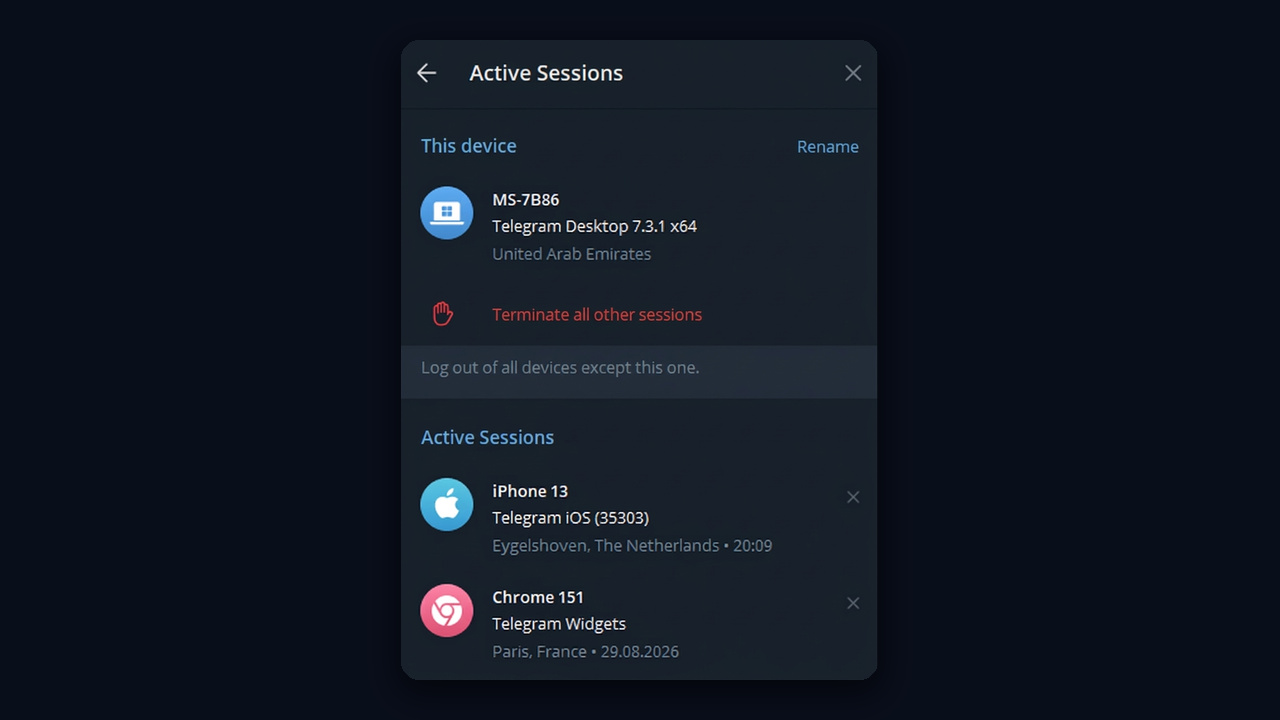
Ultimately, the connection is simple: each folder or pair started anywhere appears there as a separate line. As a result, this list shows how many copies of the access exist on other machines.
Locking the Account Down After Sign-In
In short, whoever holds these archives holds the account. Consequently, the vendor or any middleman may still keep a copy of your Telegram tdata. That is the core risk: a few days later the profile vanishes because the other holder pushed you out.
- Remove other devices. To do so, open Settings → Devices → Terminate All Other Sessions.
- Set a cloud password together with your own recovery email.
- Never start one key in two places. Parallel use from different IPs looks suspicious.
- Guard the archives like passwords. Do not forward them in chats or upload them to unknown services.
Re-Authorization After a Purchase
Right after a purchase, you and the vendor share the same access key. Removing other devices clears the extra entries, yet the one you are using may still be shared. That is why the next move is re-authorization, which issues a fresh key that belongs to you alone.
However, the old key does not vanish by itself. Roughly a day later, remove all other devices again from the new key, and the shared one is gone. Then set a cloud password and, if you wish, keep a backup copy in case Telegram signs you out.
The complete routine with timings and backups is in our guide on protecting a Telegram account after purchase.
Telegram tdata and Session in GramGPT.io
With dozens of profiles, opening them one by one wastes hours. For that reason, the GramGPT account manager takes both formats in a single window.
- Click Import Accounts. Choose tdata (a folder or ZIP) or .session (pairs with one name), or simply drag everything in.
- Fill in the source, that is, the vendor's handle or lot, to compare later whose profiles survive longer.
- Enable Terminate other sessions. The module drops foreign devices right away, and the vendor loses access.
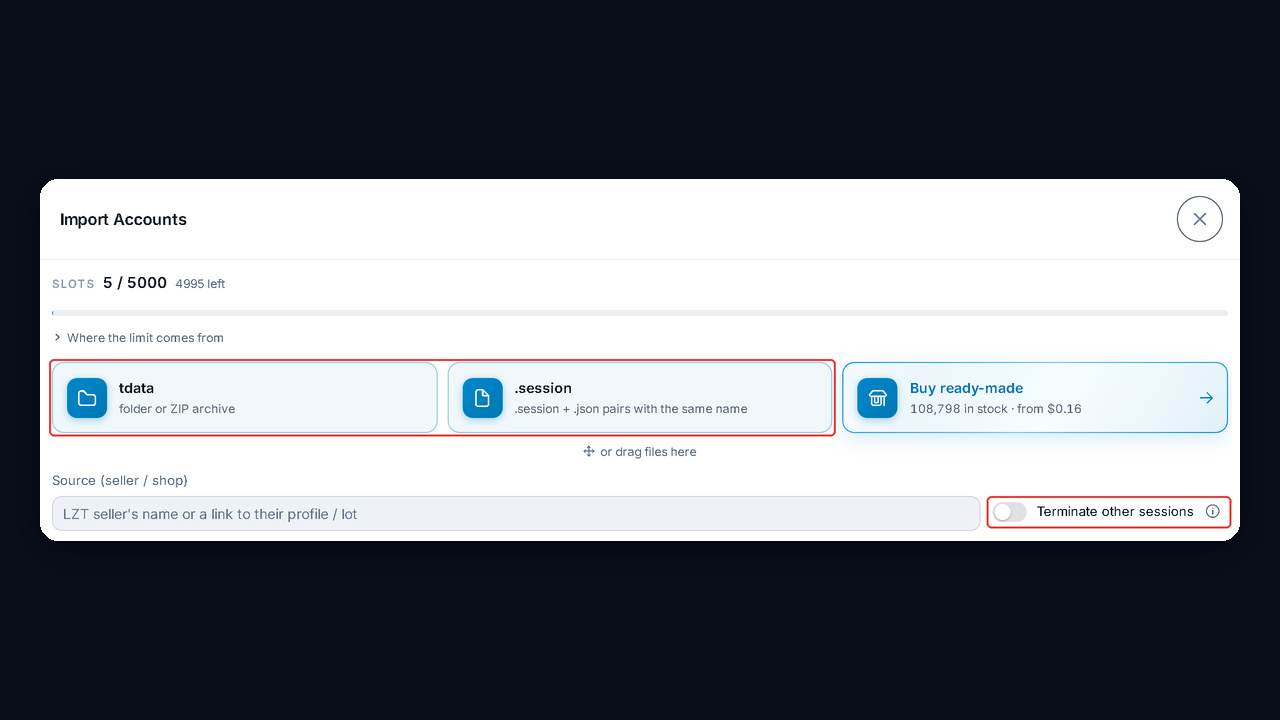
Then, once imported, profiles show up in the manager with status, spam block and proxy. From there, you can set 2FA and sign out other devices in bulk. Also, any profile opens in the built-in web client inside the dashboard, no extra app required.
Export and Re-Authorization in the Manager
Likewise, going the other way is just as quick. Tick the profiles and open the bulk Sessions menu:
- Export tdata produces an archive with the desktop folder, 2fa.txt and a JSON.
- Export Sessions produces .session and .json pairs for tools.
- Reauthorize issues a fresh key for each selected profile.
- Terminate Sessions signs out every foreign device.
- Remove from Telegram Web closes the built-in web access when you are done with it.
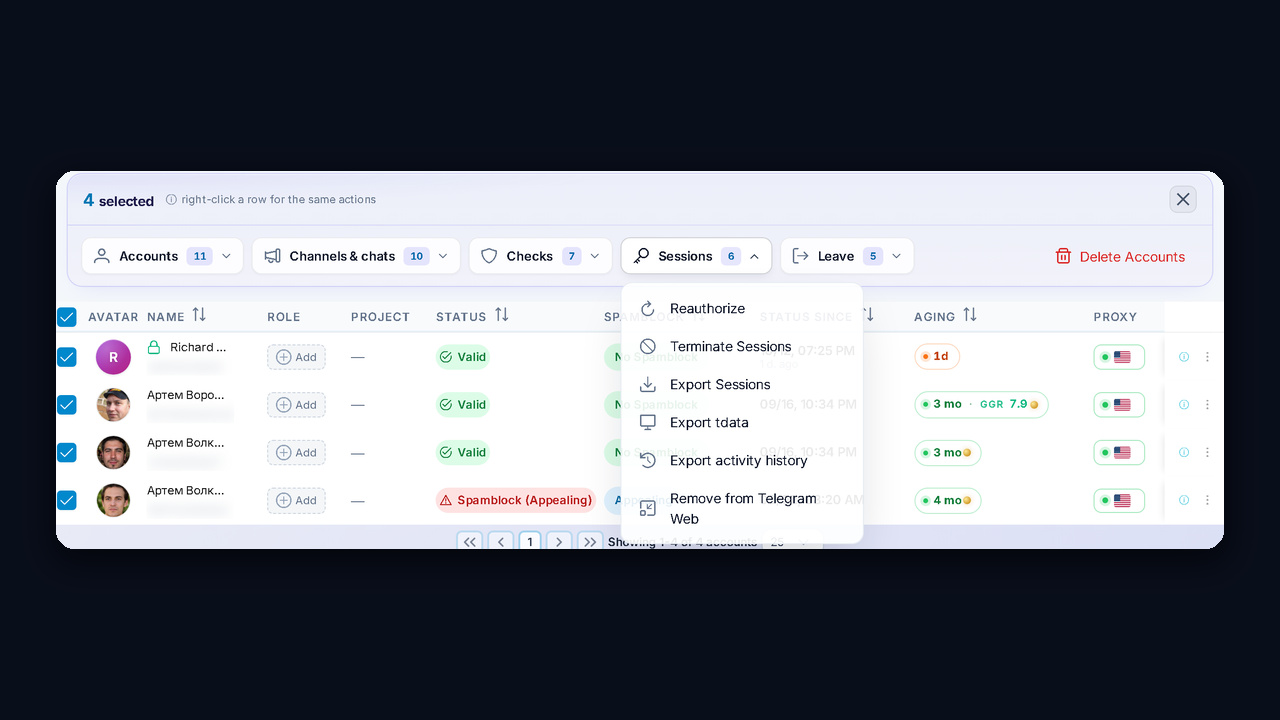
As a result, converters become unnecessary: bring in a folder, take out a pair, or the opposite. Moreover, the "re-authorize, then remove other devices a day later" routine runs on hundreds of profiles at once.