Telegram web proxy is a new connection type the messenger rolled out in autumn 2026. It helps people whose usual MTProto proxies stopped responding while their VPN is slow or blocked too. Clear guides are still rare, though: where to find it, why calls fail, and how to keep access for more than a week.
Below we explain how it works under the hood, how it differs from SOCKS5 and MTProto, how to connect it on desktop and Android, and how to run a private server for yourself and your family. We also cover the mistakes that get a proxy blocked.
What is a Telegram web proxy
In short, it's a middleman between the app and the messenger's back end. Instead of connecting directly, the app talks to an intermediate machine that passes the data on. So if an internet provider blocks the messenger's addresses but doesn't know the relay's address, messages keep arriving.
The web variant goes a step further. It wraps messenger traffic inside an ordinary secure connection to a website. To filtering systems, it looks like someone reading a harmless page, such as a blog or a portfolio. Inside that connection, however, encrypted chat data is flowing.

How it differs from SOCKS5 and MTProto
The messenger has supported intermediaries since 2017. SOCKS5 came first: a universal protocol many programs use. Then, in 2018, the company launched its own MTProto proxy, which hides the real addresses of its data centres.
The weak spot is that MTProto traffic has a recognisable fingerprint. As a result, those were blocked on a large scale in spring 2026, and a better disguise was needed.
| Type | What the provider sees | Calls | Platforms |
|---|---|---|---|
| SOCKS5 | A plain relay, easy to spot | Yes | All apps |
| MTProto | Encrypted traffic with its own signature | Yes | All apps |
| Telegram web proxy | A secure visit to a regular site | No | Desktop and Android |

In other words, the new type complements the old ones rather than replacing them. If MTProto still works for you, there's no rush to switch. For picking a classic option, see our guide on Telegram proxies.
How a Telegram web proxy works inside
First, the setup has three parts: a rented server, a domain and a cover website. The owner points the domain at that machine and runs both a normal site and the relay software there.
- A visitor without a key opens the domain in a browser and sees an ordinary website.
- The app with the correct key reaches the same domain, and the software lets it through to an MTProto node.
- The relay forwards everything onward and sends the replies back.
Meanwhile, you never visit the site by hand. The app quietly launches a built-in browser (a WebView) and uses it to open a genuine secure connection. That's the key difference: earlier tools merely imitated a browser, whereas the new approach actually uses it.
Keep in mind: the provider still sees the site's address, how long you stay connected and how much data moves. It can't read messages or the key, but the connection isn't completely invisible.
Current limitations
However, before setting anything up, note that the technology is brand new. As of late September 2026, three limits stand out.
- No calls. Texts, photos and files go through; voice and video calls don't.
- No iPhone yet. The option exists in Telegram Desktop and the Android app, but not on iOS.
- Messenger only. Other apps and websites don't benefit.
Also, you need a fresh app version. So if you can't find the option, update first.
How to connect a Telegram web proxy on desktop
First of all, you need two values: the hostname and a secret key. Usually the owner sends both in a single link like t.me/webproxy?server=…&secret=…, and opening it is enough. Without a link, add it manually:
- Go to Settings → Advanced → Connection type.
- Click Add and choose WEB.
- Paste the hostname (domain only, no https:// or path) and the secret.
- Save and check that the status turns to Connected.
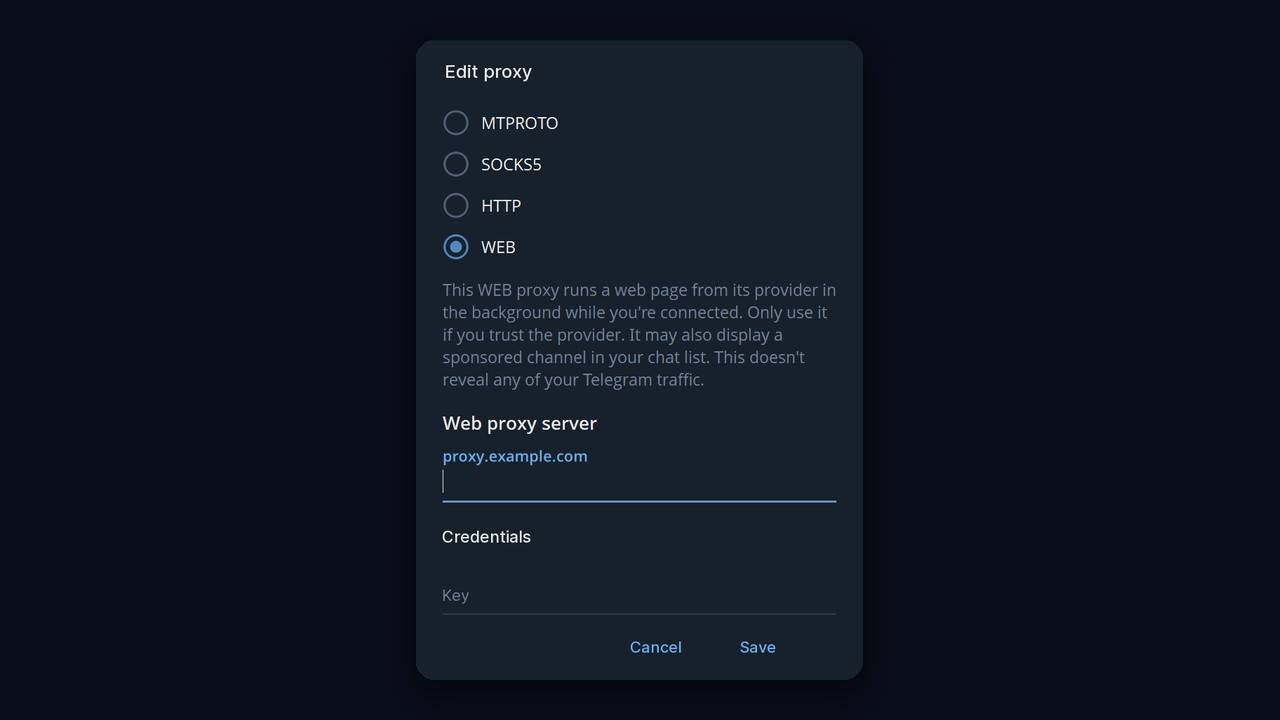
Also, notice the warning under the type selector. It loads its owner's page in the background, so connect only to providers you trust. It may also show a sponsored channel in your chat list, although it can't read your conversations.
Setting it up on Android
For example, on Android the path is similar: Settings → Data and Storage → Proxy Settings → Add Proxy. Pick WEB Proxy, enter the domain and key, then switch on Use Proxy. Here the key is a 16-byte MTProxy secret, and the hostname goes in without a scheme.
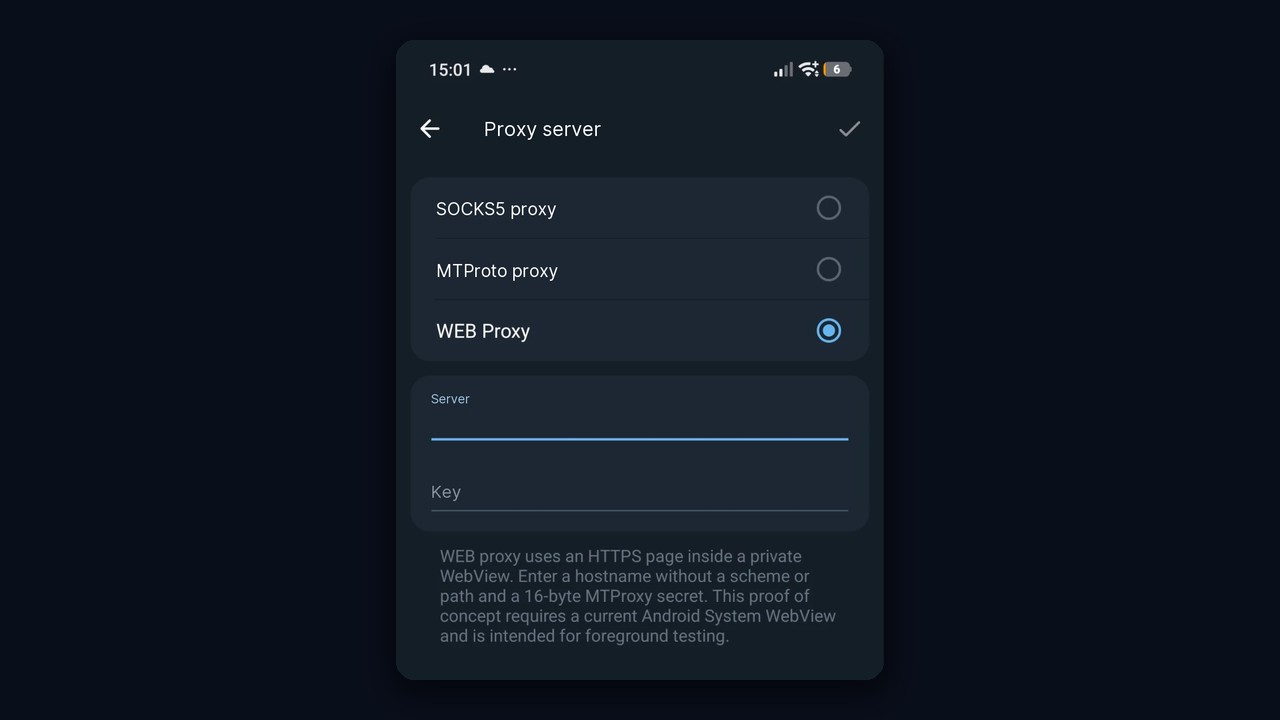
At the same time, the Android app still labels the feature a proof of concept. It needs an up-to-date Android System WebView and works best while the app stays open. You can also keep several entries and enable auto-switching, so the app jumps ahead if a server goes silent.
Where to get a Telegram web proxy
There are three routes, and reliability varies a lot.
- Public links from directories. Free and instant, yet short-lived: everyone sees the location, including those who block it.
- Paid services. More stable, but you trust someone else's machine and depend on the seller.
- Your own machine. The most effort, although only you and people you choose know where it lives.
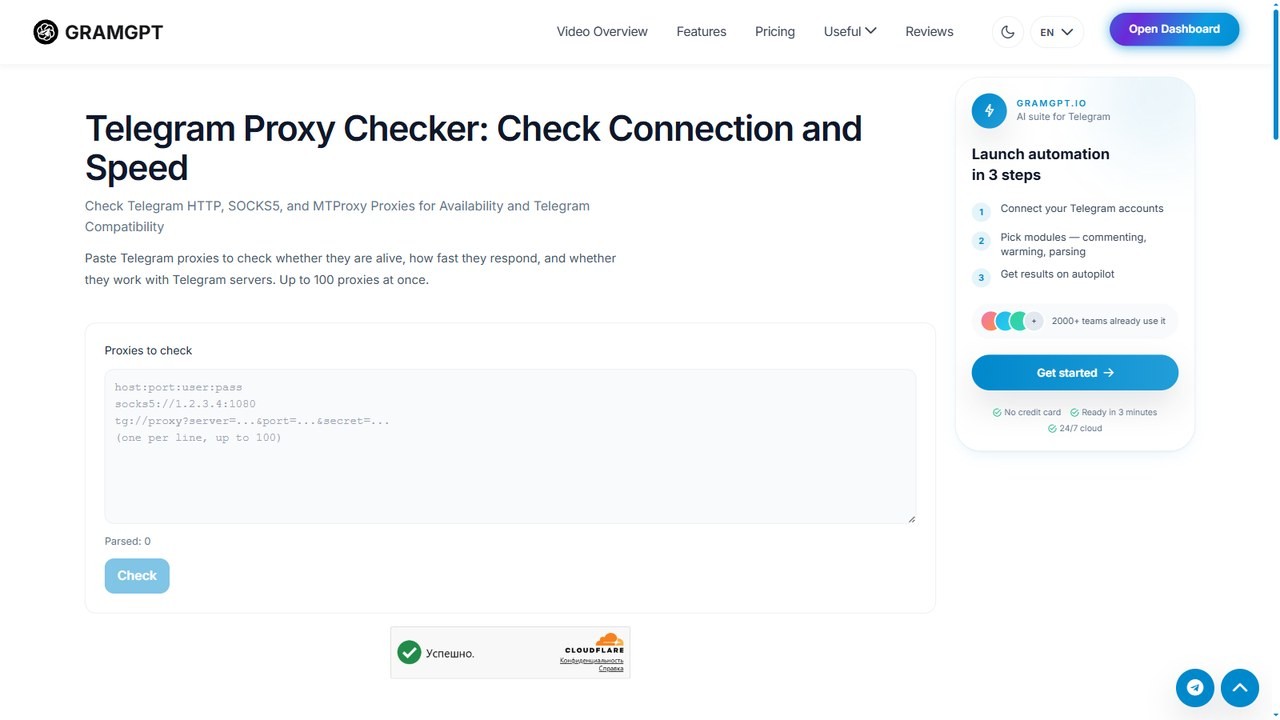
Whatever you choose, test it first. For example, our free Telegram proxy checker shows whether it responds, its ping and whether the protocol works.
Buy a Telegram web proxy: step-by-step
Hosting a machine isn't for everyone. Buying a ready-made relay takes about five minutes and zero configuration. Here is the process, using ProxyWing as an example.
Start with the app itself. Desktop 7.1.3 and later handles this connection type most reliably, while early Windows builds before 7.1.2 were unstable with it. So check for updates first.
Then place the order:
- open the seller's relay section and create an account if you don't have one;
- on the order screen, pick a bundle, anywhere from a single slot to two hundred;
- confirm with the Checkout button and pay.
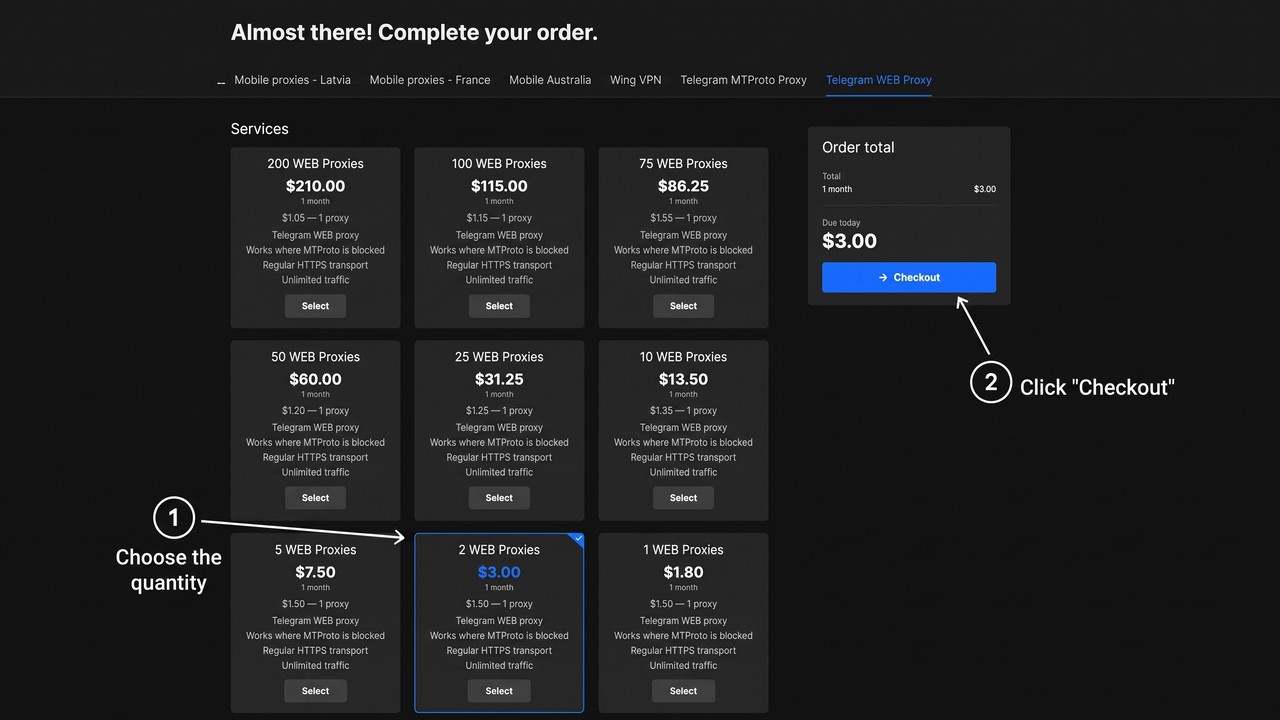
The unit price drops as the bundle grows: a lone slot costs $1.80 per month, while in a pack of two hundred each is $1.05. A couple of slots usually cover a household; account work needs more.
After payment, the seller shows a hostname and a secret key. You enter them exactly as described in the desktop section above. The only catch is stray spaces: they often stick to copied strings and silently break the connection.
Finally, confirm it works: message someone and open a photo or clip. If media loads promptly, you are good to go. Still, whatever you buy runs on someone else's machine, so read the terms before paying and run it through the checker afterwards.
Why public ones get blocked fast
The easiest way to find such a relay is simply to obtain its link, since the domain and key are right there. Consequently, once a link appears in an open channel, a censor can connect like any user, confirm it works and block the domain. No clever traffic analysis is required.
Besides, the code is open source. Anyone can study it and look for shared traits: identical errors, delays, the rhythm of data exchange. Developers try to make a keyless visit look like a normal site. Still, if thousands of hosts display the same placeholder page, that page becomes a giveaway itself.

So the forecast is simple: a well-known public relay falls quickly, while a private setup known to a handful of people is much harder to spot.
How to run your own Telegram web proxy
If you'd rather not depend on strangers, host your own. No programming is involved, but you'll work in a terminal. Therefore, if SSH and the command line sound intimidating, ask a tech-savvy friend.
Step 1. Rent a VPS
To start, a small virtual private server (VPS) abroad will do, for instance in Germany or the Netherlands. Pick Ubuntu 24.04 and add a public IPv4 address; the rest can stay default. Expect roughly $10–12 a month.
Step 2. Buy a domain and point it at the server
Next, register a domain with the same provider or any registrar, usually for a year. Then create a DNS record pointing it to the VPS's IP. Budget around $15–20 per year.
Step 3. Build a cover website
The site keeps the domain from looking like an empty stub during a casual check. So make a simple but lived-in page: a few sections, an image, an About page and a proper 404. Also, use a fresh site rather than your business one; if the domain gets blocked, only the cover suffers.
Step 4. Install the Telegram web proxy
Then grab the open-source package from GitHub together with its instructions. Connect over SSH and run the listed commands in order. During setup you'll create a secret key, and at the end the installer prints the hostname and a ready-made connection link.
Finally, open that link on desktop or Android and confirm. Afterwards, keep the machine maintained: install updates and check now and then that everything runs.
Tip: share the link only with people close to you and ask them never to post it. A single mention in a big channel exposes it, and it will soon be blocked.
Web proxy or VPN: which to choose
This tool solves one job: it lets the messenger deliver texts and files. Nothing else routes through it, so for the wider internet a VPN remains the broader tool.
On the other hand, a private relay can keep your chats alive even when familiar VPNs stop connecting. That's why it makes sense to keep both: a VPN for everything and this as a backup lane for chats.
| Goal | Best fit |
|---|---|
| Messaging only | Web proxy or MTProto |
| Telegram calls | MTProto or VPN |
| The whole internet and other apps | VPN |
| Backup access when a VPN fails | Your own web proxy |
Proxies for multiple Telegram accounts
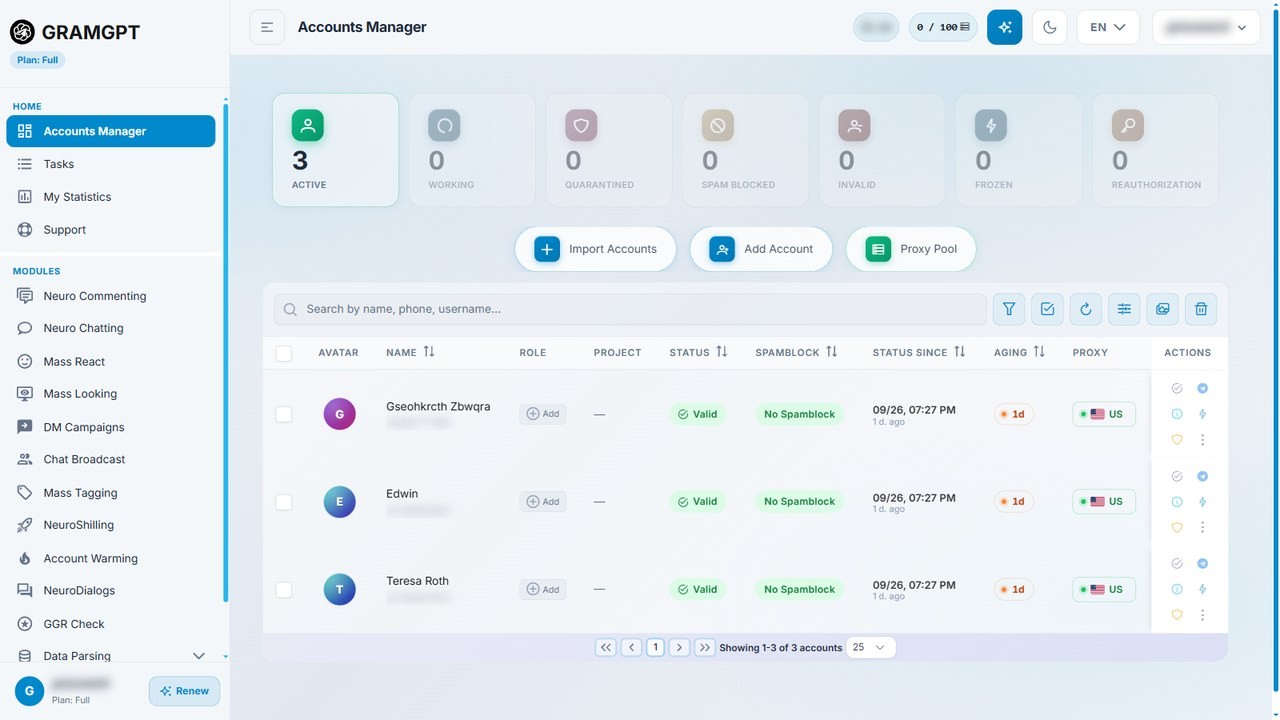
Separately, if you run dozens of accounts, each needs a separate relay. Otherwise, profiles sharing an IP look linked, and the risk of restrictions grows.
In the GramGPT account manager, a proxy is bound to every account, and the system shows which ones are alive. In addition, a dead proxy stands out by its status, so no account drops out unnoticed.