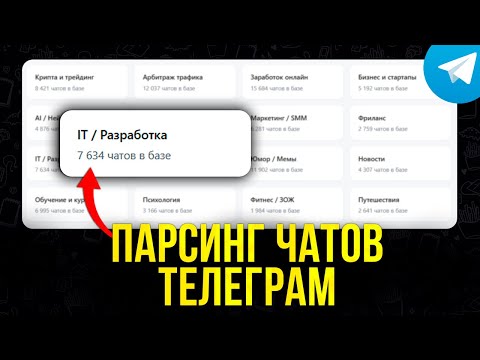
The Telegram group parser in GramGPT finds groups by keywords, drops dead and closed chats, and puts the live ones into a ready list. Collecting such a list by hand takes days, while here it appears in a few minutes. Below we cover how to find Telegram groups, which filters to set and what to do with the list afterwards.
How to Find Telegram Groups Manually and Why It Is Not Enough
The simplest way is Telegram's global search. You type a word, for example "crypto chat", and the app shows a few public groups with that word in the name. Besides, people look for chats in catalogs, in channel descriptions and through links in posts. Many channels run their own discussion chat, and the link usually sits in the description.
However, manual search has three serious drawbacks:
- Telegram returns only a handful of results per query, so you cannot build a large list this way;
- you cannot see whether a chat is alive, how many people are in it or whether you can post there;
- every group has to be opened and checked by hand.
That is why, for outreach, inviting and finding clients, groups are collected with a Telegram group parser. It does the same thing you do in the search bar, but across hundreds of word combinations and with a check of every result.
What the Telegram Group Parser in GramGPT Can Do
The module runs through your own accounts and can:
- search for groups by keywords and their combinations with suffixes;
- filter chats by member count, activity, language and openness;
- rate each group for outreach;
- show in the log why each found chat was kept or dropped;
- export the list to CSV, TXT, JSON and XLSX.
You need connected accounts to start. Add them to the account manager via Tdata or Telethon sessions, then open the channel and chat parser section and switch to the Chats tab. In the Accounts block, tick the profiles that will search for groups. You can also run the task on several accounts at once, and they will work in parallel.
How to Pick Keywords for Finding Groups
Group names differ a lot from channel names. Channels are named after a brand or a topic. Chats, on the other hand, often contain words like "chat", "community", "flea market", "jobs" or a city name. So the keywords you give the Telegram group parser are worth collecting separately from channel keywords.
| Niche |
Keywords |
Suffixes |
| Crypto and trading |
crypto, trading, p2p exchange, airdrops |
chat, community, 2026 |
| Jobs and freelance |
vacancies, remote work, freelance, side job |
chat, london, berlin |
| Local business |
flea market, ads, neighbors, housing |
city or district name |
| Affiliate and marketing |
traffic arbitrage, smm, targeting |
chat, community |
Start with 10–15 keywords and a couple of suffixes, then check the log. If almost all results are dropped as too small, widen the member range. If you get many off-topic groups, remove the most general words.
How to Set Up the Telegram Group Parser by Keywords
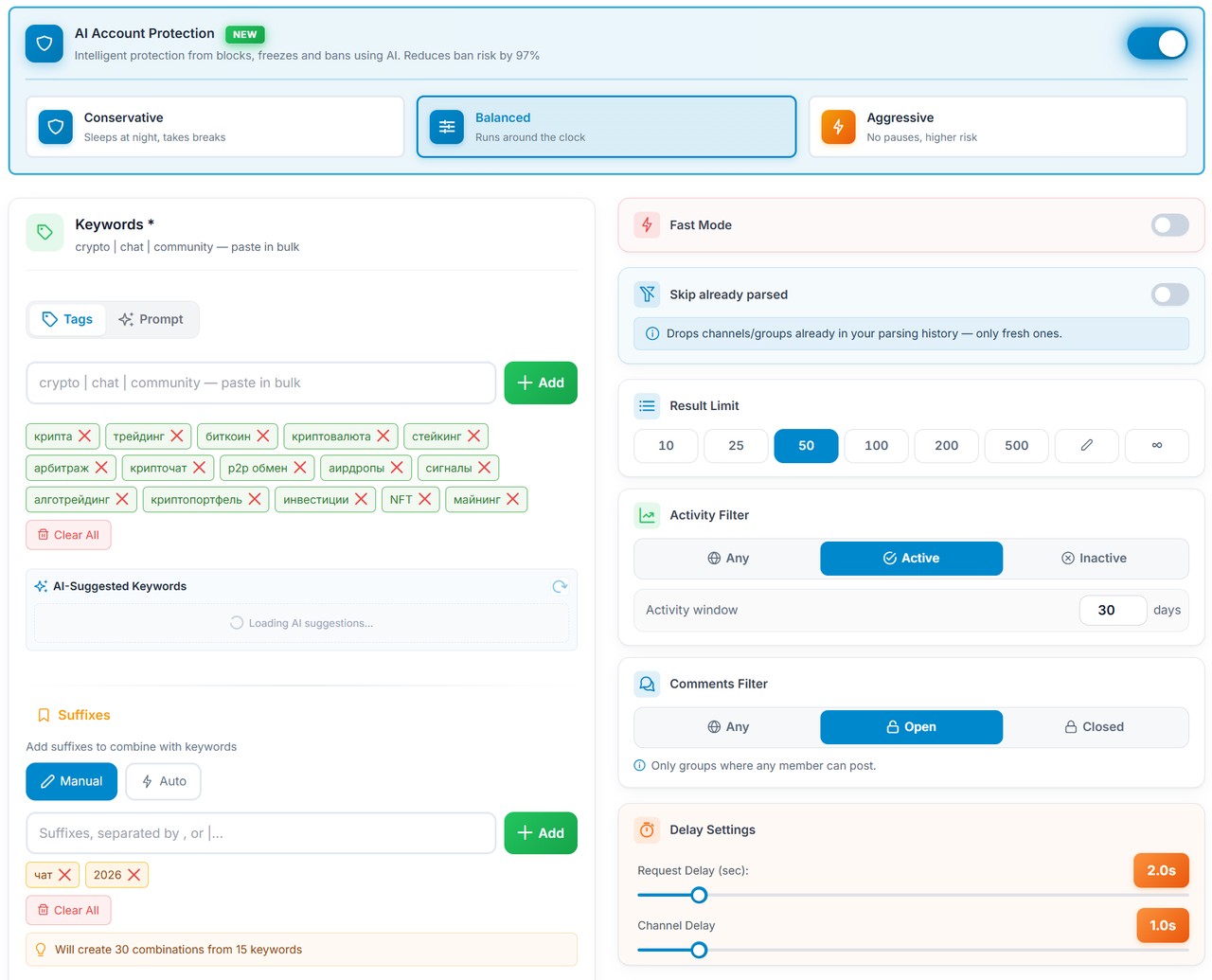
Before adding keywords, turn on AI Account Protection. It has three modes: Conservative sleeps at night and takes breaks, Balanced runs around the clock, and Aggressive works without pauses but with a higher risk. For most tasks, the Balanced mode is the right choice. You can read how it lowers the risk of bans on the AI account protection page.
Keywords, Prompt and AI Suggestions
Keywords are the core of the search. You can paste them in bulk separated by a vertical bar, take them from a template or generate them on the Prompt tab from a short niche description. For example, for crypto you could use "crypto", "trading", "bitcoin", "cryptocurrency", "p2p exchange", "airdrops", "signals" and "NFT".
Next, the system suggests related words via AI and shows a match percentage. However, adding everything is a bad idea: suggestions help you widen the list, but extra words pull in irrelevant groups.
Suffixes: How Many Combinations You Get
Suffixes are attached to every keyword. For groups, the suffix "chat" works especially well, because that is how people name their communities. In Manual mode you type suffixes yourself, for example "chat" and "2026", while in Auto mode the service picks them for the language of your keywords.
Below the field you see the total right away, for example "Will create 30 combinations from 15 keywords". That means the parser searches not only "crypto" but also "crypto chat", "crypto 2026", "trading chat" and so on. As a result, the output is many times wider than a manual search.
Filters: Members, Rating, Post Text and Language
The left column of the settings holds the main selection criteria:
- Participants Range, for example 1,000 to 1,000,000, to cut empty groups;
- Spam Rating from 1 to 10: the higher it is, the livelier and more useful the chat;
- Match in post text: the keyword is checked not only in the name but in messages too;
- Language Detection: you tick the languages you need, and the parser keeps only such chats.
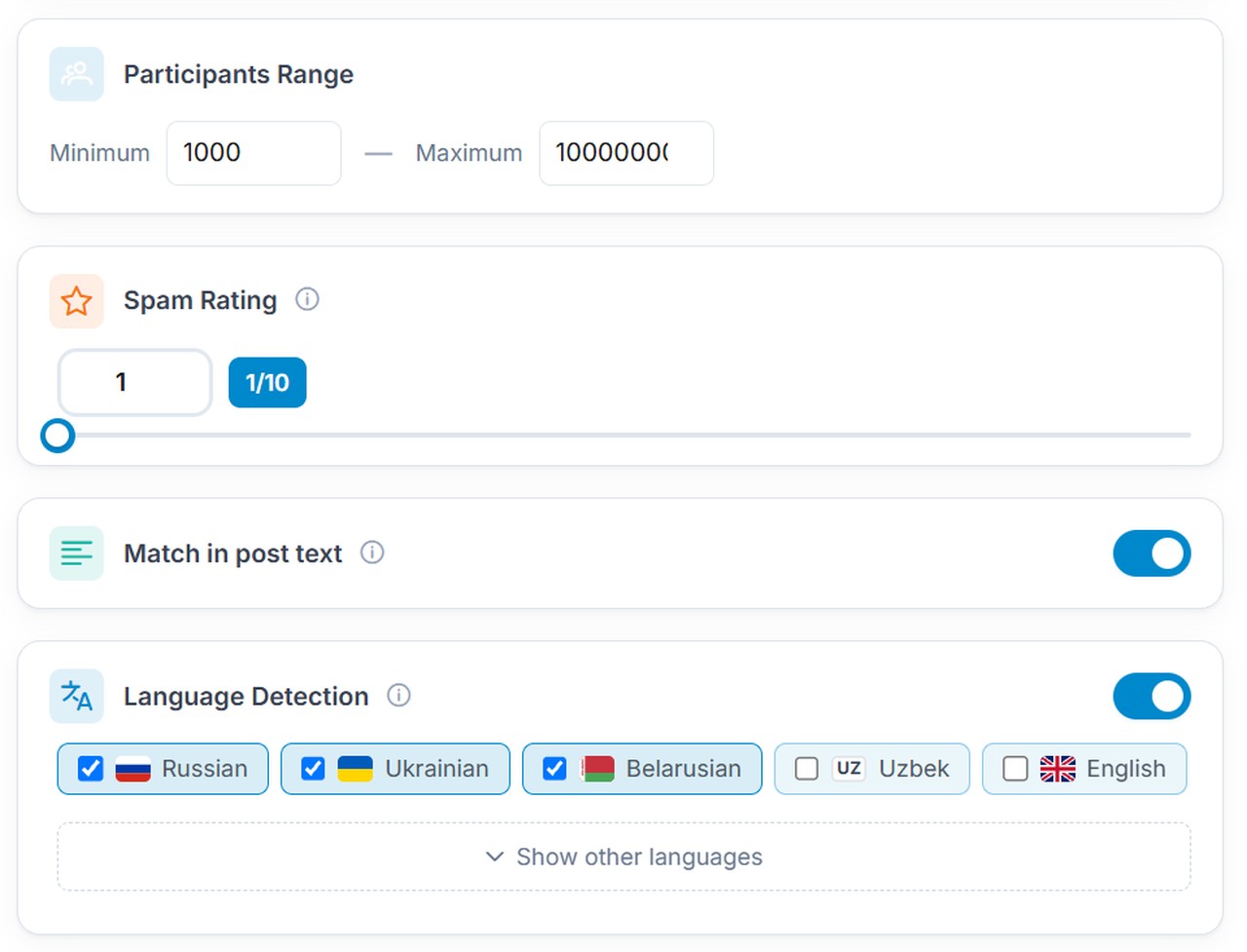
The language list is long: besides Russian, Ukrainian and English, there are Turkish, Spanish, German, Arabic, Hindi, Polish and dozens more. Therefore, the same parser works for both CIS and international niches.
Activity, Open Chats and Limits
The right column holds the filters that matter most for groups:
- Activity Filter: active chats only, with a window of, say, 30 days;
- Comments Filter "Open": only groups where any member can post remain;
- Result Limit: 10, 25, 50, 100, 200, 500, a custom number or no limit;
- Skip already parsed: groups from your history are dropped from the output.
Request delays for the Telegram group parser are set separately. Fast Mode ignores them, but for stable account work it is better to keep at least the default values.
Running the Telegram Group Parser: What the Log Shows
After the setup, click Start Parsing. A counter of found groups appears at the top, with a detailed log below. It shows which account searches for what, which query is in progress and how many groups passed the filters, for example "'crypto chat': found 6 out of 9 results".
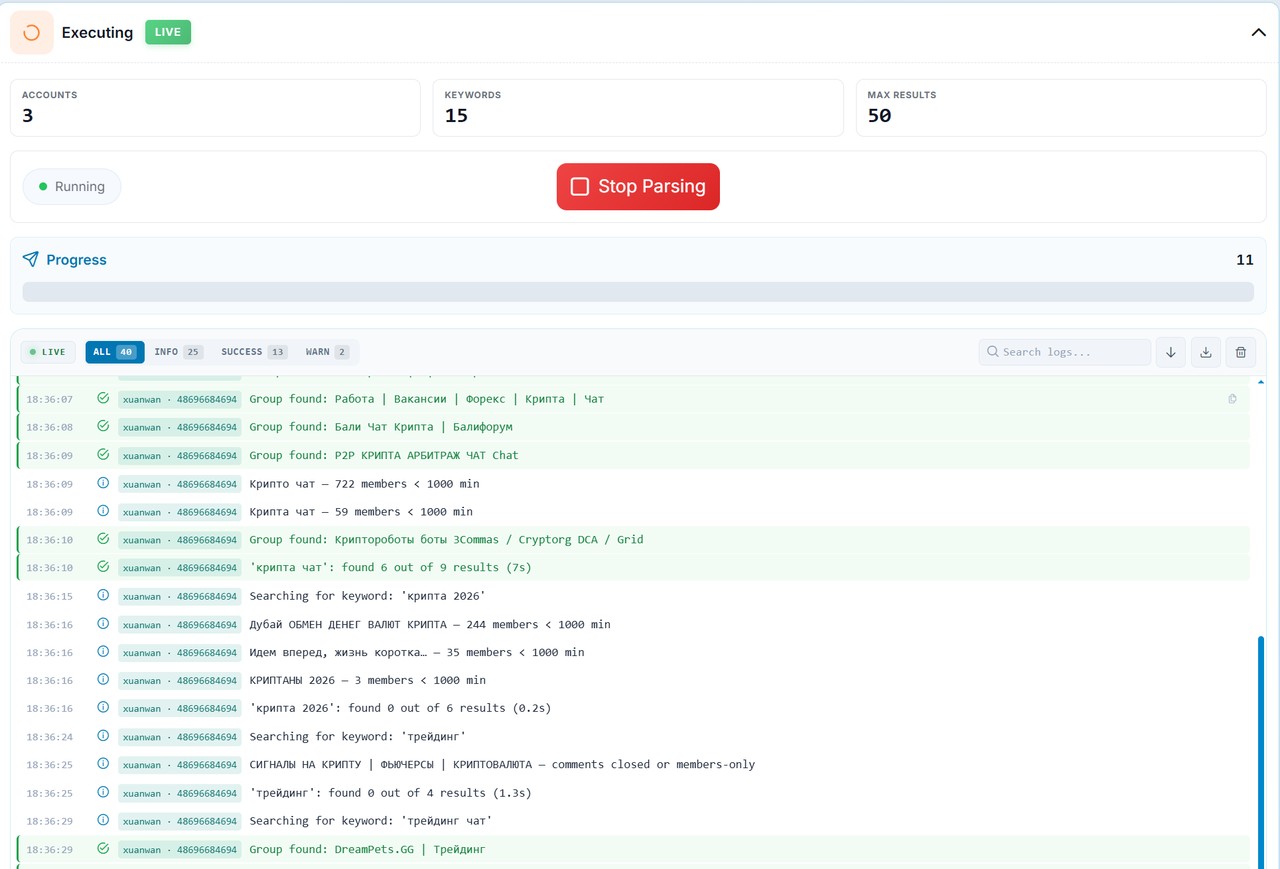
The key part is the skip reasons. If a group is small, the parser writes "722 members < 1000 min". If you cannot post in a chat, you see "comments closed or members-only". Thanks to this, you know right away which filter cuts the output and what to loosen.
When the task runs on several accounts, the log shows how they share the queries. For example, one profile searches "crypto chat" while another connects and takes the next keyword. In this way, the load is spread evenly and collection goes faster. You can stop parsing at any moment with Stop Parsing, and everything found so far stays in the results.
Telegram Group Parser Results and List Export
Meanwhile, found groups appear in the Results block while the task is running. Each one shows its name, username and member count, and you can open any of them in one click. The list can be sorted by members, activity, name and date.
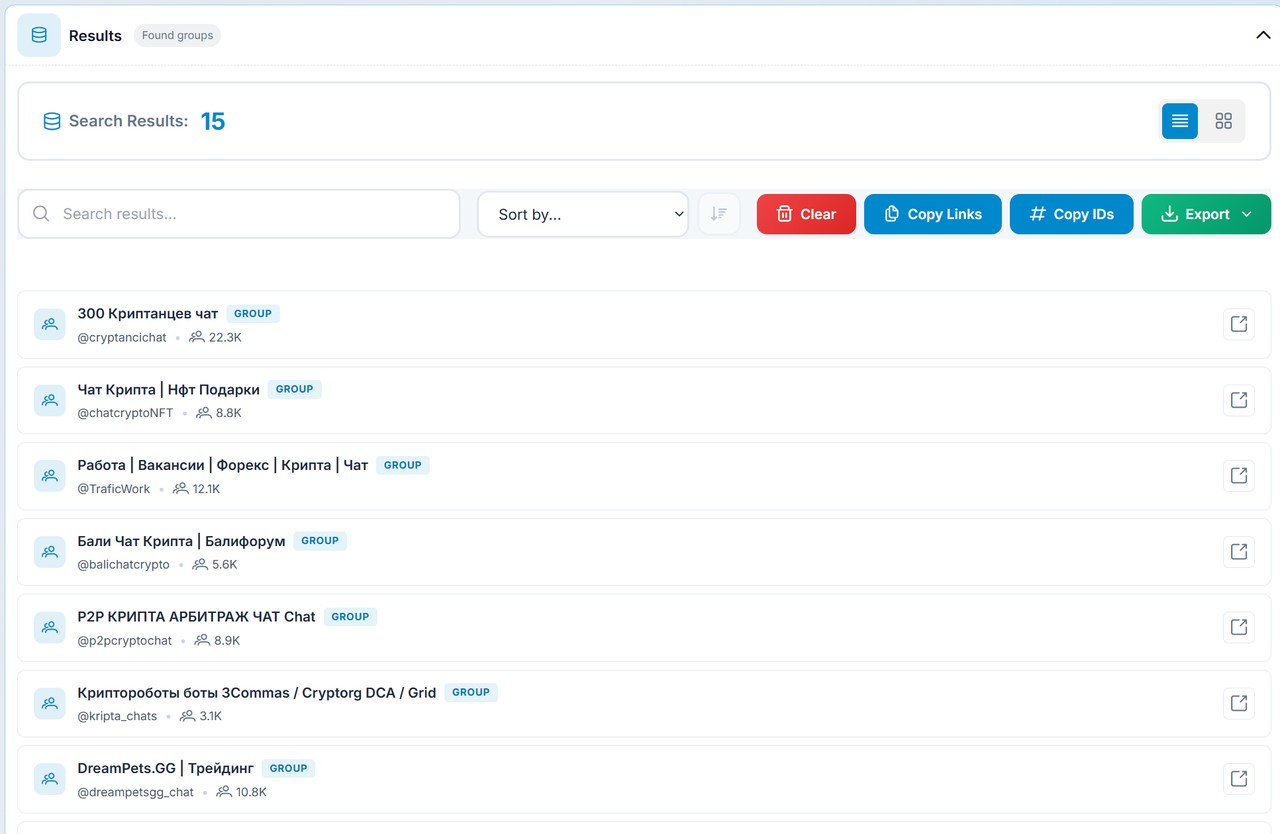
Then you can take the list in several ways. The Copy Links and Copy IDs buttons put it straight into the clipboard. The Export menu offers Basic CSV, links only or IDs only in TXT, Advanced Export, and downloading the whole list as CSV or JSON.
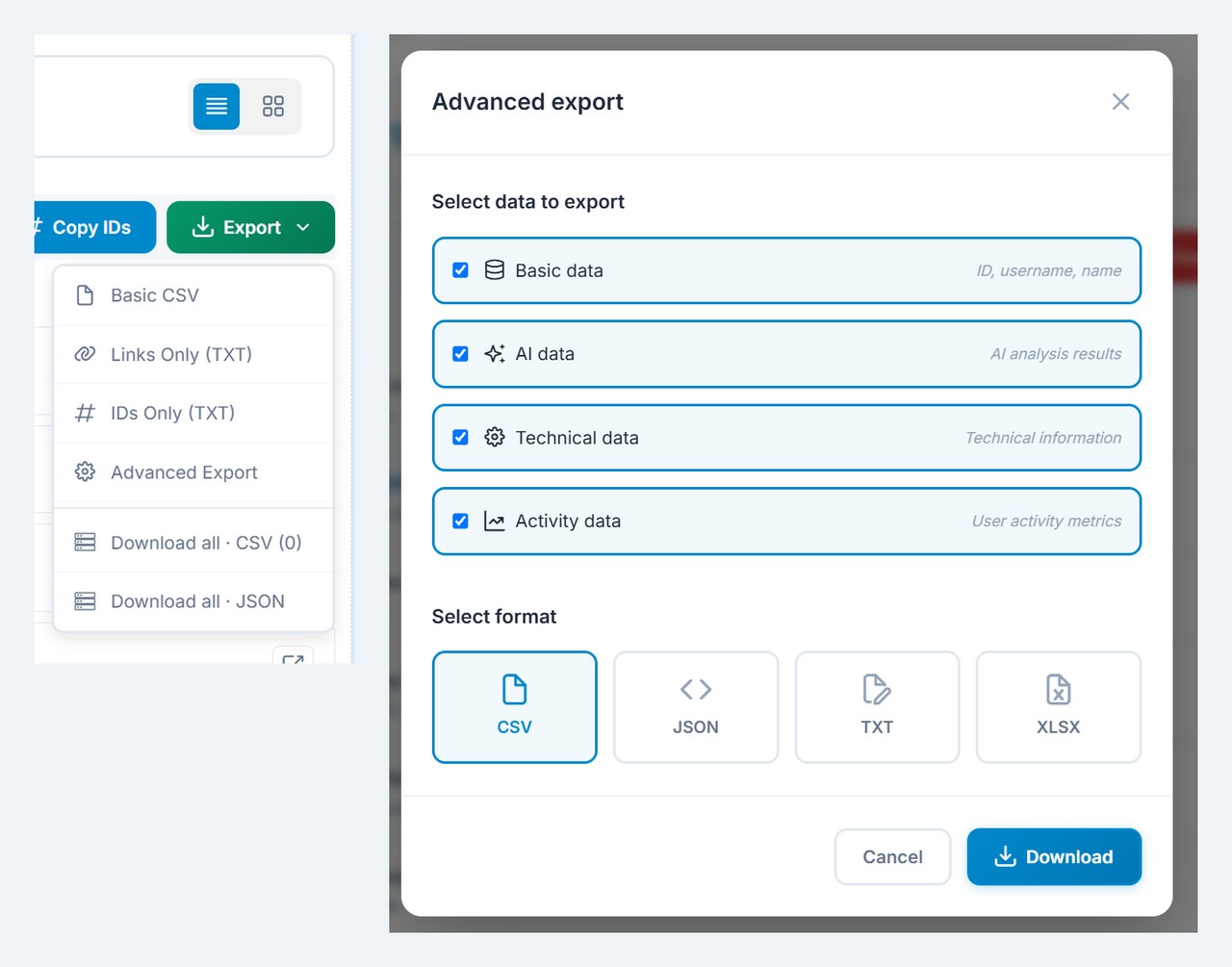
What Is Inside Advanced Export
In Advanced Export you choose the data blocks and the file format yourself:
- basic data: name, link, username, member count;
- AI data: language, spam rating, activity level;
- technical data: chat type, join type, verification, dates;
- activity data: messages, posting frequency, engagement.
The formats are CSV, JSON, TXT and XLSX. For instance, XLSX is handy for sorting groups by rating in a spreadsheet, while JSON suits your own scripts or analysis in ChatGPT.
Where Your Telegram Group List Is Stored
Every run goes to Parsing History, where you see the time, keywords, status and number of groups found. Runs and their results are kept for 30 days, and you can download a file or copy the links from the history at any time.
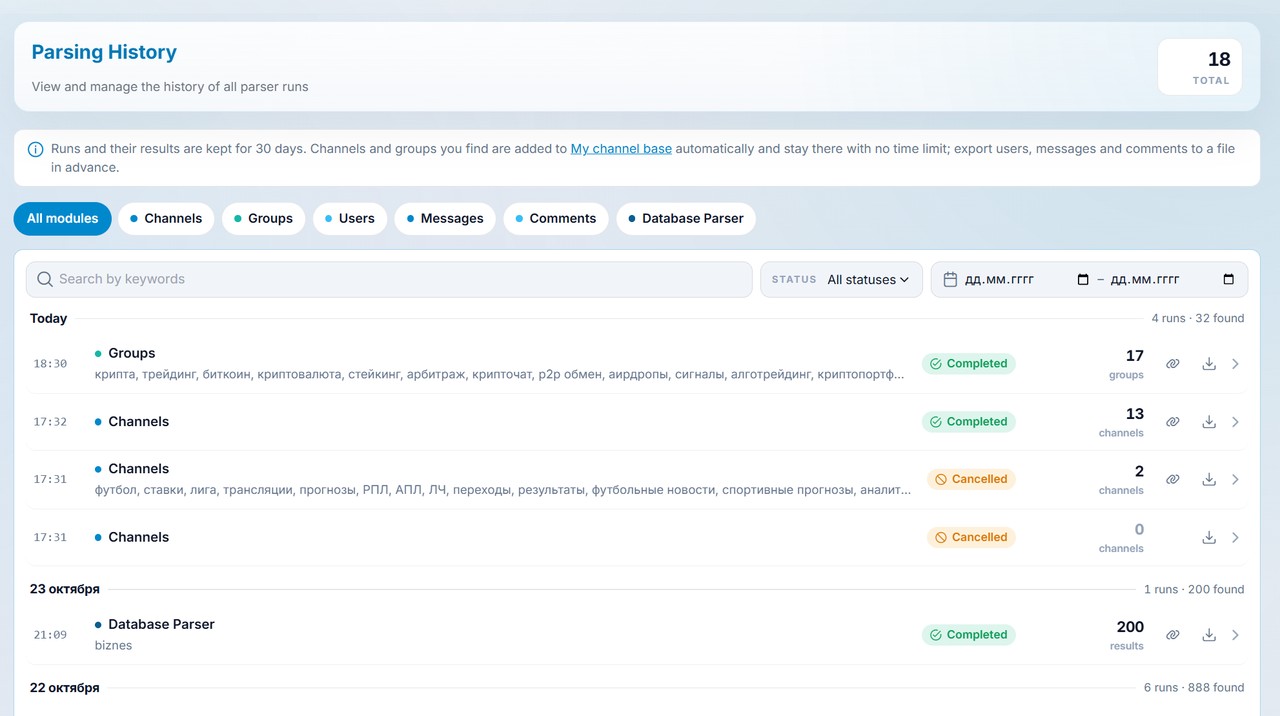
At the same time, the groups you find go to My channel base automatically and stay there with no time limit. There you can sort them into folders, check their status and drop them into any module with the From base button. If you need a ready sample without your own accounts, see the parser that works on our base of 2M+ channels and chats.
Common Mistakes with the Telegram Group Parser
Most often, a weak list comes not from the tool but from the settings. Here is what gets in the way of good groups:
- Too general keywords. For example, "business" pulls thousands of irrelevant chats, while "business chat london" gives a precise sample.
- No "chat" suffix. In that case, the output is full of channels and bots that the parser drops anyway.
- Member minimum set too high. Narrow niche groups are often active but small, so a threshold of 300–500 works better for them.
- The "Open" filter is off. As a result, groups where only admins can post get into the list, and they are useless for outreach.
- One account for a large volume. Spread the task across several profiles and keep the delays, otherwise the account gets restricted sooner.
What to Do with the Collected Groups
The groups you collect are places where your audience already hangs out. So the list is usually used in four scenarios:
- group outreach: messages with your offer go to the found chats through the group mailing module;
- collecting members: user parsing pulls active people from groups for direct messages;
- inviting: the collected users are invited to your channel or chat with the inviter;
- neurochatting: accounts talk in groups like regular members and gently lead people to the profile with neurochatting.
Before any outreach, read the chat rules. In many groups, ads are allowed only on certain days or for a fee, and admins ban accounts quickly for breaking the rules. Therefore, pick groups with a high rating, test your text on a few chats first and only then scale up. It also helps to mix ad messages with normal conversation, otherwise the account will soon get restricted.
If you need channels rather than groups, switch the module to the Channels tab. The article on the Telegram channel parser explains how to collect them through search and similar channels. In the end, one Telegram group parser covers the whole path, from finding platforms to a ready audience for work.