You run a Telegram feed, chat in groups and leave comments, yet people still ask where they can read more. A link in a DM gets buried, and a URL in your bio is plain text that few people tap. Telegram already has a better spot: you can add a channel to your Telegram profile so that every visitor sees it right under your name.
Most users never find this setting. Instead, they look for a pin button inside the feed or paste a URL into the bio and wait. As a result, the project stays invisible, because a visitor only sees a name and a short line of text.
This guide covers how to do it on iPhone, Android and desktop, why the block may not show up and how to remove it. After that, we show how marketers pin feeds across dozens of work accounts in 2026 and turn each page into a traffic source.
What happens when you add a channel to your Telegram profile
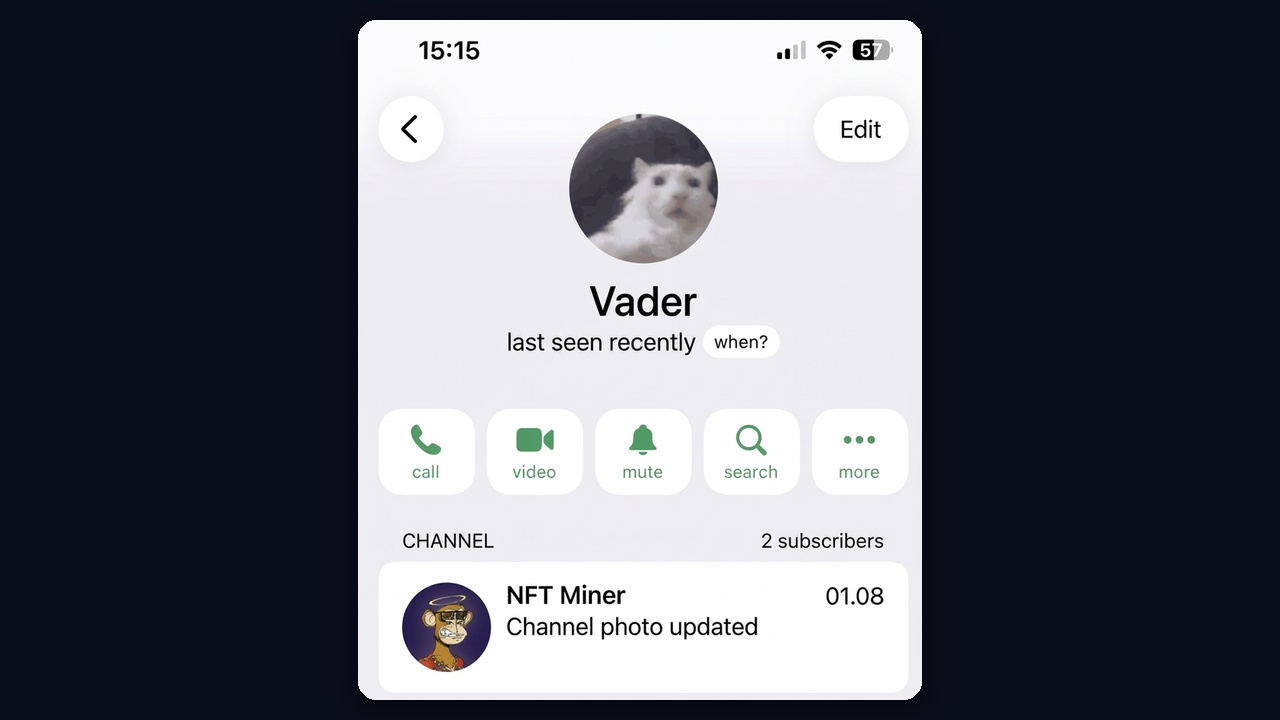
A separate block appears under your name and bio. It displays the avatar, the title and the latest post. In other words, anyone who opens your page from a group, a comment or search sees what you publish and can join in one tap.
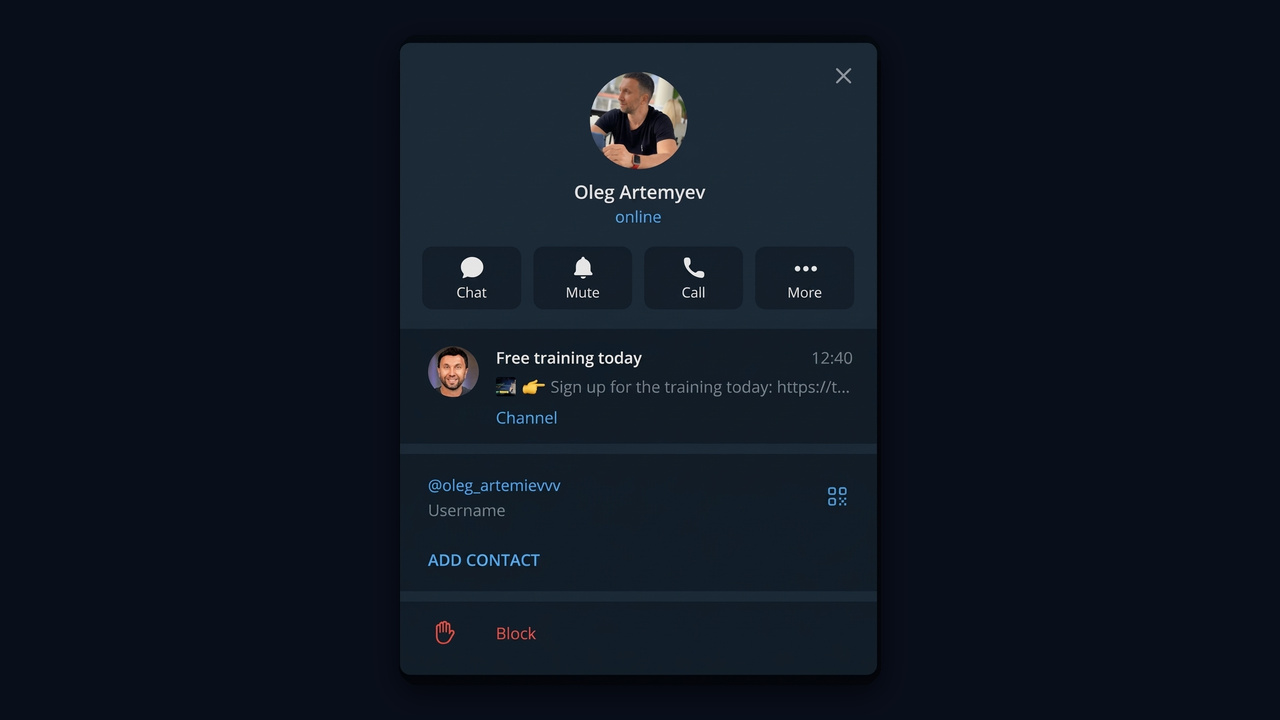
For example, here is an expert's page: a channel post announcing free training today sits right below the name, followed by the username. Visitors don't hunt for a link, because the post preview already makes them curious.
The block vs a link in your bio
| Feature | Profile block | Link in bio |
|---|---|---|
| Visibility | Own card with an avatar | Small line of text |
| Latest post | Shown as a preview | Not shown |
| Clickable | Always | External URLs need Premium |
| Character limit | Uses none | Eats into 70 characters |
So the best setup combines both: a pinned card plus a short bio with a call to action.
How to add a channel to your Telegram profile on a phone
First, check the main requirement: only a public feed that you own can be featured. If you don't have one yet, start with our guide on how to create a Telegram channel.
iPhone
- Open Settings and tap Edit in the top right corner.
- Tap Channel (or Personal Channel in some versions).
- Pick the one you want from the list of public projects you own.
- Tap Done. The card shows up instantly.
Android
- Open the ☰ menu and go to Settings.
- Tap your name or the pencil icon to edit your details.
- Tap the same item and select what to display.
- Save the changes.
Then you are done: the whole process takes less than a minute. Also, you can swap your choice at any time the same way.
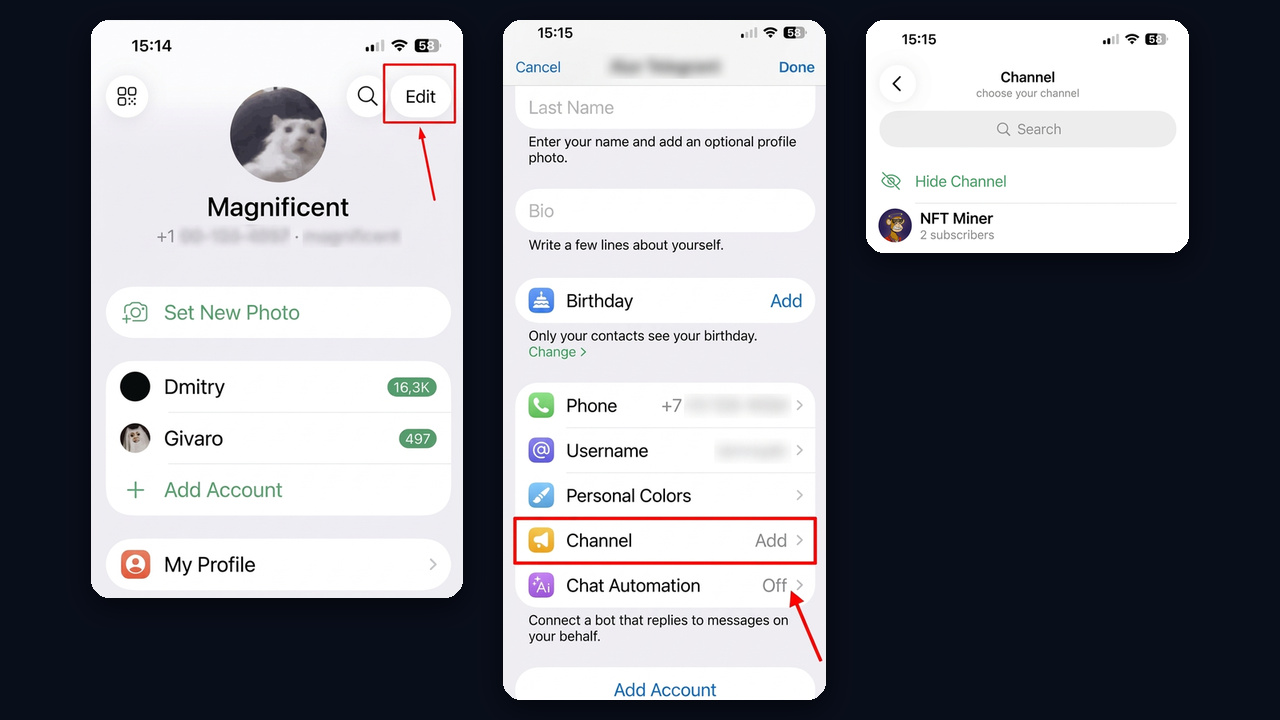
As a result, visitors see a Channel block with the subscriber count and the latest post right under the call and search buttons.
Add a channel to your Telegram profile on desktop
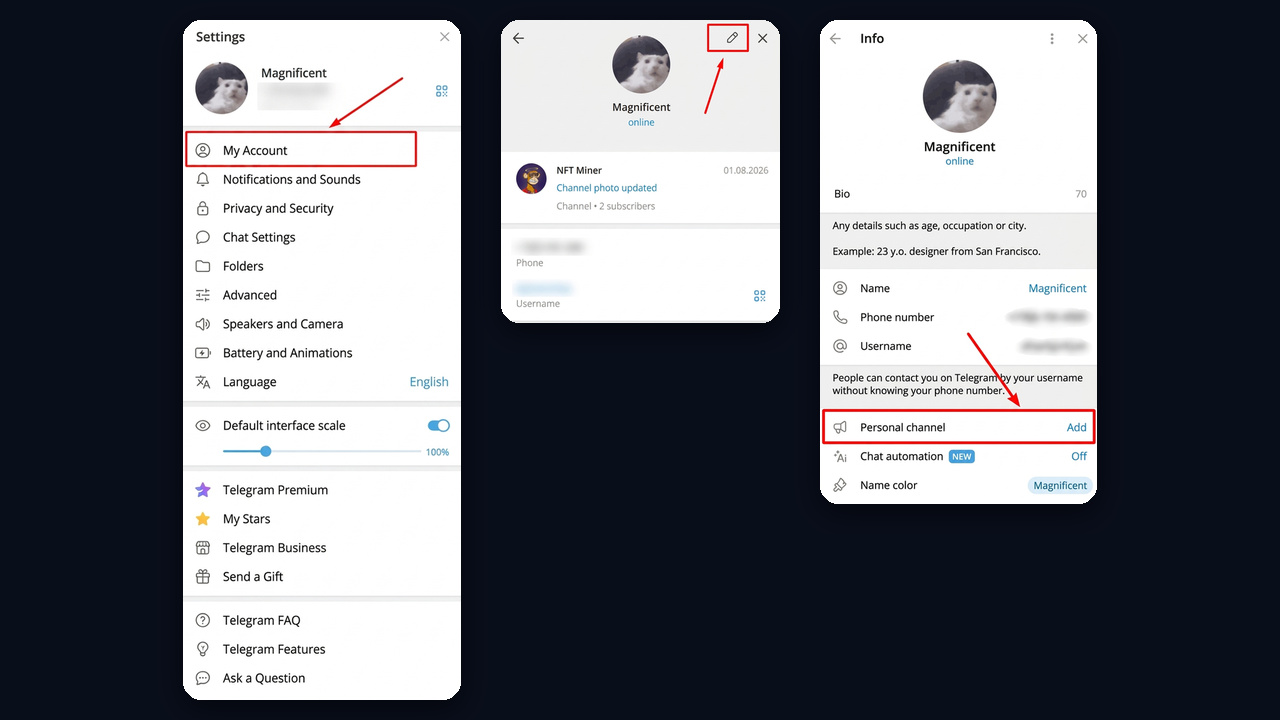
In Telegram Desktop, open Settings → My Account, click the pencil and find Personal channel → Add in the Info window. Then select your public feed. Telegram Web works the same way through the pencil icon in settings.
But if the option is missing, update the app. The feature only exists in recent releases, so older builds simply don't show it.
Why the block doesn't appear
The cause is usually simple, so check this table first.
| Problem | Cause | Fix |
|---|---|---|
| Missing from the list | It is private | Make it public and set a link |
| Missing from the list | You are an admin, not the owner | Ask for ownership or create your own |
| No such option | Outdated app version | Update Telegram |
| Visitors don't see the card | Deleted or made private | Restore public status or choose another |
How to remove or hide it
There is no separate privacy toggle for this block: everyone who opens your page can see it. Therefore, to hide it, open the same Channel item and tap Hide Channel above the list. The card disappears from your profile for all visitors, while the feed itself stays intact.
Besides, if you want to hide other details from specific people, use the privacy settings and the block list.
Design tips after you add a channel to your Telegram profile
The block only works when the page looks trustworthy, so polish everything together.
- Name. Add your niche, for example "Anna | Interior Design". Our Telegram username guide helps with the handle.
- Photo. A real face beats a logo if you sell expertise.
- Title. It appears in the preview, so state a benefit: "Free lesson today".
- Latest post. Keep a fresh announcement or a useful breakdown on top, because that is what visitors see.
- Bio. One line of value and a nudge: "Case studies in the block above ☝️".
Pinning feeds across dozens of accounts with GramGPT.io
Setting up one page is easy. However, if you grow through comments, reactions or story mentions, you need dozens of profiles, and each one must lead to your content. Doing that by hand takes hours, which is why the GramGPT account manager has a bulk Create and pin channel action.
- Select accounts and open Channels & chats → Create and pin channel.
- Set the title and description. Use one value for all, or a variant pool like {News|Insider} so each gets its own name.
- Tick Pin channel to profile, then add an avatar pool and a first post with media and buttons.
- Keep Safe mode on. It spaces out actions between accounts to stay within limits.
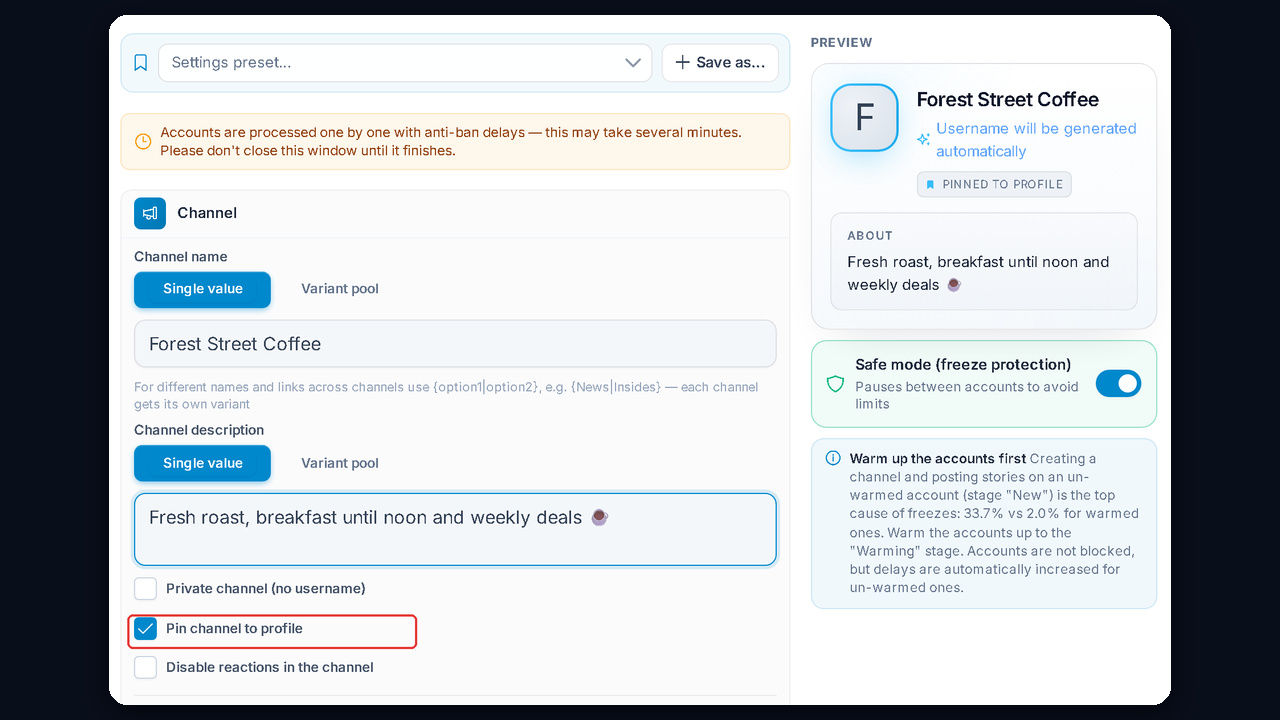
Meanwhile, the module warns about a key risk: creating a feed on a fresh account is the top cause of freezes, 33.7% versus 2.0% on warmed-up ones. Thus, warm the profiles up first and run the creation afterwards.
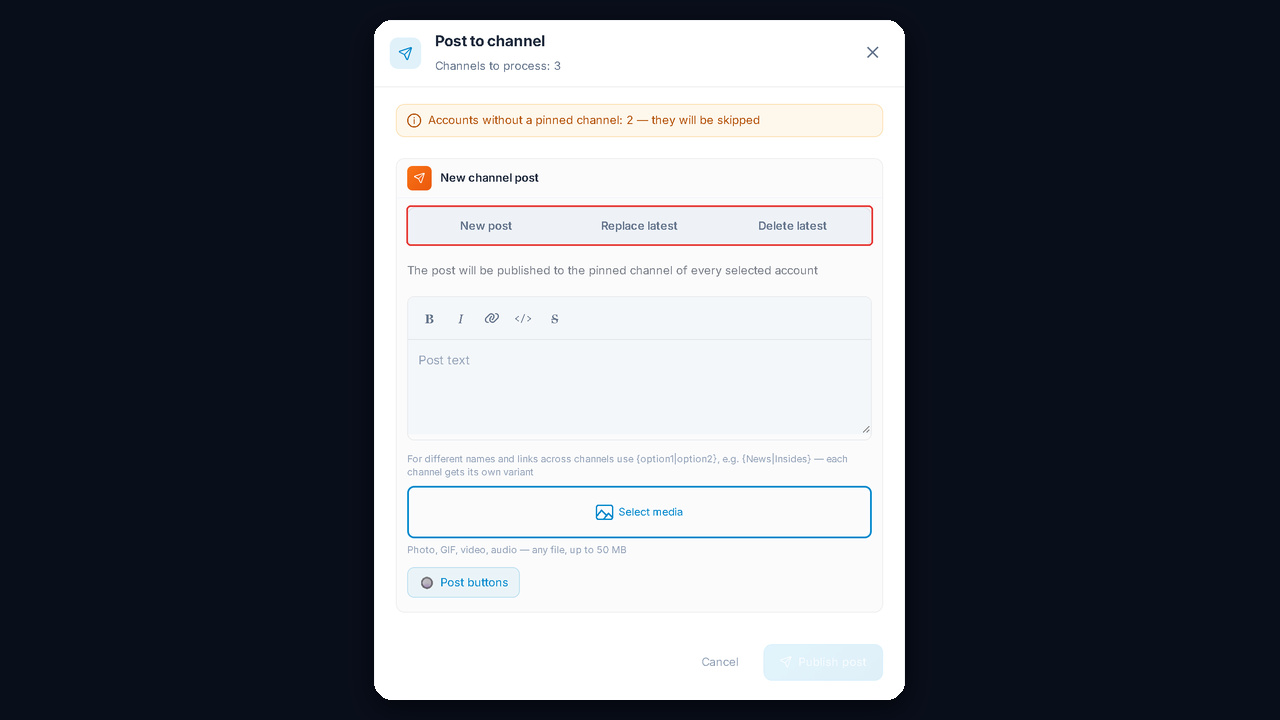
After that, content is updated in bulk too. The Post to channel action publishes a new post, replaces or deletes the latest one for all selected accounts at once.