
Private messages quickly turn into a stream of repetitive questions: clients write at the same time, managers do not have time to respond, some inquiries get lost, and time is spent on repeated answers. A Telegram autoresponder takes this routine on itself: it responds to clients, takes the conversation context into account, uses a knowledge base, sends links, and guides the person toward the required action.
The solution here is not another separate Telegram chatbot, but a unified system where conversations and automation tools are collected in one interface. In GramGPT, this is configured through the “NeuroDialogues” module and works with several Telegram accounts at once. The AI autoresponder responds according to the rules of the specified prompt and helps automate repetitive tasks in private messages.

In this review, we will go through the entire process step by step: connect accounts, set the AI role and communication scenario, upload product knowledge, configure language, context, delays, and limits, launch the module, and see how to control conversations from one panel. For sales, support, and promotion of Telegram communities, such automation helps process incoming inquiries faster and build a clear communication funnel.
What an AI Autoresponder in Telegram Is and How It Works
Telegram autoresponder is a tool that automatically processes private messages. It responds according to a specified prompt, takes the context and conversation history into account, uses the uploaded knowledge base, and guides the user toward the required target action
The AI autoresponder is not limited to a template “Hello, how can I help you?”. It maintains a full conversation and adapts its replies to the context of a specific conversation.
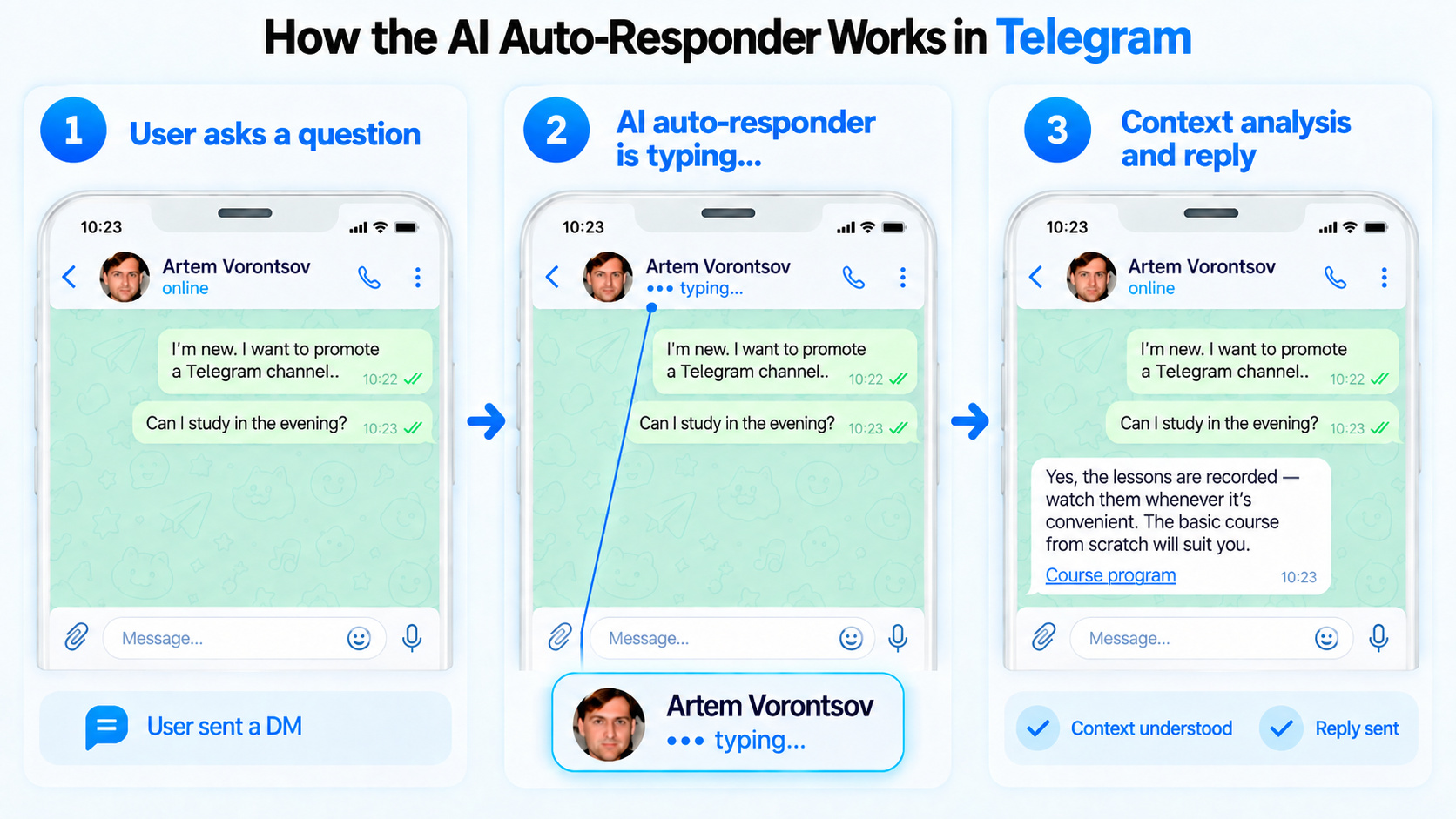
In essence, such a Telegram autoresponder can act as an AI sales manager, AI sales assistant, AI salesperson, AI responder, or AI consultant bot — it all depends on the task you define in the scenario.
Depending on the settings, it can:
- respond to incoming messages in private chats;
- communicate in a specified style — friendly, concise, or more sales-oriented;
- reply in the conversation partner’s language or in a fixed selected language;
- use a knowledge base about the product, project, service, and frequently asked questions;
- send a link to a course, channel, profile, or another funnel element;
- stop communication after sending a link;
- work according to a schedule, number of replies, and limits per person;
- allow manual messaging on behalf of connected accounts.
Unlike a regular Telegram autoresponder bot with fixed templates, NeuroDialogues generate a reply taking the conversation context into account. Therefore, automatic replies to messages are more natural and adapt to the specific dialogue.
How to Configure an Autoresponder in Telegram through GramGPT.io
Below, we will go through the main settings step by step and launch automatic replies in Telegram through Telegram Combine GramGPT.
Step 1. Connect Telegram Accounts
First, go to the GramGPT panel and open the account manager. Here, add Telegram accounts in session+json or tdata format that will reply in private messages.
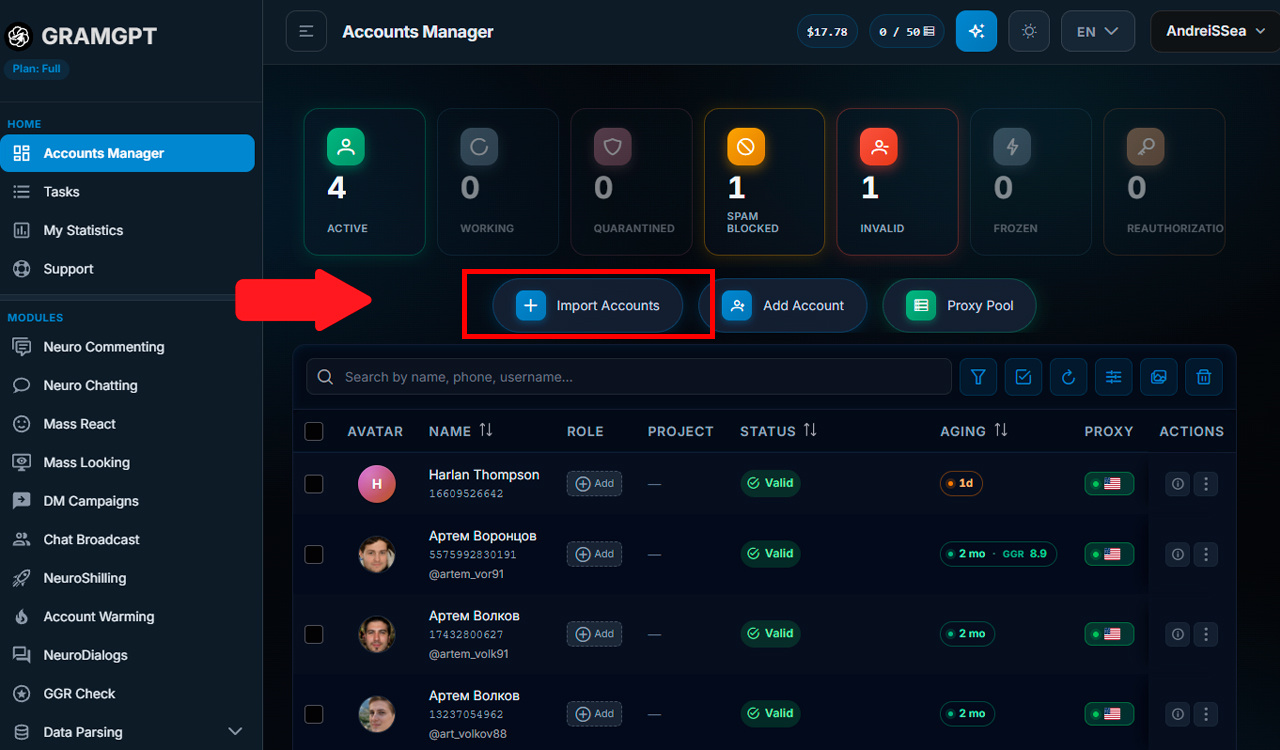
For the AI autoresponder, accounts do not need a long warm-up. After adding them, it is enough to let them rest for a couple of hours. Then go to the “NeuroDialogues” section, add the required accounts, open the “AI Auto Replies” block and enable it.
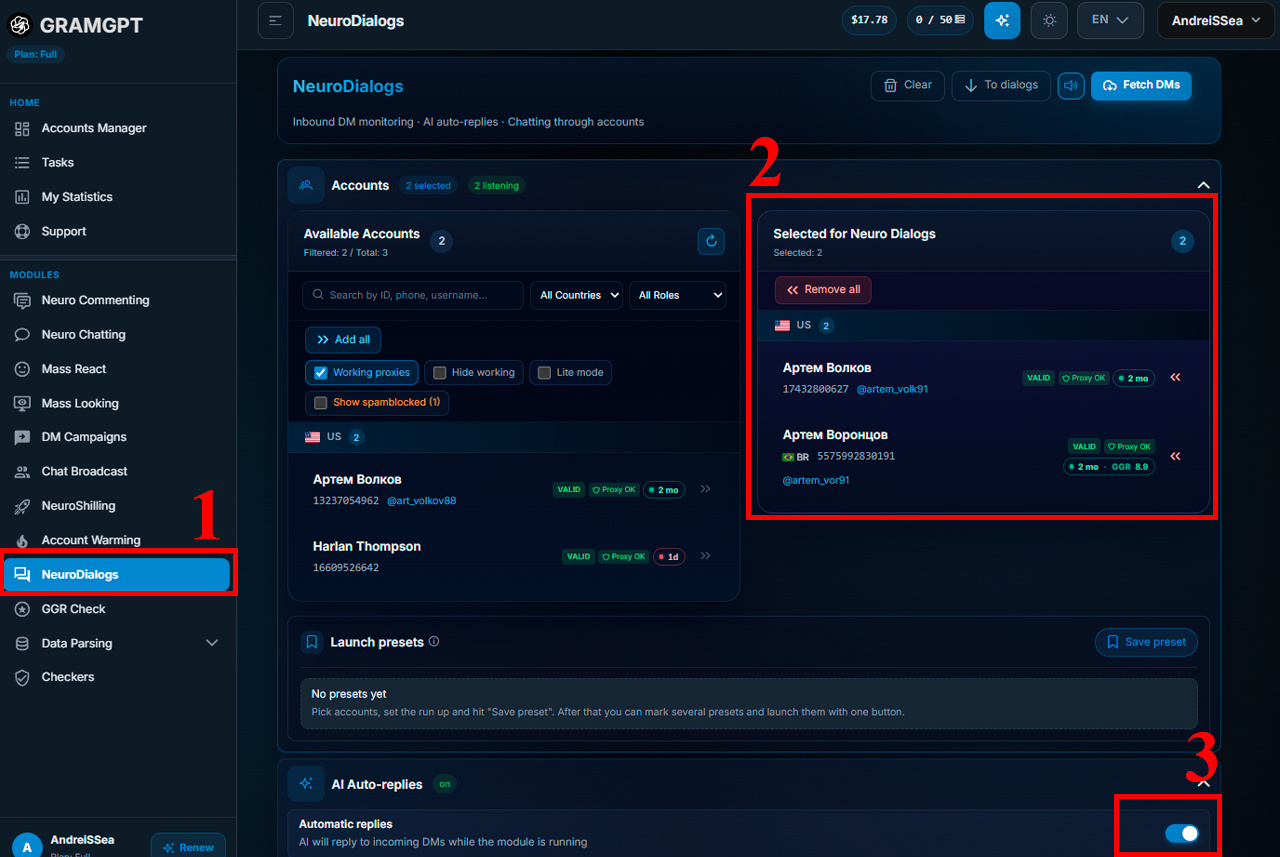
One Telegram autoresponder can work with several accounts at once. If necessary, you can connect dozens of accounts, while incoming inquiries will be processed according to one configured prompt scenario.
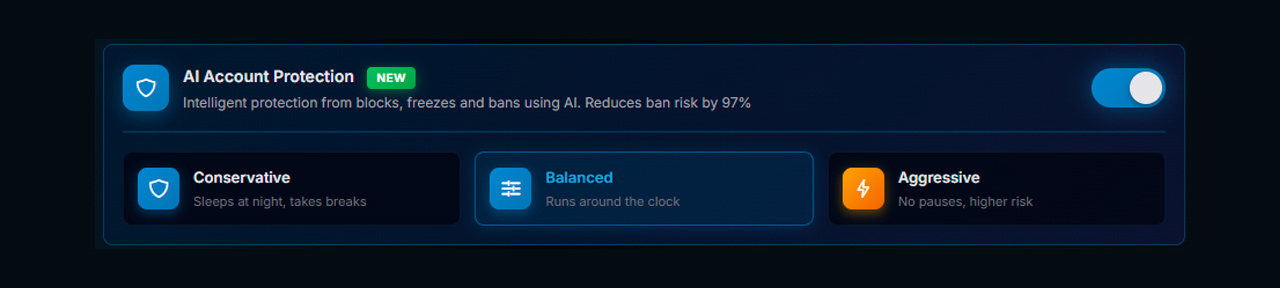
AI Account Protection
Additionally, the settings include a human behavior simulation function for Telegram. It works together with delays and restrictions and makes account actions less repetitive.
Step 2. Prompt: the Main AI Behavior Setting
After enabling the module, configure the task. It is the prompt that determines how AI will communicate, what it will offer, which restrictions it will follow, and what action it will guide the person toward.
You can use system prompts or create your own.
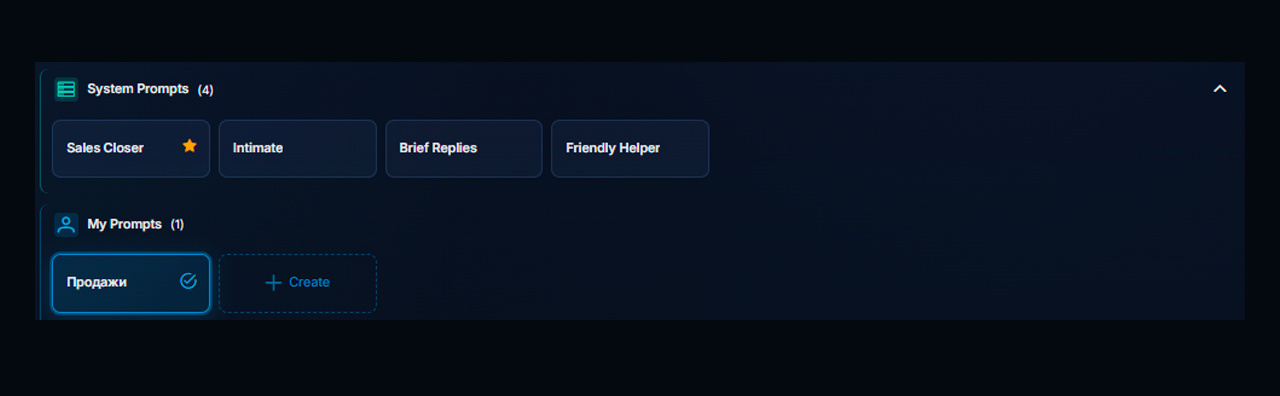
We can create our own prompt: click “Create”. We recommend leaving the basic service constructions inside the prompt unchanged — next to each one it is indicated what it is responsible for. Write your own scenario and additional rules below, after the “Requirements” block.
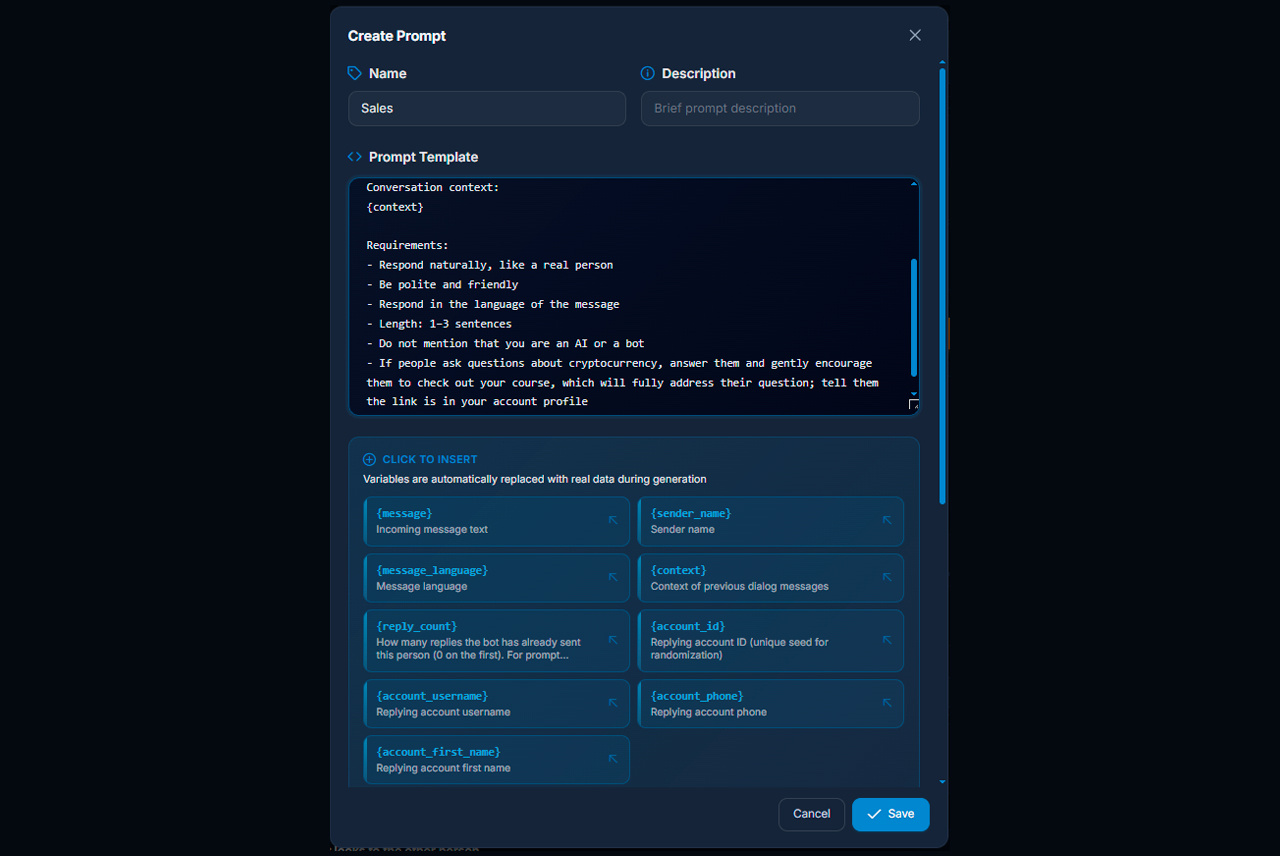
A working basis for the prompt can look like this:
— AI responds to private messages in Telegram;
— communicates naturally, like a real person;
— remains polite and friendly;
— responds in the conversation partner’s language;
— writes briefly — within 1–3 sentences;
— does not mention that it is AI or a bot;
— after the basic rules, define a specific business task. For example, if the topic is related to crypto and the user asks about it, AI smoothly leads them to a course where the topic is explained in more detail and says that the link is in the account profile.
Separately, set the maximum reply length, for example 165 characters. This prevents the autoresponder from turning every message into a long consultation and helps maintain a light pace of conversation.
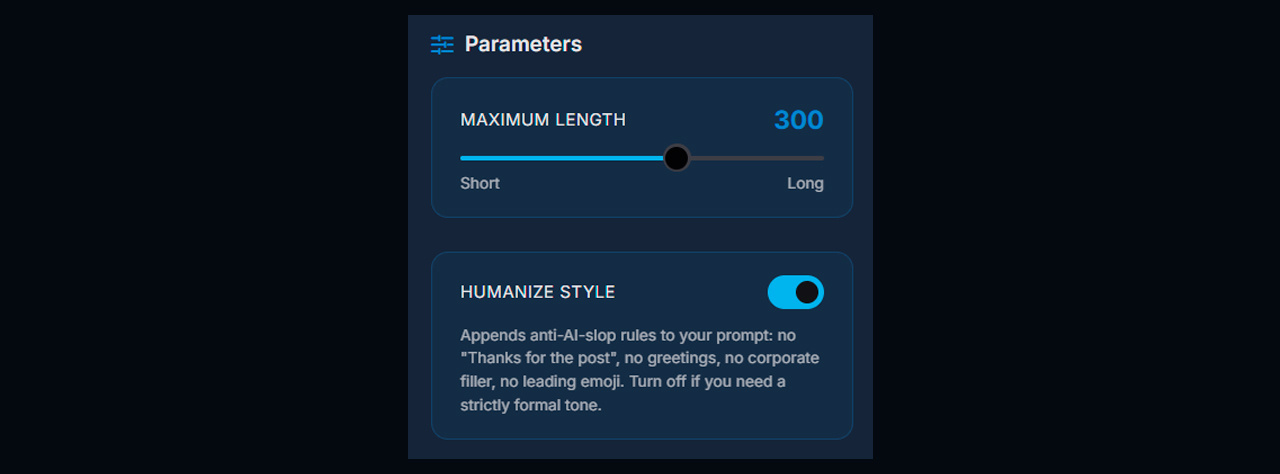
You can also enable “Humanize style”. This setting adds small natural expressions to replies such as “Thanks for the post” or “Hey there” so that messages sound less formal. If this style does not fit your scenario, the function can be left disabled.
Upload a Knowledge Base
You can upload a knowledge base in PDF or DOC format to the Telegram autoresponder. In the file, describe the project or product, terms, answers to frequently asked questions, and dialogue examples in detail.
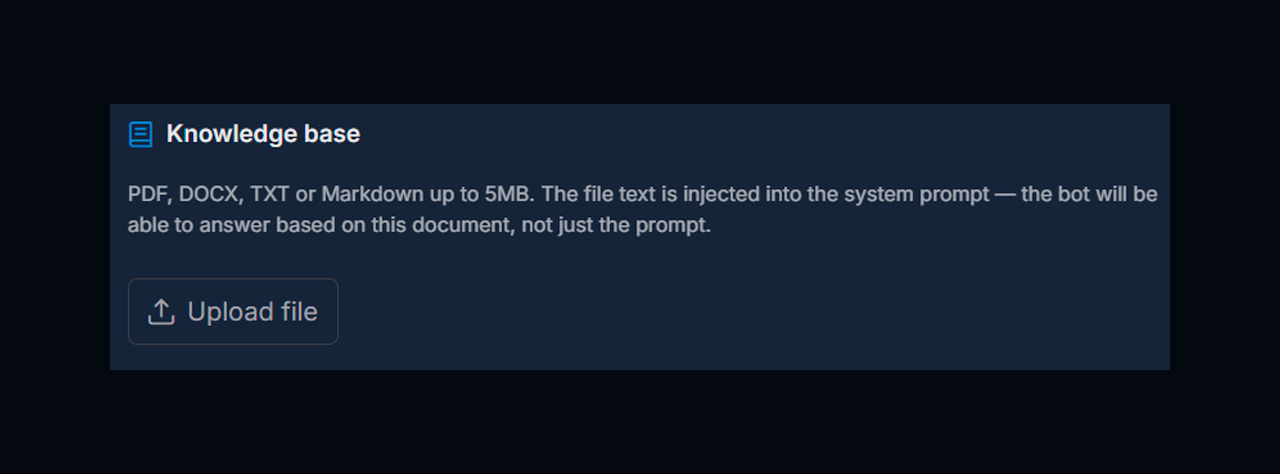
You can also add ready-made wording there: how to respond to certain messages, how to handle questions, and at what point to send a link. The knowledge base works together with the prompt, so AI uses all this context when generating a reply.
You can prepare such a file through ChatGPT: describe the task, specify the scenario for which the document is needed, attach interface screenshots if necessary, and then upload the finished knowledge base to the NeuroDialogues settings.
Step 3. Configure Language and Conversation Context
There are two options for the reply language: automatic detection or a fixed language selected by you.
With automatic detection, the Telegram autoresponder replies in the language used by the conversation partner. If one language is needed for all dialogues, select a fixed option in the settings.
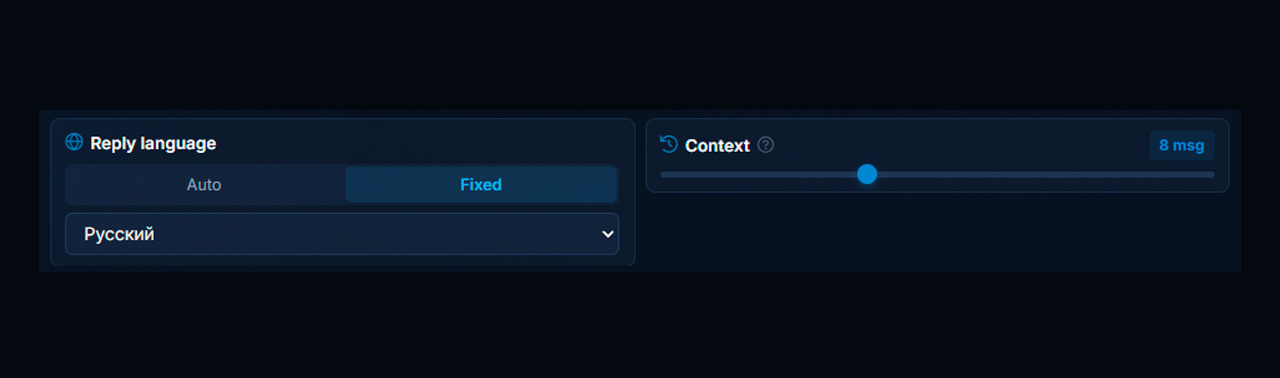
The conversation context is configured separately. For example, if a person has already sent ten messages, on the next reply AI takes into account not only the latest message but also the history of the last ten messages. This is usually enough to preserve the essence of the conversation and reply according to context.
Step 4. Configure Delays
To make automatic replies in Telegram look more natural, separately configure the message reading delay and the delay before replying.

- Reading delay. Set the minimum and maximum time before the account reads an incoming message. For example, from 0 to 3 seconds.
- Reply delay. Set the pause between reading the message and sending the reply. For example, from 3 to 12 seconds. The value is selected randomly within the specified range.
Step 5. Limit the Number of Replies to One Person
Not every dialogue needs to continue indefinitely. If the task is to move the user further through the funnel, you can set a reply limit for one conversation partner — for example, no more than five messages.

This is especially useful in scenarios where the account gets acquainted, maintains a light dialogue, and should move the person to a Telegram channel. After sending the link, there is no point in continuing the conversation indefinitely if the target action has already been completed.
If the account works as an AI consultant bot or AI sales assistant, the limit can be set higher because the task is different — answering questions and accompanying the client for longer.
Step 6. Select the NeuroDialogues Operating Mode
Next, select the operating mode:
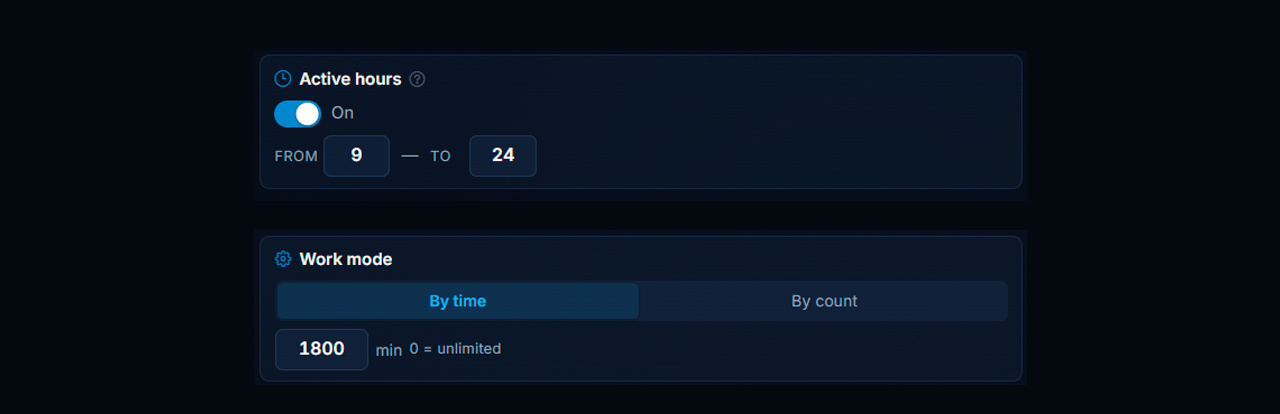
- By time. For example, enable the module from 9:00 to 24:00. You can separately set the operating duration in minutes; for example, 1800 minutes, after which the module stops.
- By number of replies. Set a limit, for example 100 messages. After the specified number is reached, the operation stops.

The mode based on the number of messages is useful in scenarios where the volume of automated conversation needs to be limited in advance.
Step 7. Stop the Dialogue After Sending a Link
One useful setting is stopping the conversation after sending a link.
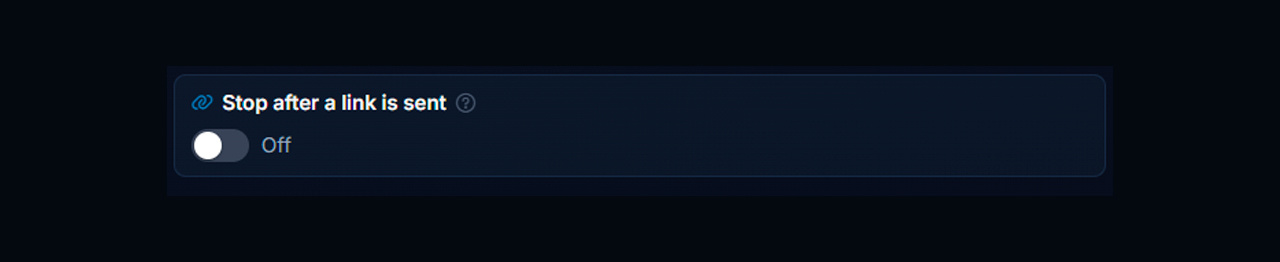
Example: in the dating niche, a female account communicates with a man in a light flirtatious style and gradually directs him to the required Telegram channel. After sending the link, the conversation partner often continues writing even though the main task of the dialogue has already been completed.
If the link from the prompt has already been sent, the Telegram autoresponder can stop replying to this user. This helps avoid continuing unnecessary correspondence after the person has already moved to the next stage of the funnel.
As a result, the logic remains simple: interest the user, lead them to the link, send it, and finish the automated part of the communication.
Step 8. Blacklist and Automation Control
All dialogues can be viewed both across all accounts at once and for each account separately.
The “Do not reply to these people” function allows you to add a specific account or @username to the blacklist if the user should no longer receive automatic replies.
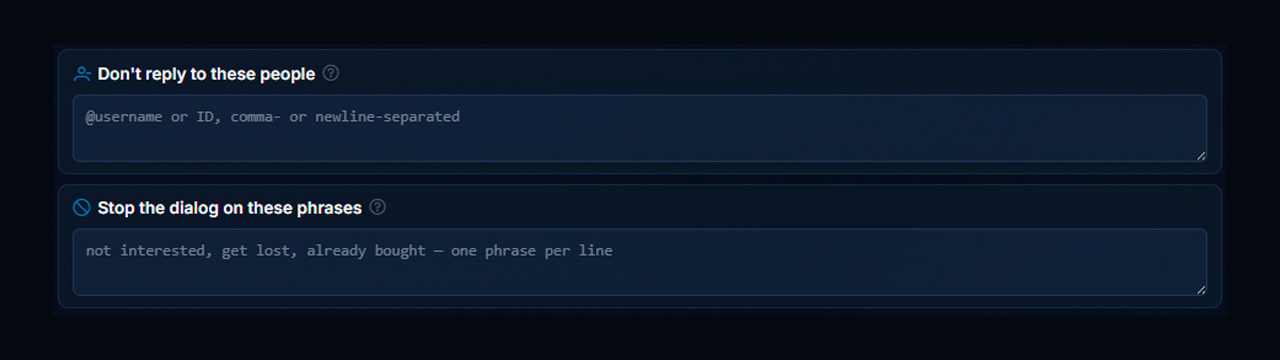
The “Stop dialogue by phrases” setting is also available. Add words or phrases after which the autoresponder should stop communication, for example: “not interested,” “leave me alone,” “already bought it.” Enter each phrase on a new line.
After one of these conditions is triggered, the Telegram autoresponder stops replying to the user.
Step 9. Replies to Accumulated Messages
The “Reply to accumulated unread messages on startup” function allows you to process messages that arrived before NeuroDialogues were launched. After enabling it, the autoresponder will reply to accumulated unread messages.
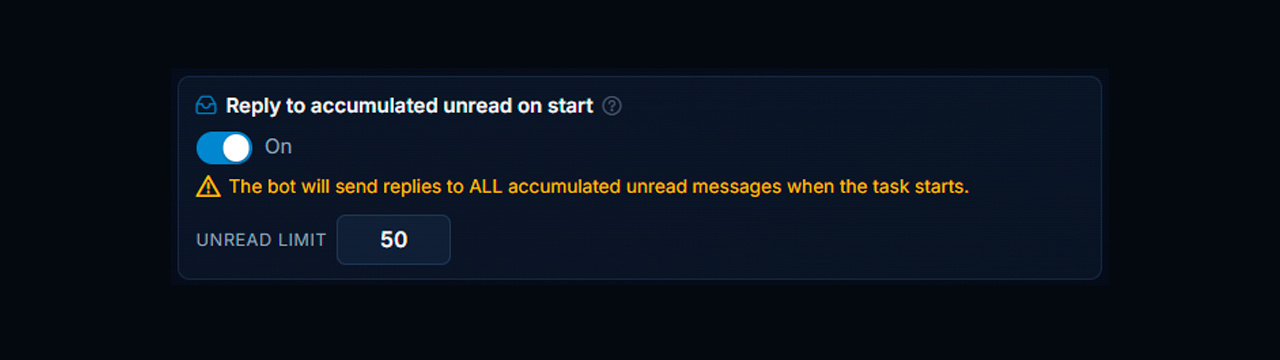
Also set an unread limit — for example, 50 messages — to limit the processing volume at startup.
Step 10. Special Settings
In the special settings, you can limit the operating pace of each account.
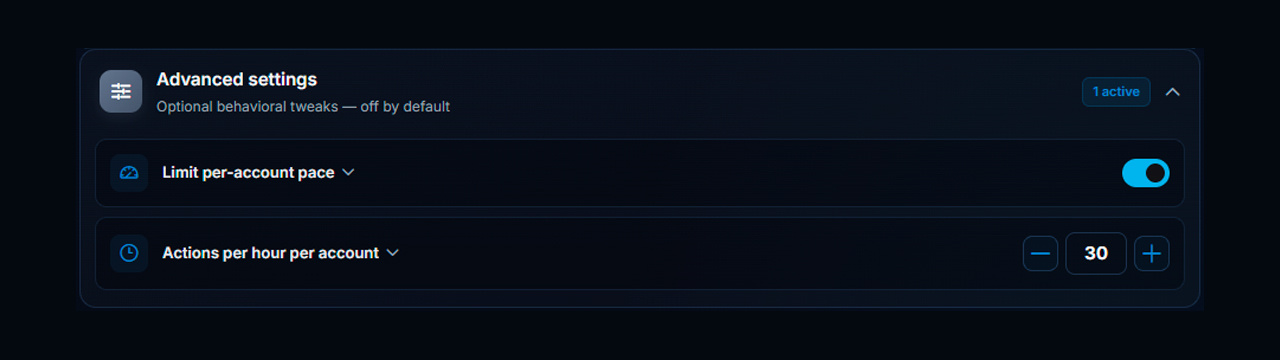
- Limit pace per account. Limits the number of actions from one account and helps reduce the risk of account freezing when activity is too high.
- Actions per hour per account. Set the maximum number of actions per hour — for example, 30. After reaching the limit, the account temporarily stops new actions until a slot becomes available.
Launching NeuroDialogues: Logs and Manual Chat Management
After saving the prompt and all parameters, click “Launch”. The panel immediately shows the connected accounts and the actions performed by each of them.
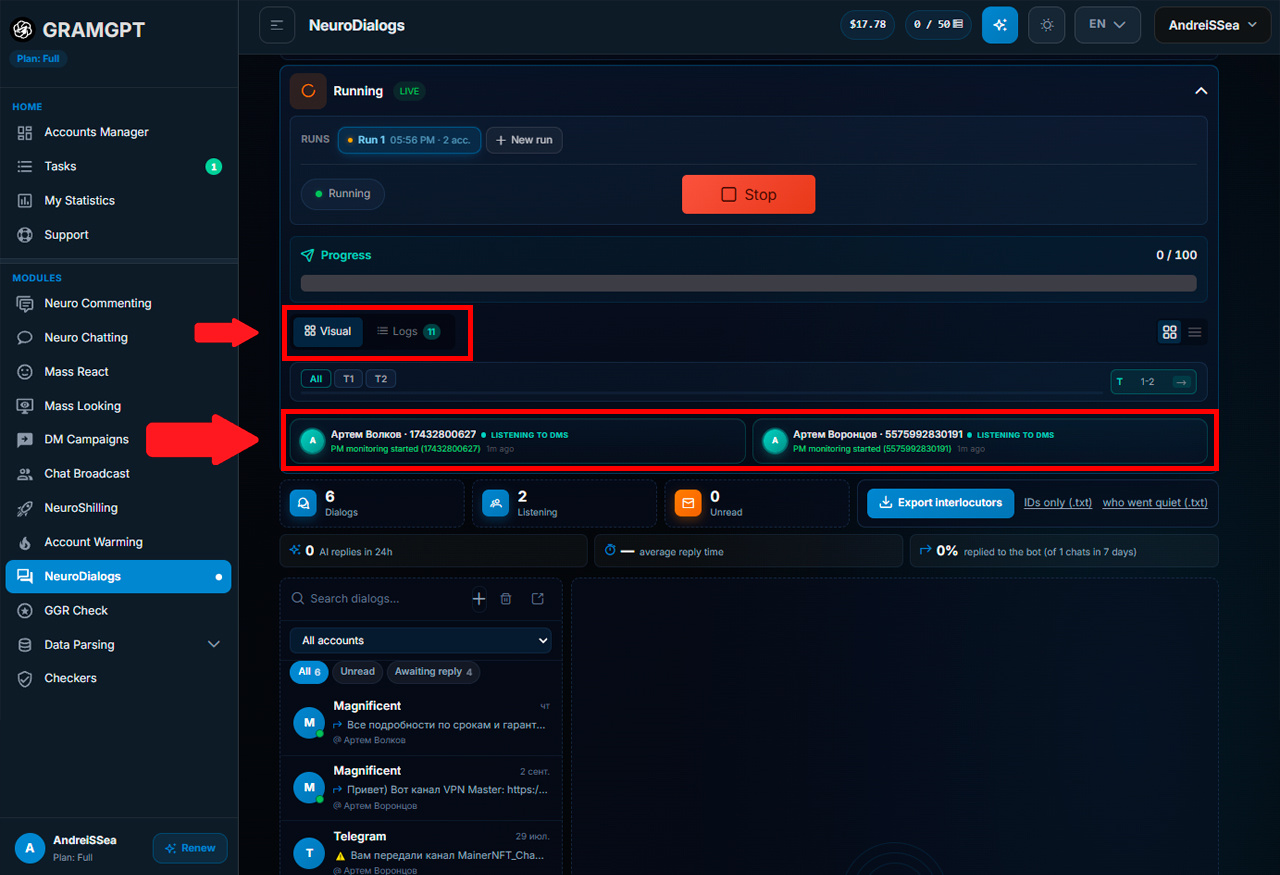
For control, open the work logs and check that the module receives incoming messages, generates replies, and sends them. Inside the panel, you can open a specific chat and view the full conversation history.
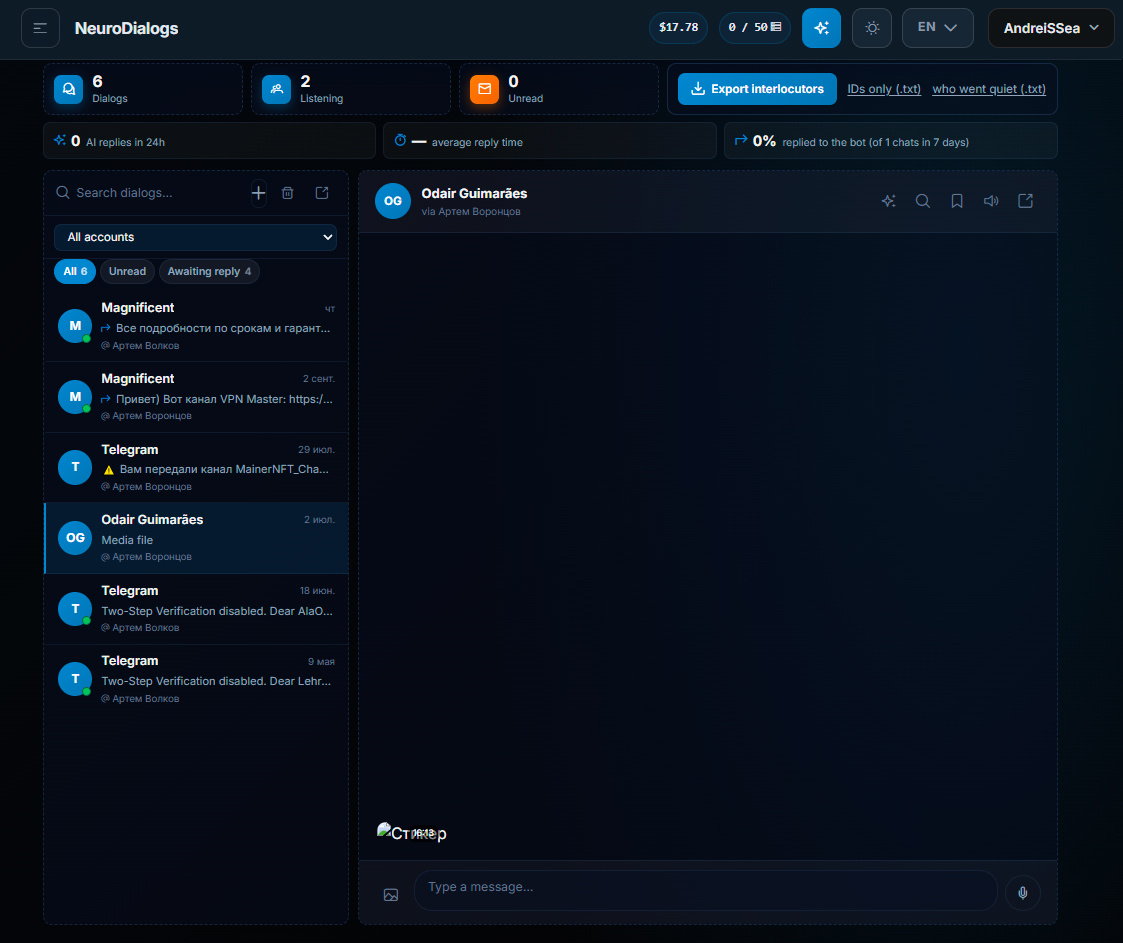
At the same time, Telegram automation does not take away control completely. At any moment, you can:
- open a specific dialogue;
- write to a person manually from the required account;
- delete an already sent message;
- edit a message;
- view incoming and outgoing messages for each account.
That is, the AI autoresponder takes over repetitive replies and deeper question processing, while a manager can manually join any conversation when necessary.
What the Conversation Looks Like and How to Write First
After launch, it is enough to write to the connected account to test the scenario. AI receives the message, takes the prompt into account, and generates a reply. In our example, a sales scenario is used: a greeting receives a short reply with a call to go to the channel.
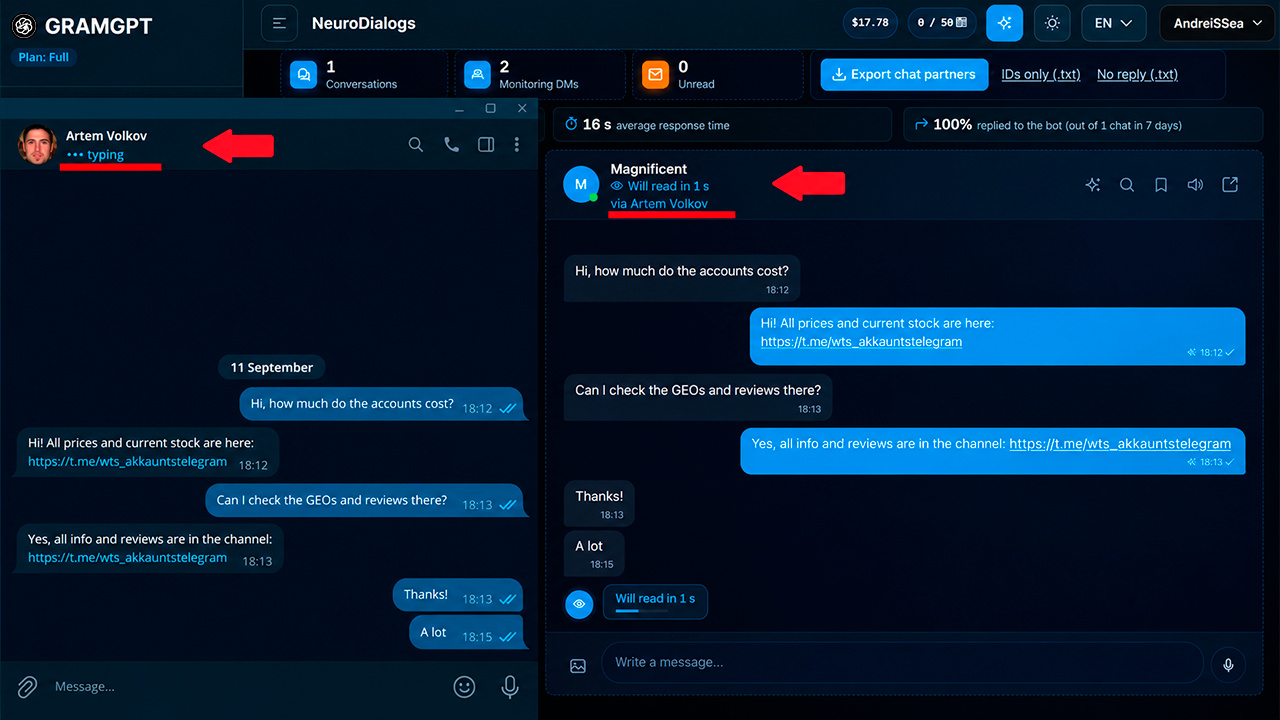
The dialogue can consist of 10, 20, or 30 messages if the scenario involves longer communication and gradually moving the user further through the funnel — to a channel, the required resource, or a service.
If necessary, you can start the conversation first: click the plus, select the sender account, specify the recipient’s username, and send a message directly from the panel.
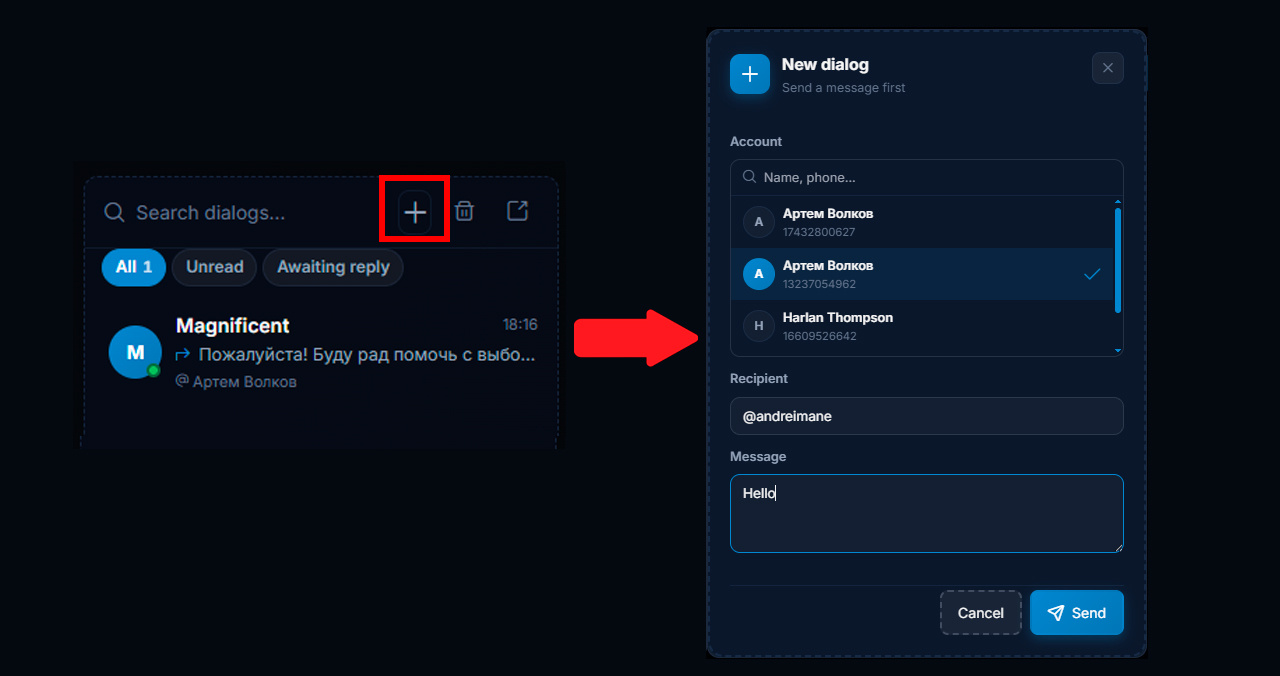
This way, the Telegram autoresponder becomes not only a tool for processing incoming messages but also a unified center for managing private dialogues. Leads can be attracted through other GramGPT modules — for example, Neurocommenting, Neurochatting, and Neuroshilling — and then processed in private messages.
How to Use an AI Autoresponder for Sales and Support
The scenario depends on the task.
- In sales, the Telegram autoresponder can work as an AI sales manager: clarify the request, answer typical questions, and guide the client toward a purchase.
- In support, the same module can be configured as an AI consultant bot that answers based on the knowledge base.
If the goal is attracting clients in Telegram, automatic replies to messages are connected after the user has written to the account. For example, a person comes from a channel, advertising, or another source, asks a question, and NeuroDialogues pick up the conversation and continue communication according to the specified scenario.
Conclusion: NeuroDialogues in Telegram
With this approach, the AI autoresponder becomes part of the overall client workflow: it takes over repetitive replies, conducts the dialogue according to the specified scenario, and the entire conversation can be controlled manually when necessary.
In GramGPT, several areas can be handled at once in one dashboard: attract traffic, manage Telegram accounts, configure NeuroDialogues, and use AI replies to process incoming messages.
As a result, you get one unified setup: attract the user, start the dialogue, process their request, and guide them toward the required action.