A post gets a thousand views and not a single reply. Or the discussion button is missing entirely, while competitors host heated debates. Telegram channel comments bring feedback, keep readers around and hint at your next topics, but they never appear on their own.
Here is the catch: settings offer no single on/off switch. First you link a discussion group, then set up moderation, and finally you still need people to start writing. Meanwhile, an empty thread under a post engages worse than no thread at all.
This 2026 guide shows how to turn them on, configure and close them, why the button sometimes stays hidden, and how to use discussions for growth: reviving your own thread and attracting readers from elsewhere.
How Telegram Channel Comments Work
Telegram channel comments do not live inside the feed itself. Instead, they sit in a linked group. Every new publication is copied there automatically, and a reply button appears underneath. So answers to that copy are what subscribers see.
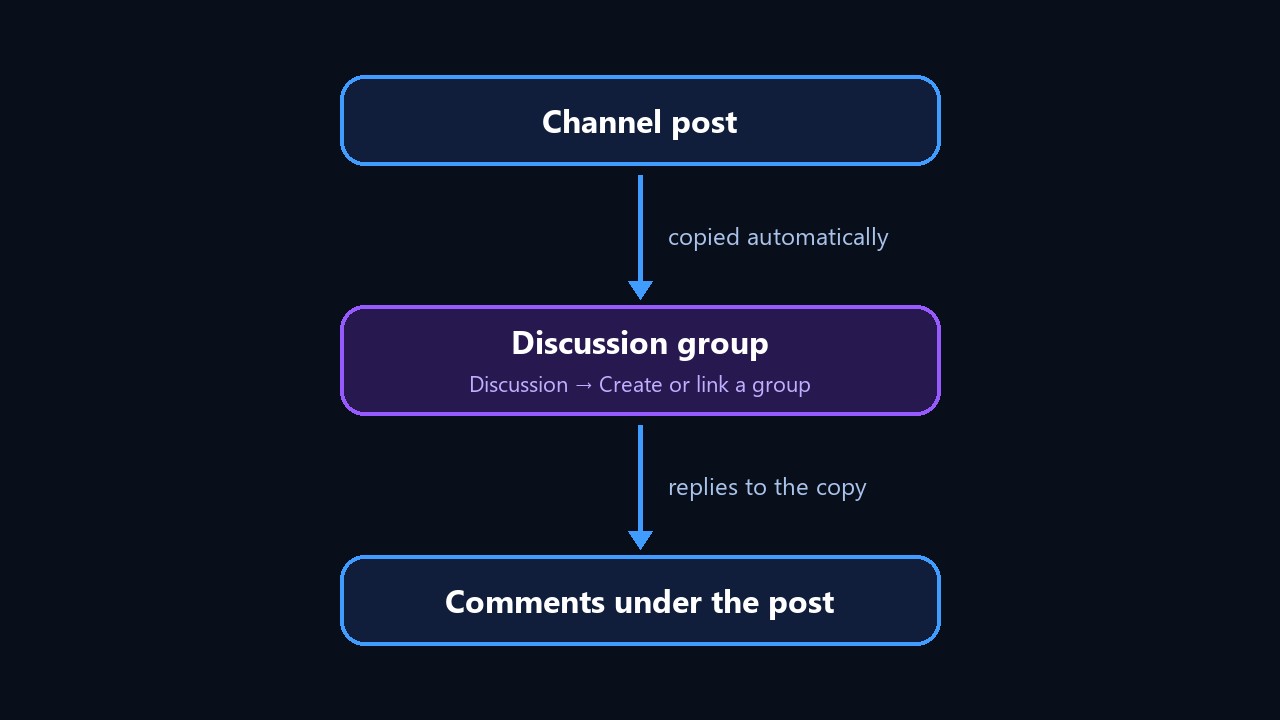
This setup has several consequences:
- No linked group, no replies. Built-in tools offer no workaround, so outside bots only imitate threads.
- Older posts stay closed. The button appears only on posts published after linking.
- The linked group sets the rules. For example, who writes, how often and with what attachments depends on its permissions.
- Commenters become members. Anyone replying there joins automatically unless you restrict it.
Why Telegram Channel Comments Matter
Telegram channel comments help the author as much as readers. First, reply counts and tone reveal which topics land. In addition, active threads keep people around longer.
| Benefit | How it shows |
|---|---|
| Feedback | questions and objections suggest new posts |
| Retention | readers return to check replies, so fewer unsubscribe |
| Trust | reviews and debates prove real people stand behind the project |
| Sales | objections get answered publicly instead of in DMs |
How to Enable Telegram Channel Comments
Only the owner or an admin with editing rights can turn them on. The steps are identical for public and private feeds.
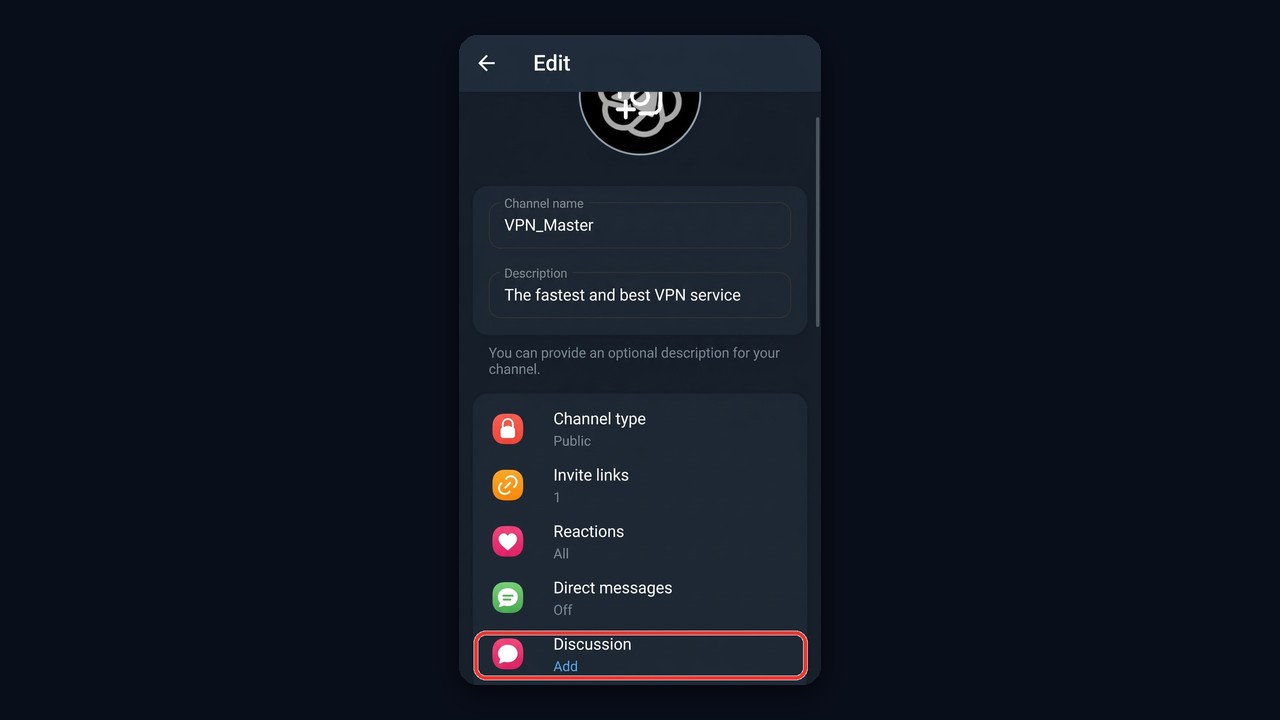
On a Phone
- Open your feed and tap its name.
- Next, tap "Edit" on iPhone or the pencil on Android.
- Choose "Discussion".
- Then tap "Create a Group" or pick an existing one.
- Confirm the link and save.
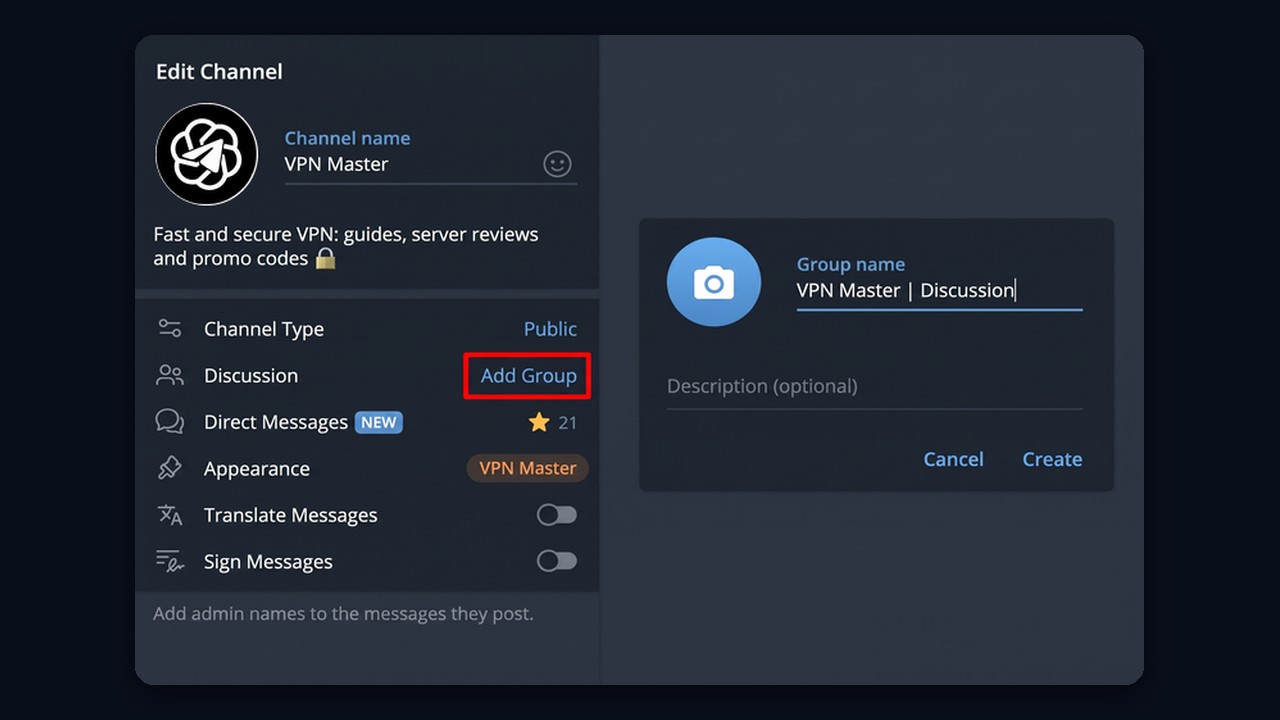
On a Computer
Telegram Desktop and the web version follow the same path: name, "Edit", then "Discussion". Starting fresh here is easiest, because the app suggests a matching name, though you can rename it later.
Linking an Existing Group
An existing community can serve as the linked one. However, every member will then see copies of your publications, and replies will mix with regular chatter. Therefore, active communities usually get a separate space just for threads.

Moderating Telegram Channel Comments
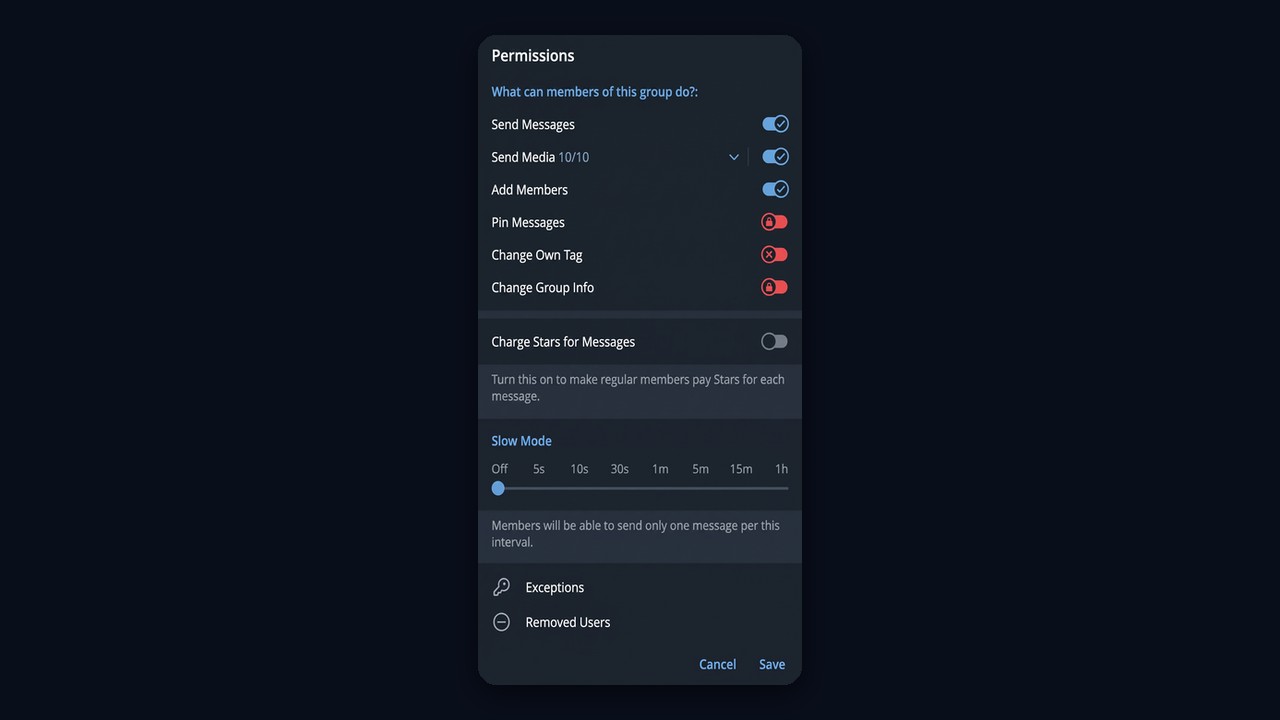
Unmoderated Telegram channel comments quickly fill with bots and ads. So right after linking, open the linked group and review its permissions.
| Setting | Where | Purpose |
|---|---|---|
| Slow mode | permissions | limits message frequency per person |
| Message types | permissions | blocks links, stickers, media or voice notes |
| Members only | group type | only joined members can write, not random bots |
| Blacklist | management | bans violators permanently |
| Paid messages | settings | charges Stars per message and cuts spam |
Large channels also benefit from moderator bots that delete links, greet newcomers and issue warnings. Still, keep a human admin in charge, otherwise the bot starts removing normal replies.
Replying as the Channel
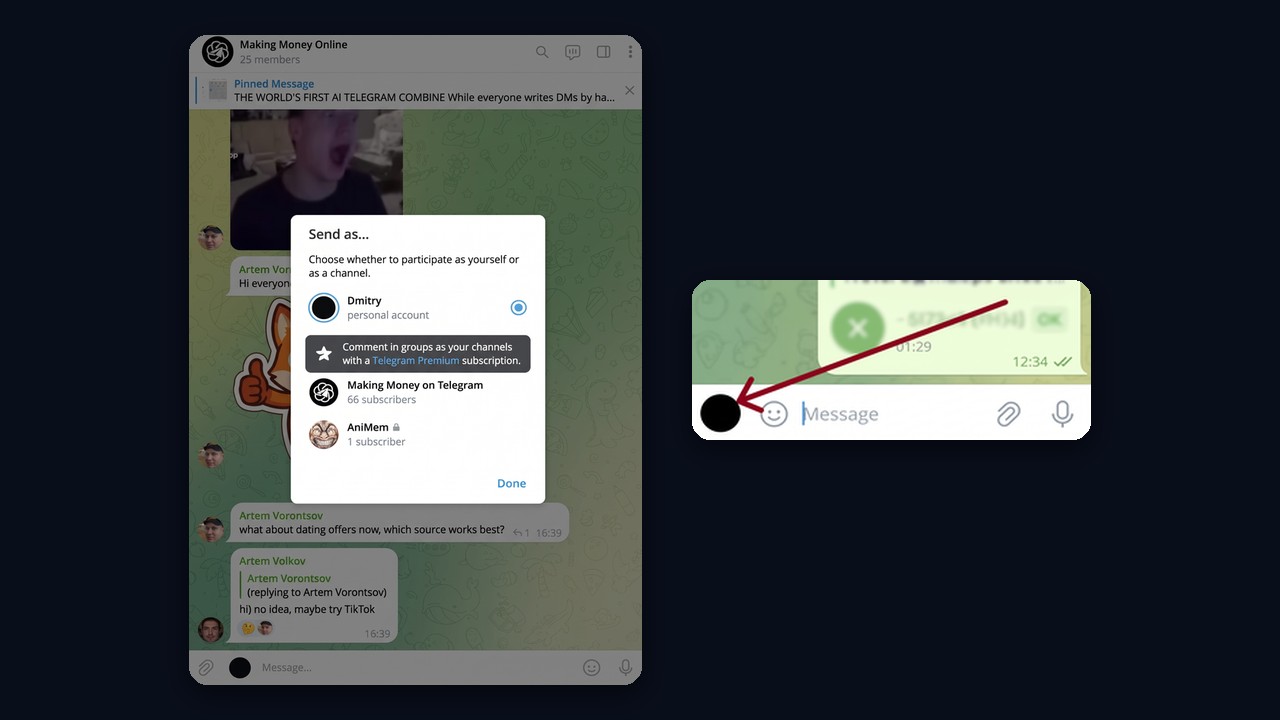
Admins can answer on behalf of the feed instead of a personal profile. Tap the avatar next to the input field and select it. This keeps replies official and your personal account private. Keep in mind that commenting as a channel requires Telegram Premium. Without it, channels in the "Send as" window show a lock and the app offers the subscription.
How to Close or Disable Telegram Channel Comments
You can switch Telegram channel comments off completely, for a single post or temporarily. Accordingly, the right option depends on the goal: removing threads for good, closing a heated topic or waiting out a spam wave.
| Goal | Action |
|---|---|
| Disable comments completely | "Discussion" → "Unlink Group", then save |
| Close comments on one post | delete that publication's copy in the linked group |
| Pause writing temporarily | turn off message sending in permissions |
| Remove a single comment | delete it in place or inside the group |
Unlinking does not erase history: everything stays, it simply stops receiving new publications. As a result, replies can return anytime once you link it again.
Why Telegram Channel Comments Are Not Showing Up
If the reply button is missing, check the usual suspects first:
- The post predates the link. Publish a new one, and the button will appear.
- The link was removed or the group deleted. Open the "Discussion" section.
- The copy was removed from the group. Then that publication stays closed for good.
- Sending is disabled. The button shows, but writing fails, so review permissions.
How to Get People Commenting
Enabling Telegram channel comments does not create a conversation by itself. People join conversations already in progress, while the first reply under an empty update feels awkward. So start with the basics:
- end posts with a specific question instead of "thoughts?";
- reply to early commenters quickly and by name;
- pin the best answers and thank people in later posts;
- run polls and contests right in the thread.
Neuro Shilling: AI Conversations That Revive the Thread
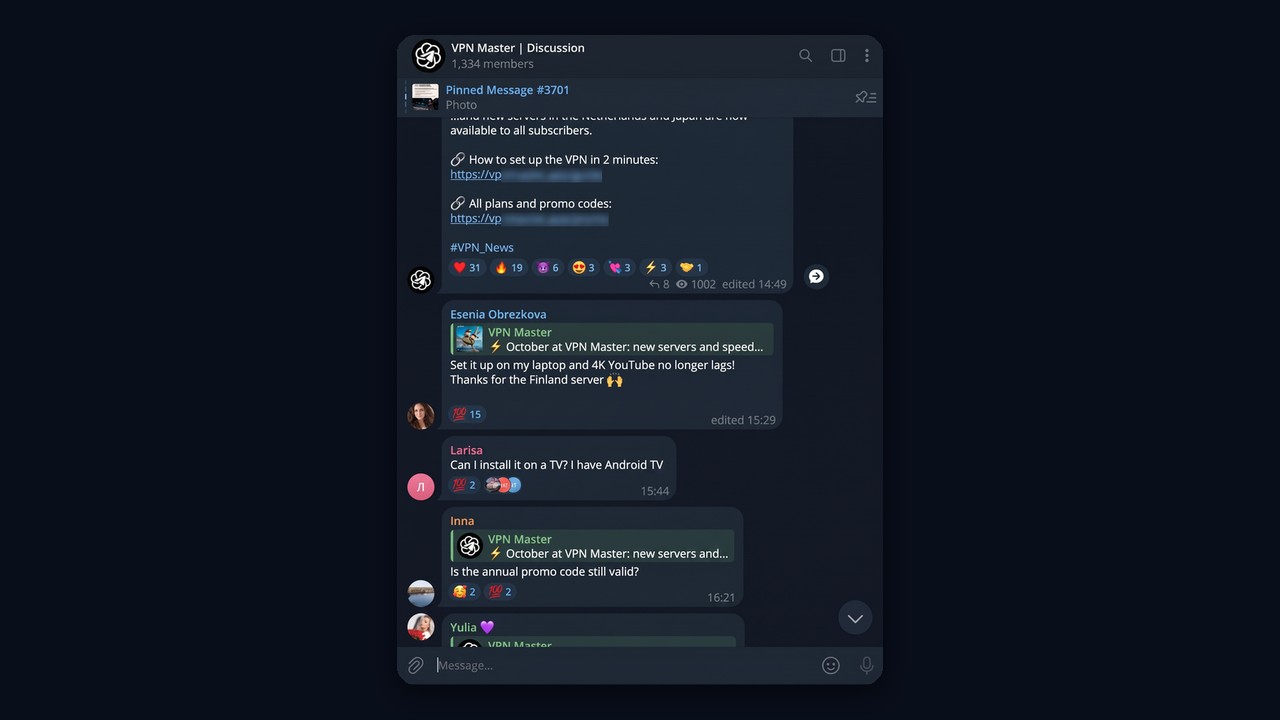
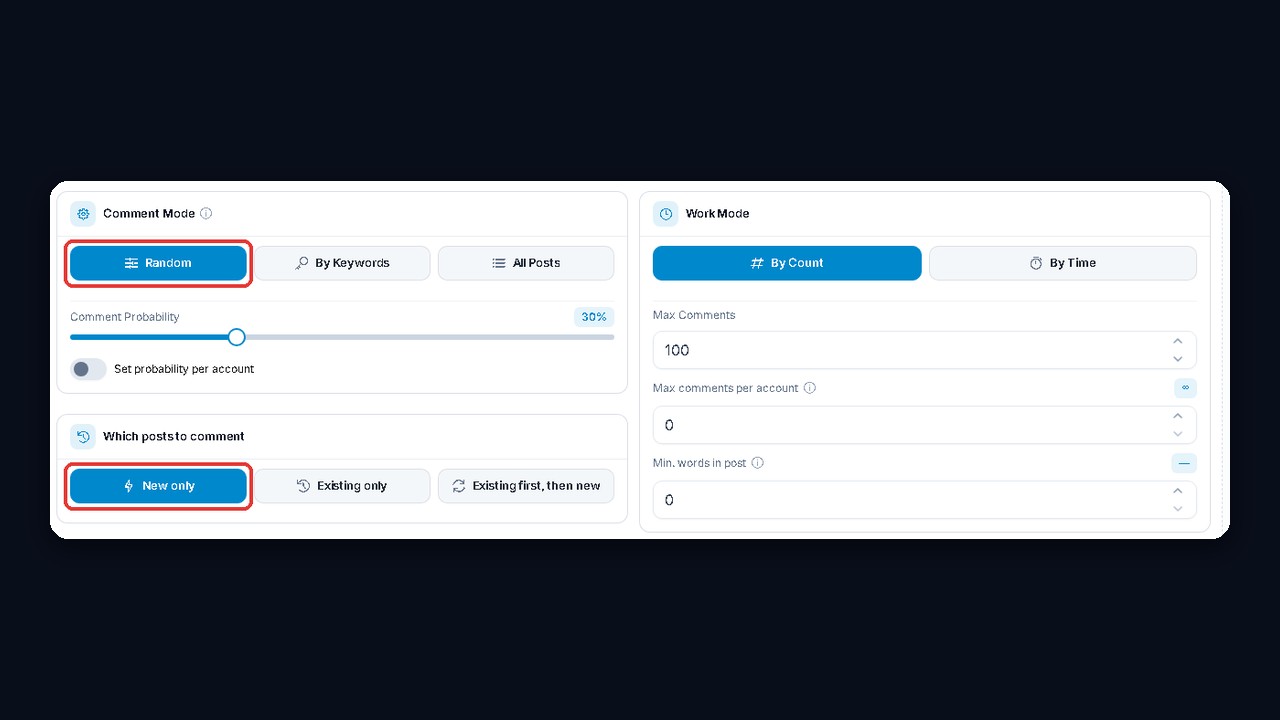
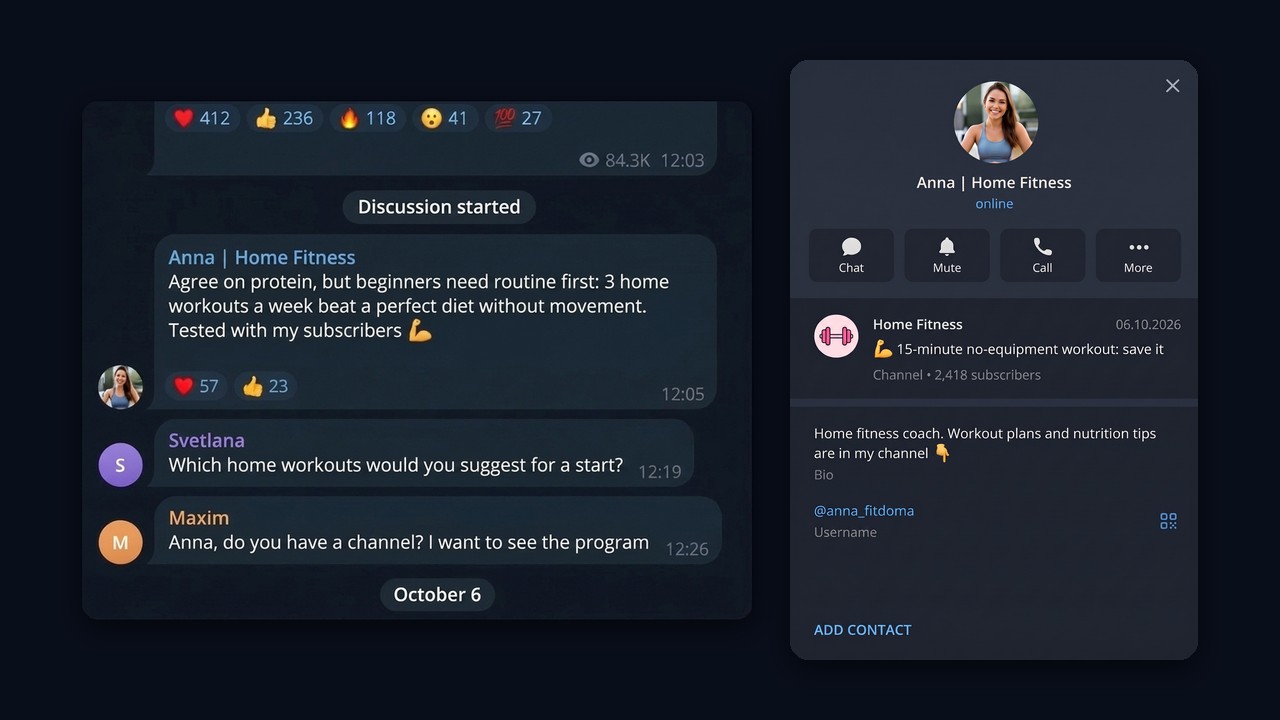
However, these tactics work only once the first voices exist. For a young project, GramGPT.io Neuro Shilling plays that role. In chat revival mode, several accounts hold a natural scripted conversation: they discuss the post, argue and ask questions. As a result, new subscribers see a living thread and join in.
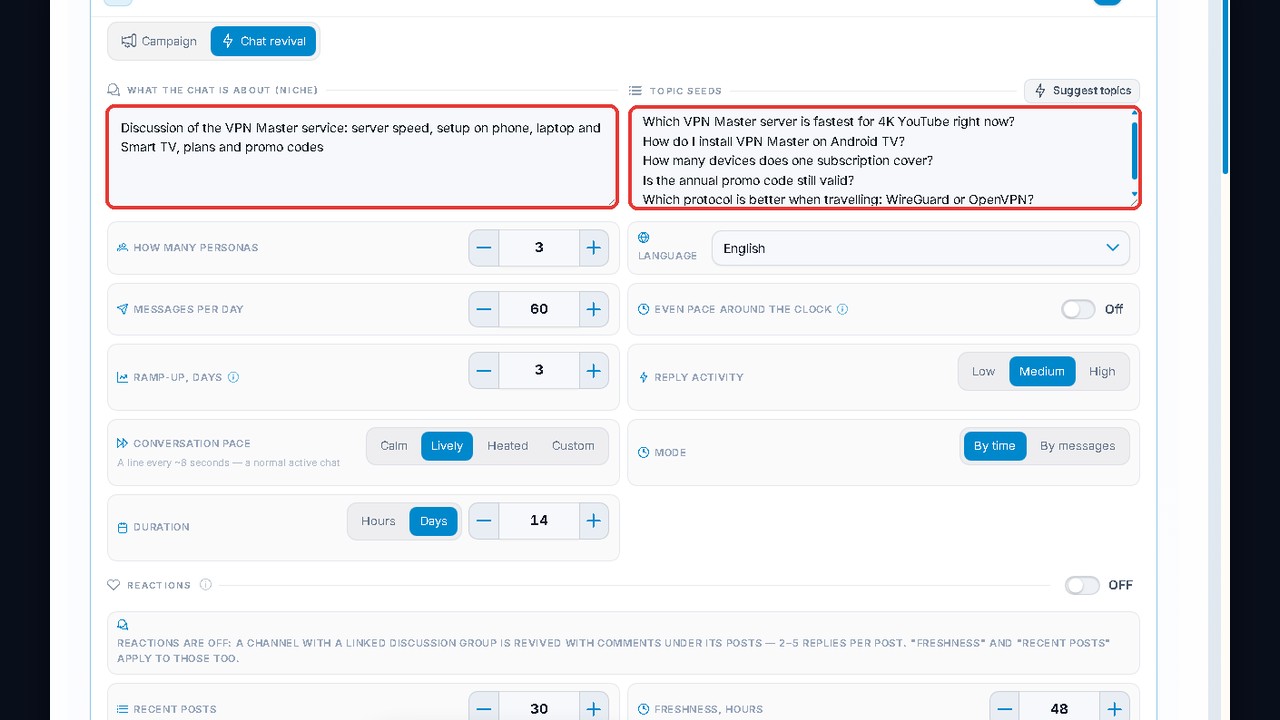
Roles, tone and topics come from a prompt, while pauses between replies mimic a real chat. Our review on how to activate a Telegram chat with Neuro Shilling covers this mode in detail.