Telegram inviting has historically brought more subscribers than any other method. It is also the simplest: Telegram itself lets you add people with the Add Members button. However, limits have tightened, chats get banned and senders now need warming up.
Even so, many of our clients say it is still very much alive. They have been getting traffic this way for years and asked us to build it into the platform. So this guide walks through setting up the GramGPT inviter in both modes, which limits to use and the pitfalls that make many people think the method is dead. The video has auto-dubbing, so you can watch it in English.
What Is Telegram Inviting
It means adding users to your channel or group directly, without them following a link. There is an Add Members button for this: enter any username, and if that person has not blocked invites, they land with you.
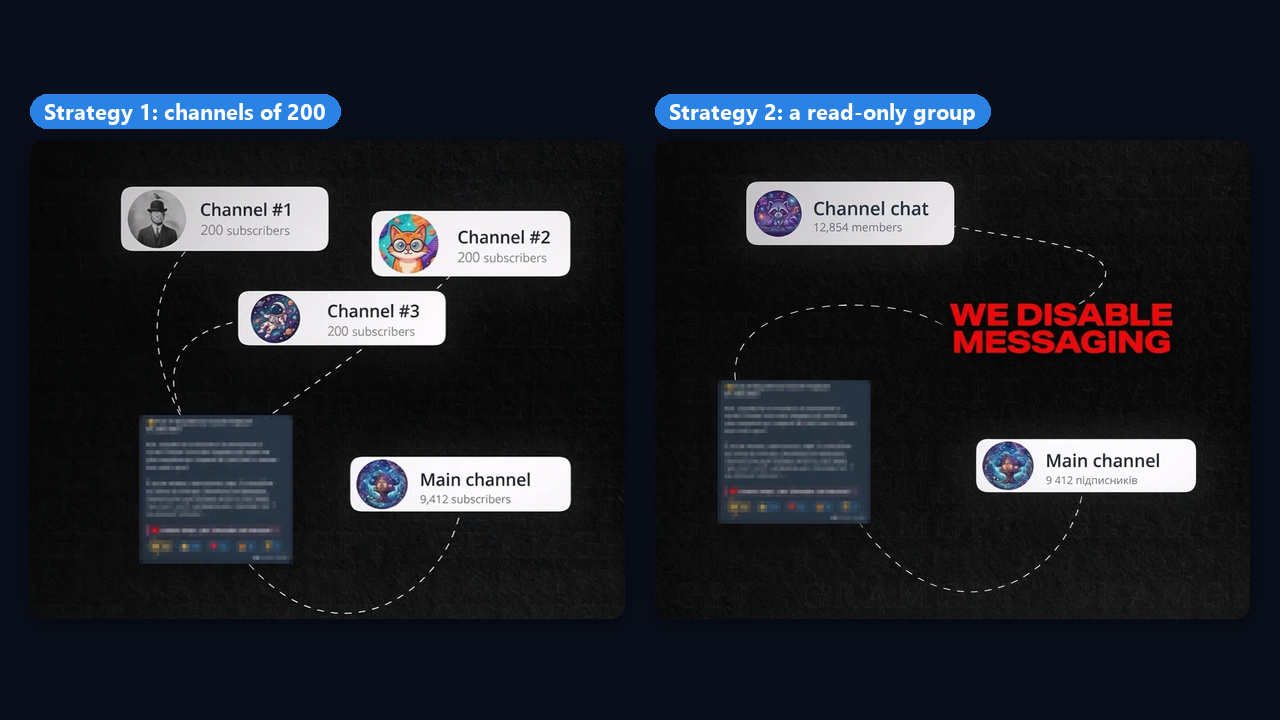
However, a channel accepts only 200 people this way, while a group takes up to 200,000. That leaves two main strategies:
- Many channels with 200 people each. You create several channels, fill each with up to 200 users, and each carries a pinned promo post leading to your main one.
- One big group. You create one, turn off messaging for members, publish promo posts and pull the audience over to you.
Also, Telegram caps each number at 50 people a day, and in practice the safe ceiling is lower. So 2,500 people a day take about 50 senders, which makes manual work pointless. That is why Telegram inviting runs on automation.
Preparing for Telegram Inviting in GramGPT.io
In GramGPT, the inviter has two modes: a plain mode and a shadow mode via admin helpers. The preparation is shared, so we cover it first and then each mode.
Import and Warm Up Accounts
First, load your working numbers into the account manager: click Import Accounts and upload tdata (a folder or ZIP archive) or .session + .json pairs. If you have none yet, the same window has a Buy ready-made button.
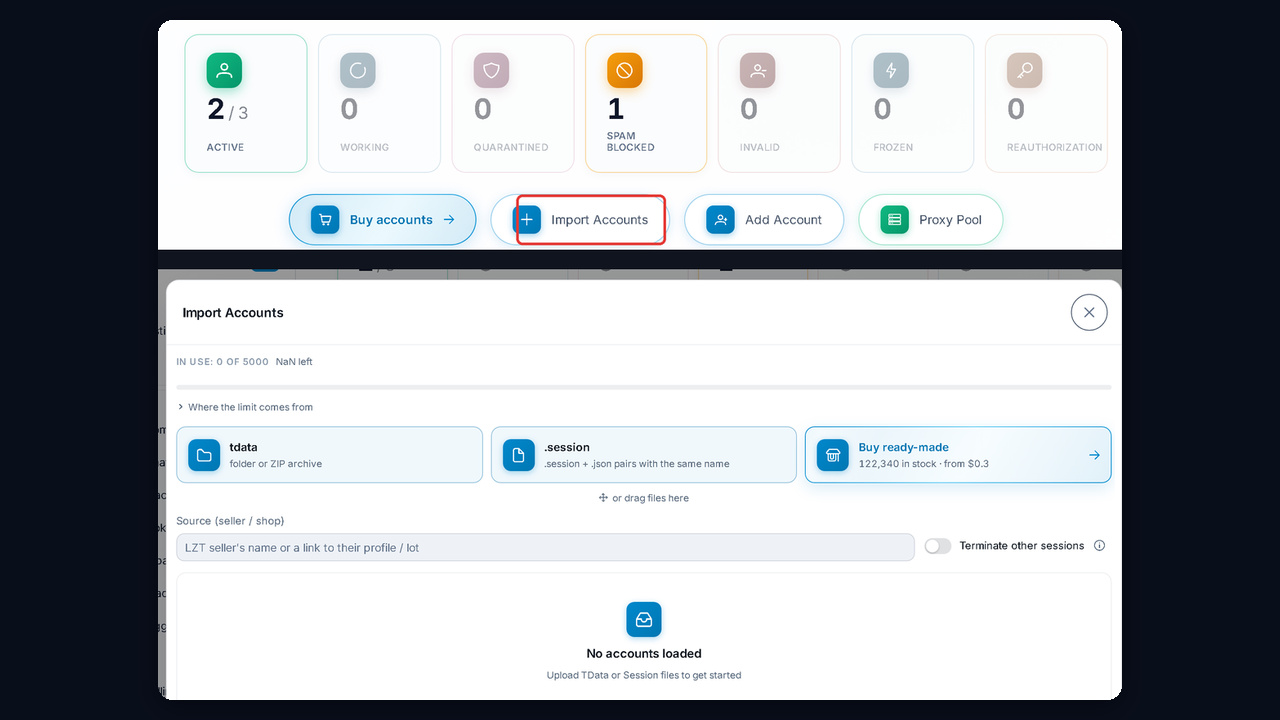
However, bought profiles that start working right away will most likely get frozen. So they are warmed up first: chatting with each other, joining groups, viewing stories and hundreds of other actions. Over time the messenger trusts them. See our guide to Telegram account warming.
Their region should also match the audience. That does not mean country for country: Ukrainian numbers work across the whole CIS, US numbers suit a Western audience, and Central Asian numbers fit that region.
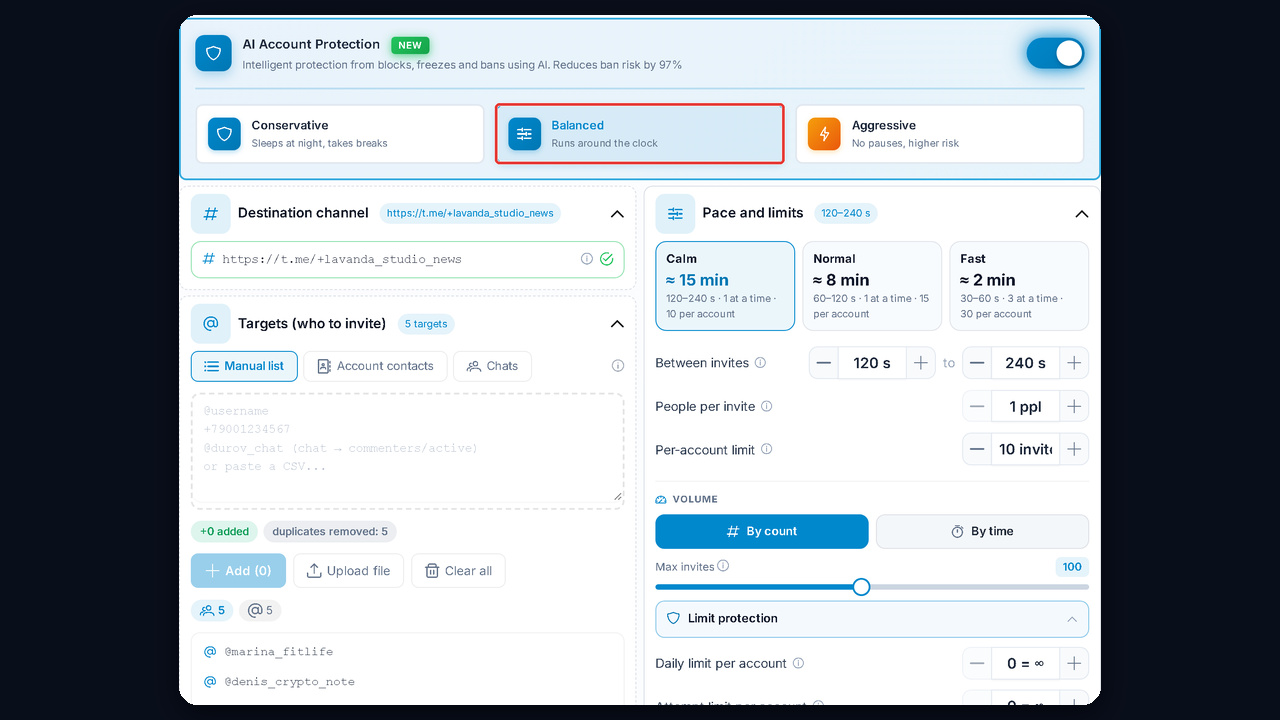
AI Account Protection
Use it in both modes. Protection mimics a person: extra scrolling, typing simulation and pauses. As a result, the messenger sees a random mix of actions instead of a monotonous stream of identical actions. We recommend the Balanced mode.
Plain or Shadow Invite: Which Mode to Choose
| |
Plain invite |
Shadow (via admin helpers) |
| Method |
With the Add Members button |
Grants admin rights and dismisses right away |
| Admin rights |
Not needed |
The main account is a channel admin |
| Where |
Channels and chats |
Places you own or administer |
| When to choose |
Easy start, working with contacts |
When the plain mode keeps hitting restrictions |
Plain Telegram Inviting Step by Step
In plain mode, each sender brings people in on its own. So you need two things: a destination link and a user base.
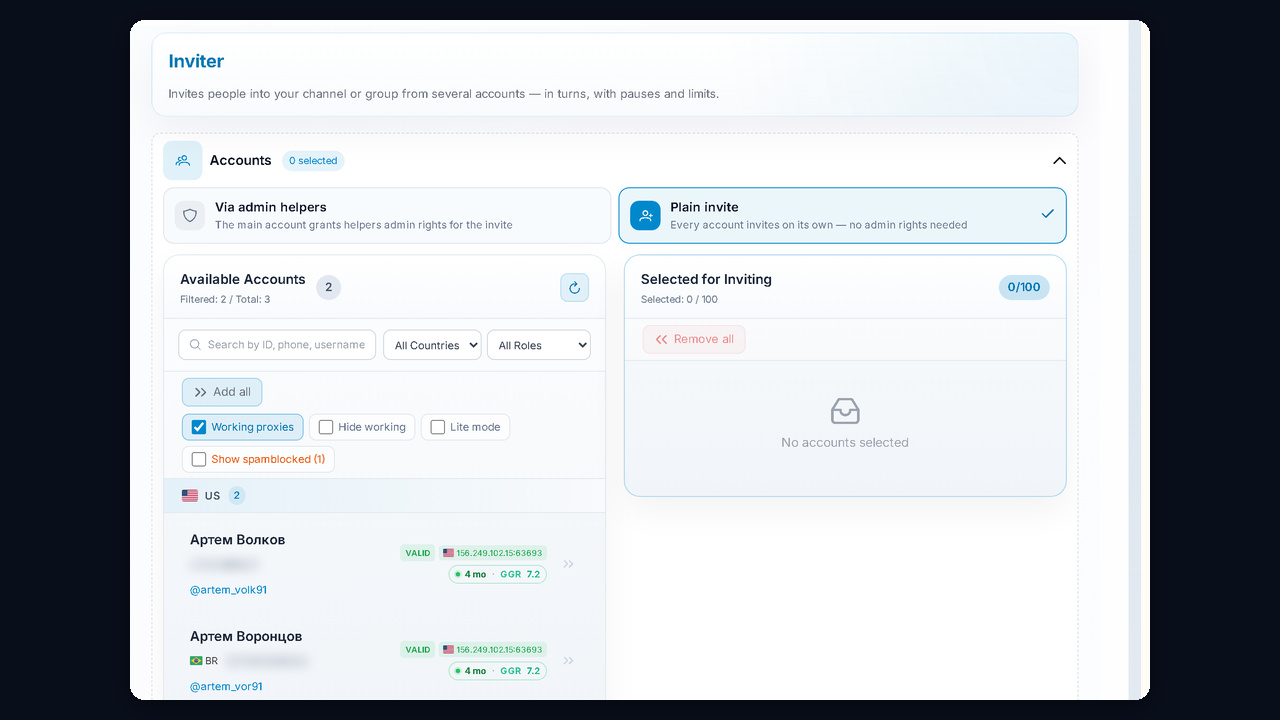
Step 1. Plain Invite Mode and Accounts
Open the Inviter module and pick the Plain invite card. Then pick the available profiles on the left and move them into the Selected for inviting column. Filters also hide those without a working proxy or with a spam block.
Step 2. Build the List with the Message Parser
This base is the foundation Telegram inviting stands on. For it, the Data parsing section has a three-in-one user parser:
- Group members — when the member list is open, it collects everyone.
- By messages — when members are hidden but write: it pulls everyone who has sent anything.
- By channel comments — people who left comments.
For example, members talk in a chat all the time, yet its member list shows only the admins and hides everyone else:
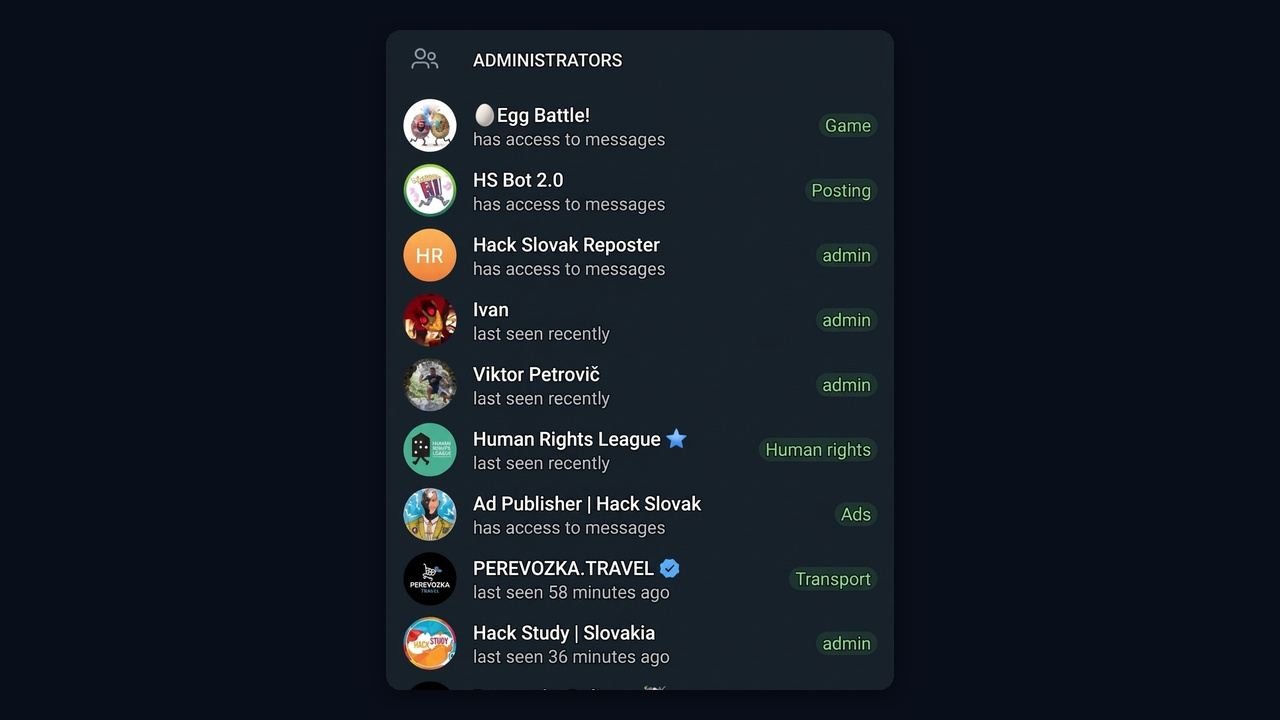
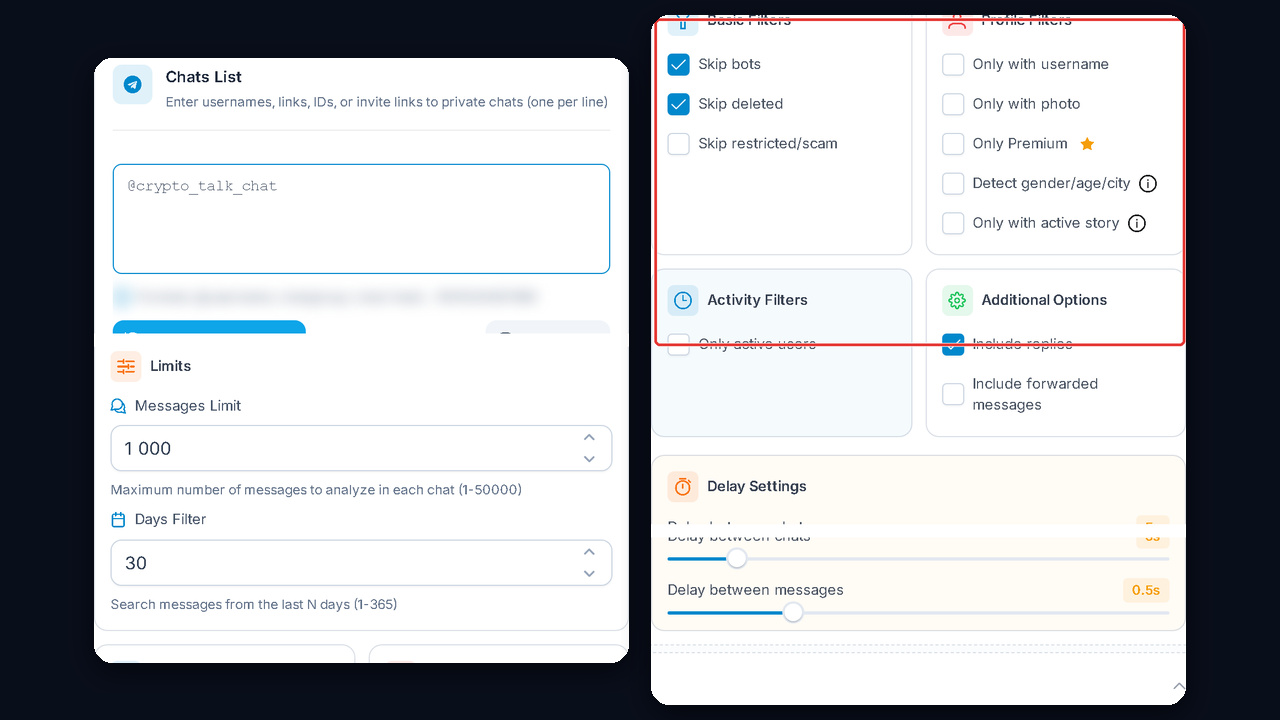
A member scrape fails here, while the message parser works. For instance, the settings are: the last 1,000 messages over 30 days, no bots, deleted, blocked or scam accounts, only users with a username and avatar. You can also keep only Premium users, who are possibly wealthier. The Active only filter and keywords are off in the example, because we want every author.
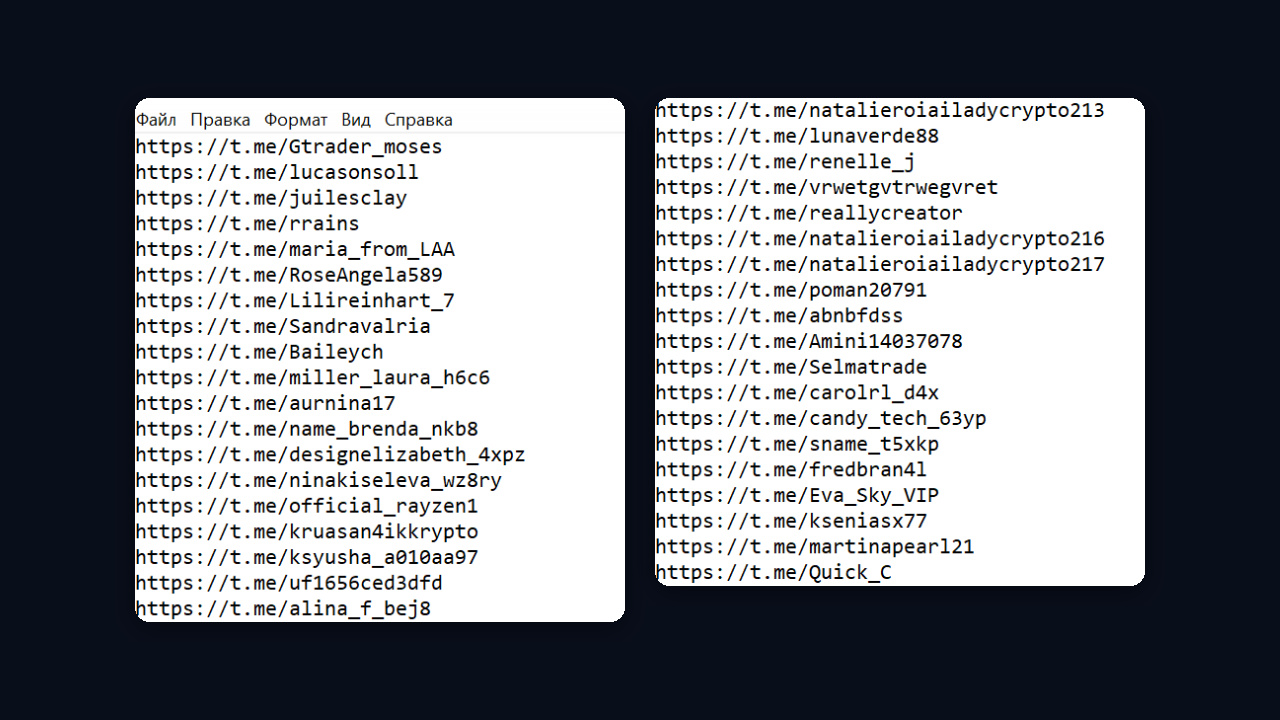
The parser exports authors together with their messages, but the inviter needs only the links. Our example produced 226 of them, like t.me/username.
Step 3. Target Channel and Targets
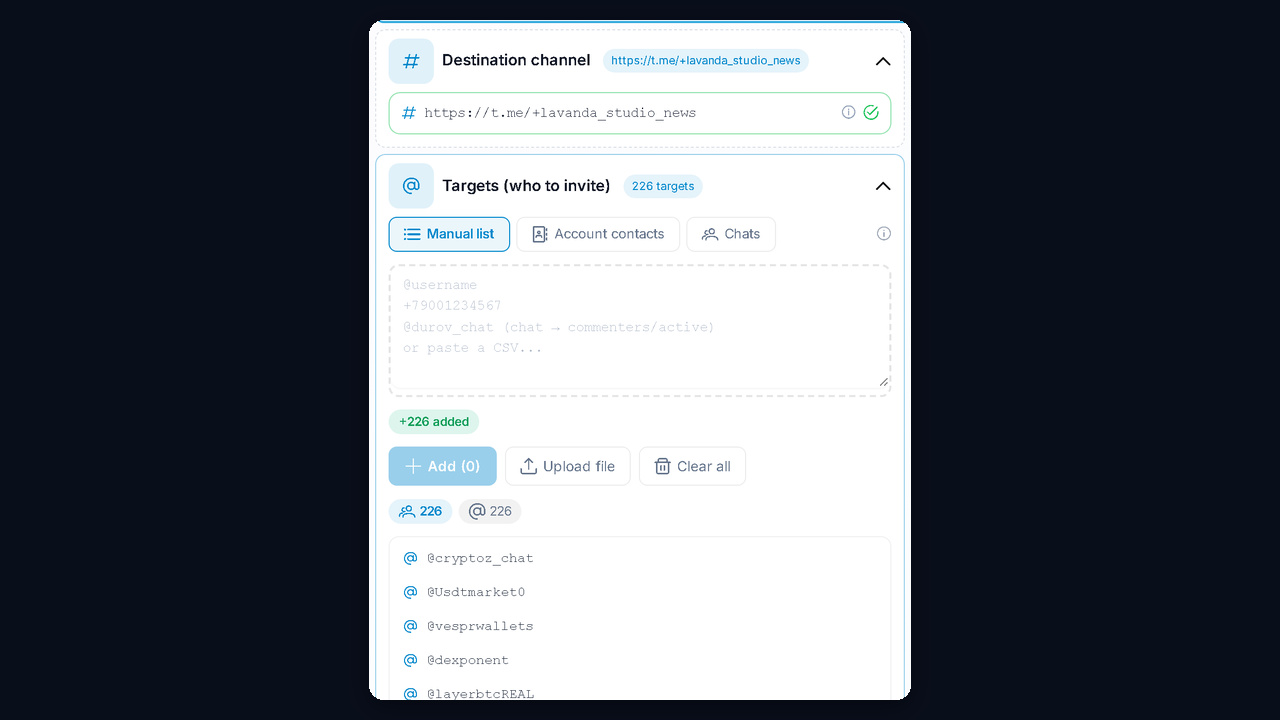
Put the destination link into the Target channel field. Then paste the list into the Targets block or upload a file: the service shows 226 targets and removes duplicates on its own.
Besides a manual list, there are two more sources: account contacts and chats. Contacts work separately: people already saved in contacts can be brought in more actively, even at the start. A small contacts tool handles this: enter usernames and delays, and after 2–3 hours or a day start the campaign.
Step 4. Pace, Limits and Limit Protection
This block decides whether Telegram inviting survives longer than a week. The module has Calm, Normal and Fast presets, but it is better to set the values by hand:
- Pause: 60–120 seconds, so senders take turns.
- Batch size: up to five, usually 2–3 users at once.
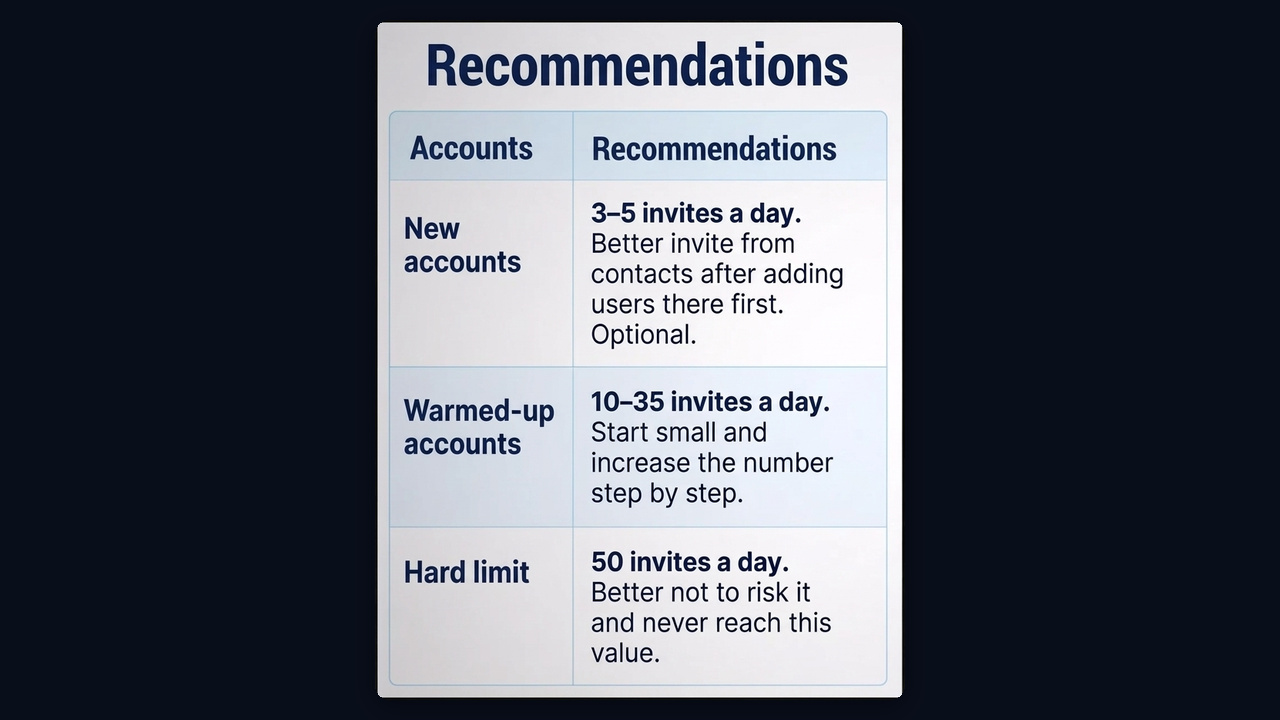
- Per-profile cap: no more than 5 each for the first 2–5 days, then 10, 15 and 25. The ceiling worth reaching is 35 a day. 50 is Telegram's own hard limit; do not go there.
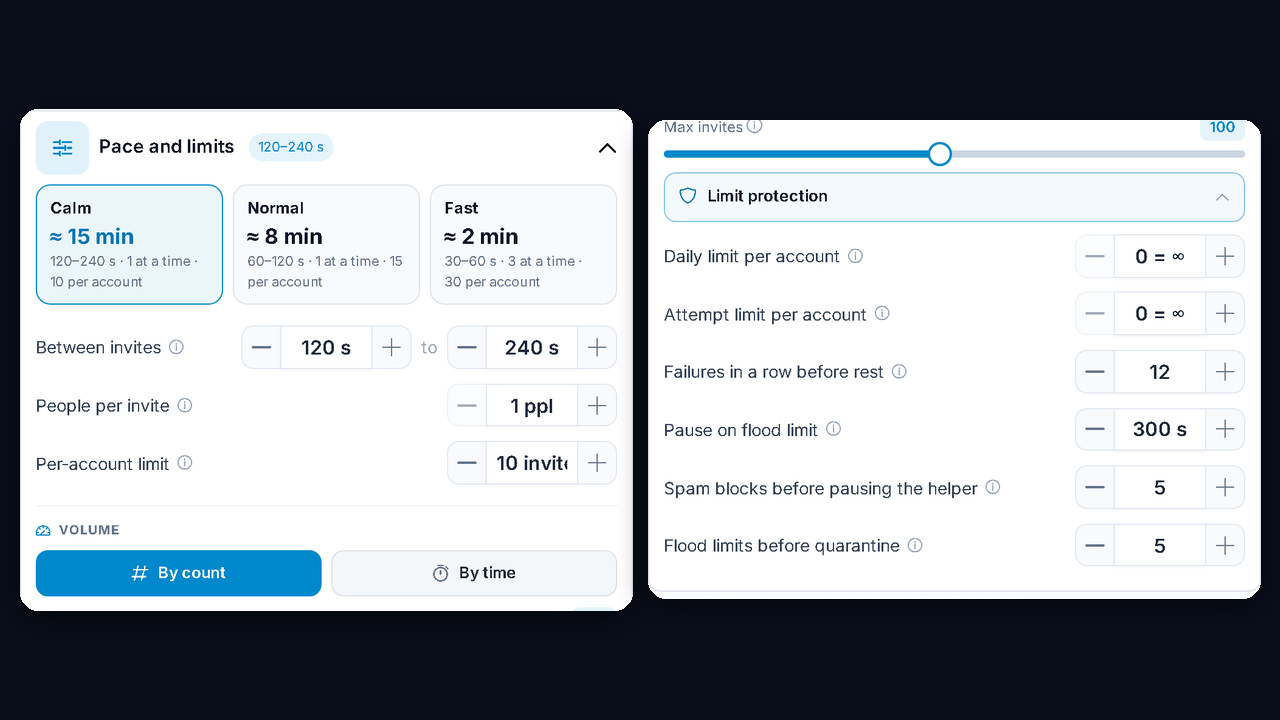
Start with 50 a day right away and they hit a flood limit. So Limit protection sets a pause, for example 500 seconds, and after three flood limits a profile goes into quarantine. There is also an attempt cap: successful ones are always fewer than attempts, because most people block such requests. Set 70–200 attempts and tune it by testing. In short, the guidelines are:
Step 5. Launch the Plain Invite
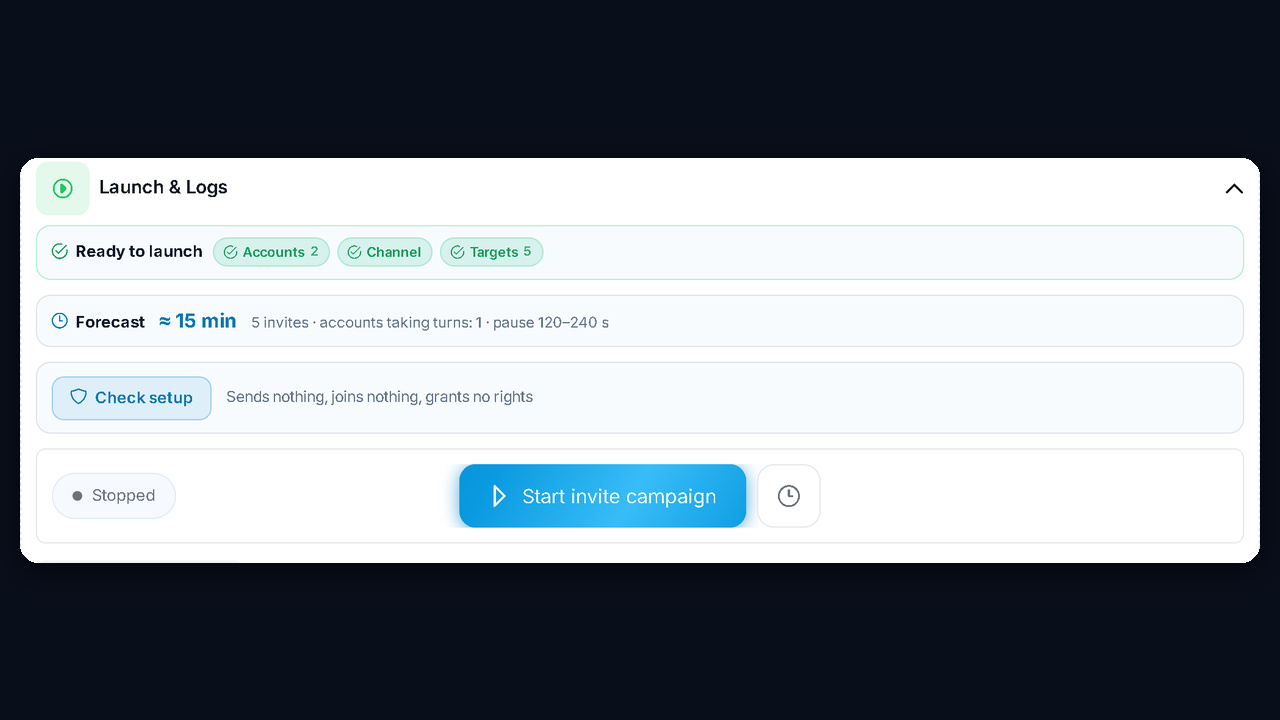
Before launch, the What's needed block shows whether everything is filled in, and the forecast shows the duration. Check setup, however, sends nothing; it only validates the configuration. Then press Start invite campaign and follow each thread in the logs.
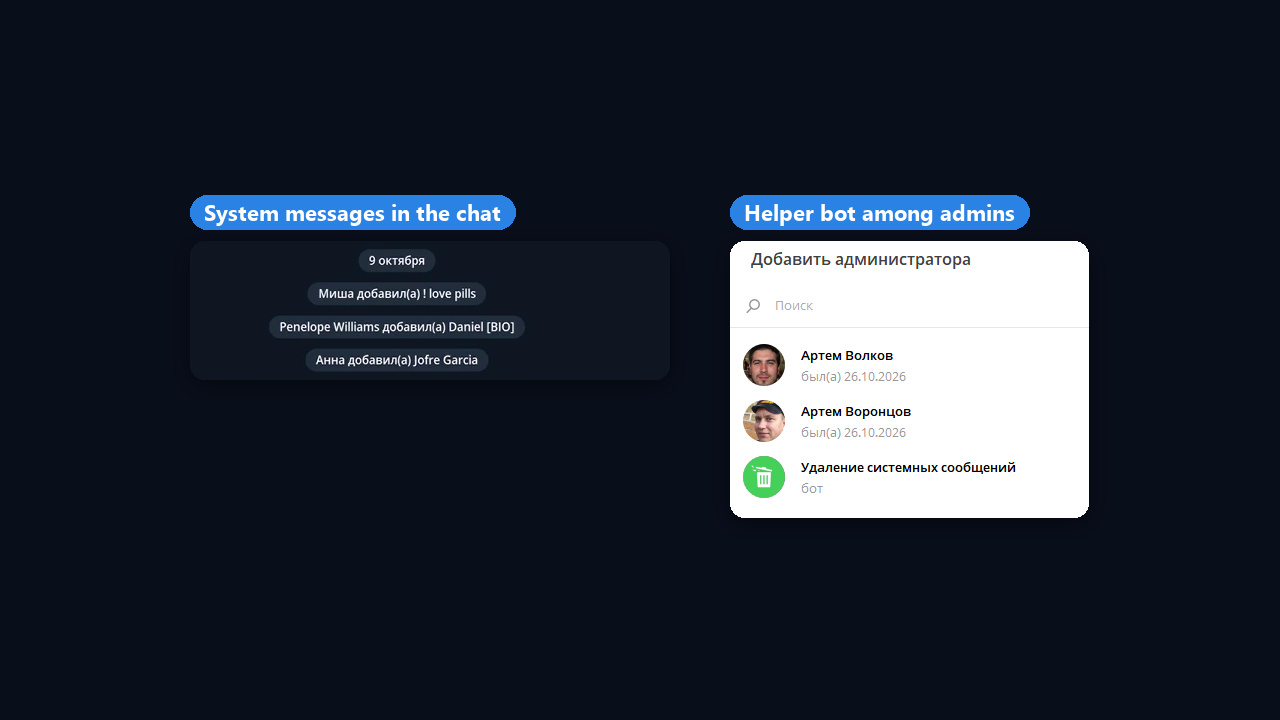
However, every new member creates a service message such as "… added …", and your promo post gradually moves up where nobody sees it. So make a helper bot that deletes such messages automatically an admin of the chat: find it via Add Admin and leave it a single right, Delete messages.
As a result, they work in turn, and both the logs and the chat show who brought in whom. The module itself is on the buy inviter page.
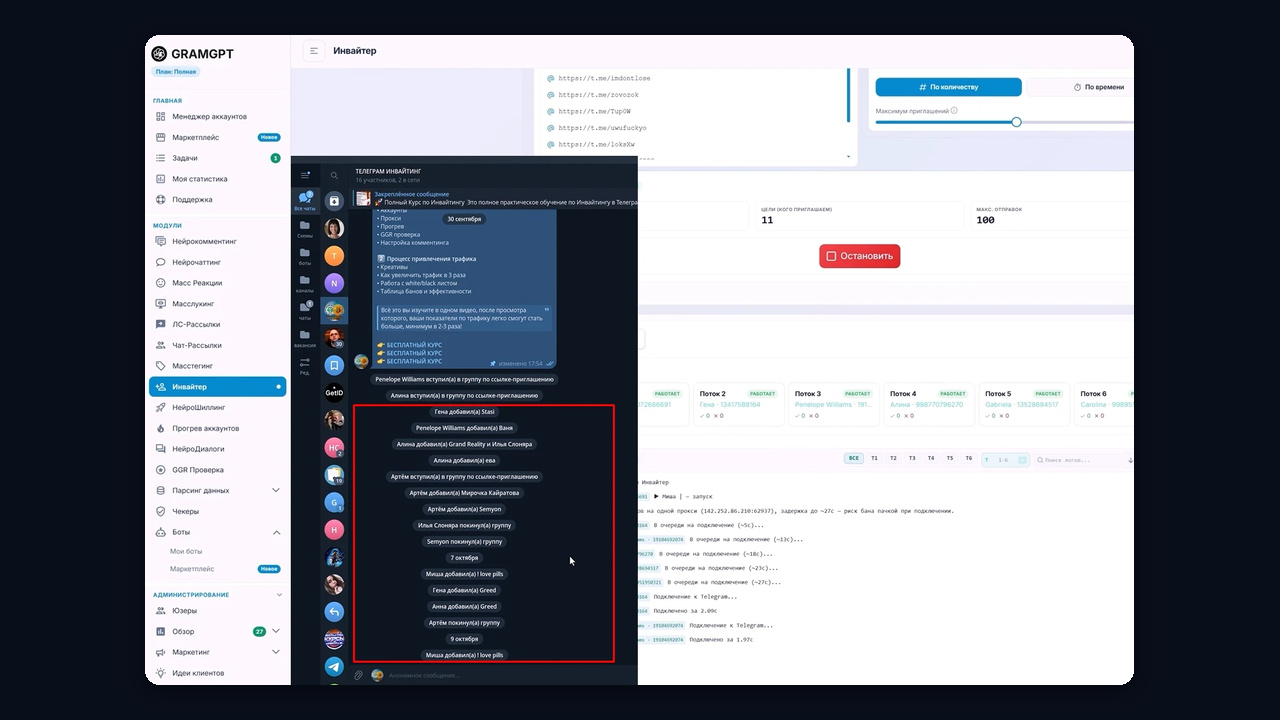
In a single run the module works through the whole list on its own: it spreads targets across profiles, keeps pauses and limits, and postpones failed attempts. All you do is watch the logs and move to a new chat in time.
Shadow Telegram Inviting via Admin Helpers
Shadow inviting means bringing users in by granting them admin rights and then dismissing them. The usual button is not used at all: a user is made an admin, then the role is removed, and they stay as a subscriber.
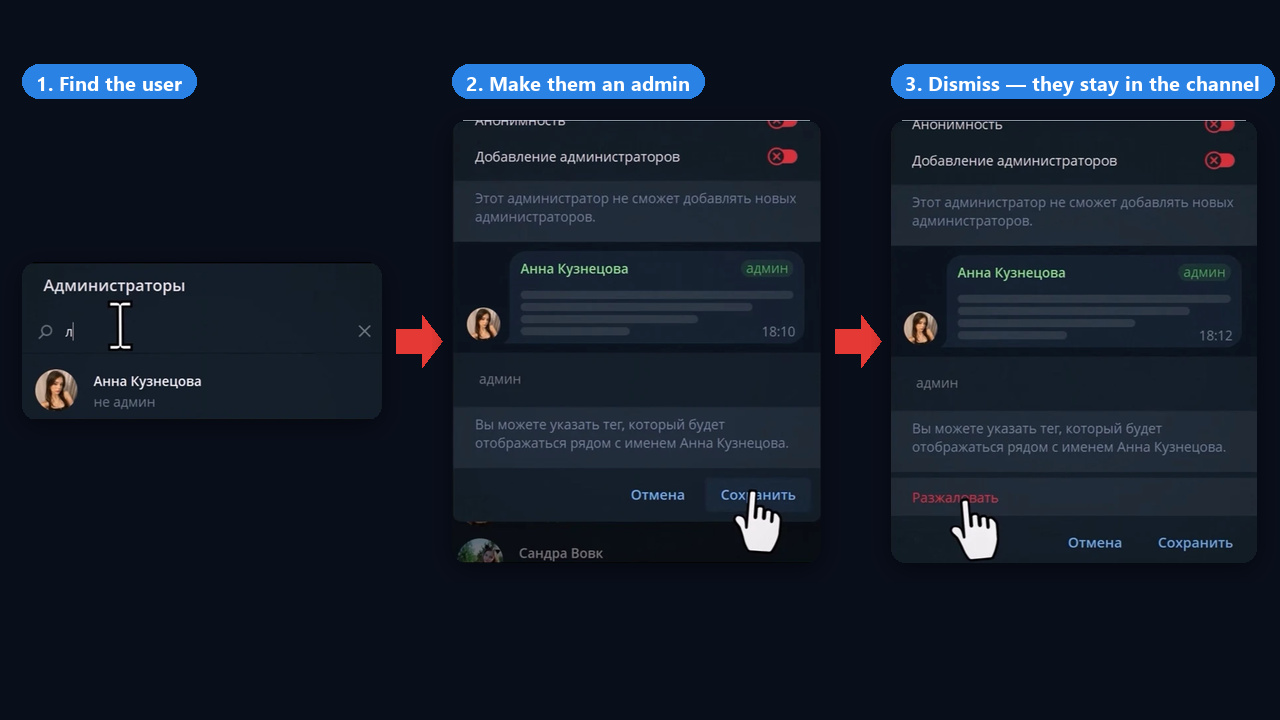
By hand it is Add Admin, find the user, Save, then Dismiss admin in their rights. The module does the same automatically from dozens of numbers.
Step 1. A Main Account with Admin Rights
Only admins can appoint admins. So the working profiles need rights too, and the main account hands them out. Make it an admin there with the Add Administrators and Invite Users rights. The key toggle is Add Administrators: without this right, helpers cannot be appointed.
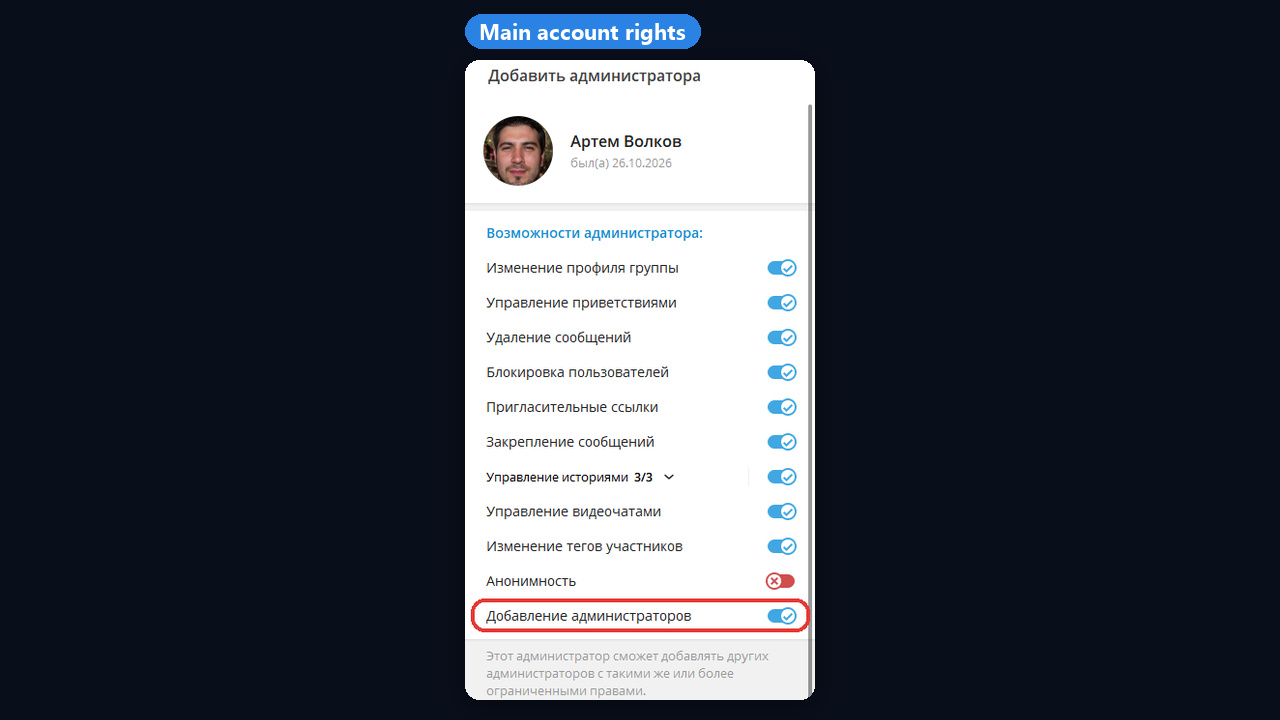
Step 2. Admin Helpers Mode and Account Order
In the Accounts block, pick Via admin helpers and put the main account first in the list; it is marked with a star. It promotes the others itself for the duration of the run.
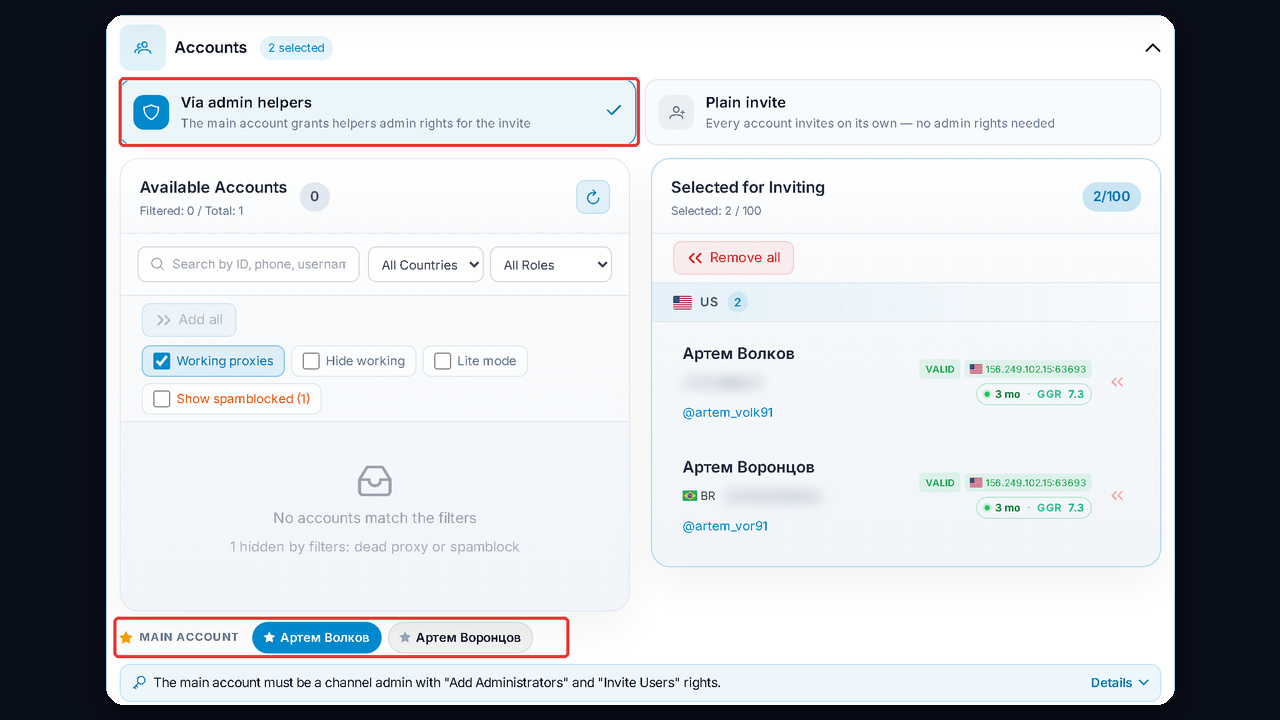
Step 3. List, Target Channel and Targets
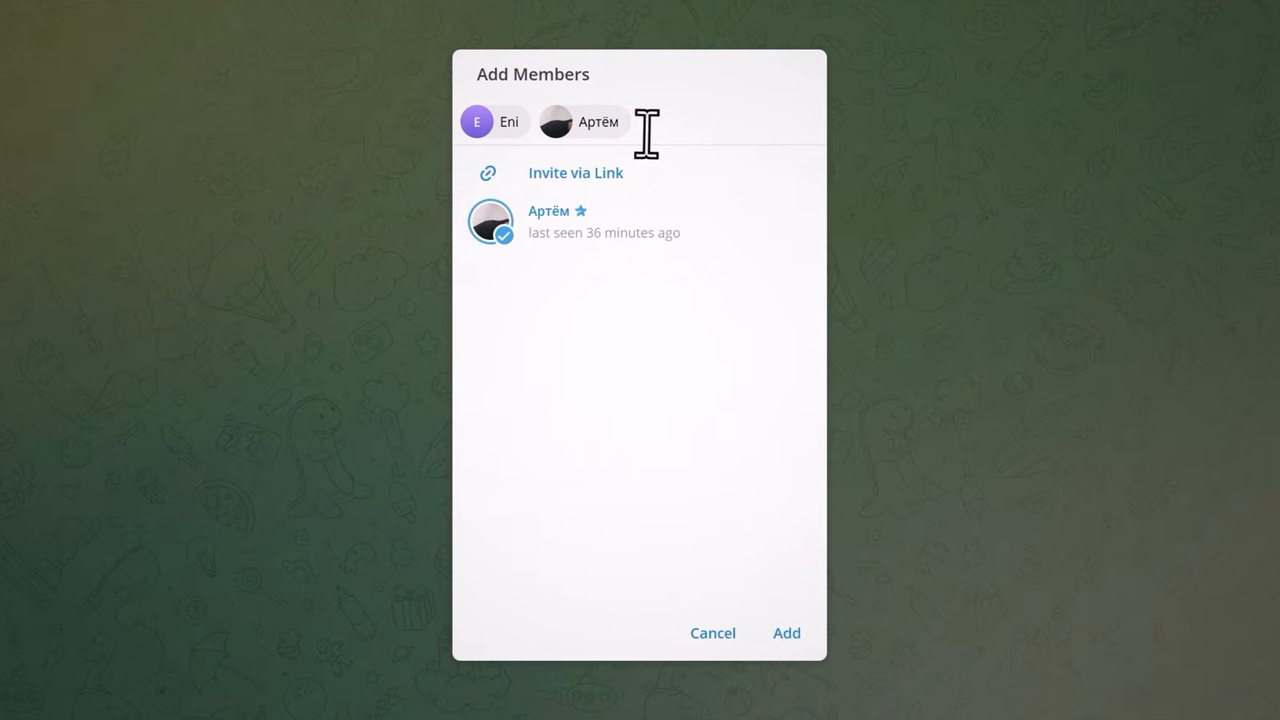
Both are filled in as in plain mode: the message parser (see above) and the Targets block with the destination link. Keep AI protection in Balanced mode here as well. For example, this is the destination and the target list before clicking Add:
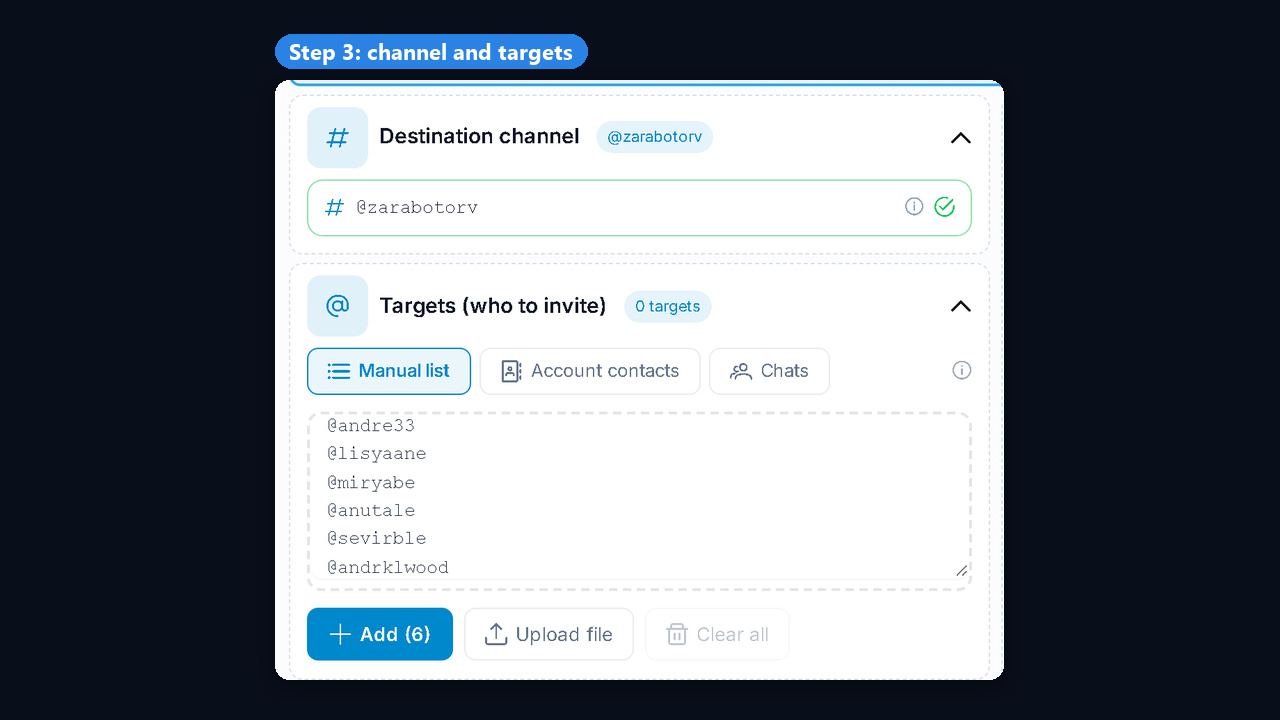
Step 4. Start-up Delays
While profiles warm up, set 300–900 seconds between batches of three and only 3–5 a day. The messenger then treats it as normal behaviour. Later the limits widen step by step and the delays get shorter. In the module, you set them by hand in the Pace and limits block: 300 and 900 seconds between actions, 3 people per batch and a cap of 5 each.
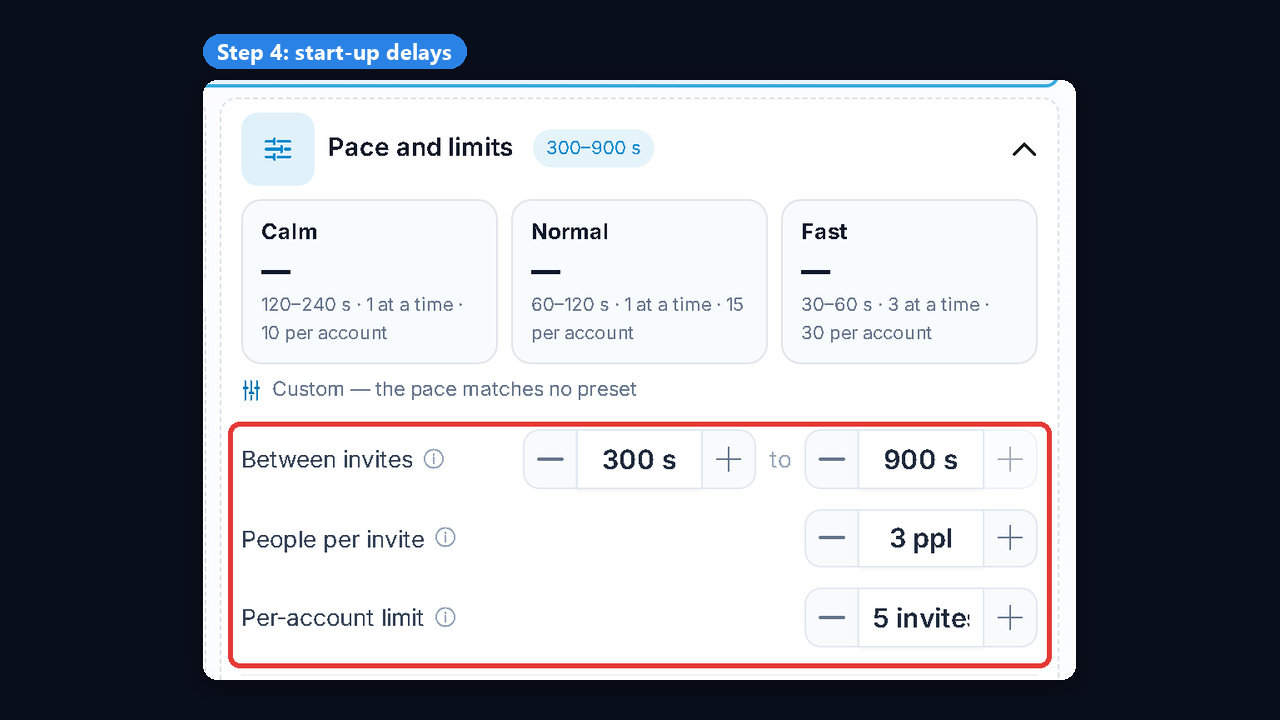
Step 5. Launch the Shadow Campaign
Press Start invite campaign. First the main account promotes the others, then the helpers join and gradually bring in subscribers. The logs show every action: "Helper … invites", "Invited … — 2 in total".
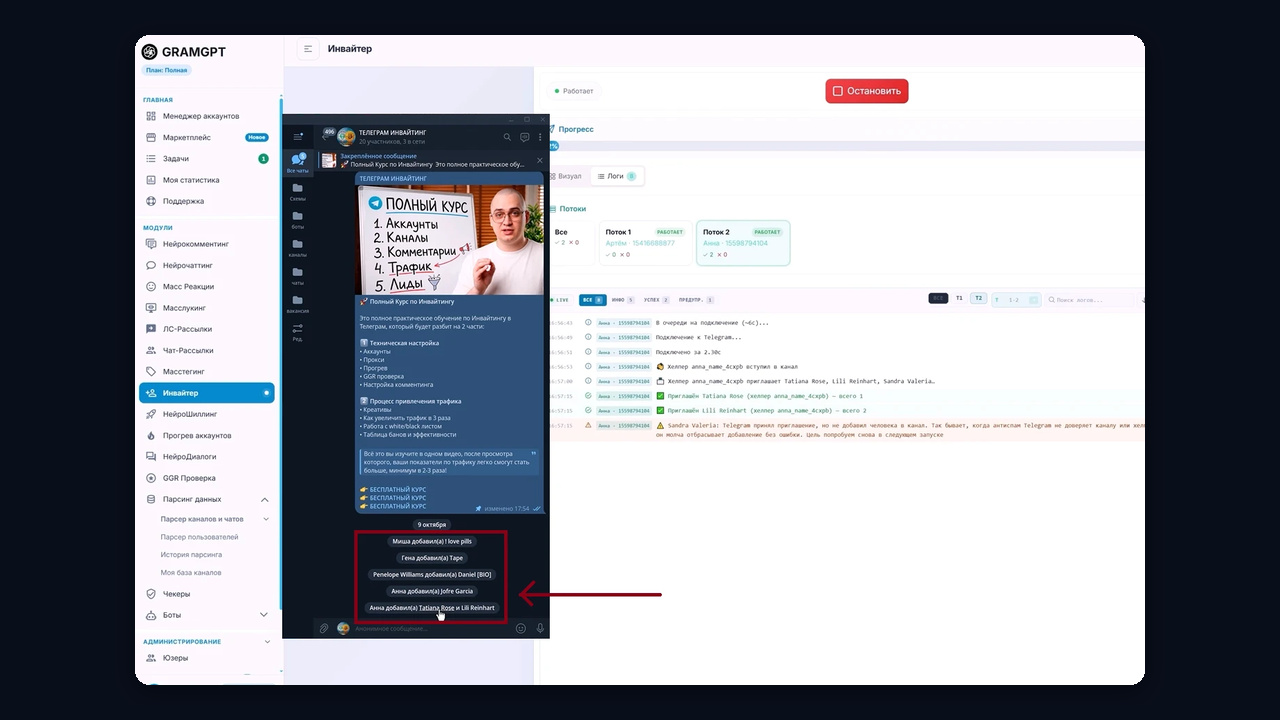
Sometimes there is a warning: "Telegram accepted the invite but did not add the person to the channel". That is anti-spam at work when the messenger does not trust the place or the helper. The module will try that target again in the next run.
How Much Telegram Inviting Costs
The button itself is free; you pay for scale. Three options compared:
| Option |
What you pay for |
Daily volume |
| By hand from your personal number |
Only your time, but no scale |
Up to 35 people |
| Hiring a freelancer |
A service package priced per job |
Depends on the contractor |
| Your own inviter in GramGPT |
Numbers, proxies (one per 5 fresh ones), a module subscription |
Up to 35 each, scaled by how many you run |
As a result, your own software pays off over time: the list, numbers and chats stay yours, and costs grow only with volume. Current plans are on the module page.
Telegram Inviting Pitfalls
Most often failure comes from these points rather than the software:
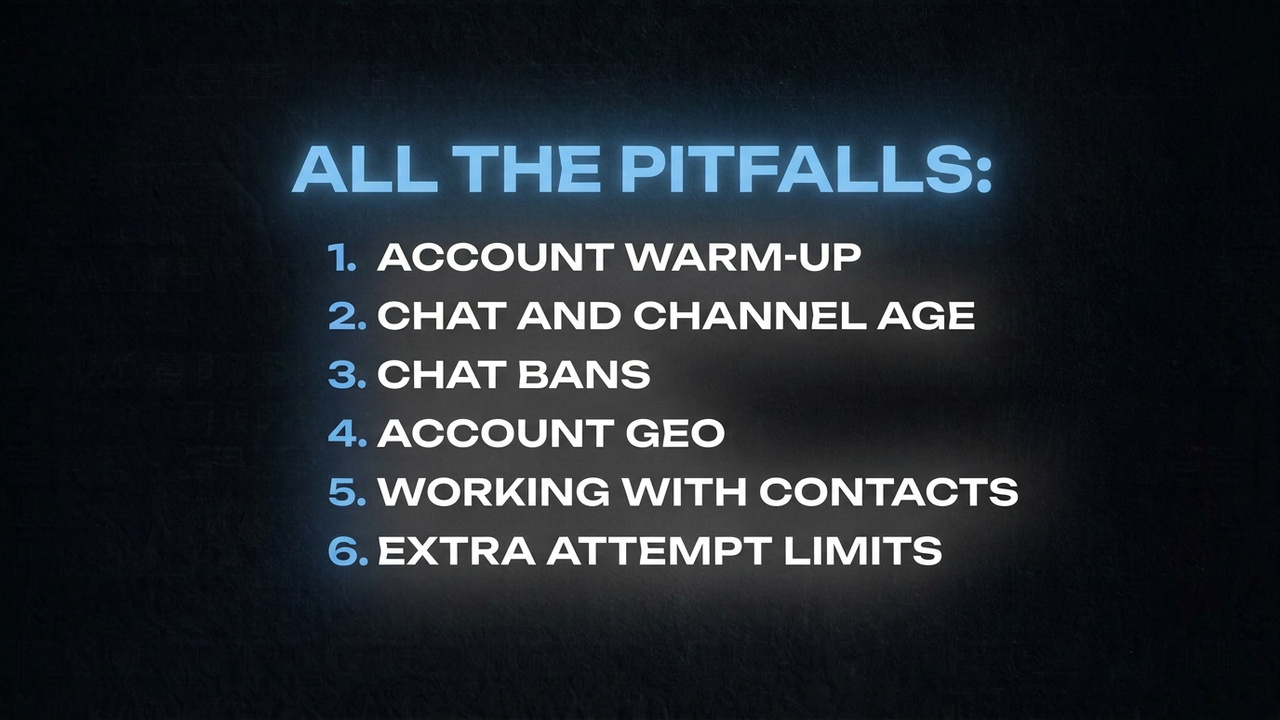
- Account warm-up. Warm up first and work later, or they get frozen.
- Chat and channel age. A brand-new chat is among the main traps. It is better to work where posts and history already exist: the older the place and the more posts it has, the lower the risk of a ban. Such places are bought, for example, on FunPay: search by year, say 2020, and the seller then transfers the rights to you.
- Chat bans.
a) A restriction can hit the chat itself, not the profile. After a couple of thousand members, stop, move on to a new chat and keep pouring traffic from the old one with promo posts.
b) There is also a shadow restriction: a user is reported as added, yet never appears. If this keeps happening, give it a 1–2 week rest. Usually moving to a new chat solves it.
- Account GEO. For this method and DM outreach, numbers must come from the audience region.
- Working with contacts. Working only with saved contacts is safer and allows more from day one.
- Attempt limits. Failed attempts also eat the cap, so limit them separately and tune the value by testing.
Why You Can't Invite: Top Mistakes
A typical story: someone creates a chat and starts the same day with cold numbers, almost always from the wrong region. It gets a shadow ban: the tool reports success, but nobody appears, and it seems the method is dead. So look for the cause by the symptom; it is almost always one of four mistakes:
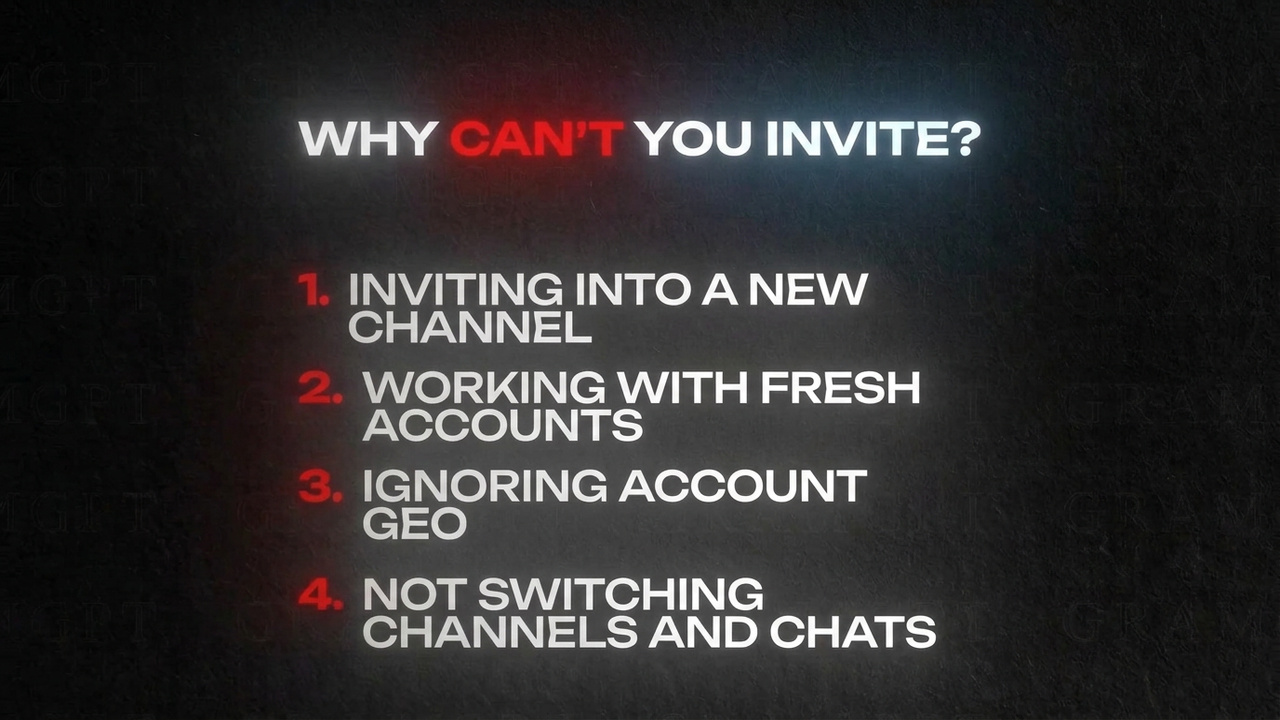
| Mistake |
What you see |
What to do |
| A brand-new channel or chat |
Logs say "invited", but the member count stays flat; the place gets restricted fast |
Fill it with posts and let it age, or buy one with history |
| Working with fresh accounts |
Freezes or flood limits after the first few actions |
Warm up, then start at 3–5 a day |
| Numbers from the wrong region |
Many refusals and spam blocks even at a slow pace |
Use numbers from the audience region, e.g. Ukrainian for the CIS |
| Using the same chat forever |
Growth worked, then suddenly stopped |
Move to a new chat after a couple of thousand members |
Summary: Running Telegram Inviting Without Bans
Follow these rules and Telegram inviting still brings thousands of subscribers. Warm up numbers from the audience region, work with places that have history, build the base with the user parser, start at 3–5 a day and move up to 25–35, and switch to a fresh chat after a couple of thousand members. Then your results can look like this:
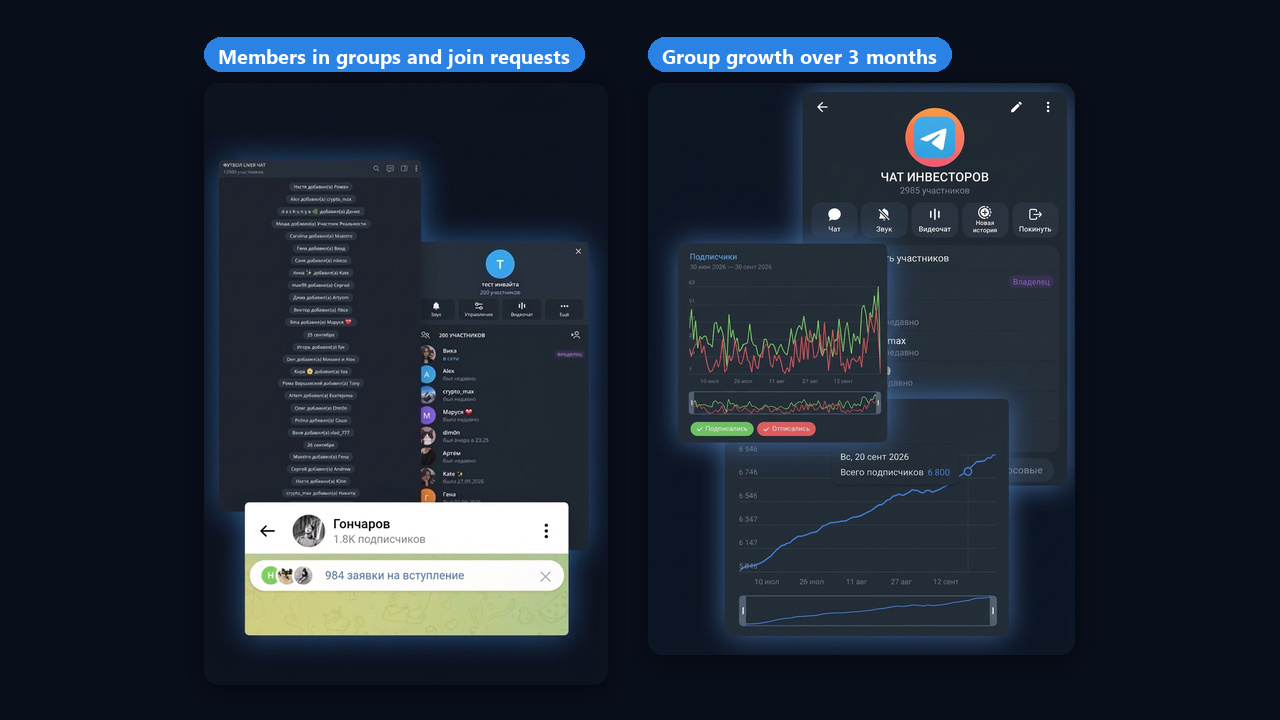
It is just one way to grow a Telegram channel. We covered the theory, invite types and messenger restrictions, in what inviting is and how to attract members. To start from zero, watch our free Telegram automation course on the GramGpt YouTube channel.