Chats hang on "Connecting…", photos spin forever, outgoing texts wear a little clock, and no login code arrives. When Telegram is not working, most people reinstall the app straight away. However, the app is rarely the culprit: the failure may sit with the service itself, your provider, your device or the account.
So we start with the main causes and then go step by step: how to find the source in a minute, what to do about endless connecting, missing media or a code that never arrives. We also cover people who run many accounts, because there "not working" often means a spam block, a freeze or an ended session.
Why Telegram is not working: top 7 causes
- Server outage. The messenger fails for thousands of people at once, so outage maps light up.
- Throttling by the provider. Text arrives, but photos, videos and calls crawl.
- Weak or overloaded network. For example, poor signal, crowded Wi-Fi or mobile internet switched off in the region.
- Dead proxy or VPN. A forgotten address in settings keeps you offline.
- Old version and full storage. The app falls behind server changes and therefore cannot save files.
- Phone settings. A wrong clock, battery saver or blocked background activity interfere.
- Profile problem. A spam block, a freeze or an ended session: that is, the service runs fine while the profile is stuck.
Below we show how to separate these causes and fix each one.
Telegram not working? Locate the source in 60 seconds
In other words, any breakdown starts in one of five places: servers, your ISP, the client, the phone or the profile. Check them in that order, because the first two cause most problems.

- First, open a couple of websites. If they fail too, the whole connection is down.
- Next, swap your router connection for cellular data and back. If it wakes up on one of them, blame the provider.
- Then launch the messenger on a laptop or in the browser version. If it runs there, suspect the handset or the client.
- Finally, open an outage map such as Downdetector. A flat chart means the issue is on your side.
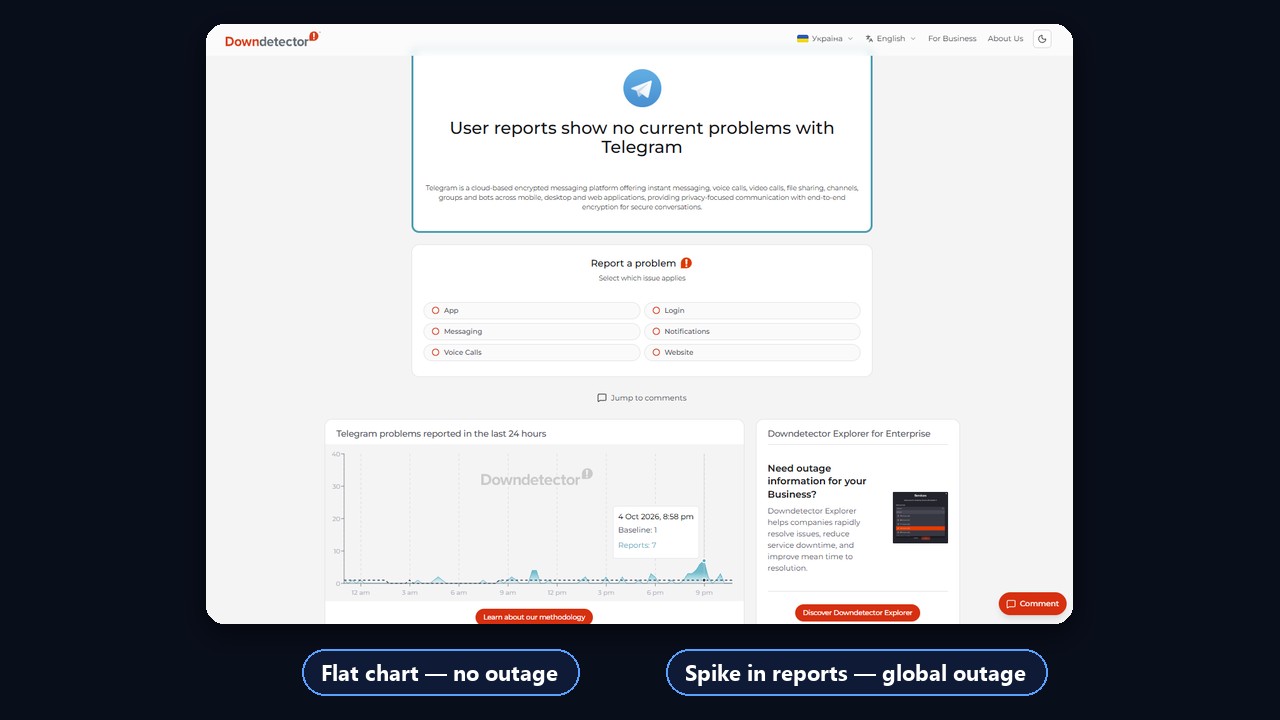
Is Telegram down today, or is access restricted?
To check whether Telegram is down for everyone, open a down detector service. If it fails for many people at once, there are usually two explanations. First, an outage on the service side, which is typically fixed within hours. Second, restrictions at the network level.
Several countries limit the messenger. For example, Russia throttles calls, media and at times the whole connection, while Iran and China restrict access entirely. Some regions also switch off mobile internet from time to time. So if Telegram is not working because of restrictions, reinstalling achieves nothing.
Throttling or blocking: spot the difference
The symptoms differ, and they point to the fix:
| What you see | Likely cause | What helps |
|---|---|---|
| Text arrives, photos and video messages take minutes | throttling | proxy, stable Wi-Fi |
| Fails only on mobile data | carrier limits or internet shutdown | another network, proxy |
| Fails on every network and device | server outage | waiting |
| Websites load, the app hangs on "Connecting…" | provider blocks the messenger's addresses | MTProto or SOCKS5 relay |
| App works, but you cannot message strangers | profile restriction | status review, spam block removal |
Thus, media is the easiest tell. With throttling, messages get through but files do not. With blocking, nothing passes, yet a relay server brings the app back instantly.
Telegram not connecting: "Connecting…" and "Updating…"
The two header labels mean different things. "Connecting…" means the app cannot reach the server at all. "Updating…" means the link exists, but data moves too slowly, usually because of throttling.
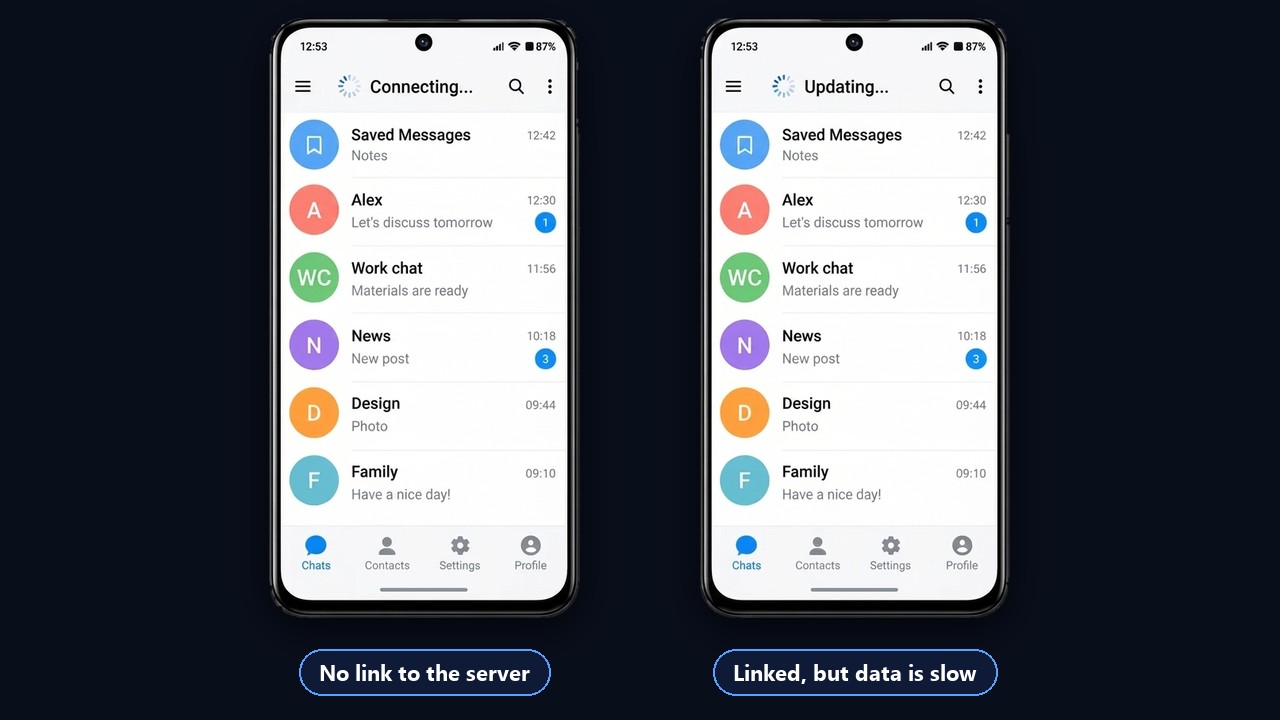
If websites load fine, go through these steps:
- Reset the network. Toggle airplane mode and restart the router.
- Check date and time. A wrong clock breaks the encrypted connection.
- Remove a dead server address. A forgotten one in settings often keeps the app offline.
- Update the app. Old versions handle server changes worse.
- Disable your VPN for the test. If everything works without it, the VPN is the problem.
Telegram not working even with a VPN
This is a common complaint. Filtering systems now recognise the traffic of popular VPN protocols, so some services keep working while others stop. Also, many free VPNs are overloaded and drop the connection themselves.
That is where built-in relay support helps. An MTProto or SOCKS5 server routes only the messenger, and setup takes three steps: Settings → Data and Storage → Proxy Settings → Add Proxy.
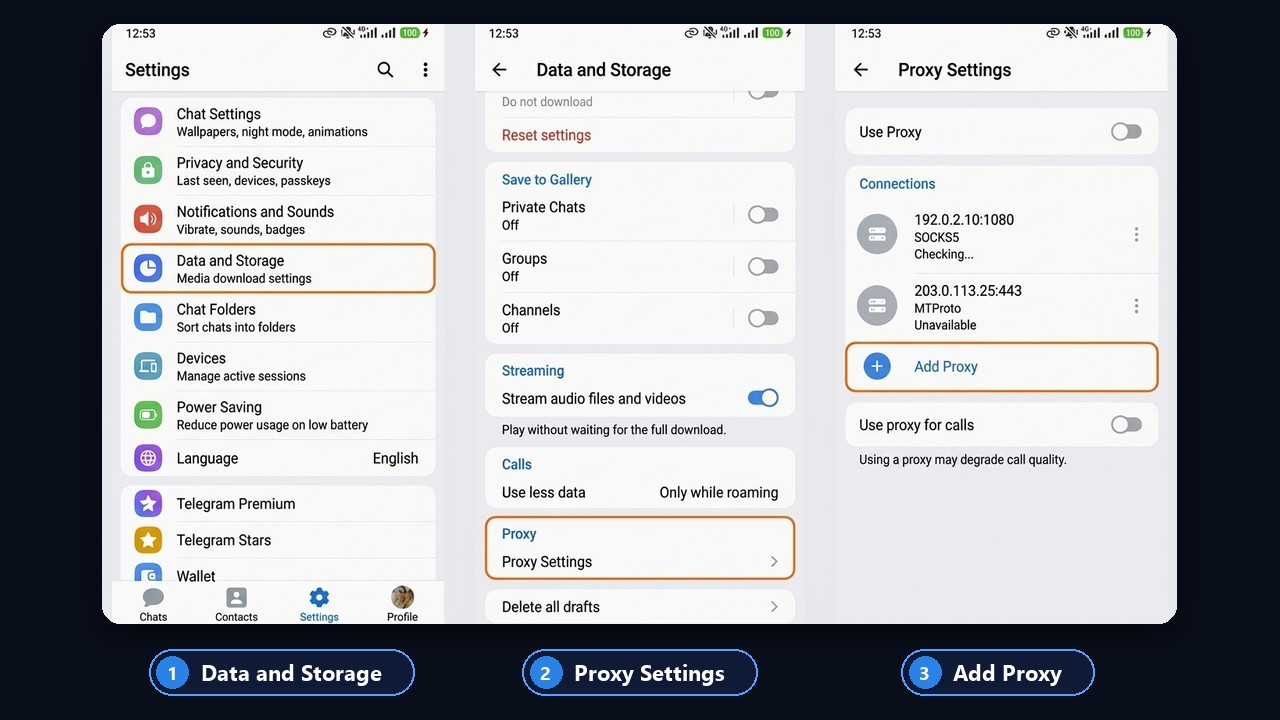
But test the address first: the free GramGPT proxy checker handles up to 100 addresses at once and shows which ones are alive and how fast they respond. This way, you never add an address that instantly shows "Unavailable".
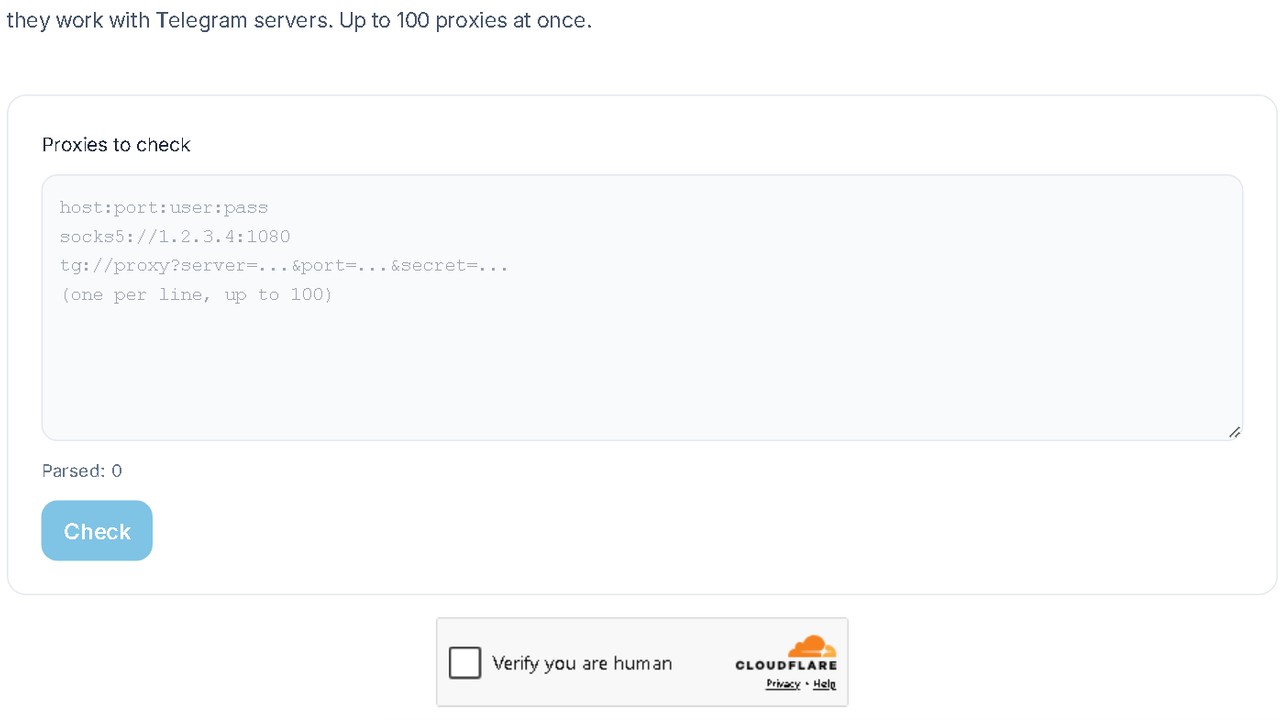
Our video explains how to pick the right type, and it has English auto-dubbing.

For a full comparison of options, read our guide to Telegram proxies.
Telegram not loading photos, videos or messages
Sometimes chats load while round videos and pictures spin endlessly, and a sent text keeps its clock. Media travels through separate servers, so it suffers first when traffic is throttled.
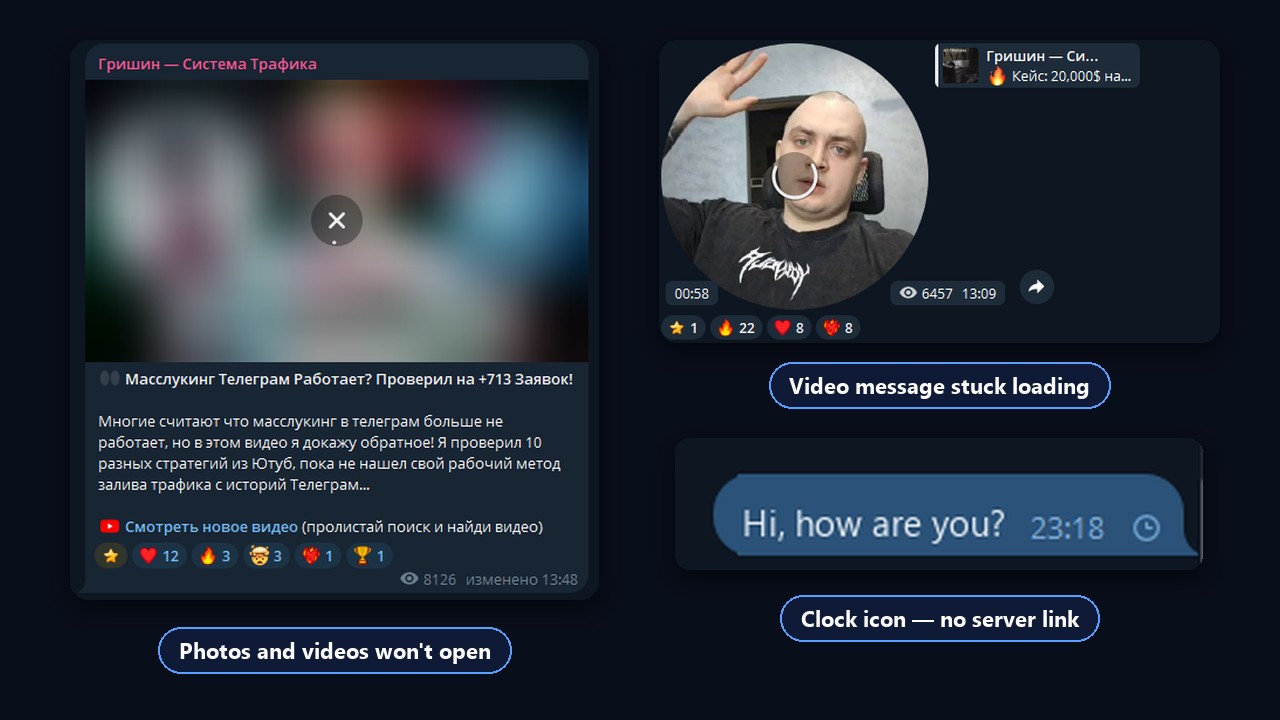
Here is what helps:
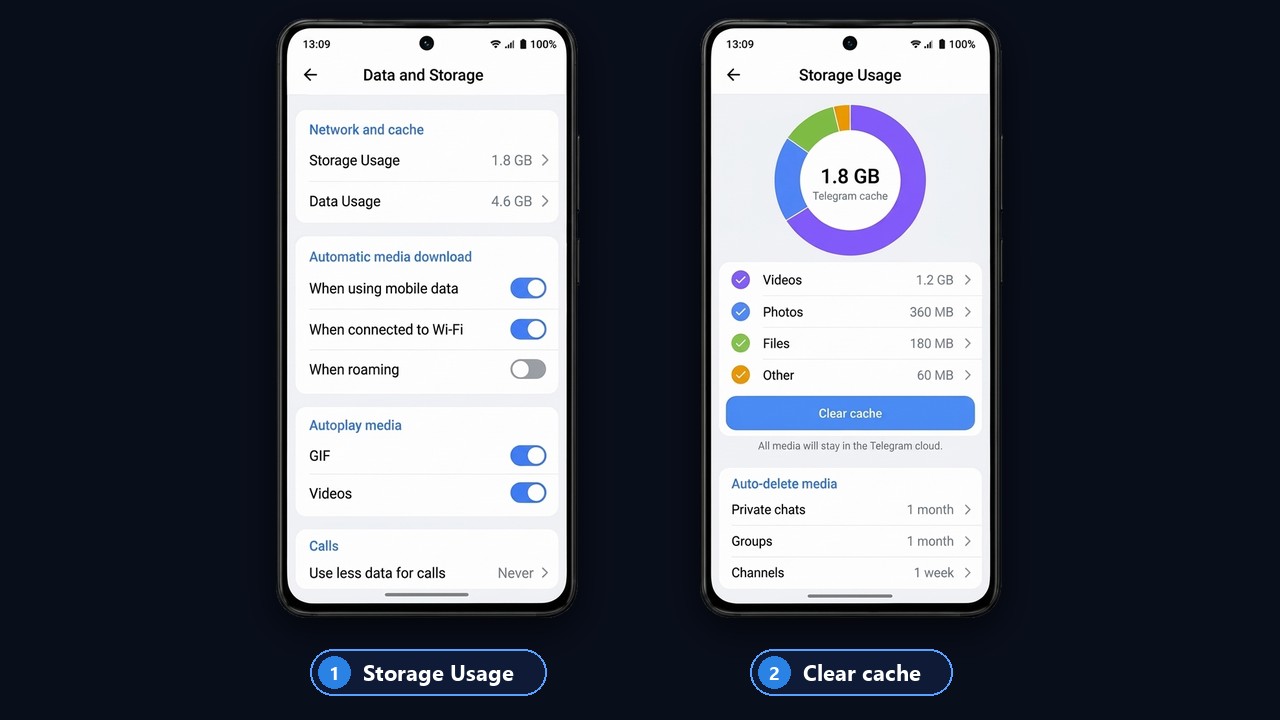
- Free up storage: with a full memory, Telegram stops saving files.
- Clear the cache: Data and Storage → Storage Usage → Clear cache. Your media stays in the cloud.
- Check media auto-download: it may be off for mobile data.
- Try a relay server if text arrives but media does not. That pattern points to throttling.
Messages are not sending
That little clock means the server never received your text. If the link looks fine yet strangers stay unreachable, the profile has a restriction. For instance, a spam block forbids messaging people outside your contacts, and groups apply a short pause after rapid posting.
Telegram code not received
The login code first goes to the app on another device where you are already signed in. So check the "Telegram" chat on your laptop or tablet. If no other session exists, request an SMS or a call, give it two or three minutes and resist hammering the resend button, otherwise Telegram adds a pause of several hours.
Telegram not working on iPhone, Android or desktop
Each platform has its own typical causes:
| Platform | Common cause | Fix |
|---|---|---|
| iPhone | a VPN profile interferes, background refresh is off | remove extra VPN profiles, enable background refresh |
| Android | battery saver kills the app | exclude Telegram from battery optimisation |
| Telegram Desktop | outdated build, system proxy | update the client, check Connection type in settings |
| Web version | browser extensions, ad blockers | open in incognito mode or another browser |
Telegram not opening chats
Sometimes the app starts, but a chat stays blank or keeps loading when you tap it. Usually the local cache is damaged or the device ran out of storage. So clear the cache under Data and Storage, free some space and restart the app. If only one chat refuses to open, it may be a large group with heavy media: wait until it syncs on Wi-Fi.
Telegram Desktop not working on PC
On a computer, an outdated build or a system-wide proxy set for another program is the usual cause. Update the client from telegram.org, then open Settings → Advanced → Connection type and choose system or direct mode. If web.telegram.org works while the desktop app does not, reinstall the client.
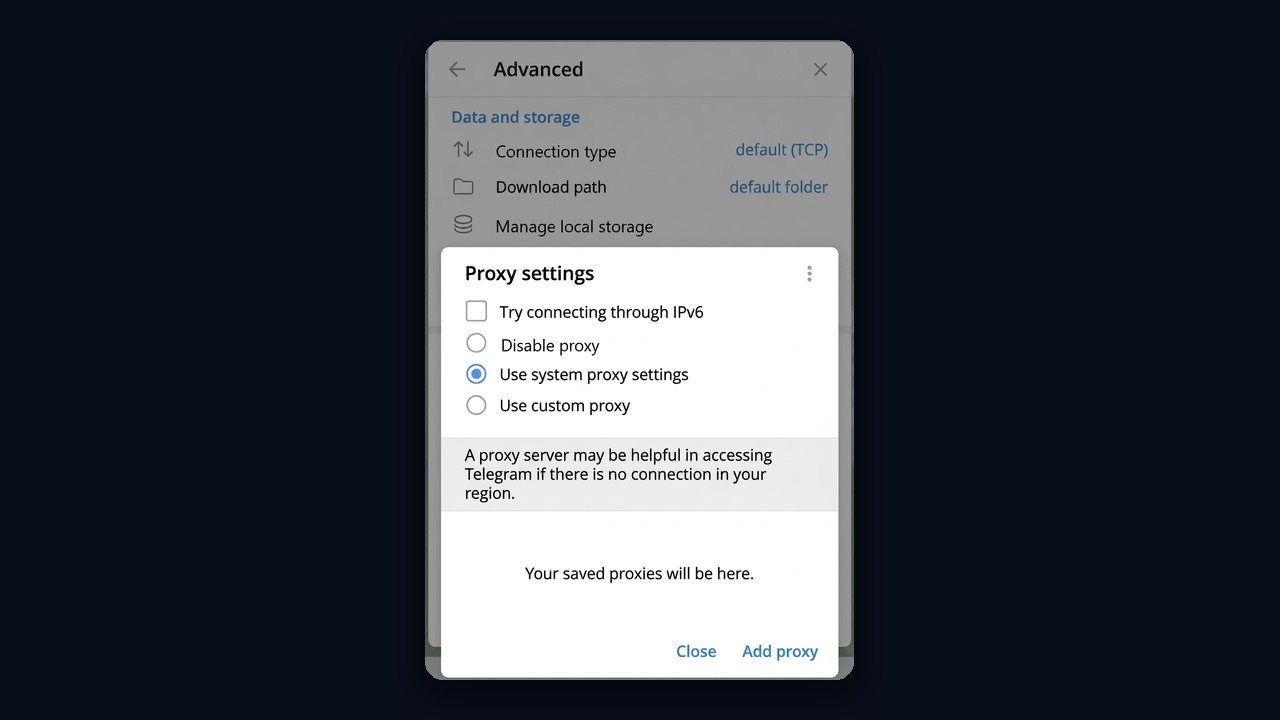
In the Proxy settings window, pick Disable proxy if the app should connect directly, or Use system proxy settings if your computer goes online through a corporate network. Your own proxy is added with the Add proxy button at the bottom.
Calls, bots and round videos failing
Occasionally Telegram is not working only partly, with a single feature down. For example, calls are restricted in Russia, so a call may not connect or may drop after a few seconds. Here a different network or a relay with call support is the only cure, and few relays offer it.
If a bot is silent, first check whether it answers others. Usually, however, its developer's backend has crashed, so waiting is the only option. If every bot stops replying at once, the link is to blame again.
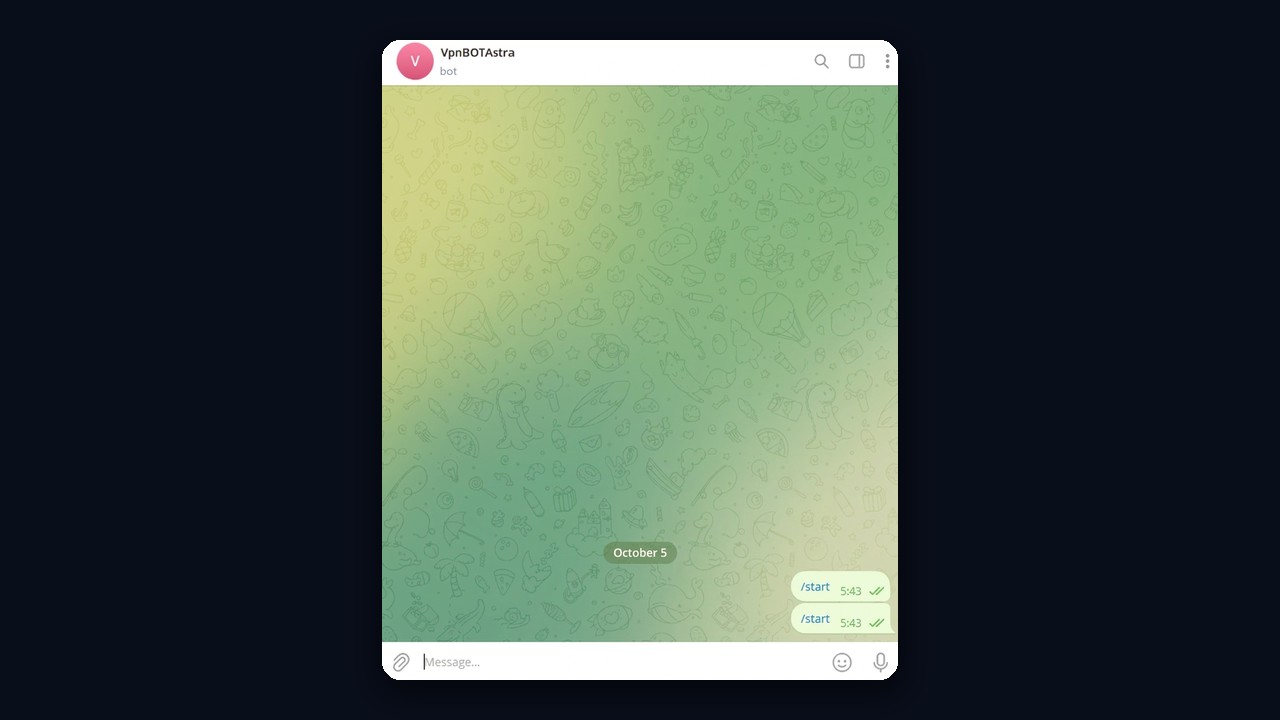
This is what an unresponsive bot looks like: /start was sent twice, both messages were delivered, yet nothing came back. So the problem is on the bot's side, not in your app.
Round videos and voice notes require camera and microphone permissions. Therefore, if recording fails, allow camera access in your phone settings.
When the account fails, not Telegram
For teams that run dozens of promotion accounts, "Telegram is not working" often hides another story: the platform runs, but one profile got limited or dropped its session. In the GramGPT Account Manager, every profile has a status that shows what happened.
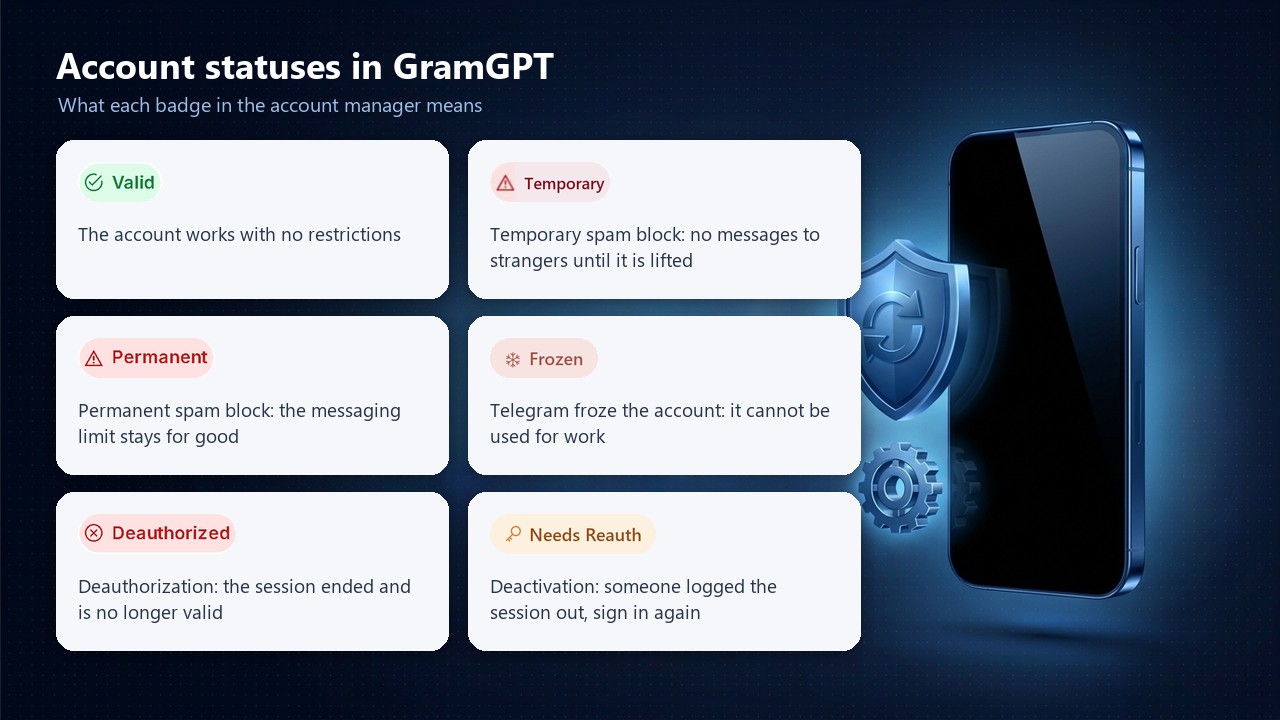
- Valid. The account works with no restrictions.
- Temporary spam block. No messages to strangers, but the limit lifts on its own.
- Permanent spam block. The messaging limit stays, and the appeal was rejected.
- Frozen. The platform froze the profile, which makes it unusable. See our article on frozen accounts.
- Deauthorized. Its session was terminated and has expired.
- Deactivated (needs reauth). Someone logged the session out, for example from the devices list, so you need to sign in again. We explain the reasons in our piece on account deauthorization.
How to check every account at once
First, select the profiles in the table and open Checks → Check Accounts. The module enters each session and refreshes the status: valid, banned, frozen or deauthorized. Spam blocks have a separate button, and the same menu covers proxies and the GGR rating.
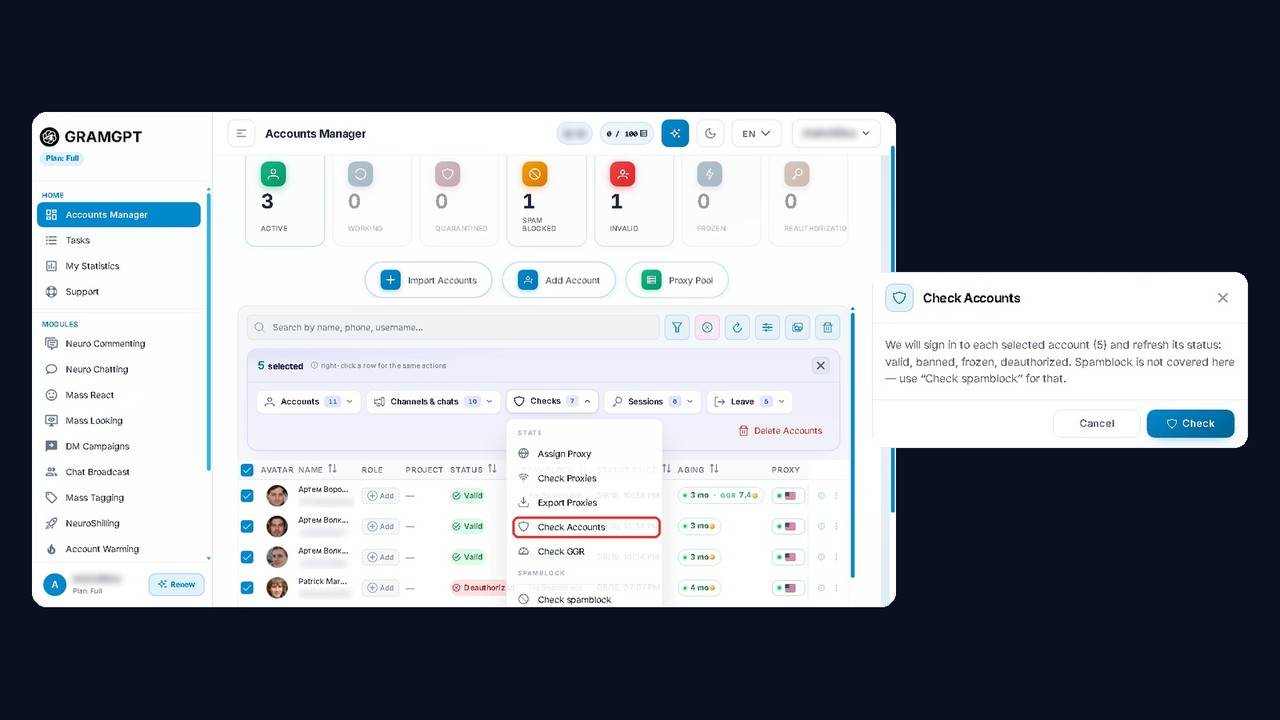
As a result, you separate a global outage from problems with specific profiles in a minute. You can also give each profile its own address, so a slowdown on one route never halts the whole operation. Connect the manager on the module page.