Most of us open the app, reply to a couple of friends, scroll a few feeds and close it again. Yet the messenger hides answers to everyday annoyances: a note that should land at 9 a.m. instead of midnight, a promo code you don't want shown in a notification, a community that never stops buzzing. These Telegram features sit a tap away, but nothing on the main screen points to them.
Typical "25 secret hacks" lists rarely help: half the items have moved after updates, and a week later you remember none of it.
So this guide sorts 32 tips and tricks by job: writing, delivery, a tidy inbox, privacy, security, look and feel, groups and channels. Each block shows exactly where the switch lives. We'll also cover what Premium adds, why a feature sometimes refuses to show up, and how teams run dozens of accounts in 2026.
If you want the most underrated ones first, jump to quoting part of a message, jumping to a date, reading without a receipt, disappearing photos, a QR code instead of a business card or the secret menu.
Telegram Features for Text: Formatting, Spoilers and Links
There's no button on screen, so the menu only appears once you highlight a word.
1. Bold, Italic, Strikethrough and Monospace
First, select a fragment and open the context menu. On a phone, tap "Formatting" or the three dots; on a computer, right-click. Then pick a style: bold, italic, underline, strikethrough or monospace. Monospace is handy for order numbers, addresses and codes, because the recipient copies it instantly.
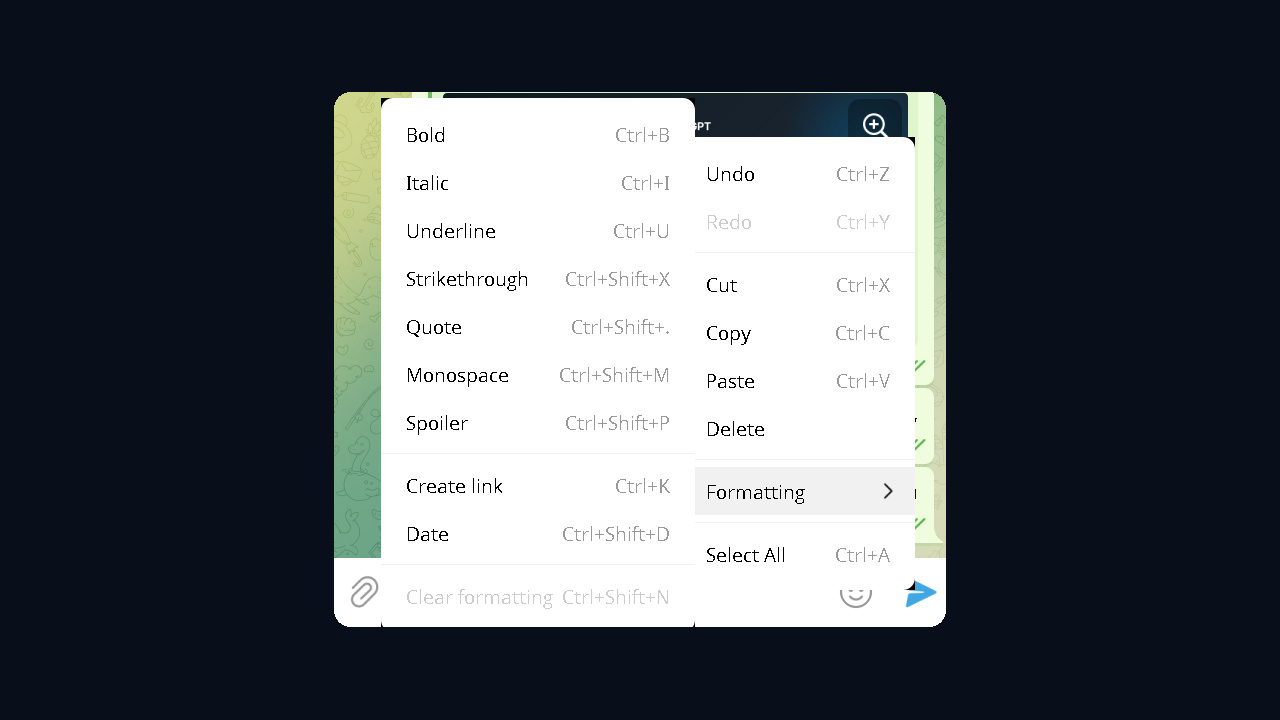
On a PC, shortcuts are faster. For example, Ctrl+B makes words bold, Ctrl+I adds italics and Ctrl+U underlines. Desktop and web versions use slightly different combos for strikethrough and monospace, so check the shortcut overview. Markdown also works: wrap words in double tildes for a line through them, or in backticks for a typewriter look.
2. Spoiler Text
Meanwhile, a spoiler hides part of a line under an animated shimmer. So the reader sees it only after tapping. That's perfect for a film ending, a quiz answer or a discount voucher that shouldn't pop up in a lock-display preview.
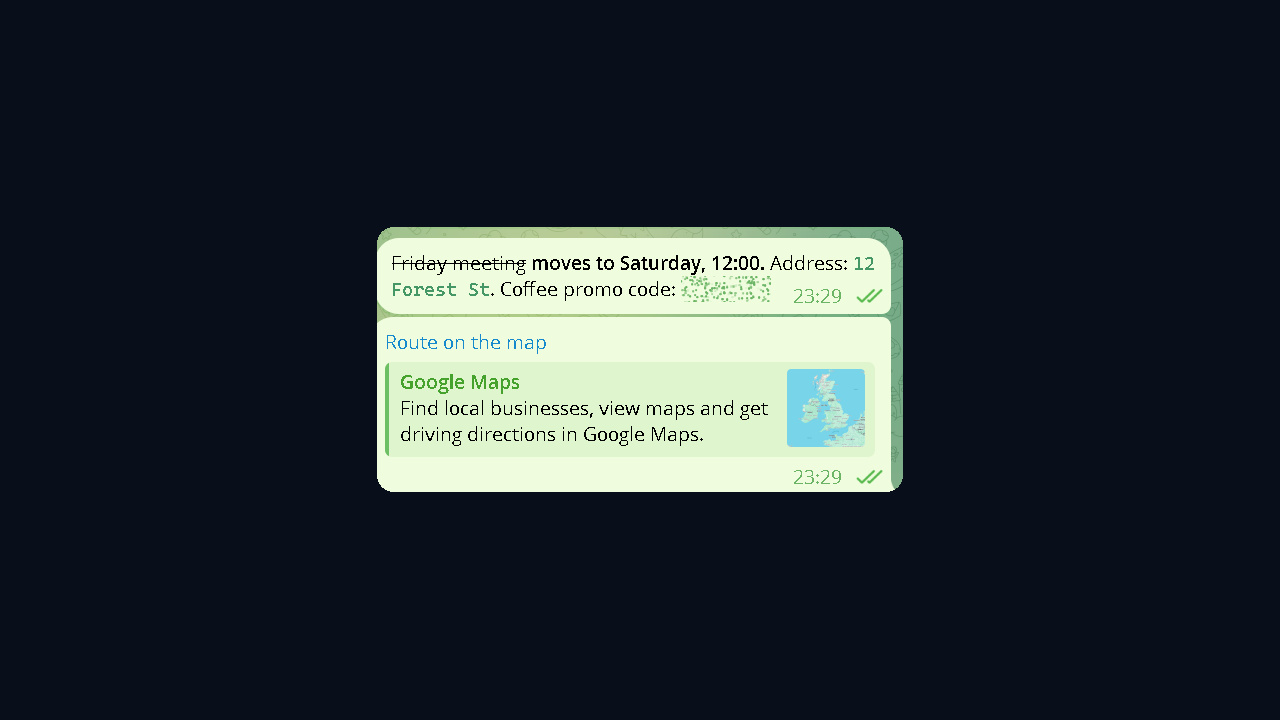
To mask a phrase, highlight it and choose "Spoiler". Pictures blur the same way: beforehand, tick "Hide with spoiler".
3. Clickable Links Instead of Long URLs
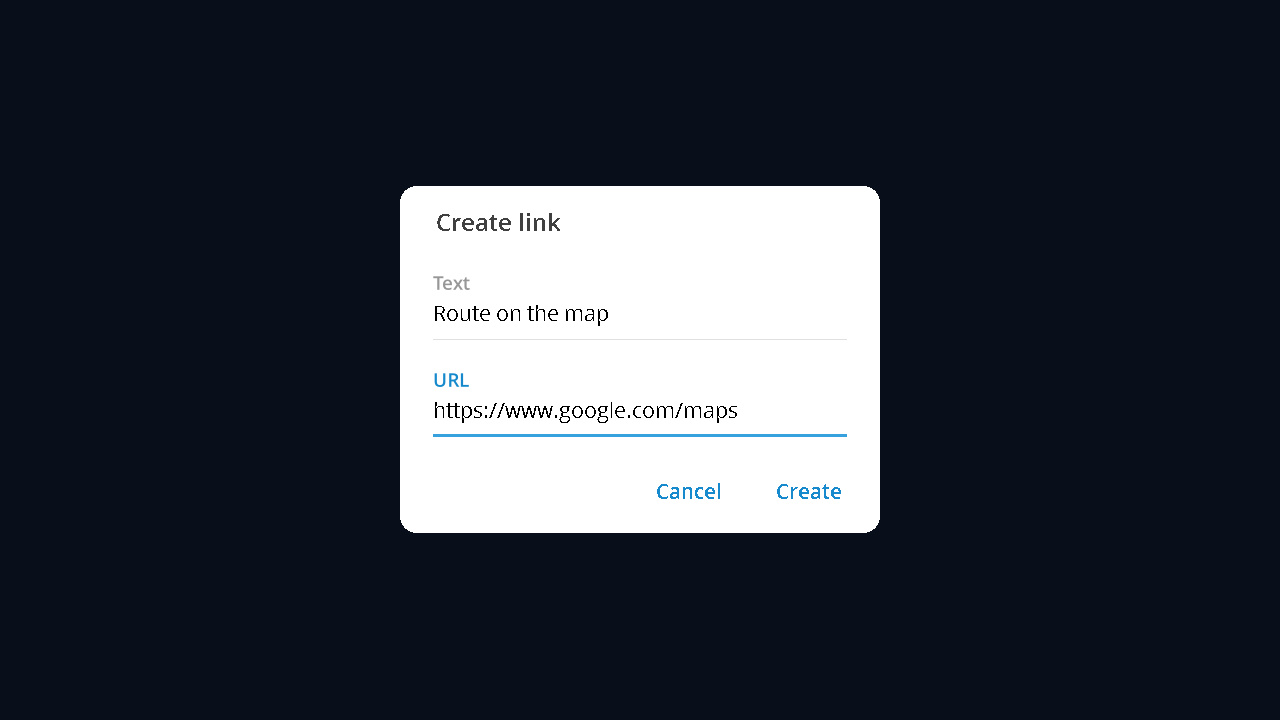
A raw URL in the middle of a sentence looks messy. Instead, highlight a word, choose "Link" and paste the address. The "Route on the map" line in the example above works this way.
Telegram Features for Sending: Scheduled, Silent and Edited Messages
4. Silent Send
Then, press and hold the send arrow (right-click it on a computer). A small menu offers "Send without sound" and "Schedule message", plus "Send When Online" in private chats.
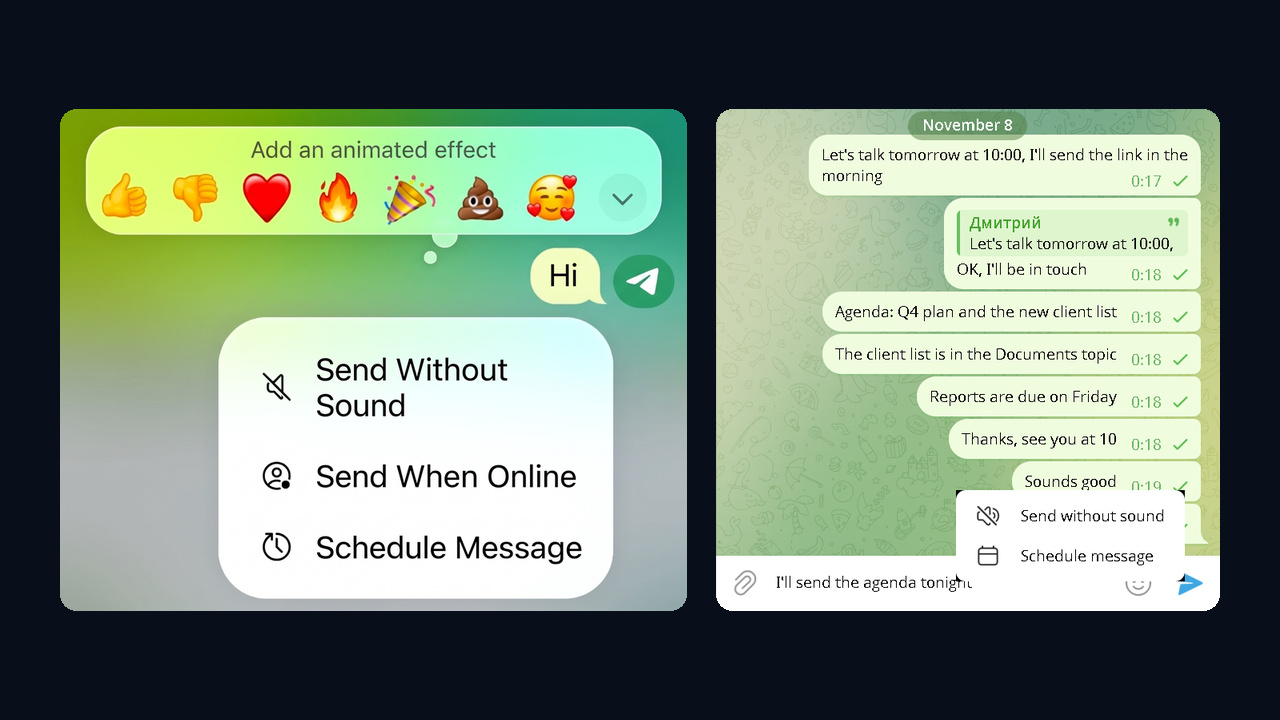
5. Scheduled Messages and Reminders
Then choose the scheduling option. A calendar opens: pick the day, type the hour and minutes, then confirm. Subscribers may also set it to repeat, say, every Monday.
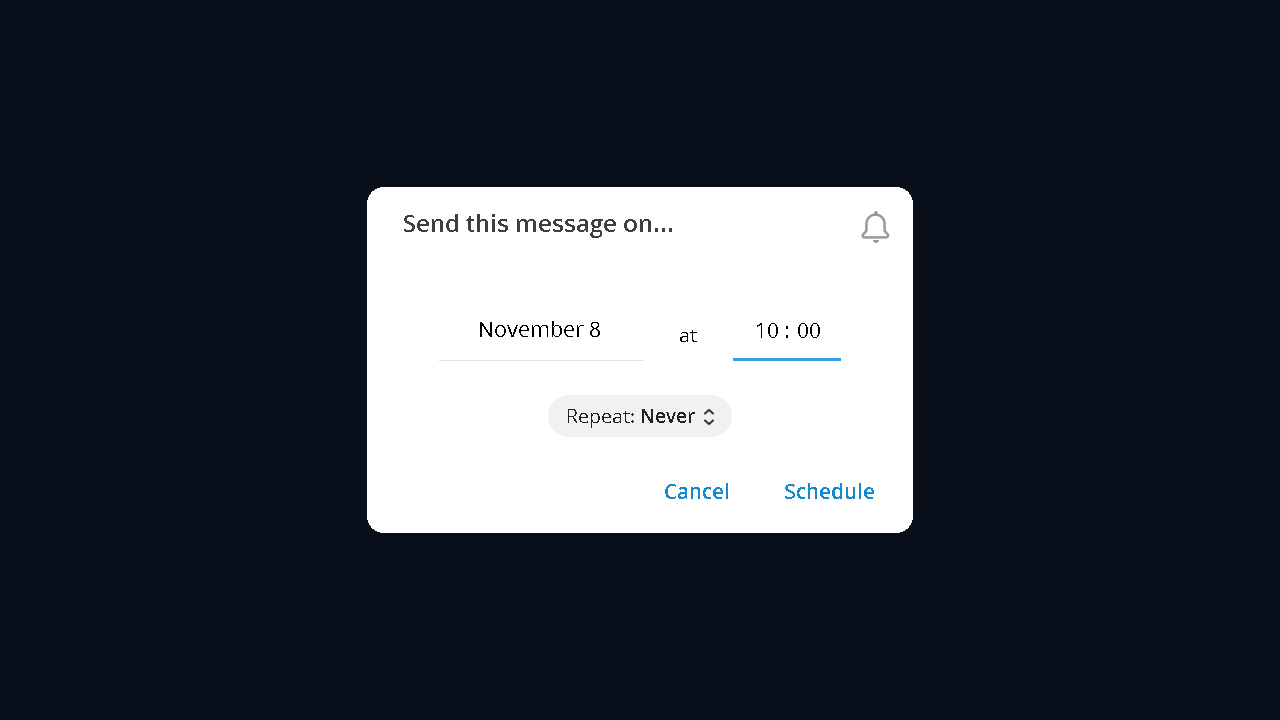
Queued items live in a separate tab for edits. In your personal cloud a scheduled note acts as a reminder that pings you at the chosen hour.
6. Replying to One Message and Quoting
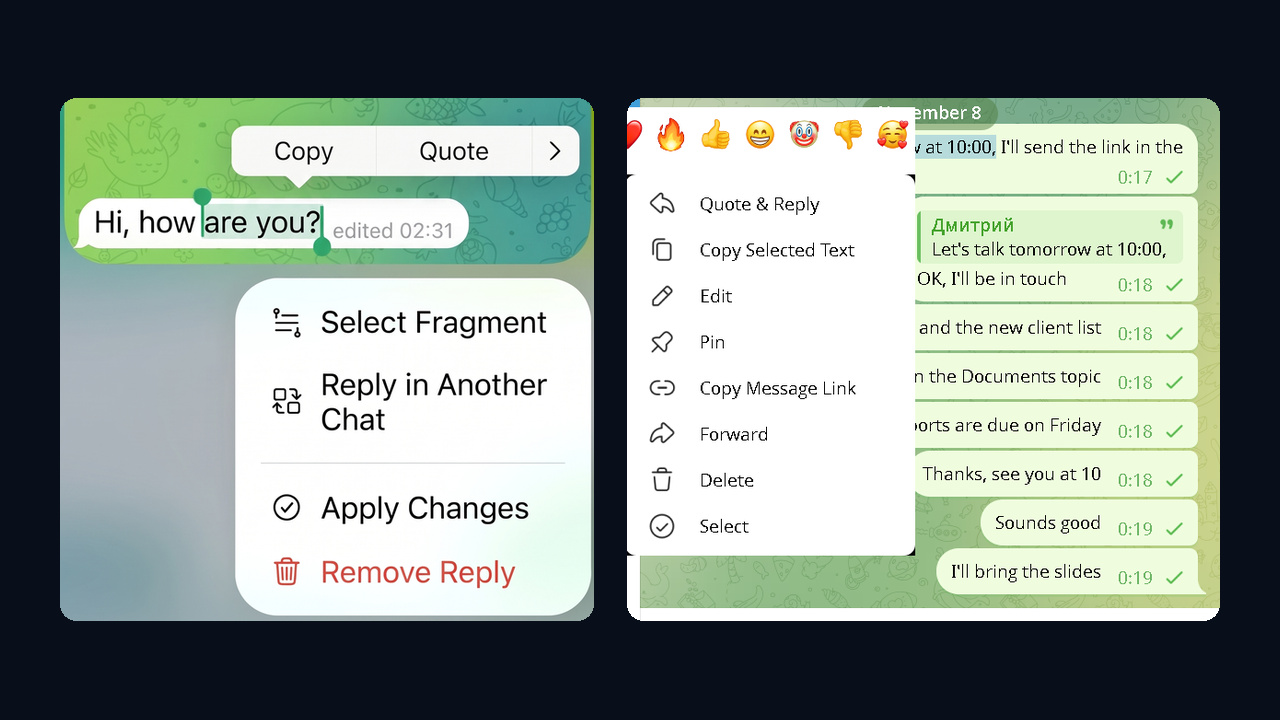
In a busy thread, however, a loose reply gets lost fast. To answer a specific line, swipe it left on mobile or double-click it on a PC. A quote then appears above the input field, so everybody knows what you mean.
Need just a sentence from a long post? Highlight it inside the bubble and choose "Quote & Reply". Only that piece goes into your reply.
7. Editing a Sent Message
Besides, a posted line stays editable for 48 hours via "Edit". On a PC, the up arrow in an empty field reopens your last line straight away. However, the other side sees an "edited" label, but not the old wording.
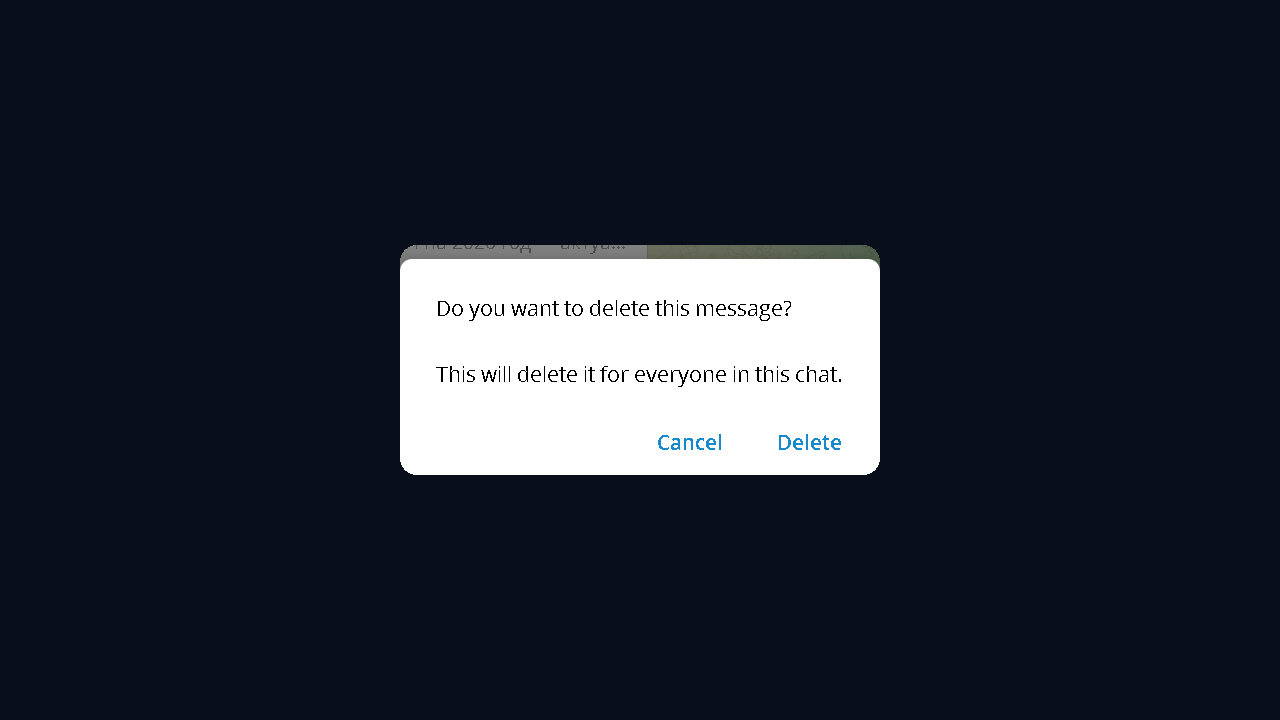
8. Deleting for Both Sides
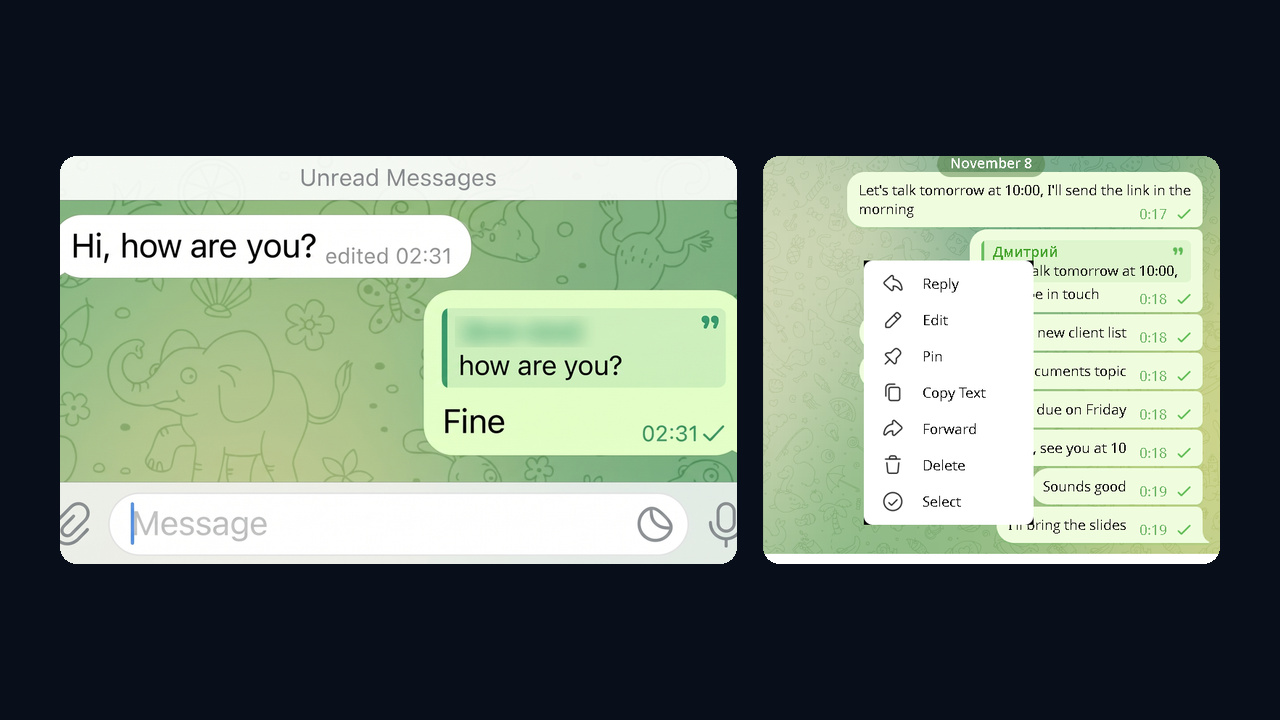
To remove something from the other person's screen as well, choose "Delete" and tick "Also delete for…". In private dialogs there's no deadline; in groups, it applies to your own lines or to admins.
9. Round Videos and Voice Notes
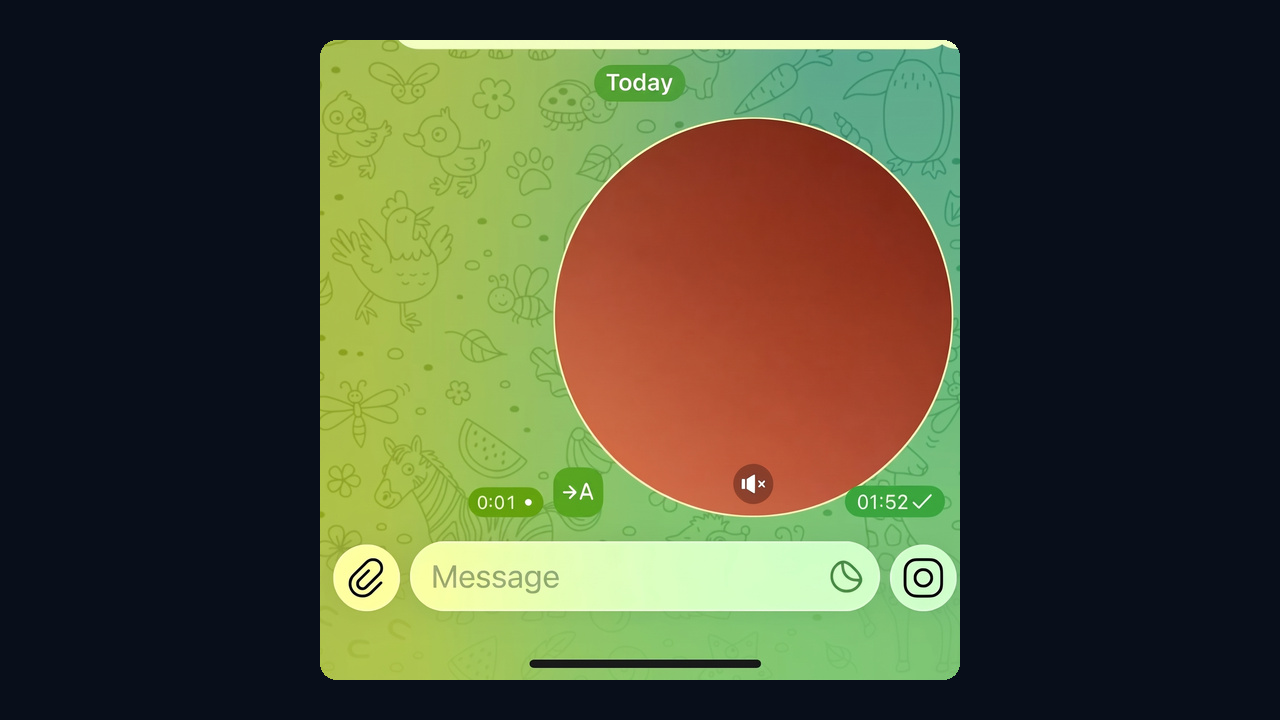
A video message, the round clip people call a "circle", is recorded by holding the button beside the input field. Then a swipe up locks recording. We explain the format in detail in our guide to round video messages. You can also record a voice note hands-free: raise the phone to your ear and recording starts on its own.
10. GIFs and Uncompressed Photos
Besides, GIFs are searched right from the input field: type @gif plus a word and the built-in bot shows a selection. So to keep a shot in original quality, attach it via "File" in the paperclip menu. Want your own pack? You can create custom stickers through the @Stickers bot in one evening.

11. Disappearing Photos: a Telegram Feature for Private Shots
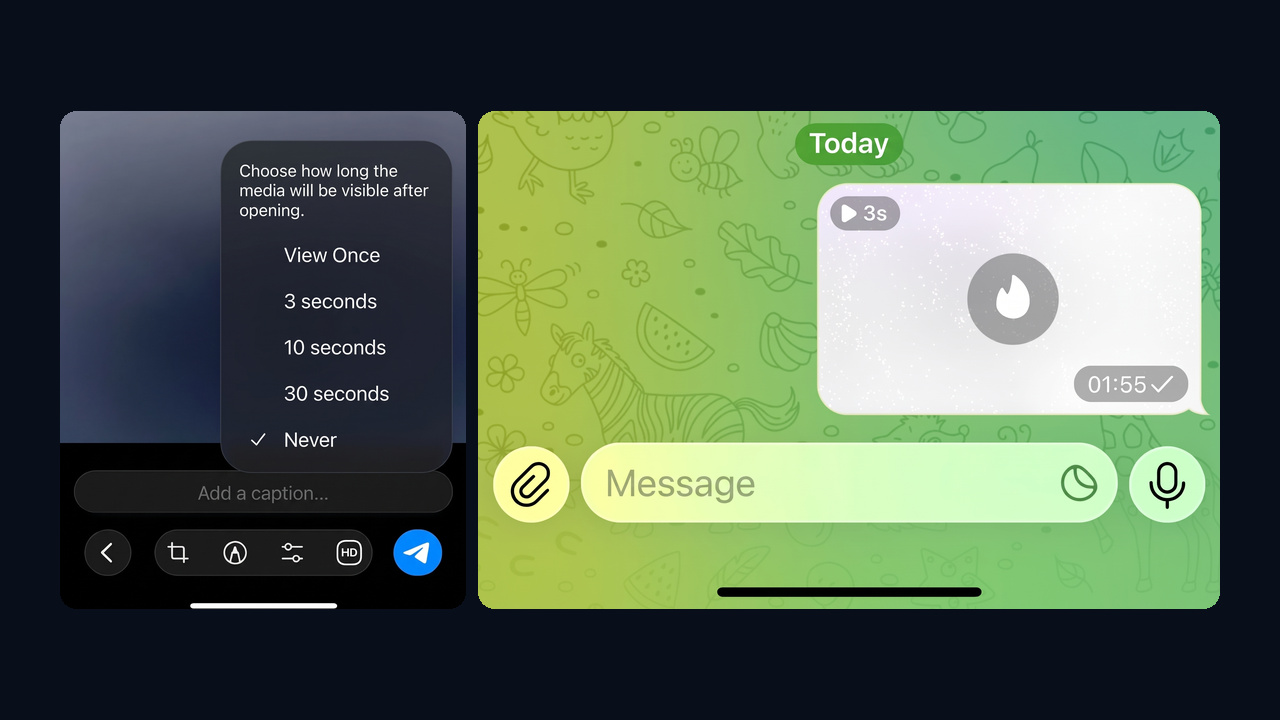
Another lesser-known trick is a secret picture inside an ordinary conversation. On a phone, open the attachment, touch the timer in the preview and pick "View Once" or a number of seconds. The picture opens once for the other person and then vanishes, and saving it won't work. However, the PC client has no timer, though its upload window offers "Hide with Spoiler", so the image arrives blurred until someone taps it.
12. Built-In Photo and Video Editor
Here's a handy hack: you don't need extra software to crop a shot, draw an arrow or add a caption. To start, click the picture in that preview window or pick "Edit Image" from its three dots. The editor rotates and mirrors the frame and offers a brush, stickers and text. On top of that, mobile adds filters, brightness and video trimming.

13. Location Sharing: a Telegram Feature for Meetups
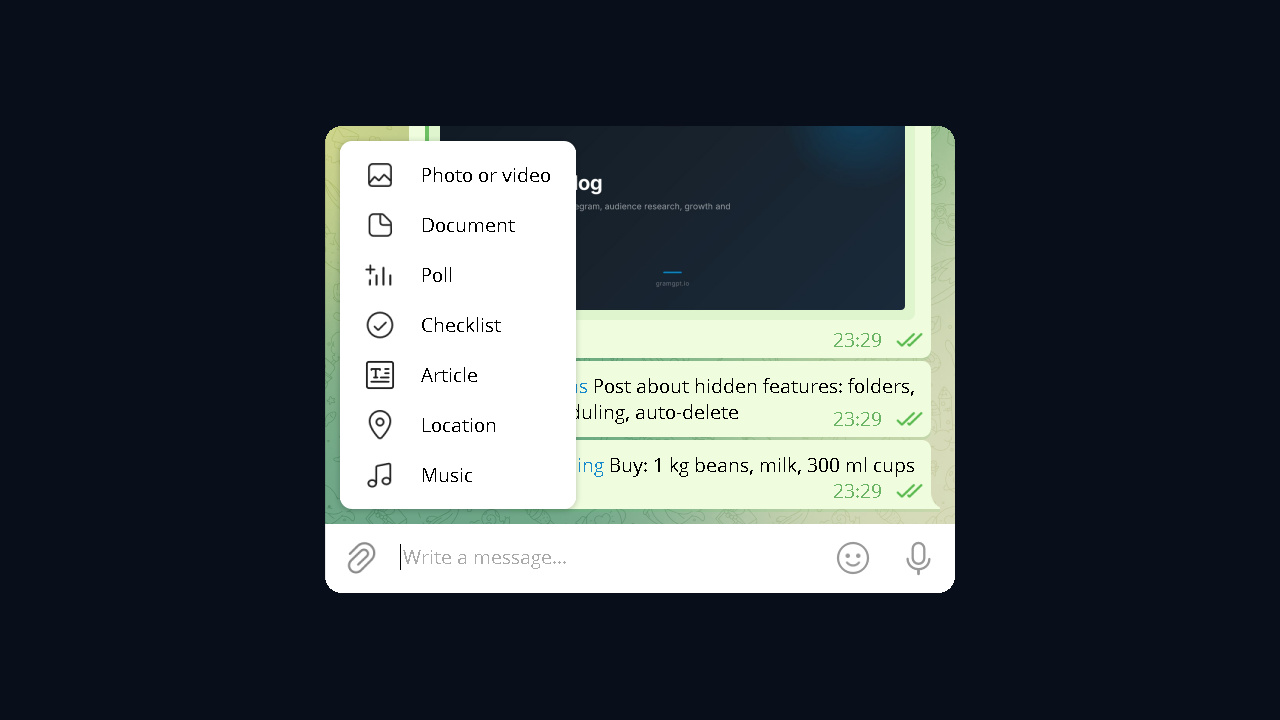
Among the lesser-known tricks for meetups is showing where you are. Tap the paperclip and pick "Location". On a computer you drop a pin; on a phone you can share live location, so a friend watches you move for 15 minutes, an hour, 8 hours or until you stop it.
Telegram Features That Keep Your Inbox Tidy
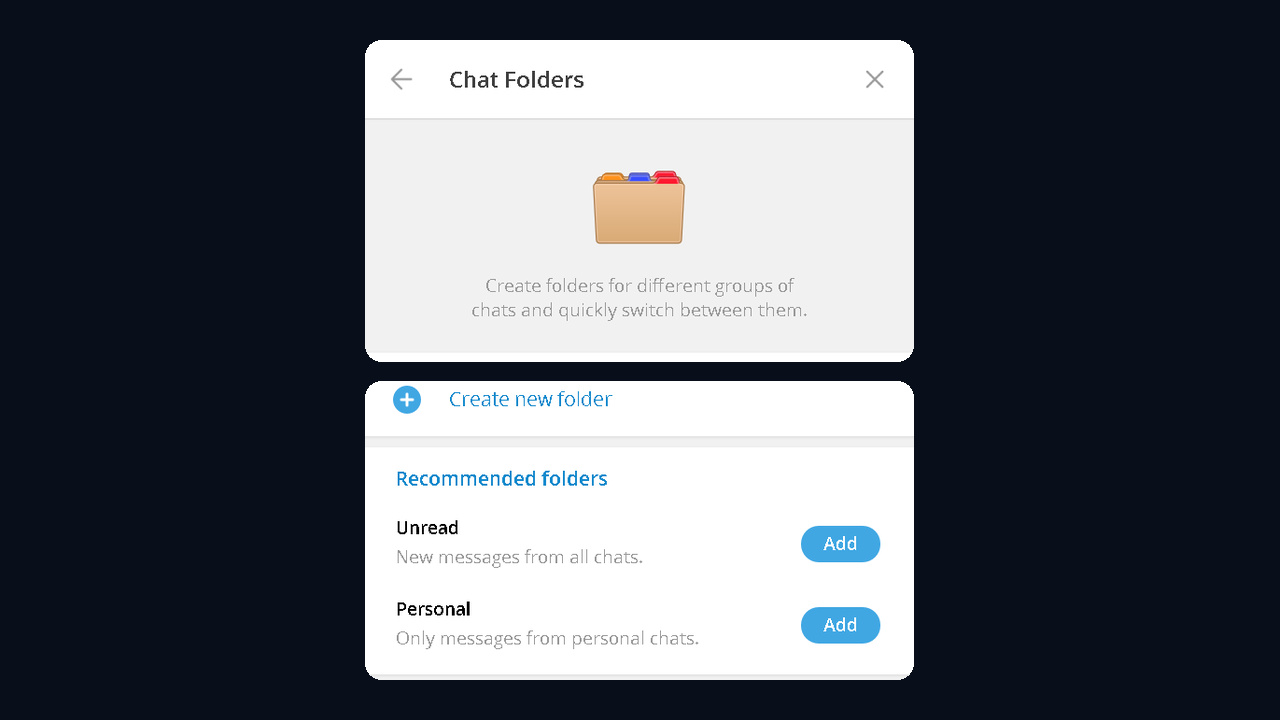
14. Chat Folders
For example, folders split your inbox into tabs such as Work, Family or News. Create them under Chat Folders; we walk through sharing folder links in our guide to chat folders. The free plan allows up to ten, subscribers get thirty.
15. Pinned Chats and the Archive
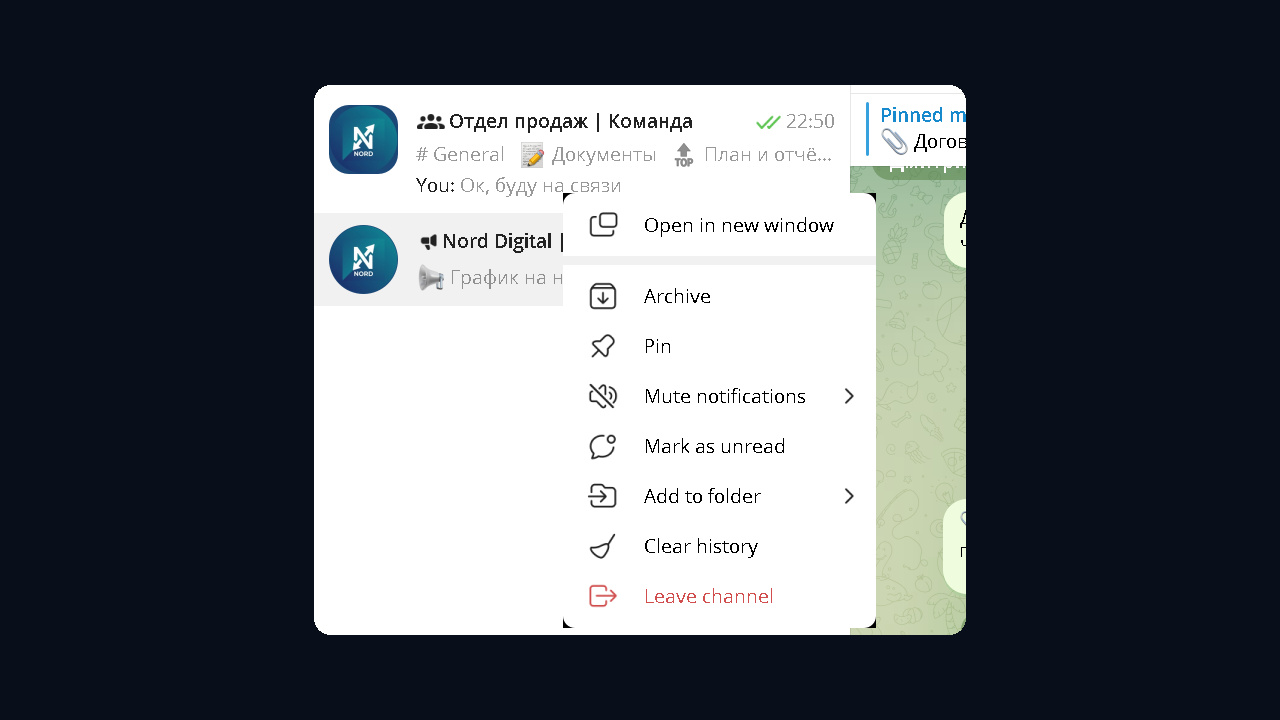
Then pin the threads you check daily: five fit at the top on the free plan, and every folder has its own pins. Then quiet feeds go to the archive, where they stop nagging yet keep updating. All of this sits behind a right-click or a long press. That same pop-up has "Mark as unread" to come back to it later.
Running several work profiles? You'd repeat this in each one, so further down we show how to handle them in bulk with GramGPT.io.
16. Jump to a Date in Old Threads
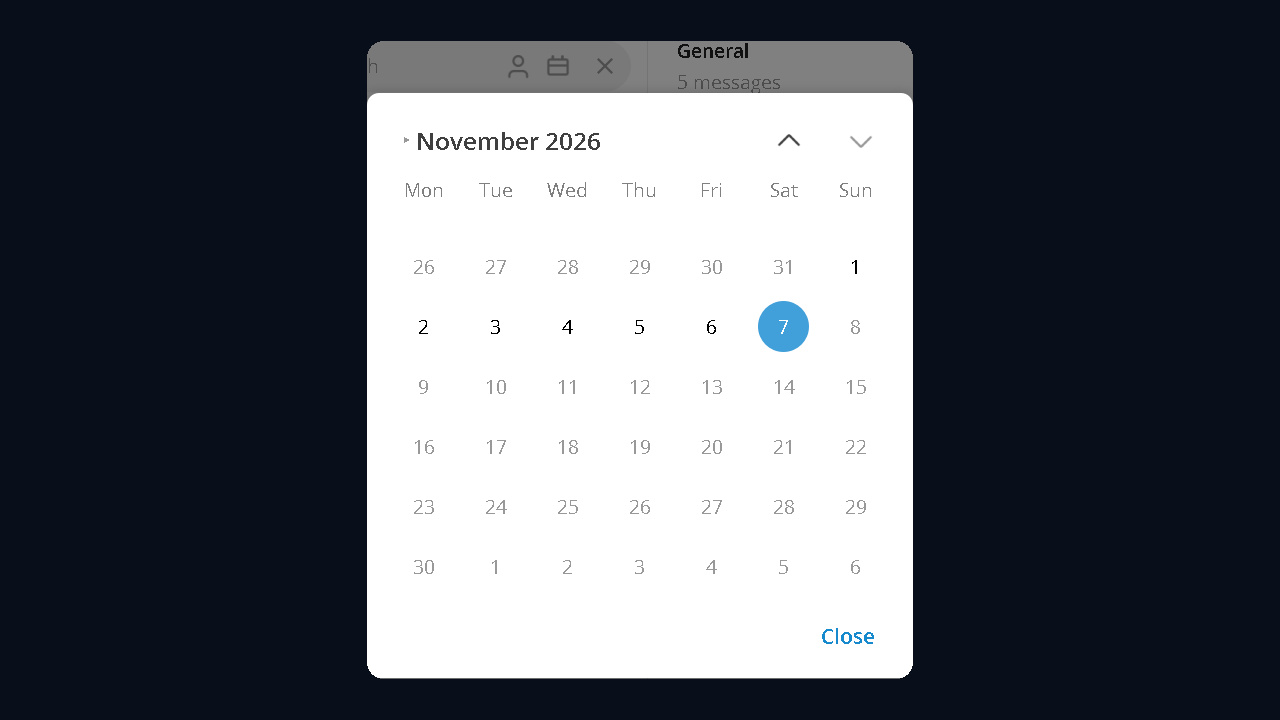
For example, to find an old note, open search inside the conversation. Beside the field there's a calendar icon that takes you to any day, which beats scrolling back for months. For searching across public pages and people, see our separate article on global search.
17. Saved Messages as a Private Cloud
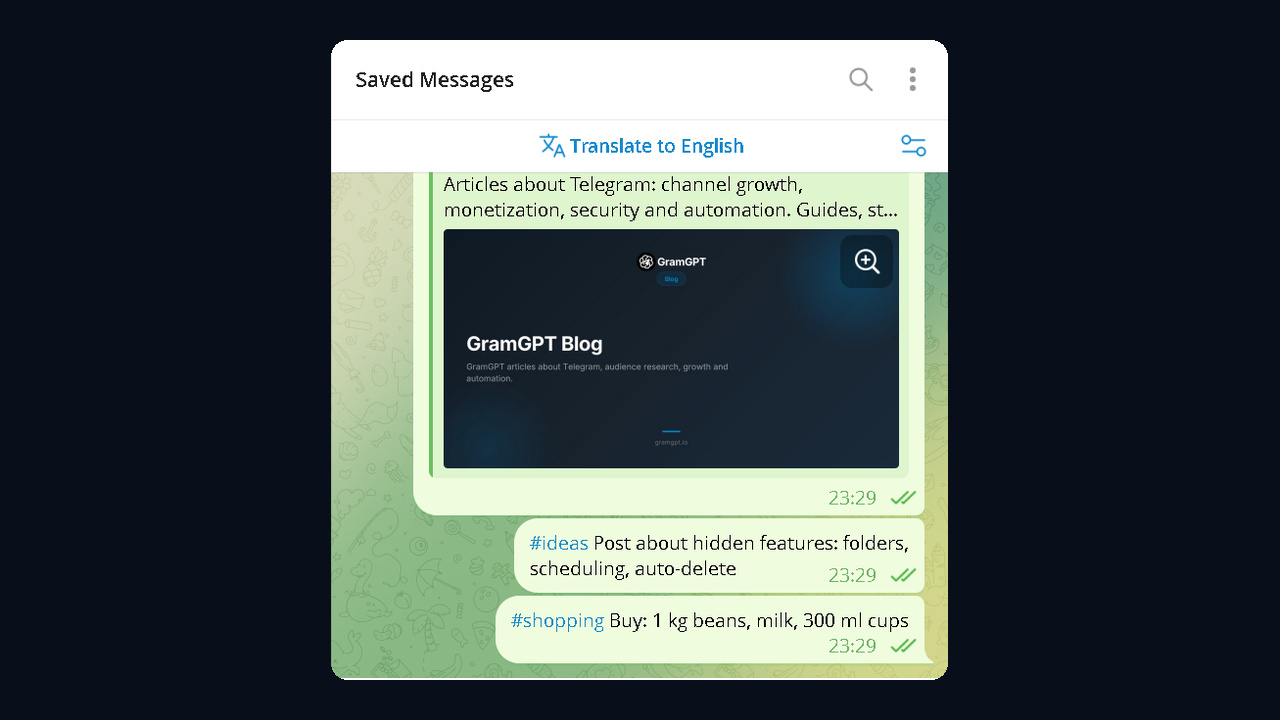
Besides, it works as your private cloud. People drop links, post drafts, files and voice notes there. Storage is unlimited, and the paid plan adds tags.
18. Profile QR Code: a Telegram Feature Instead of a Business Card
Sharing your contact is quicker with a QR code. On a computer, click the small QR button beside your name; on mobile, it sits in your profile. You can recolor it, save it as an image or print it for a front desk. Others just point a camera at it to open your page. Keep in mind that it links to your username, so you need one first.
Hidden Telegram Features for Privacy
Almost everything here sits in the Privacy and Security section.
19. Hide Your Last Seen
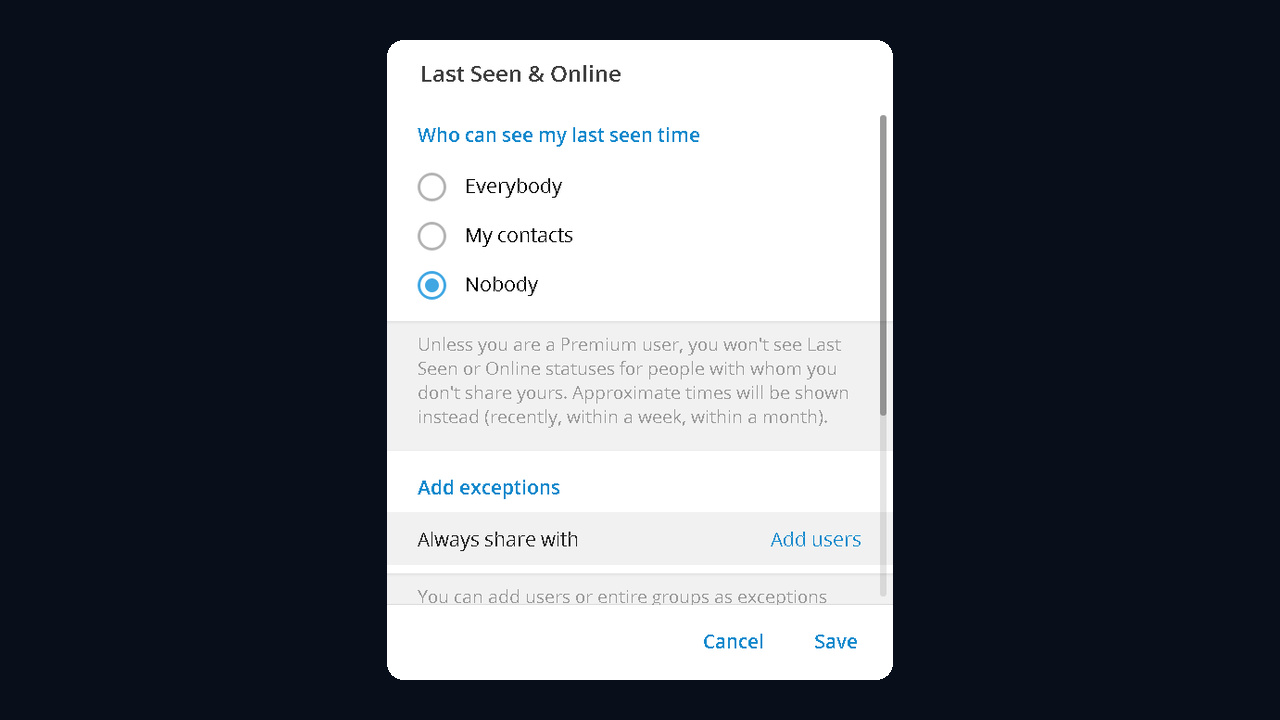
So the "Last Seen" option decides who knows when you were online. Set it to "Nobody" and contacts will see "last seen recently" rather than an exact time. We unpack that status in a separate article on "last seen recently". Keep in mind it works both ways: conceal yours, and you lose sight of theirs.
20. Reading Quietly: a Telegram Feature Without Read Receipts
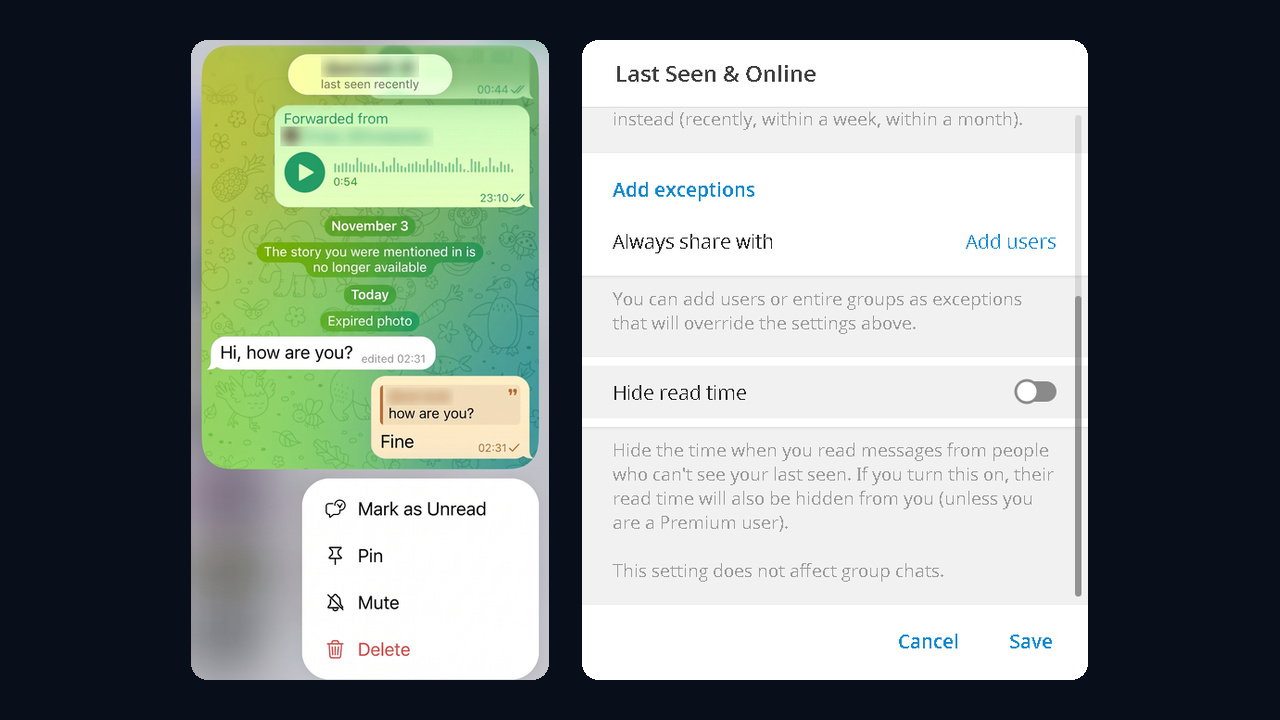
After that, a preview lets you peek without a receipt. On a phone, long-press a dialog to peek at the latest lines without marking them as read. Also, a "Hide read time" switch keeps people who can't see your status from knowing when you opened their texts. Besides, your number is hidden in that section too; all the options are in our guide on how to hide your phone number.
21. Auto-Delete
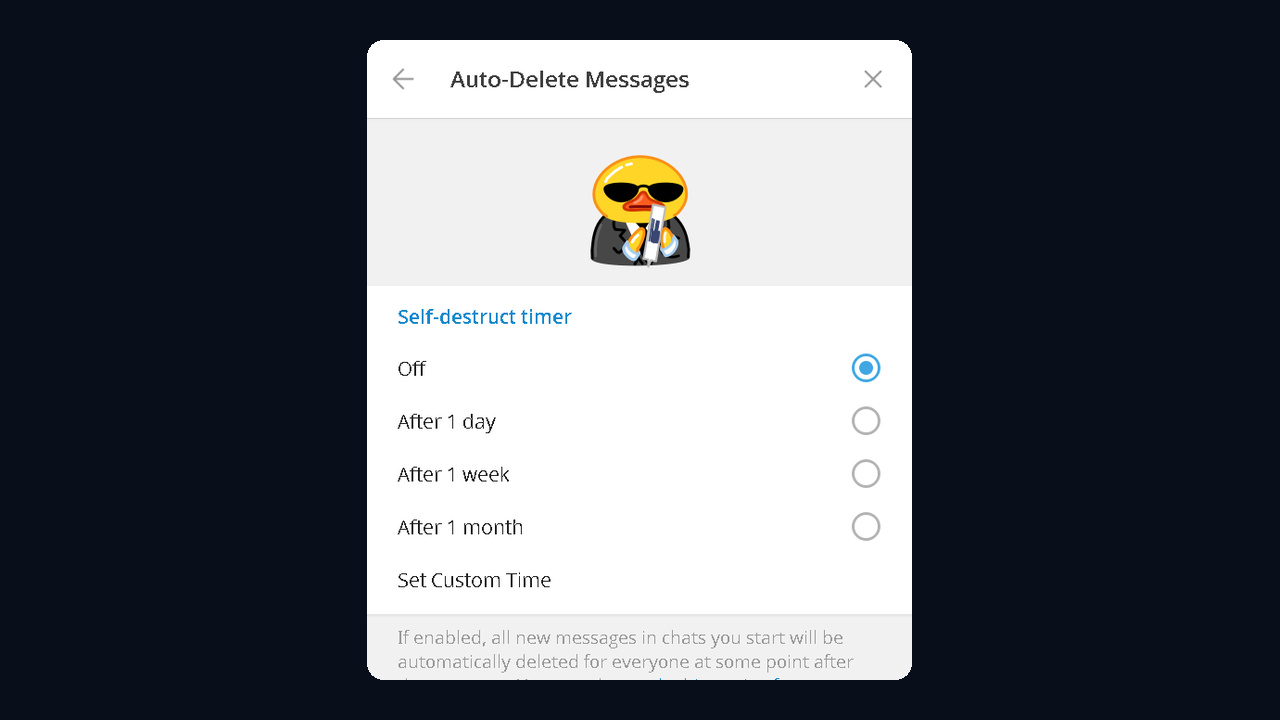
Next, auto-delete is behind the three dots at the top: set a day, a week or a month, and new lines vanish for both people. A default timer for all future conversations is set in the privacy section.
22. Disable Sharing: a Telegram Feature for Private Dialogs
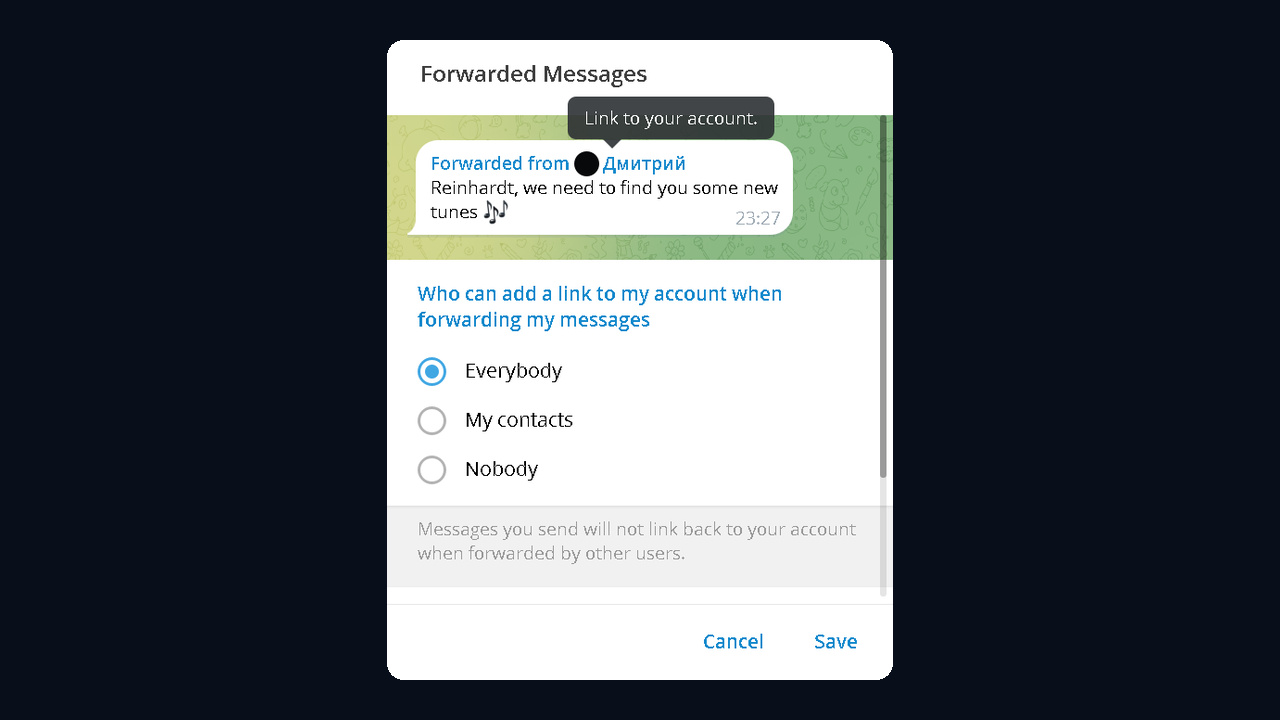
The forwarding setting removes the link to your profile when someone forwards your words. Besides, the same three-dot menu now has "Disable Sharing", which stops the other side from forwarding or saving the thread. Group and channel owners switch on the same ban for all members. For fully closed talks there's a secret chat with end-to-end encryption.
Security Features: Passwords and Sessions
Turn these on first: five minutes guard against losing access altogether.
23. Two-Step Verification and Passkeys
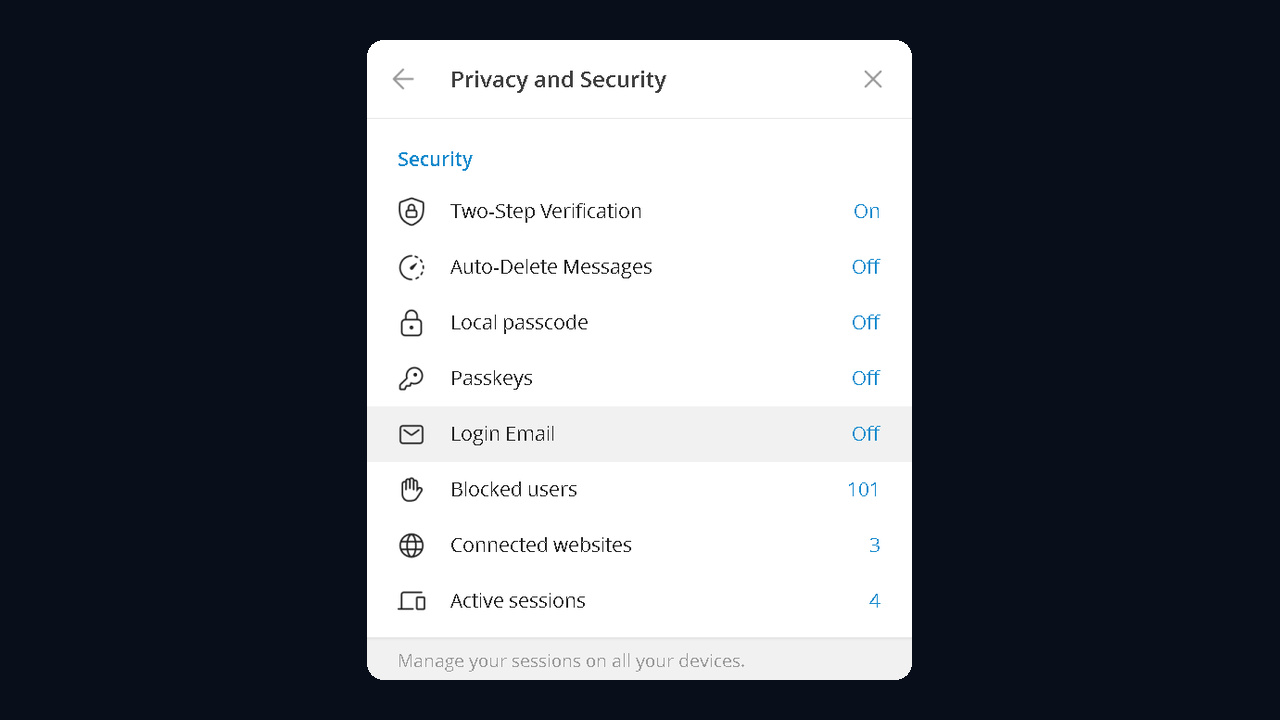
First, two-step verification adds a cloud password. When someone logs in from another device, the service asks for it on top of the SMS code. Switch it on in the privacy section and link a recovery email; otherwise a forgotten password can't be reset. Also, right beside it you'll find passkeys, which let you sign in with a fingerprint or Face ID rather than an SMS code.
24. Local Passcode
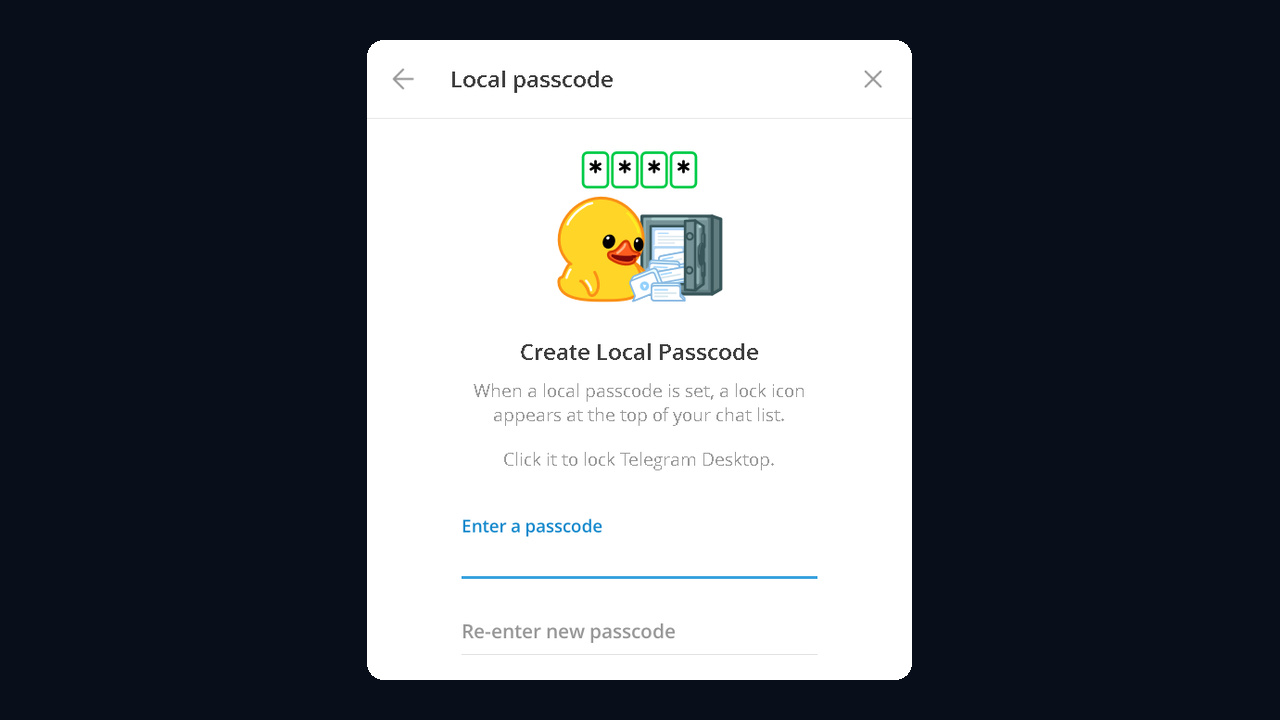
A passcode, by contrast, protects something else: the client on a particular phone or laptop. If you leave the device unlocked, nobody gets in without it. Phones accept biometrics, and auto-lock kicks in after a minute, five minutes or an hour.
25. Active Sessions
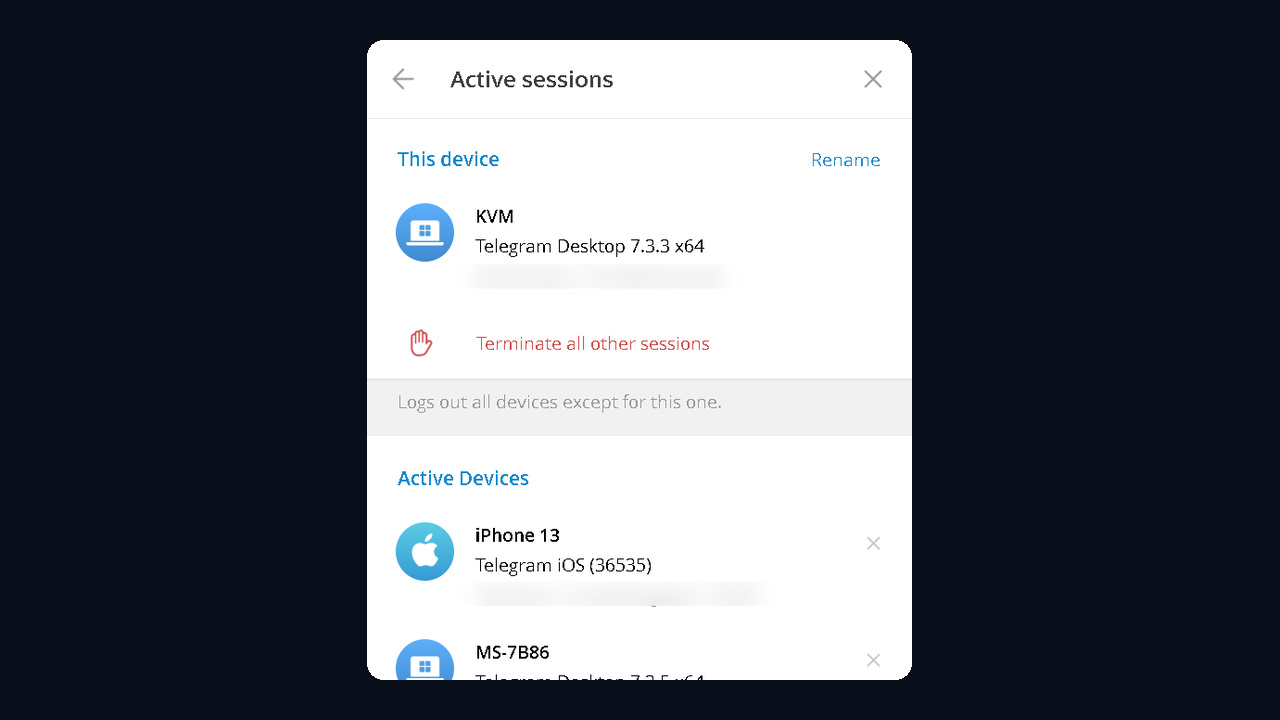
Besides, the Devices screen (Active Sessions on desktop) lists every place you're signed in: model, client, city and login date. End any unfamiliar session right away, and set inactive ones to log out automatically, for instance after six months. If someone already took over, follow the recovery plan in our article on a hacked account.
Lesser-Known Tricks: Look and Feel, Translation and Storage
26. Themes and Wallpapers
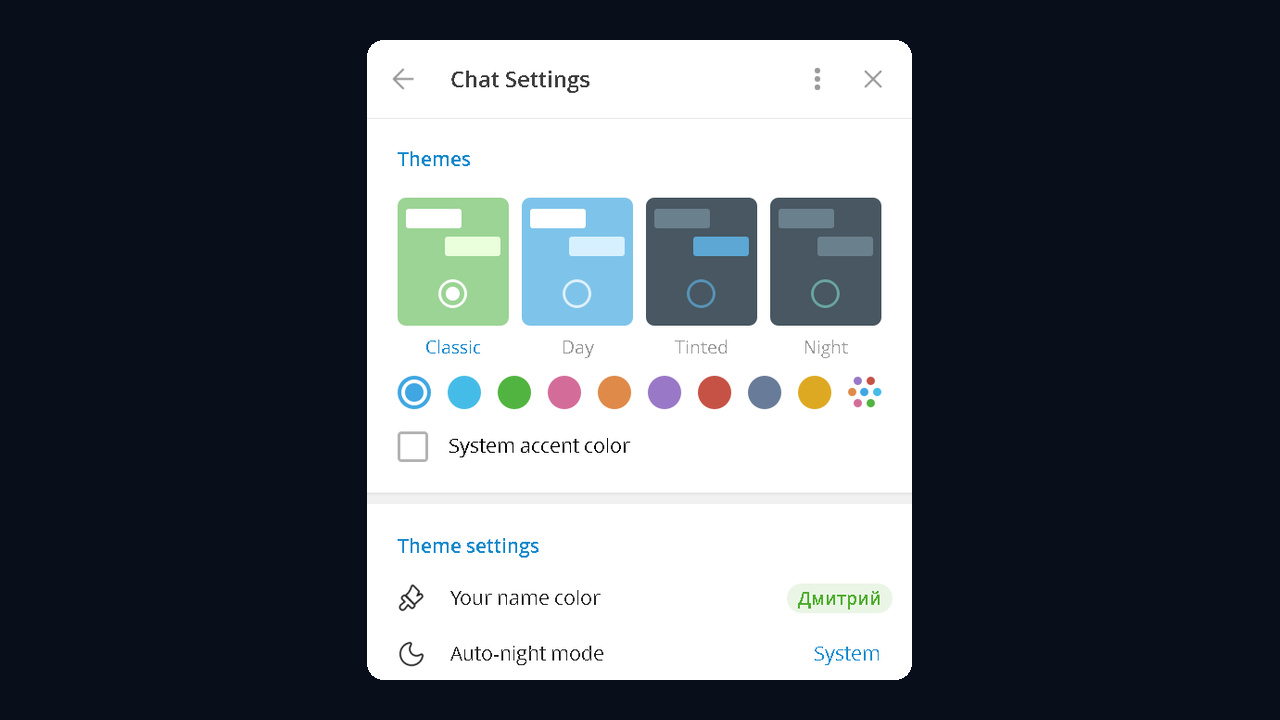
Then, under Appearance (Chat Settings on desktop, General Settings in the browser) you'll find themes, night mode, text size and wallpapers. Also, a dialog may even get its own theme, which makes work threads easy to tell apart. Dark mode lives there too: the Night or Dark scheme. Each conversation can also get its own notification sound.
27. Message Translation
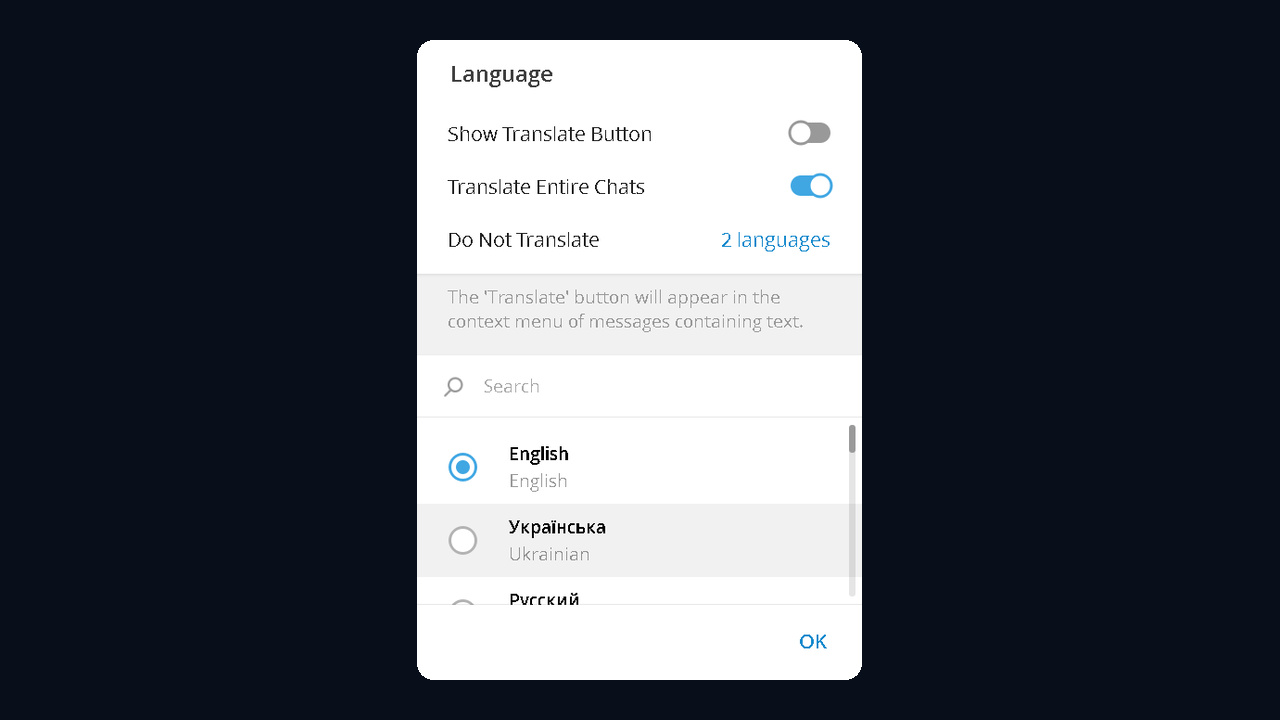
Also, to translate texts, go to Language and turn on "Show Translate Button". Every bubble then offers a translation into your interface language. With a subscription, whole conversations get translated, and voice notes turn into transcripts.
28. Keyboard Shortcuts for a PC
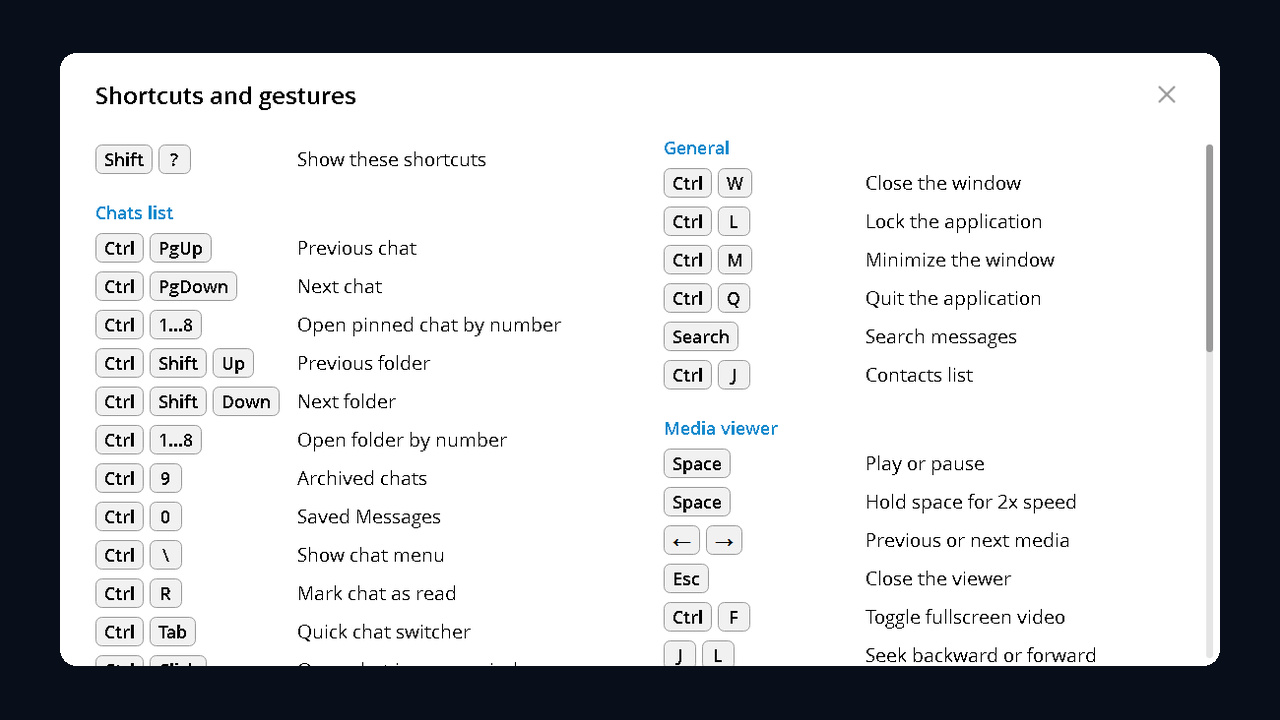
On a computer, keyboard shortcuts save clicks. For instance, Ctrl+0 jumps to your notes, Ctrl+9 opens the archive, Ctrl+Tab moves between conversations, and Ctrl+L locks the app. The full list opens with Shift+? or the keyboard symbol by the FAQ link.
29. Secret Menu and Experimental Mode
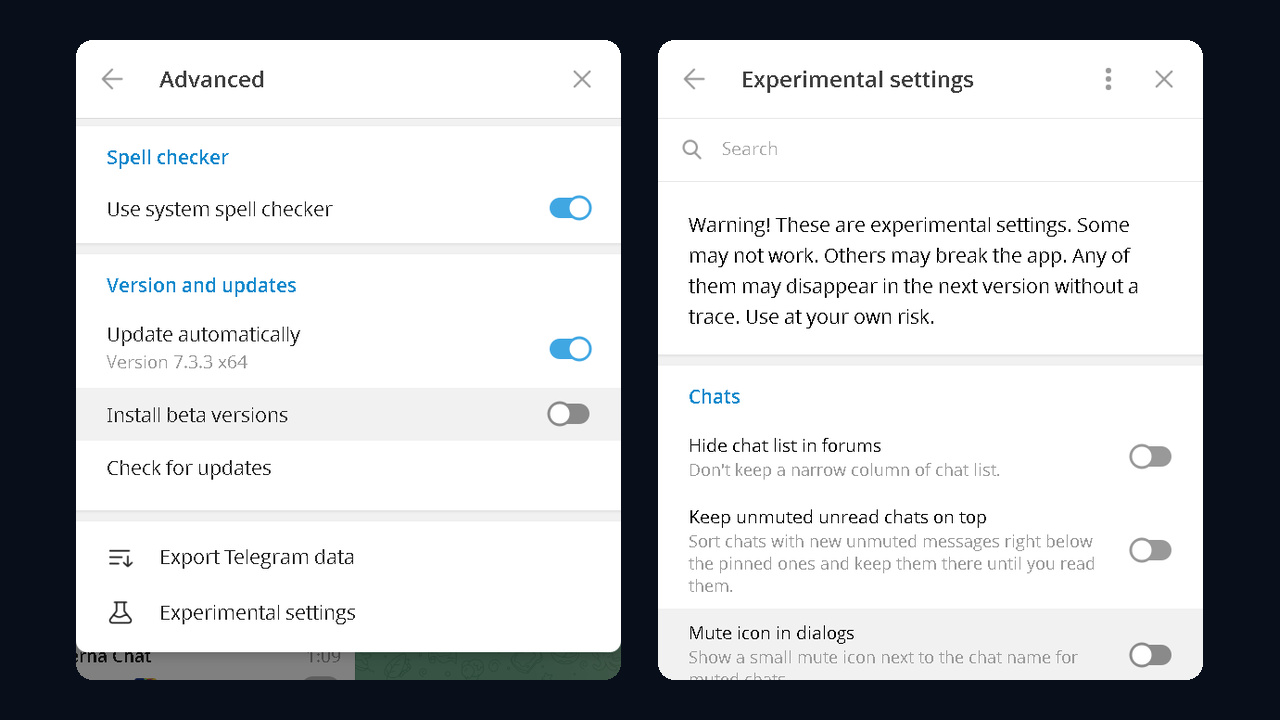
The messenger also keeps a secret debug panel; switch nothing on blindly, as some items are unstable. In the PC app it's open to everyone: Advanced → Experimental settings. Meanwhile, on Android you long-press the version number at the very bottom; on iPhone, press the gear tab ten times. It holds test options such as a new inbox layout.
30. How to Clear Cache
However, the messenger keeps every picture and clip you've opened, so after a year it eats tens of gigabytes. Clear the cache under Data and Storage (Advanced → Manage local storage on desktop): it shows how much space photos, videos and stickers take, with a "Delete" button. Files disappear only from the device and stay in the cloud. Also, downloaded files are listed under Advanced → Downloads.
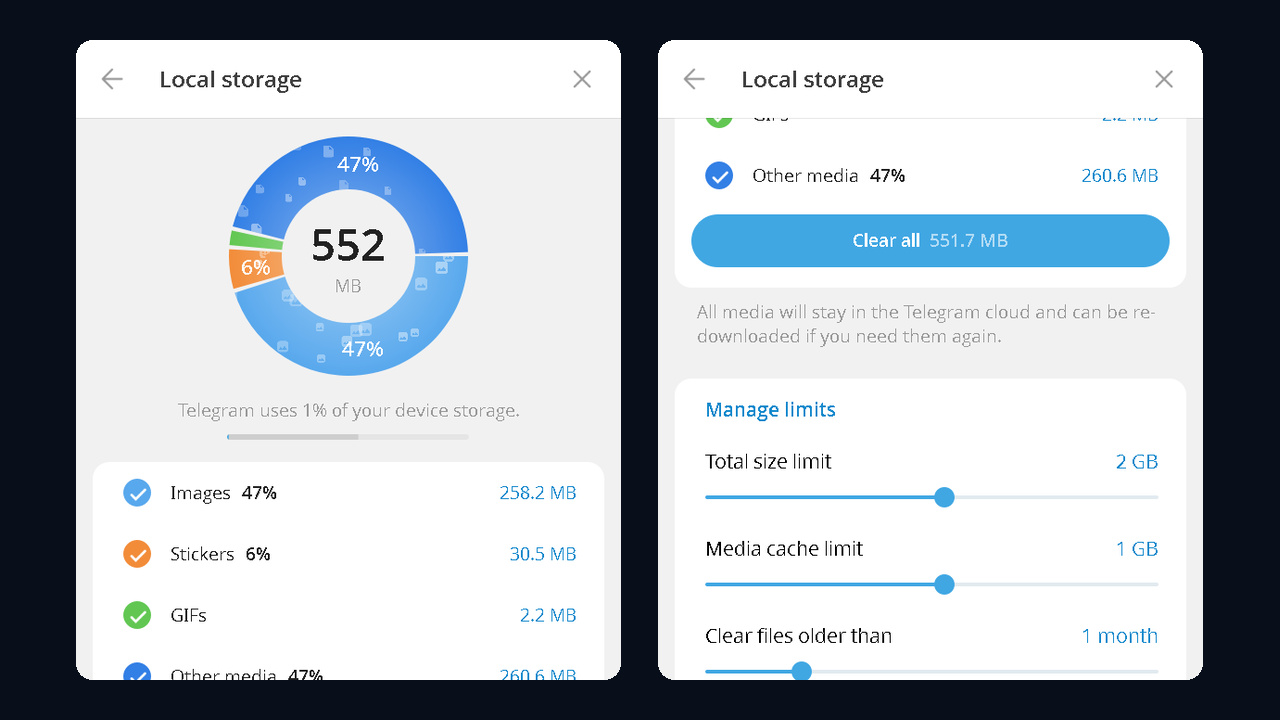
To stop storage filling up again, set cached files to expire, say after a week, and cap the maximum cache size.
Telegram Features for Groups and Channels
31. Topics and Slow Mode
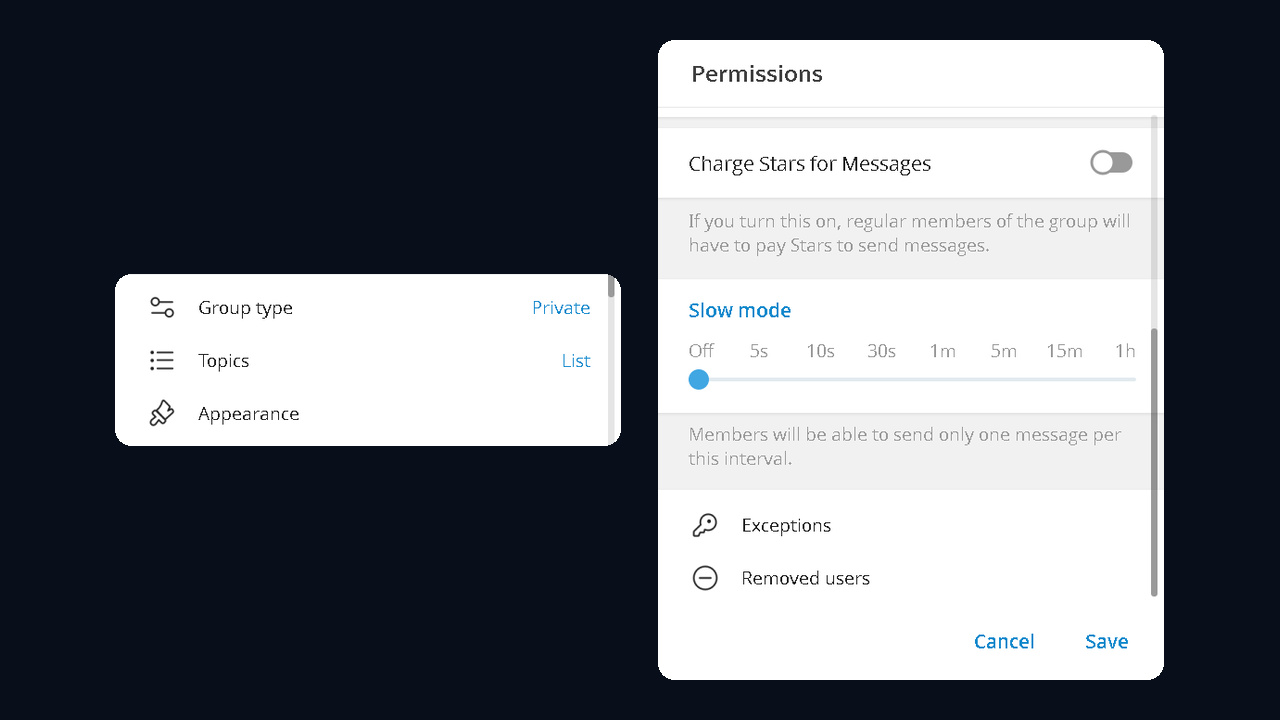
For example, topics turn a busy group into a forum with separate threads for news, questions and small talk. Enable them with the "Topics" switch in the group's edit screen. Slow mode, found under Permissions, limits how often each member can post, anywhere from once every 5 seconds to once an hour. As a result, the conversation stops drowning in spam. Looking for active communities by topic? Here is how to find groups.
32. Polls and Silent Posts
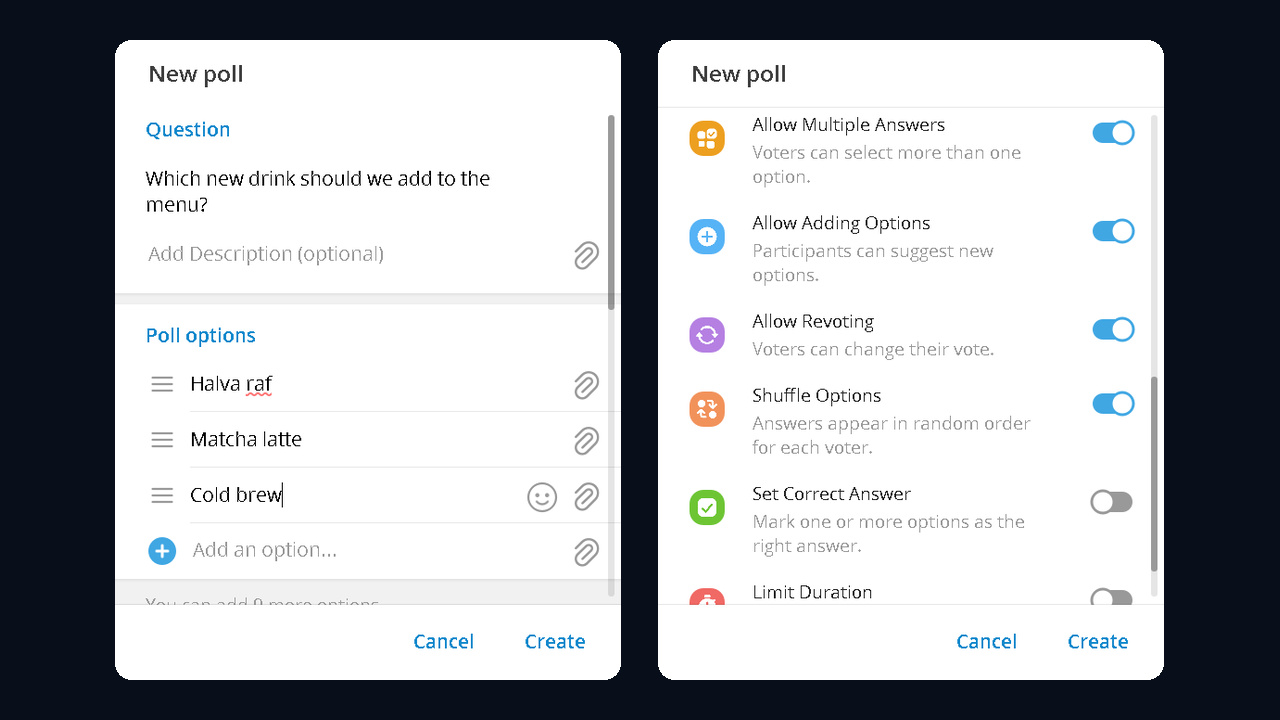
Next, to create a poll, tap the paperclip and choose "Poll" (in a desktop group, use the three dots → "Create poll"). It may be anonymous, allow several answers, or become a quiz with a correct option. Channel admins also publish quietly by tapping the bell icon. Author signatures and reactions are switched on in the same info page.
Why a Telegram Feature Doesn't Show Up
Sometimes a guide doesn't match your screen. Usually one of four reasons applies.
- An outdated version. New options arrive with updates, so install the latest build from the store first.
- A different platform. Desktop, mobile and web are built differently, and some menu items exist on just one platform.
- Premium is required. Tags, full translation and voice transcription either need the plan or come with a cap.
- Admin restrictions. In a group with copy protection or slow mode, some actions are off for every member.
If nothing loads at all, check our troubleshooting guide for when the messenger stops working.
Telegram Premium Features: What the Subscription Adds
Some of these tools, however, are locked behind the paid plan. To judge whether it's worth it, here is the free version compared with Premium.
| Feature | Free | Premium |
|---|---|---|
| Chat folders | up to 10 | up to 30, with tags |
| Pinned chats | 5 | 10 |
| Accounts in one app | 3 | 4 |
| Translation | individual bubbles | whole dialogs and channels |
| Voice to text | a few times a week | unlimited |
| File size | 2 GB | 4 GB |
| Hide read time | no | yes |
| Repeating scheduled messages | no | yes |
If only a row or two matter to you, the subscription probably won't pay off. Prices, payment options and cancelling are covered in our Premium review.
Telegram Features for Business and Multiple Accounts
Built-in tools assume a lone user. A single app lets you add a second account and a third, or a fourth on the paid plan. But a shop, an agency or a promotion team often runs dozens, and each needs stories, new communities and replies.
That's what the GramGPT.io account manager is for. It's free, runs in the browser, and our video gives a quick tour:
The workflow takes three steps:
- Import profiles. Upload tdata or session files and attach a proxy to each.
- Select the ones you need. Tick them in the list.
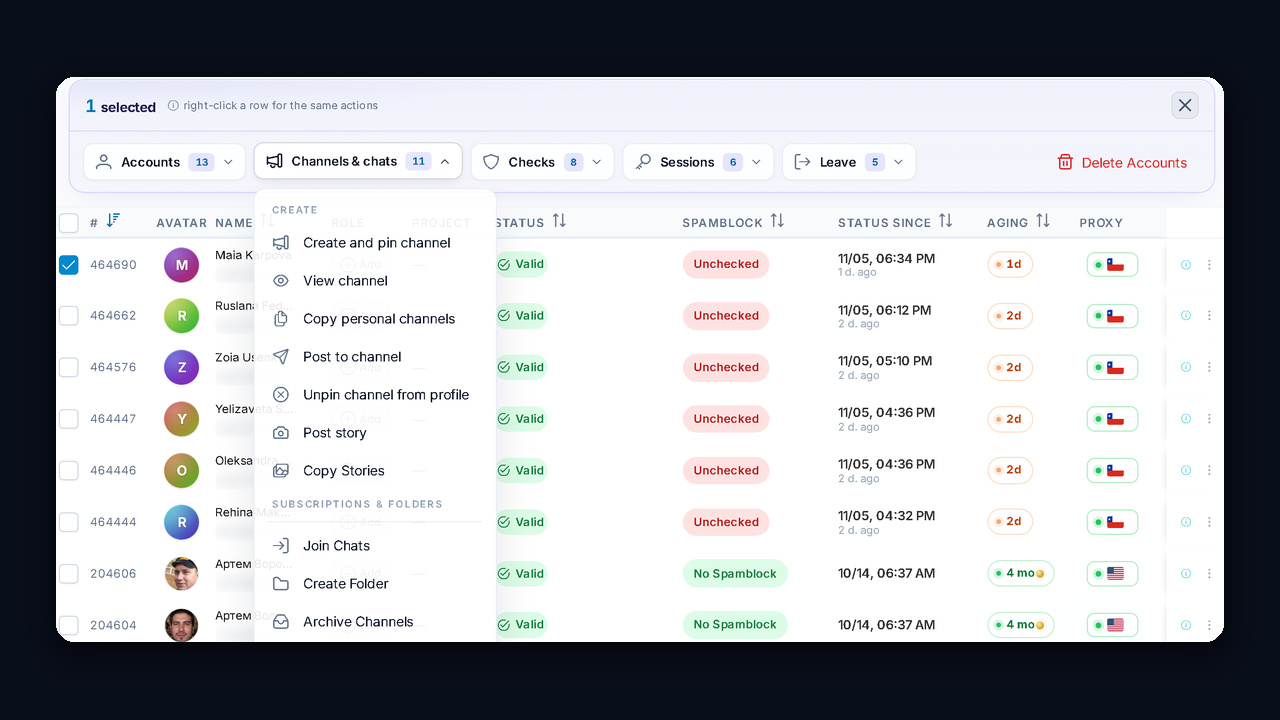
- Run a bulk action. Publish a story on all of them, create and pin a channel, join groups or build a folder.